
Price Spectre Algorithm Editor Guide
The Price Spectre Algorithm Editor lets you write your own JavaScript pricing scripts when the built-in algorithms don't fit your strategy. A custom algorithm runs once per pricing cycle per managed listing and decides that listing's price using the same competitor data, floor, and ceiling the built-ins use.
You don't need to be a developer to use it: AlgoForge, Price Spectre's AI algorithm assistant, can generate custom algorithms from plain-English descriptions, and this guide documents everything the generated code relies on.
Table of Contents
- Introduction
- Accessing the Algorithm Editor
- Editor Overview
- Algorithm Options
- Writing Your First Algorithm
- How Pricing Logic Works
- The PS Object
- Common Methods Quick Reference
- Searching for Competitors
- Setting Prices
- Filtering Results
- Working with Competitor Data
- Algorithm Parameters (x and y)
- Handling No Competition
- Storing Data Between Cycles
- Sales and Timing Data
- Precious Metal Pricing
- Debugging Your Algorithm
- Testing with the Algorithm Simulator
- Sample Algorithms
- Using AlgoForge
- Tips for Writing Algorithms
- Frequently Asked Questions
Introduction
Price Spectre is a dynamic pricing agent for eBay listings. Every user has access to several pre-defined algorithms (pricing scripts), but some sellers need more flexibility or control with their pricing. That's where custom algorithms come in.
The Algorithm Editor provides a JavaScript interface that lets you write your own scripts to control pricing. Each script you create runs once per pricing cycle per managed listing -- giving you complete control over how your prices are determined.
Custom algorithms are ideal for sellers who want to:
- Implement pricing strategies not covered by the built-in algorithms
- Filter competitors based on specific criteria (feedback score, condition, location, etc.)
- Combine multiple pricing strategies into a single algorithm
- Use sales history data to adjust pricing dynamically
- Integrate precious metal spot prices into their pricing logic
- Store and retrieve custom data between pricing cycles
Tip: You don't need to be a programmer to use custom algorithms. Price Spectre's AlgoForge AI assistant can generate algorithms from natural language descriptions. Just tell it what you want, and it will write the code for you.
A basic understanding of JavaScript and programming concepts is helpful but not required. If you'd like to learn more about JavaScript, Mozilla's JavaScript Guide is a great starting point.
Note: Since pricing scripts run server-side and not in a browser, all browser-related JavaScript functions (like
document,window,alert, etc.) are disabled.
Accessing the Algorithm Editor
To open the Algorithm Editor:
- Click Tools in the top navigation menu.
- Select Algorithm Editor from the tools menu.
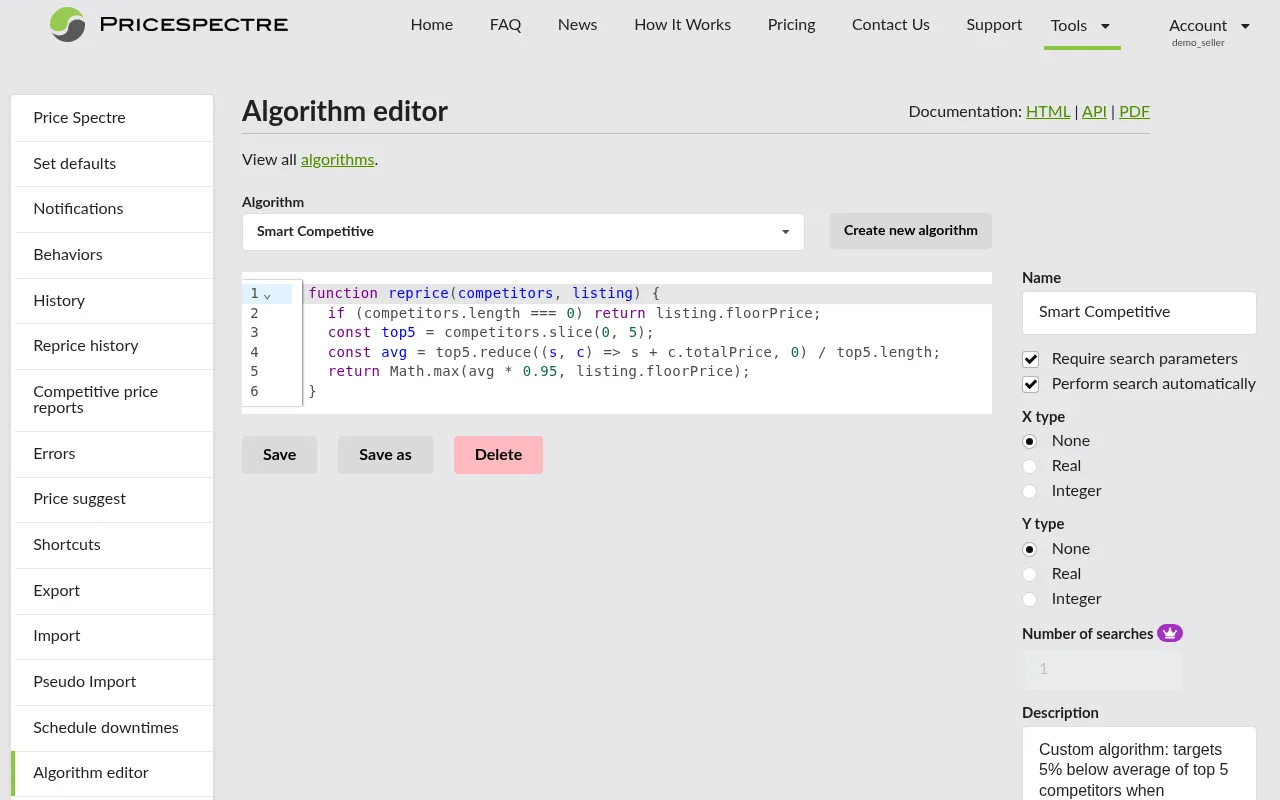
You'll be taken to the Algorithm Editor page, where you can create, edit, test, and manage all of your custom algorithms.
Editor Overview
The Algorithm Editor is organized into three main sections:
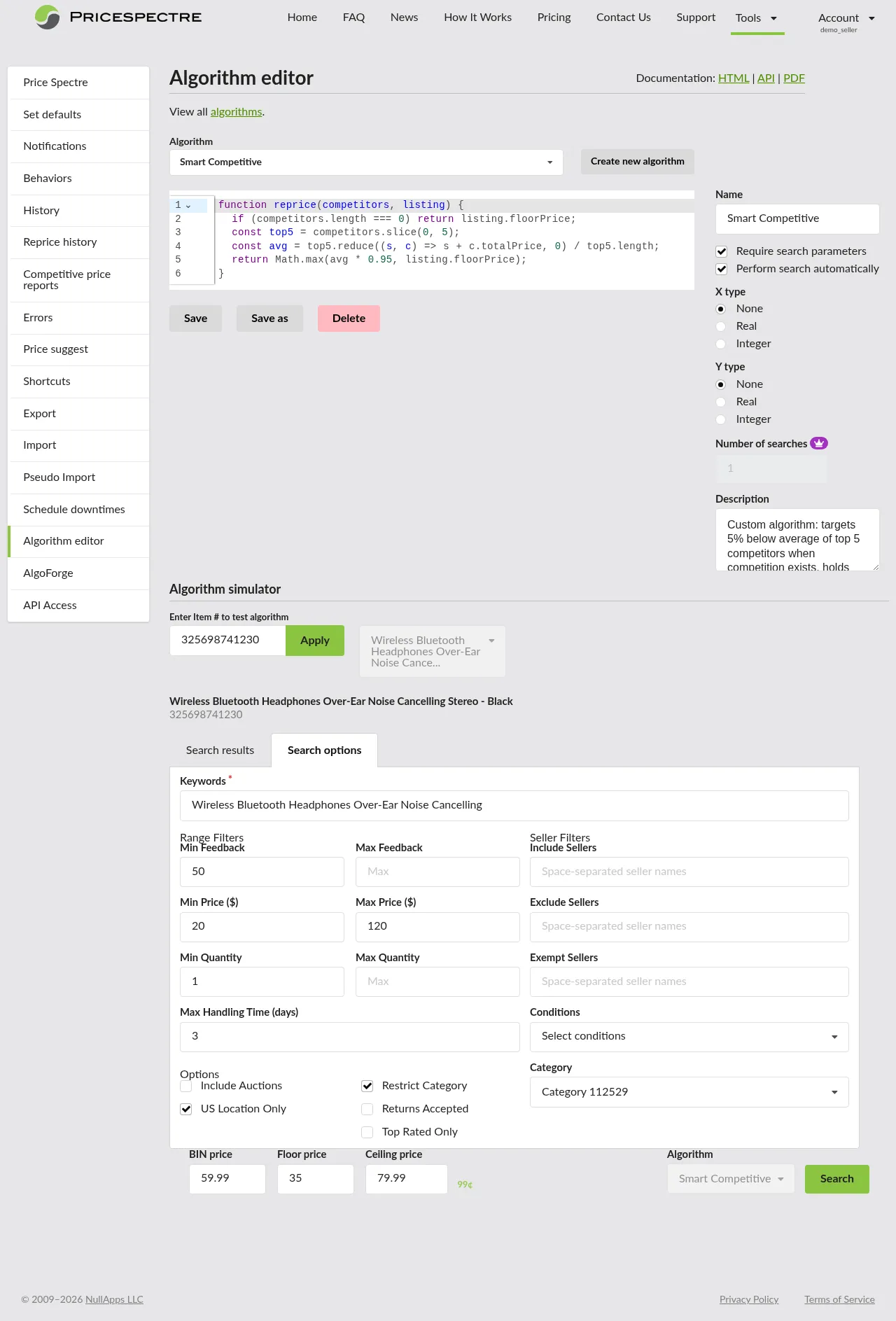
Script
This is where you write your pricing script. The script must be valid JavaScript code. The editor provides a code input area where you can type or paste your algorithm.
Algorithm Options
The options panel lets you configure metadata and behavior settings for your algorithm, including its name, description, parameters, and search behavior. See Algorithm Options for a detailed breakdown.
Algorithm Simulator
The built-in simulator lets you test your algorithm against a live listing without actually changing any prices. This is an invaluable tool for validating your logic before applying it to real listings. See Testing with the Algorithm Simulator for more details.
Algorithm Options
The Algorithm Options panel controls how your algorithm is configured and how it behaves when it runs. Here's what each option does:
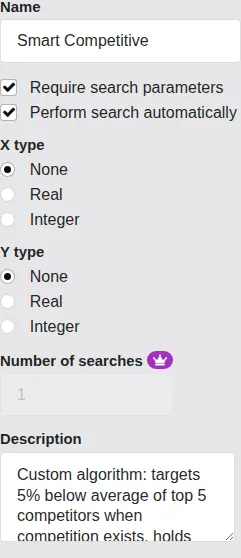
Name
A short, descriptive name for your algorithm (up to 30 characters). This is how you'll identify the algorithm when assigning it to listings. Choose something meaningful -- for example, "Beat Lowest 5%" or "Slow Discount."
Description
An optional text field where you can add notes or comments about what the algorithm does. This is for your own reference and doesn't affect how the algorithm runs.
Require Search Parameters
When checked, this tells Price Spectre that the algorithm expects search parameters (keywords or a product code) to be set on any listing that uses it. This is important for algorithms that perform competitor searches -- without search parameters, a search wouldn't know what to look for.
Perform Search Automatically
When checked, Price Spectre will automatically perform a competitor search at the start of each pricing cycle before your script runs. This means you don't need to call ps.performSearch() or ps.performSafeSearch() in your code -- the search results will already be available via ps.getResults().
Important: If this option is enabled, it counts toward the total search count for premium billing purposes. Each search beyond the first may use premium points. See your "Premium Points" page for billing details.
Note: If you enable "Perform Search Automatically," the "Require Search Parameters" option must also be checked.
X Parameter
Allows you to define an optional variable x that is available in your algorithm. When enabled, you choose a datatype:
| Datatype | Description |
|---|---|
| None | The x parameter is disabled |
| Integer | x accepts whole numbers only (e.g., 1, 2, 5) |
| Real | x accepts real numbers (e.g., 0.05, 1.50, 99.99) |
When a listing uses this algorithm, the user will be prompted to provide a value for x. This value is then automatically injected into the script as a global variable.
Y Parameter
Works exactly like the X parameter, but for a second variable y. This gives you two configurable values that users can adjust per listing without modifying the algorithm code.
Tip: Use
xandyparameters to make your algorithms reusable. For example, an "X Lowest By $Y" algorithm usesxfor which competitor to target andyfor the discount amount. Different listings can use different values ofxandywhile sharing the same algorithm.
Number of Searches
Displays the calculated number of searches that your algorithm performs. This value is automatically computed each time you save the algorithm. If the number exceeds 1, premium points may be charged for using the algorithm. Check your "Premium Points" page for details on billing.
Writing Your First Algorithm
Let's create a simple algorithm that prices your listing $0.01 below the lowest competitor. This walkthrough covers the entire process from creating the algorithm to testing it.
Step 1: Create a New Algorithm
- Open the Algorithm Editor from the Tools menu.
- Click New to create a new algorithm.
- Give it a name, such as "Beat Lowest Penny."
Step 2: Configure Algorithm Options
- Check Require Search Parameters -- this algorithm needs to search for competitors.
- Check Perform Search Automatically -- this lets Price Spectre handle the search for you.
- Leave
xandyset to None for now (we'll hardcode the values).
Step 3: Write the Script
Enter the following code in the Script section:
// Beat Lowest Penny
// Prices us $0.01 below the lowest competitor.
// Assumes "Perform Search Automatically" is selected.

results = ps.getResults();
numResults = ps.getNumResults();

if (numResults > 0) {
   // Get the lowest competitor's price and beat it by a penny
   lowestPrice = results[0].getPrice();
   ps.setPrice(lowestPrice - 0.01);
}
What this does:
ps.getResults()retrieves the competitor listings found by the automatic search.ps.getNumResults()tells us how many competitors were found.- If competitors exist, we grab the lowest price (results are sorted lowest to highest).
- We set our price to one cent less using
ps.setPrice().
Step 4: Test with the Simulator
Before saving, use the Algorithm Simulator at the bottom of the page to test your algorithm against a live listing. See Testing with the Algorithm Simulator for details.
Step 5: Save
Click Save to store your algorithm. You can now assign it to any listing that has search parameters configured.
Tip: If a search was performed and no competitors are found, and you haven't called
ps.overrideNoCompetitionFound(), Price Spectre will apply the "No competition found" behavior you've configured for the listing. If no search is performed during the algorithm, this check is skipped entirely.
How Pricing Logic Works
Understanding how Price Spectre processes your algorithm is essential for writing effective scripts. Here's what happens during each pricing cycle for every managed listing:
The 6-Step Pricing Lifecycle
Step 1: Initial Search If the "Perform Search Automatically" option is enabled, Price Spectre performs a competitor search before your script begins.
Step 2: Script Execution
Your JavaScript algorithm is executed. During execution, you can search for competitors, analyze results, and call ps.setPrice() to set a new price.
Step 3: Error Check
If your script threw an exception (via throw or an unhandled error), execution stops and an error message is sent to you. No price change occurs.
Step 4: No Competition Check If a search was performed during the script (either automatically or manually), Price Spectre checks whether competitors were found:
- 4a) If no competitors were found and you did not call
ps.overrideNoCompetitionFound(), the price is changed according to the "No competition found" behavior configured for the listing. - 4b) Otherwise, the price passes through the Baťa pricing filter (if Baťa pricing is enabled for the listing).
If no search was performed during the algorithm, this check is skipped.
Step 5: Floor and Ceiling Filter The new price is checked against your floor and ceiling price constraints. If the price falls outside these bounds, it's adjusted to stay within them.
Step 6: Price Update The listing's price is updated to the final computed price. If the listing is being manually repriced, a price suggestion is generated instead of an automatic update.

Important: Your algorithm's
ps.setPrice()call is not the final word. Price Spectre will still apply no-competition logic, Baťa pricing, and floor/ceiling constraints after your script finishes. This means the actual price set may differ from what you specified. Design your algorithms with these post-processing steps in mind.
The PS Object
Every custom algorithm has access to a global object called ps. This is your interface to Price Spectre -- it provides methods for searching competitors, reading results, setting prices, accessing sales data, and more.
Think of ps as your toolkit. You don't need to create it or import it; it's automatically available in every algorithm script.
Here's a quick example showing common ps usage:
// Search for competitors (if auto-search isn't enabled)
ps.performSafeSearch();

// Get the search results
results = ps.getResults();
numResults = ps.getNumResults();

// Set a price based on the lowest competitor
if (numResults > 0) {
   ps.setPrice(results[0].getPrice() - 0.01);
}
The ps object also gives you access to your listing's own data:
currentPrice = ps.getCurrentPrice();    // What your listing is priced at now
binPrice = ps.getBINPrice();            // The original Buy It Now price
floorPrice = ps.getFloorPrice();        // Your configured floor price
ceilingPrice = ps.getCeilingPrice();    // Your configured ceiling price
shippingCost = ps.getShippingHandling(); // Your shipping & handling charges
The sections that follow detail every method available through ps and the competitor Listing objects.
Common Methods Quick Reference
Here's a quick reference of the most commonly used methods. Detailed documentation for each method is provided in the sections that follow.
PS Object Methods
| Method | Description |
|---|---|
ps.performSearch() |
Performs a competitor search. Returns true on success, false on failure. |
ps.performSafeSearch() |
Performs a competitor search. Terminates with an error on failure. |
ps.getResults() |
Returns an array of competitor Listing objects. |
ps.getNumResults() |
Returns the number of competitors found (including deleted). |
ps.getRealResults() |
Returns competitor array excluding deleted listings. |
ps.getRealNumResults() |
Returns competitor count excluding deleted listings. |
ps.setPrice(price) |
Sets the listing's new price. |
ps.getCurrentPrice() |
Returns the listing's current price. |
ps.getBINPrice() |
Returns the original Buy It Now price. |
ps.getFloorPrice() |
Returns the total floor price (including shipping). |
ps.getCeilingPrice() |
Returns the total ceiling price (including shipping). |
ps.getShippingHandling() |
Returns your shipping and handling charges. |
ps.delete(index) |
Marks a competitor listing as deleted. |
ps.getNoCompetitionFound() |
Returns true if no competitors were found. |
ps.overrideNoCompetitionFound() |
Prevents Price Spectre from applying its own no-competition logic. |
ps.getSearchParameter(key) |
Retrieves a search parameter value. |
ps.setSearchParameter(key, value) |
Sets a search parameter value. |
ps.getRank(price) |
Returns your rank at a given price. |
ps.getRealRank(price) |
Returns your rank at a given price (excluding deleted listings). |
ps.getData() |
Retrieves stored user data for the listing. |
ps.writeData(str) |
Stores user data for the listing (up to 255 characters). |
ps.debugMessage(message) |
Adds a debug message without stopping execution. |
ps.getNumSales(start, end) |
Returns quantity sold between two epoch times. |
ps.getNumSalesSince(seconds) |
Returns quantity sold in the past N seconds. |
ps.getLastSaleTime() |
Returns epoch time of the last sale. |
ps.getSecondsSinceLastPriceChange() |
Returns seconds since the last price change. |
ps.getLastPriceChangeTime() |
Returns epoch time of the last price change. |
ps.getQuantity() |
Returns the quantity available for your listing. |
ps.getConditionID() |
Returns the condition ID of your listing. |
ps.getConditionName() |
Returns the condition name of your listing. |
ps.getListingID() |
Returns the eBay item number of your listing. |
ps.getSiteCountry() |
Returns the country code of the eBay site your item is listed on. |
ps.getSecondsSinceStart() |
Returns seconds since your listing started. |
ps.getSecondsRemaining() |
Returns seconds until your listing ends. |
ps.xLowestY(x, y, reuseSearchResults) |
Runs the built-in "X Lowest By $Y" algorithm. Returns the computed price. |
ps.xLowestYPercent(x, y, reuseSearchResults) |
Runs the built-in "X Lowest Y%" algorithm. Returns the computed price. |
ps.averageX(x, reuseSearchResults) |
Runs the built-in "Average X" algorithm. Returns the computed price. |
ps.elastic(x) |
Runs the built-in "Elastic" algorithm. Returns the computed price. |
ps.getMyAmazonPrice() |
Returns your own Amazon price for this product. |
Listing Object Methods (Competitor Data)
| Method | Description |
|---|---|
listing.getListingID() |
Returns the eBay item number or Amazon ASIN. |
listing.getTitle() |
Returns the listing's title. |
listing.getPrice() |
Returns the total price (item + shipping). |
listing.getSeller() |
Returns the seller's user ID. |
listing.getMerchantID() |
Returns the Amazon merchant ID (empty string for eBay). |
listing.getFeedbackScore() |
Returns the seller's feedback score. |
listing.getFeedbackPercent() |
Returns the seller's feedback percentage (eBay only). |
listing.getFeedbackRating() |
Returns the seller's feedback rating (Amazon only, 0-5). |
listing.getFeedbackStar() |
Returns a string like "yellow" or "silverShooting" (eBay only). |
listing.isTRS() |
Returns true if the seller is an eBay Top Rated Seller. |
listing.getReturnsAccepted() |
Returns true if returns are accepted. |
listing.getFreeShipping() |
Returns true if free shipping is offered. |
listing.getOneDayShipping() |
Returns true if one-day shipping is available. |
listing.getConditionID() |
Returns the numerical condition ID. |
listing.getConditionName() |
Returns the condition name (e.g., "Brand New"). |
listing.getSite() |
Returns "eBay" or "Amazon". |
listing.getLocation() |
Returns the two-letter country code (e.g., "US", "GB"). |
listing.getStartTime() |
Returns the epoch time when the listing started. |
listing.getStartDate() |
Returns the start date in "MMM DD" format (eBay only). |
listing.getEndTime() |
Returns the epoch time when the listing will end. |
listing.getEndDate() |
Returns the end date in "MMM DD" format (eBay only). |
listing.getSecondsSinceStart() |
Returns seconds since the listing started (eBay only). |
listing.getSecondsRemaining() |
Returns seconds until the listing ends (eBay only). |
listing.isDeleted() |
Returns true if the listing has been marked as deleted. |
Searching for Competitors
Most pricing algorithms need to know what your competitors are charging. Price Spectre provides two ways to perform competitor searches in your algorithm.
Automatic Search
The simplest approach is to enable Perform Search Automatically in the Algorithm Options. When this is checked, Price Spectre runs a competitor search before your script starts, and the results are immediately available:
// Assumes "Perform Search Automatically" is selected.
results = ps.getResults();
numResults = ps.getNumResults();

if (numResults > 0) {
   ps.setPrice(results[0].getPrice() - 0.01);
}
Manual Search with performSearch()
If you need more control -- for example, if you want to modify search parameters before searching -- use ps.performSearch():
// Performs search and terminates on failure.
if (!ps.performSearch())
   throw ps.getErrorMessage();

results = ps.getResults();
numResults = ps.getNumResults();
ps.performSearch() returns true on success and false on failure. When it fails, call ps.getErrorMessage() to find out why.
Manual Search with performSafeSearch()
If you don't want to handle errors yourself, use ps.performSafeSearch() instead. It works identically to performSearch() but automatically terminates the script with an appropriate error message if the search fails:
// Search automatically terminates on failure -- no error handling needed.
ps.performSafeSearch();

results = ps.getResults();
numResults = ps.getNumResults();
Modifying Search Parameters
You can change search parameters before performing a search using ps.setSearchParameter():
// Disable TRS filter and retry search if no competition found.
price = ps.xLowestY(x, y);

// If no competitor listings found
if (ps.getNoCompetitionFound()) {
   trs = ps.getSearchParameter('trs');

   // If we had TRS set, unset and make us 5th lowest price.
   if (trs) {
      ps.setSearchParameter('trs', false);
      price = ps.xLowestY(5, 0.01);
   }
}

ps.setPrice(price);
Available search parameters:
keywords, productCode, minFeedback, maxFeedback, minPrice, maxPrice, minQty, maxQty, maxHandlingTime, includeSellers, excludeSellers, exemptSellers, ebayFixedprice, ebayAuctions, findAmazon, domestic, hideDuplicates, trs, returnsAccepted, restrictCategory, searchCategory, searchCondition, binPrice, floorPrice, ceilPrice, postalCodeUS, destination, valueBox
Using Built-in Algorithm Functions
Price Spectre provides several built-in algorithm functions that perform a search and compute a price in a single call:
// X Lowest By $Y: Price $0.05 below the lowest competitor
price = ps.xLowestY(1, 0.05);
ps.setPrice(price);

// X Lowest Y%: Price 5% below the lowest competitor
price = ps.xLowestYPercent(1, 5);
ps.setPrice(price);

// Average X: Get the average of the 3 lowest prices
avgPrice = ps.averageX(3);
ps.setPrice(avgPrice * 0.95); // Then discount by 5%
Each of these functions optionally accepts a reuseSearchResults parameter. When set to true, the function reuses the most recent search results instead of performing a new search:
// Perform one search, then reuse results for the algorithm
ps.performSafeSearch();
price = ps.xLowestY(1, 0.05, true); // 'true' reuses search results
ps.setPrice(price);
Important: Each call to
ps.performSearch(),ps.performSafeSearch(),ps.xLowestY(),ps.xLowestYPercent(), orps.averageX()(withoutreuseSearchResults = true) generates a new search. Searches beyond the first may use premium points. You can perform up to 3 searches per pricing cycle.
Amazon Self-Search
If you sell on both eBay and Amazon and want to sync your eBay price with your Amazon price, use the self-search functions:
// Sync our eBay price to our Amazon price.
if (!ps.performSelfSearch())
   throw ps.getErrorMessage();

results = ps.getResults();
numResults = ps.getNumResults();
if (numResults >= 1) {
   price = results[0].getPrice();
   ps.setPrice(price);
}
Or use the safe version:
// Sync our eBay price to our Amazon price.
ps.performSelfSafeSearch();
results = ps.getResults();
numResults = ps.getNumResults();
if (numResults >= 1) {
   price = results[0].getPrice();
   ps.setPrice(price);
}
You can also use ps.getMyAmazonPrice() to retrieve your Amazon price directly:
// Sync our eBay price to our Amazon price.
// If no Amazon listing found, perform xLowestY instead.
try {
   price = ps.getMyAmazonPrice();
} catch (err) {
   price = ps.xLowestY(x, y);
}
ps.setPrice(price);
Note: Amazon self-search requires that you've linked your Amazon seller account to Price Spectre and that a Product Code or Keywords search parameter is set on the listing.
Setting Prices
The ps.setPrice() method is how your algorithm tells Price Spectre what price to set for a listing.
Basic Price Setting
// Set price to a specific value
ps.setPrice(29.99);

// Increase current price by 1%
currentPrice = ps.getCurrentPrice();
ps.setPrice(currentPrice * 1.01);

// Set price based on a competitor
results = ps.getResults();
if (ps.getNumResults() > 0) {
   ps.setPrice(results[0].getPrice() - 0.01);
}
Understanding Price Values
Several methods return price-related information:
| Method | Returns |
|---|---|
ps.getCurrentPrice() |
The current total price of your listing |
ps.getBINPrice() |
The original Buy It Now (fixed) price |
ps.getFloorPrice() |
Your minimum allowed total price (including shipping) |
ps.getCeilingPrice() |
Your maximum allowed total price (including shipping) |
ps.getShippingHandling() |
Your shipping and handling charges |
Note: All prices returned by
psmethods are total prices (item price + shipping), unless shipping and handling charges are being ignored in the listing's settings.
What Happens After setPrice()
Remember that ps.setPrice() is not the final step. After your script finishes, Price Spectre may adjust the price:
- No competition override: If no competitors were found, the "No competition found" behavior may override your price.
- Baťa pricing: If enabled, prices are rounded to end in .99, .95, etc.
- Floor/ceiling constraints: The final price is clamped between your floor and ceiling prices.
If ps.setPrice() is never called in your algorithm, the listing's price remains unchanged.
// Set price to 90% of the original BIN price
// if no competition is found.
price = ps.xLowestY(1, 0);
if (ps.getNoCompetitionFound()) {
   binPrice = ps.getBINPrice();
   price = binPrice * 0.90;
}
ps.setPrice(price);
ps.overrideNoCompetitionFound();
Filtering Results
Sometimes the search results include competitors you want to ignore -- listings in the wrong condition, from low-feedback sellers, or from certain countries. Price Spectre lets you filter results using the ps.delete() method.
How Deletion Works
Calling ps.delete(index) marks a competitor listing as "deleted." The listing isn't physically removed from the results array -- it's flagged so that Price Spectre excludes it from reporting and reprice history.
After deleting listings, use ps.getRealResults() and ps.getRealNumResults() to work with only the non-deleted listings:
// Delete all non-new listings
results = ps.getResults();
numResults = ps.getNumResults();
for (i = 0; i < numResults; ++i) {
   // Delete if not new
   if (results[i].getConditionID() != 1000) {
      ps.delete(i);
   }
}

// Perform X lowest by $Y on remaining listings.
count = 0;
results = ps.getRealResults();
numResults = ps.getRealNumResults();
for (i = 0; i < numResults; ++i) {
   // if this is the listing to match against
   count++;
   if (count >= x) {
      ps.setPrice(results[i].getPrice() - y);
      break;
   }
}
Common Filtering Patterns
Filter by country:
results = ps.getResults();
numResults = ps.getNumResults();

// Delete all results that are not located in the US or Canada.
for (i = 0; i < numResults; ++i) {
   country = results[i].getLocation();
   if (country != 'US' && country != 'CA') {
      ps.delete(i);
   }
}
Filter by listing age:
results = ps.getResults();
numResults = ps.getNumResults();
secondsPerDay = 86400;

// Delete all results that have been listed less than one day.
for (i = 0; i < numResults; ++i) {
   age = results[i].getSecondsSinceStart();
   if (age < secondsPerDay) {
      ps.delete(i);
   }
}
Filter by shipping options:
results = ps.getResults();
numResults = ps.getNumResults();

// Delete all listings that don't offer free shipping
for (i = 0; i < numResults; ++i) {
   if (!results[i].getFreeShipping()) {
      ps.delete(i);
   }
}
Filter by returns policy:
results = ps.getResults();
numResults = ps.getNumResults();

// Delete all listings that allow returns.
for (i = 0; i < numResults; ++i) {
   if (results[i].getReturnsAccepted()) {
      ps.delete(i);
   }
}
Checking Deletion Status
You can check whether a listing has been deleted using isDeleted():
results = ps.getResults();
numResults = ps.getNumResults();

for (i = 0; i < numResults; ++i) {
   // skip if this is a deleted listing.
   if (results[i].isDeleted())
      continue;

   // Process non-deleted listing...
}
Important: Since Price Spectre is limited to retrieving the first 100 matching results from eBay, search parameters should always be preferred over
ps.delete()for filtering whenever possible. Use search parameters to narrow results before they reach your algorithm, and useps.delete()only for fine-grained filtering that search parameters can't handle.
Note: If all results are deleted, Price Spectre will treat the search as having found no competitors. Deletions are not carried over to subsequent searches.
Working with Competitor Data
Each competitor listing found during a search is represented as a Listing object. You access these through the array returned by ps.getResults() or ps.getRealResults().
Basic Competitor Information
results = ps.getResults();
numResults = ps.getNumResults();

for (i = 0; i < numResults; ++i) {
   price = results[i].getPrice();        // Total price
   title = results[i].getTitle();        // Listing title
   seller = results[i].getSeller();      // Seller user ID
   itemID = results[i].getListingID();   // eBay item number or Amazon ASIN
   site = results[i].getSite();          // "eBay" or "Amazon"
}
Feedback and Seller Information
Competitor Listing objects provide detailed seller feedback data:
results = ps.getResults();
numResults = ps.getNumResults();

for (i = 0; i < numResults; ++i) {
   score = results[i].getFeedbackScore();     // Net feedback score
   percent = results[i].getFeedbackPercent(); // Feedback % (eBay only)
   rating = results[i].getFeedbackRating();   // Rating 0-5 (Amazon only)
   star = results[i].getFeedbackStar();       // e.g., "yellow", "silverShooting"
   isTRS = results[i].isTRS();               // Top Rated Seller?
}
Example: Filter Amazon sellers by rating and feedback score:
// Delete all Amazon listings with feedback score below minFeedback
// or rating less than 4.8.
// By default the minFeedback filter only works on eBay listings.
results = ps.getResults();
numResults = ps.getNumResults();
minFeedback = ps.getSearchParameter('minFeedback');

for (i = 0; i < numResults; ++i) {
   site = results[i].getSite();
   rating = results[i].getFeedbackRating();
   score = results[i].getFeedbackScore();
   if (site == 'Amazon' && (rating < 4.8 || score < minFeedback)) {
      ps.delete(i);
   }
}
Example: Filter by eBay feedback percentage and Amazon rating:
// Delete eBay listings with feedback below 98% and Amazon listings with rating below 4.8.
results = ps.getResults();
numResults = ps.getNumResults();
for (i = 0; i < numResults; ++i) {
   site = results[i].getSite();
   percent = results[i].getFeedbackPercent();
   rating = results[i].getFeedbackRating();
   if (site == 'eBay' && percent < 98) {
      ps.delete(i);
   } else if (site == 'Amazon' && rating < 4.8) {
      ps.delete(i);
   }
}
Item Condition
results = ps.getResults();
numResults = ps.getNumResults();

for (i = 0; i < numResults; ++i) {
   conditionID = results[i].getConditionID();     // Numeric ID (e.g., 1000 = New)
   conditionName = results[i].getConditionName();  // String (e.g., "Brand New")
}

// Delete all non-new listings
for (i = 0; i < numResults; ++i) {
   if (results[i].getConditionID() != 1000) {
      ps.delete(i);
   }
}
Listing Timing
results = ps.getResults();
numResults = ps.getNumResults();
secondsPerDay = 86400;

// Delete all results that will end in less than one day.
for (i = 0; i < numResults; ++i) {
   timeleft = results[i].getSecondsRemaining();
   if (timeleft < secondsPerDay) {
      ps.delete(i);
   }
}
Filtering by Title
results = ps.getResults();
numResults = ps.getNumResults();

// Delete all results containing the word 'parts'
// Note: this should be done using the keyword "-parts" instead
// whenever possible, as it's more efficient.
for (i = 0; i < numResults; ++i) {
   title = results[i].getTitle();
   if (title.indexOf('parts') != -1) {
      ps.delete(i);
   }
}
Checking Your Rank
You can check what rank your listing would achieve at a given price:
// Sets our price $0.05 lower than the lowest price.
price = ps.xLowestY(1, 0.05);
rank = ps.getRank(price);
if (rank > 1)
   throw 'FAILED: Could only achieve a ranking of ' + rank;
ps.setPrice(price);
Use ps.getRealRank(price) to check rank excluding deleted listings.
Deleting International Results
results = ps.getResults();
numResults = ps.getNumResults();
myCountry = ps.getSiteCountry();

// Delete all international results.
for (i = 0; i < numResults; ++i) {
   theirCountry = results[i].getLocation();
   if (myCountry != theirCountry) {
      ps.delete(i);
   }
}
Algorithm Parameters (x and y)
The Algorithm Editor lets you define two optional parameters, x and y, that make your algorithms reusable across different listings with different settings.
How Parameters Work
When you enable x or y in the Algorithm Options:
- You choose a datatype: Integer (whole numbers) or Real (decimal numbers).
- When a listing uses this algorithm, the user provides values for
xandy. - These values are automatically injected into your script as global JavaScript variables.
- You can use
xandydirectly in expressions, comparisons, and arithmetic.
Example: Using x and y
// Price ourselves y dollars below the x-th lowest competitor
var price = ps.xLowestY(x, y);
ps.setPrice(price);
With this algorithm, one listing might use x = 1, y = 0.05 (5 cents below the lowest), while another uses x = 3, y = 1.00 (one dollar below the 3rd lowest). The same algorithm code handles both cases.
Parameter Datatypes
| Datatype | Example Values | Best For |
|---|---|---|
| Integer | 1, 2, 5, 10, 30 | Competitor positions, day counts, quantities |
| Real | 0.01, 0.50, 5.99, 15.00 | Dollar amounts, percentages, price offsets |
Note: The
xandyparameters are not search parameters. They are not returned byps.getSearchParameter()and do not appear in the search parameter list. They are separate, standalone variables injected into your algorithm at runtime.
Common Uses for x and y
- x = Which competitor to target (1st lowest, 2nd lowest, etc.)
- y = How much to discount (in dollars or percentage)
- x = Number of days to wait before changing price
- y = Discount percentage to apply
- x = Sales quota threshold
- y = Price adjustment amount
Handling No Competition
When a competitor search returns no results, Price Spectre applies special "No competition found" logic. Understanding this behavior is critical for writing robust algorithms.
Default Behavior
By default, if the last search performed finds no competitors:
- Price Spectre overrides whatever price your algorithm set.
- The new price is determined by the "No competition found" behavior configured for the listing (e.g., revert to BIN price, keep current price, etc.).
Checking for No Competition
Use ps.getNoCompetitionFound() to check whether competitors were found:
// Set price to X lowest Y with x = 1, y = 0.01.
// But terminates with an error if no competitors were found.
price = ps.xLowestY(1, 0.01);
if (ps.getNoCompetitionFound()) {
   throw 'No competitors found';
}
Overriding No Competition Logic
If you want to handle the no-competition scenario yourself, call ps.overrideNoCompetitionFound(). This tells Price Spectre not to apply its own logic:
// Set price to X lowest Y with x = 1, y = 0.01.
// But decrease price 5% if no results.
price = ps.xLowestY(1, 0.01);
if (ps.getNoCompetitionFound()) {
   price = ps.getCurrentPrice() * 0.95;
}
ps.setPrice(price);
ps.overrideNoCompetitionFound();
Tip: You can call
ps.overrideNoCompetitionFound()at any point in your script -- even before performing a search. It's safe to call unconditionally if you always want to handle no-competition scenarios yourself.
Common No Competition Patterns
Revert to a percentage of BIN price:
price = ps.xLowestY(1, 0);
if (ps.getNoCompetitionFound()) {
   binPrice = ps.getBINPrice();
   price = binPrice * 0.90;
}
ps.setPrice(price);
ps.overrideNoCompetitionFound();
Widen the search by removing filters:
// Disable TRS filter and retry search if no competition found.
price = ps.xLowestY(x, y);

if (ps.getNoCompetitionFound()) {
   trs = ps.getSearchParameter('trs');
   if (trs) {
      ps.setSearchParameter('trs', false);
      price = ps.xLowestY(5, 0.01);
   }
}

ps.setPrice(price);
Use the Elastic algorithm as a fallback (no search needed):
// Sets our price to the results of the Elastic algorithm.
price = ps.elastic(x);
ps.setPrice(price);

// Ensures the price is set since no search is used.
ps.overrideNoCompetitionFound();
Storing Data Between Cycles
Price Spectre lets you store a small amount of custom data for each listing that persists between pricing cycles. This is useful for tracking state, counting events, or storing custom variables.
Reading and Writing Data
// Read existing data
var data = ps.getData();

// Write new data (up to 255 characters)
ps.writeData('some value here');
ps.getData() returns an empty string if no data has been stored previously. ps.writeData() returns true on success or false on failure.
Storing Multiple Values
Since data is stored as a single string, you can use comma-separated values or JSON to store multiple variables:
Comma-separated approach:
// Writing multiple values
var arr = [1, 0.01, 3];
var str = arr.toString();  // "1,0.01,3"
ps.writeData(str);

// Reading multiple values
var data = ps.getData();    // "1,0.01,3"
var arr = data.split(",");  // ["1", "0.01", "3"]
x = arr[0];
y = arr[1];
z = arr[2];

if (x < 1)
   throw 'x must be positive';
if (y < 1)
   throw 'y must be positive';
if (z < 1)
   throw 'z must be positive';
Practical Example: Price History Tracking
// Track the last 5 prices set
var data = ps.getData();
var prices = data ? data.split(",") : [];

// Calculate new price
price = ps.xLowestY(1, 0.05);
ps.setPrice(price);

// Store the new price in our history
prices.push(price.toFixed(2));

// Keep only the last 5 entries
if (prices.length > 5) {
   prices = prices.slice(prices.length - 5);
}

ps.writeData(prices.join(","));
Important: The data field is limited to 255 characters. Plan your data format carefully to stay within this limit. Comma-separated values are generally more space-efficient than JSON for simple data.
Sales and Timing Data
Price Spectre tracks your listing's sales history, price changes, and timing data. These methods let you build algorithms that respond to real sales performance.
Sales History
Get the last sale time:
// Reduce price by y% if a sale hasn't been made in x days
// and price hasn't changed in x days.
now = Math.round(Date.now() / 1000);
secondsPerDay = 86400;

secondsSincePriceChange = ps.getSecondsSinceLastPriceChange();
daysSinceChange = secondsSincePriceChange / secondsPerDay;

lastSaleTime = ps.getLastSaleTime();
daysSinceLastSale = (now - lastSaleTime) / secondsPerDay;
currentPrice = ps.getCurrentPrice();
if (daysSinceLastSale >= x && daysSinceChange >= x)
   ps.setPrice(currentPrice * (1 - y/100));
Note:
ps.getLastSaleTime()returns the epoch time of the last sale. If no sales have been recorded, it returns 0.
Count sales in a time period:
// Reduce price by y% if x sales haven't been made in 7 days
// and price hasn't changed in 7 days.
now = Math.round(Date.now() / 1000);
secondsPerDay = 86400;
secondsPerWeek = secondsPerDay * 7;

secondsSincePriceChange = ps.getSecondsSinceLastPriceChange();
daysSinceChange = secondsSincePriceChange / secondsPerDay;

numSales = ps.getNumSalesSince(secondsPerWeek);
currentPrice = ps.getCurrentPrice();
if (numSales < x && daysSinceChange >= 7)
   ps.setPrice(currentPrice * (1 - y/100));
You can also use ps.getNumSales(start, end) to count sales between two specific epoch times:
now = Math.round(Date.now() / 1000);
secondsPerWeek = 86400 * 7;

// Count sales in the past week
numSales = ps.getNumSales(now - secondsPerWeek);
If start is not specified, it defaults to 0 (the beginning of time). If end is not specified, it defaults to the far future.
Price Change History
// Reduce price by y% every x days.
secondsPerDay = 86400;

secondsSincePriceChange = ps.getSecondsSinceLastPriceChange();
daysSinceChange = secondsSincePriceChange / secondsPerDay;
if (daysSinceChange >= x) {
   currentPrice = ps.getCurrentPrice();
   ps.setPrice(currentPrice * (1 - y/100));
}
You can also use ps.getLastPriceChangeTime() to get the epoch time directly:
// Reduce price by y% every x days.
now = Math.round(Date.now() / 1000);
secondsPerDay = 86400;

lastPriceChange = ps.getLastPriceChangeTime();
daysSinceChange = (now - lastPriceChange) / secondsPerDay;
currentPrice = ps.getCurrentPrice();
if (daysSinceChange >= x)
   ps.setPrice(currentPrice * (1 - y/100));
Note: If no price changes have been recorded,
ps.getLastPriceChangeTime()returns the timestamp when Price Spectre first became aware of the listing.
Listing Timing
Your own listing has timing data available too:
secondsPerDay = 86400;
daysBeforeChange = 30;
secondsSinceStart = ps.getSecondsSinceStart();

// Reduce the price $0.01 every reprice cycle after listed for 30 days.
if (secondsSinceStart > (secondsPerDay * daysBeforeChange)) {
   currentPrice = ps.getCurrentPrice();
   ps.setPrice(currentPrice - 0.01);
}
Quantity-Based Pricing
// Perform X Lowest By $Y algorithm
// But increase price 10x when only one remains.
quantity = ps.getQuantity();
if (quantity <= 1) {
   price = ps.getSearchParameter('binPrice') * 10;
} else {
   price = ps.xLowestY(x, y);
}
ps.setPrice(price);
Condition-Based Pricing
// Only reprice if our listing condition is "New"
myConditionID = ps.getConditionID();
if (myConditionID == 1000) {
   price = ps.xLowestY(x, y);
   ps.setPrice(price);
}
You can also use ps.getConditionName() for the string representation (e.g., "Brand New", "Like New").
Precious Metal Pricing
Price Spectre provides real-time precious metal spot prices, making it ideal for sellers of bullion, coins, and other precious metal products. You can retrieve bid and ask prices for gold, silver, platinum, and palladium.
Available Methods
| Method | Description |
|---|---|
ps.getGoldBid(currency, unit) |
Current bid price for gold |
ps.getGoldAsk(currency, unit) |
Current ask price for gold |
ps.getSilverBid(currency, unit) |
Current bid price for silver |
ps.getSilverAsk(currency, unit) |
Current ask price for silver |
ps.getPlatinumBid(currency, unit) |
Current bid price for platinum |
ps.getPlatinumAsk(currency, unit) |
Current ask price for platinum |
ps.getPalladiumBid(currency, unit) |
Current bid price for palladium |
ps.getPalladiumAsk(currency, unit) |
Current ask price for palladium |
Currency Options
| Currency Code | Description |
|---|---|
'USD' |
US Dollar |
'GBP' |
British Pound |
'EUR' |
Euro |
'AUD' |
Australian Dollar |
'CAD' |
Canadian Dollar |
Mass Unit Options
| Unit Code | Description |
|---|---|
'kg' |
Kilogram |
'g' |
Gram |
'gr' |
Grain |
'ozt' |
Troy ounce |
'troy' |
Troy ounce (alias) |
Examples
Price gold 5% above bid (by troy ounce weight):
// X specifies the weight in troy ounces we are selling.
price = ps.getGoldBid('USD', 'ozt') * x * 1.05;
ps.setPrice(price);
Price silver 5% above ask (by gram weight):
// X specifies the weight in grams we are selling.
price = ps.getSilverAsk('USD', 'g') * x * 1.05;
ps.setPrice(price);
Price platinum with a per-grain calculation:
// X specifies the weight in grains we are selling.
price = ps.getPlatinumAsk('USD', 'gr') * x * 1.05;
ps.setPrice(price);
Tip: Use the
xparameter to store the weight of the item being sold. This way, the same algorithm can be used across items of different weights -- just setxto the appropriate weight for each listing.
Note: Keep in mind that your algorithm runs periodically -- not continuously in real time. Since precious metal prices can be quite volatile throughout the day, the spot price used in your algorithm reflects the value at the time of the most recent pricing cycle, not necessarily the current live price. For highly volatile metals, consider building in a small margin to account for price fluctuations between cycles.
Debugging Your Algorithm
When something goes wrong with your algorithm, Price Spectre provides two ways to get diagnostic information.
Using throw
The JavaScript throw statement immediately terminates your script and sends the specified error message to you. Use this for unrecoverable errors:
throw 'An error has occurred';
Practical example:
if (x < 1)
   throw 'X must be positive.';

if (y > 50)
   throw 'Y must be 50% or less.';
Using debugMessage()
ps.debugMessage() is similar to throw but does not immediately terminate the script. Instead, it appends the message to a running log. This is useful for tracking multiple issues or observing control flow:
if (x < 0)
   ps.debugMessage('x is less than 0 x = ' + x + '.');
if (y < 0)
   ps.debugMessage('y is less than 0 y = ' + y + '.');
Important: Even though execution continues after calling
ps.debugMessage(), the script will still terminate with an error once execution finishes. Any price changes made during execution will be ignored. UsedebugMessage()for diagnostic purposes, not for warnings you want to log while still changing prices.
Comprehensive Debugging Example
// Perform X lowest by $Y on listings.

// if x is less than or equal to 0 generate an error but continue running.
if (x <= 0) {
   ps.debugMessage('Warning: Invalid value for x ' + x + '.');
}

count = 0;
results = ps.getResults();
numResults = ps.getNumResults();
for (i = 0; i < numResults; ++i) {
   // if this is the listing to match against
   count++;
   if (count >= x) {
      price = results[i].getPrice() - y;
      // if we are trying to set a price of $0 or less generate warning
      if (price <= 0) {
         item = results[i].getListingID();
         ps.debugMessage('Warning: Price attempted set to ' + price + ' item = ' + item + '.');
         continue;
      }
      ps.setPrice(price);
      break;
   }
}
Tip: During development, use
throwliberally to catch unexpected conditions early. Once your algorithm is stable, you can switch somethrowcalls tops.debugMessage()for less critical issues that you still want to monitor.
Testing with the Algorithm Simulator
The Algorithm Simulator is built into the Algorithm Editor and lets you test your script against a live listing without actually changing any prices.
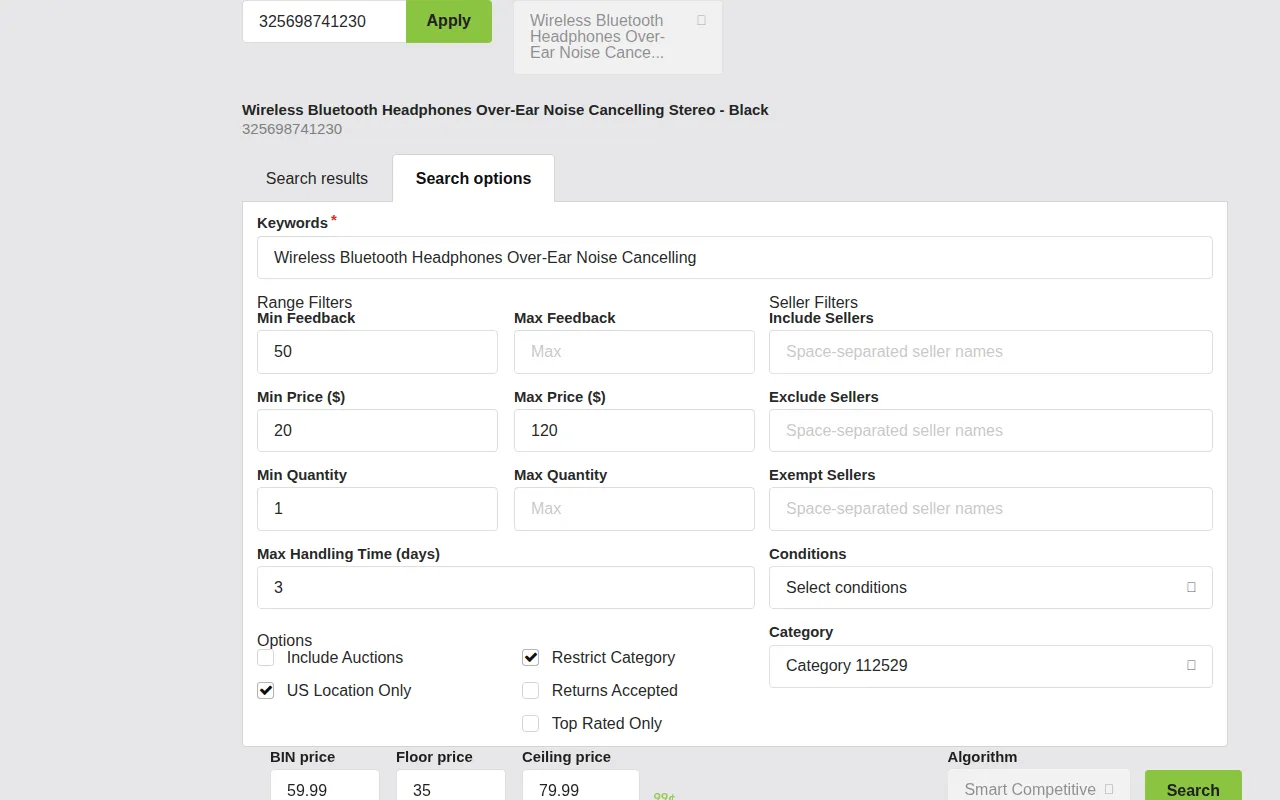
How to Use the Simulator
- Write or edit your algorithm in the Script section.
- In the Algorithm Simulator panel, enter the listing information you want to test against.
- Run the simulation to see the results.
Key Points
- The simulator uses the script as it currently appears in the editor. You don't need to save the algorithm first -- any changes you make in the script area are immediately available to the simulator.
- The simulator runs against live data, so search results will reflect real competitors.
- No actual price changes are made -- the simulator only shows what the algorithm would do.
- Error messages from
throworps.debugMessage()will be displayed in the simulator output, making it an excellent debugging tool.
Tip: Test your algorithm with different scenarios before applying it to real listings. Try it with listings that have many competitors, few competitors, and no competitors to make sure it handles all cases correctly.
Note: The Search options and Search results panel used by the simulator is the same one available outside the Algorithm Editor, where it is called the Search Console. The full workflow for using the panel on its own to understand and tune a listing's live competitive position is covered in the Search Console Guide.
Sample Algorithms
Price Spectre provides several sample scripts to help you get started. These are free to use in part or whole, and you're welcome to create derivative works based on them.
Several of these scripts correspond to the pre-defined algorithms available to all users. Studying these samples is a great way to learn how to write your own custom algorithms.
X Lowest By $Y
Sets a price that is $Y less than the Xth lowest competitor's price.
Algorithm Options:
- Perform Search Automatically: Checked
- Require Search Parameters: Checked
- X: Integer
- Y: Real
// X Lowest By $Y
// Assumes "Perform Search Automatically" is selected.

if (x < 1)
   throw 'X must be positive.';

count = 0;
results = ps.getResults();
numResults = ps.getNumResults();
for (i = 0; i < numResults; ++i) {
   count++;

   // if this is the listing to match against
   if (count >= x) {
      ps.setPrice(results[i].getPrice() - y);
      break;
   }
}
How it works:
- Loops through the search results (sorted lowest to highest price).
- Counts until it reaches the
xth listing. - Sets the price to that listing's price minus
$y. - Example: With
x = 1andy = 0.05, your price would be $0.05 below the cheapest competitor.
X Lowest Y%
Sets a price that is Y% less than the Xth lowest competitor's price.
Algorithm Options:
- Perform Search Automatically: Checked
- Require Search Parameters: Checked
- X: Integer
- Y: Real
// X Lowest Y%
// Assumes "Perform Search Automatically" is selected.

if (x < 1)
   throw 'X must be positive.';
if (y > 50)
   throw 'Y must be 50% or less.';

count = 0;
results = ps.getResults();
numResults = ps.getNumResults();
for (i = 0; i < numResults; ++i) {
   count++;

   // if this is the listing to match against
   if (count >= x) {
      ps.setPrice(results[i].getPrice() * (1 - y/100));
      break;
   }
}
How it works:
- Same as "X Lowest By $Y" but uses a percentage discount instead of a fixed dollar amount.
- The
yvalue represents a percentage (e.g.,y = 5means 5% below). - Example: With
x = 1andy = 5, if the lowest competitor is at $20.00, your price would be $19.00.
Average X Y%
Sets a price that is Y% less than the average of the X lowest competitors' prices.
Algorithm Options:
- Perform Search Automatically: Not checked (the
ps.averageX()function performs its own search) - Require Search Parameters: Checked
- X: Integer
- Y: Real
// Average X Y%
// Assumes "Perform Search Automatically" is NOT selected.

if (x < 1)
   throw 'X must be positive.';
if (y > 50)
   throw 'Y must be 50% or less.';

// Grab the average of the X lowest priced listings.
averagePrice = ps.averageX(x);

// Sets price to y% lower than the average of the lowest X prices found.
ps.setPrice(averagePrice * (1 - y/100));
How it works:
- Uses the built-in
ps.averageX()function to calculate the average price of thexlowest competitors. - Discounts that average by
y%. - Example: With
x = 3andy = 5, if the three lowest competitors are at $18, $20, and $22, the average is $20.00, and your price would be $19.00 (5% below average).
Note: This algorithm does not use "Perform Search Automatically" because
ps.averageX()performs its own search internally. Enabling automatic search would result in an unnecessary extra search that counts toward premium billing.
Discount X Days $Y
Reduces the current price by $Y if X days have passed since the last price change. Useful for slow-moving inventory that you want to gradually discount.
Algorithm Options:
- Perform Search Automatically: Not checked
- Require Search Parameters: Not checked
- X: Integer
- Y: Real
// Discount X Days $Y

if (x < 1)
   throw 'X must be positive.';
if (y == 0)
   throw 'Y cannot be 0.';

secondsPerDay = 86400;

secondsSincePriceChange = ps.getSecondsSinceLastPriceChange();
daysSinceChange = secondsSincePriceChange / secondsPerDay;
currentPrice = ps.getCurrentPrice();
if (daysSinceChange >= x)
   ps.setPrice(currentPrice - y);
How it works:
- Checks how long it's been since the price last changed.
- If at least
xdays have passed, reduces the price by$y. - The discount resets the "days since change" timer, so the next discount won't happen for another
xdays. - Example: With
x = 7andy = 1.00, the price drops $1.00 every week.
Note: This algorithm doesn't perform any competitor search, so it doesn't require search parameters. It only uses time-based logic.
Discount X Days Y%
Reduces the current price by Y% if X days have passed since the last price change. Like "Discount X Days $Y" but uses a percentage instead of a fixed amount.
Algorithm Options:
- Perform Search Automatically: Not checked
- Require Search Parameters: Not checked
- X: Integer
- Y: Real
// Discount X Days Y%

if (x < 1)
   throw 'X must be positive.';

secondsPerDay = 86400;

secondsSincePriceChange = ps.getSecondsSinceLastPriceChange();
daysSinceChange = secondsSincePriceChange / secondsPerDay;
currentPrice = ps.getCurrentPrice();
if (daysSinceChange >= x)
   ps.setPrice(currentPrice * (1 - y/100));
How it works:
- Same time-based logic as "Discount X Days $Y" but applies a percentage discount.
- Example: With
x = 7andy = 5, the price drops 5% every week. A $100 item becomes $95 after week 1, $90.25 after week 2, etc.
Quota Elastic X Days Y%
Increases or decreases price by Y% depending on whether a sales quota was met over the period of X days. This creates a demand-responsive pricing strategy.
Algorithm Options:
- Perform Search Automatically: Not checked
- Require Search Parameters: Not checked
- X: Integer
- Y: Real
// Quota Elastic X Days Y%

if (x < 1)
   throw 'X must be positive.';
if (y <= 0)
   throw 'Y must be positive.';
if (y > 50)
   throw 'Y must be 50% or less.';

quota = 3;
secondsPerDay = 86400;

secondsPerX = secondsPerDay * x;
secondsSincePriceChange = ps.getSecondsSinceLastPriceChange();

// Make sure enough time has elapsed.
if (secondsSincePriceChange >= secondsPerX) {
   numSales = ps.getNumSalesSince(secondsPerX);
   currentPrice = ps.getCurrentPrice();

   // Change price by y% depending on if sales quota has been reached.
   if (numSales >= quota)
      ps.setPrice(currentPrice * (1 + y/100));
   else
      ps.setPrice(currentPrice * (1 - y/100));
}
How it works:
- Waits until
xdays have passed since the last price change. - Counts how many sales were made during that period.
- If sales met or exceeded the quota (3 in this example), the price increases by
y%-- the item is selling well, so it can command a higher price. - If sales fell short of the quota, the price decreases by
y%-- the item needs to be more competitive to move.
Tip: Modify the
quotavariable in the script to match your expected sales volume. For high-volume items, you might set it to 10 or more. For slow-moving items, 1 or 2 might be appropriate.
Note: This is not the same as the pre-defined Elastic algorithm, which uses revenue (not just sale count) to determine the final price.
Using AlgoForge
AlgoForge is Price Spectre's AI algorithm assistant. It can generate custom algorithms from plain English descriptions, making the Algorithm Editor accessible even if you have no coding experience.
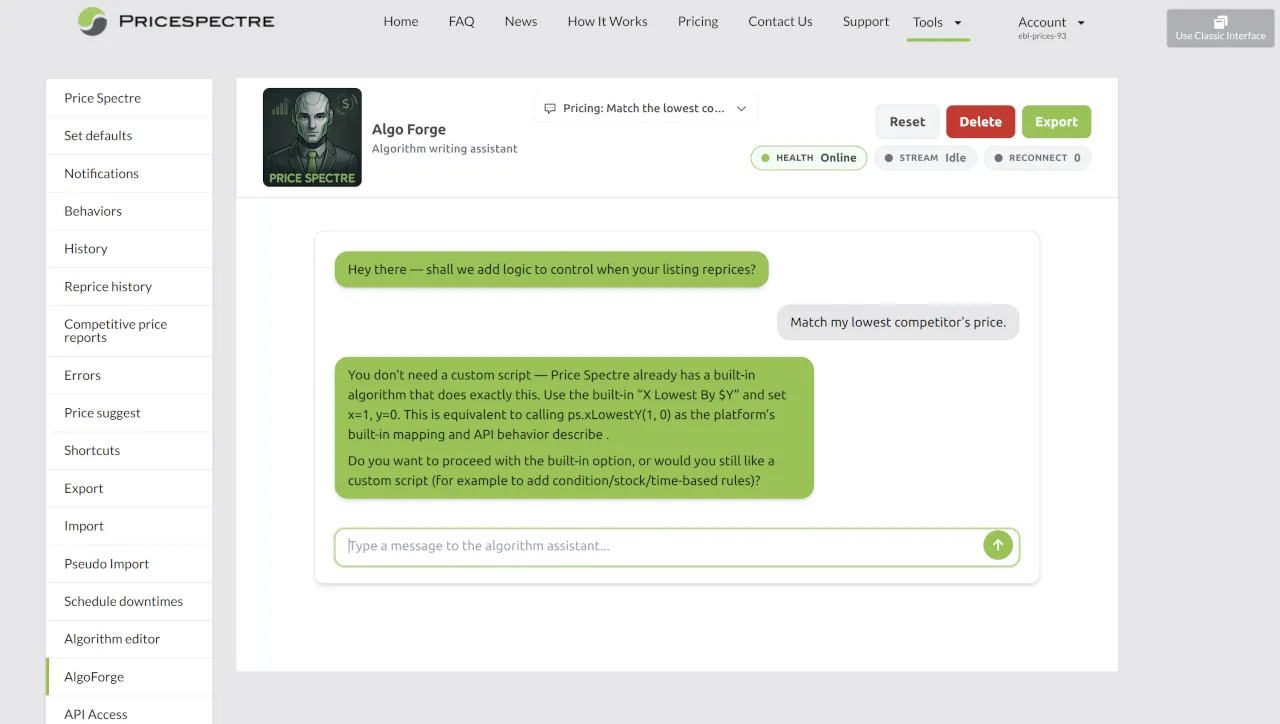
What AlgoForge Can Do
- Generate algorithms from descriptions: Tell AlgoForge what pricing strategy you want, and it will write the JavaScript code for you.
- Explain existing algorithms: Paste in an algorithm and ask AlgoForge to explain what it does.
- Modify algorithms: Ask AlgoForge to add features, fix bugs, or adjust the logic of an existing algorithm.
- Answer questions: Ask about Price Spectre's API methods, best practices, or how to accomplish specific pricing goals.
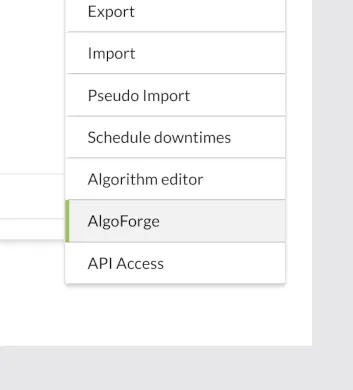
How to Access AlgoForge
- Click Tools in the top navigation menu.
- Select AlgoForge from the tools menu.
Using AlgoForge
AlgoForge uses a conversational interface. Simply type your request in plain English:
Example prompts:
- "Write an algorithm that prices me $0.50 below the 2nd lowest competitor, but only if they have at least 98% feedback."
- "Create a pricing script that reduces my price by 3% every 5 days if no sales have been made."
- "I want to price my gold coins at 5% above the current gold spot price per troy ounce."
- "Write an algorithm that matches the lowest competitor but ignores sellers with feedback below 100."
- "Modify my algorithm to fall back to 90% of BIN price when no competitors are found."
Exporting Algorithms
Once AlgoForge generates an algorithm you're happy with, you can export it directly to the Algorithm Editor. Use the Export button to transfer the generated code.
Conversation History
AlgoForge keeps track of your previous conversations so you can revisit and continue earlier sessions. Use the conversation history panel to switch between past conversations.
Tip: Be as specific as possible when describing your pricing strategy to AlgoForge. Include details like which competitor position to target, what filters to apply, and how to handle edge cases (no competitors, low inventory, etc.). The more detail you provide, the better the generated algorithm will match your needs.
Note: While AlgoForge is highly capable, it's always a good idea to review the generated code and test it with the Algorithm Simulator before applying it to your listings.
Tips for Writing Algorithms
Here are best practices to help you write effective, reliable pricing algorithms:
Always test with the Algorithm Simulator before deploying. Run your algorithm against several different listings to make sure it handles various scenarios (many competitors, few competitors, no competitors).
Use
performSafeSearch()instead ofperformSearch()for simpler error handling. Unless you need to implement custom recovery logic when a search fails,performSafeSearch()is cleaner and safer.Set floor and ceiling prices on your listings. Even the best algorithm can have edge cases. Floor and ceiling prices act as safety nets that prevent your prices from going unreasonably low or high.
Handle the "no competition" scenario explicitly. Use
ps.getNoCompetitionFound()andps.overrideNoCompetitionFound()to control what happens when no competitors are found, rather than relying on the default behavior.Validate your parameters early. Check that
xandyhave valid values at the beginning of your script. Throw an error immediately if they don't. This prevents confusing behavior later in the algorithm.if (x < 1) throw 'X must be positive.'; if (y > 50) throw 'Y must be 50% or less.';Prefer search parameters over
ps.delete()for filtering. Search parameters filter results on the server before they reach your algorithm. Since Price Spectre only retrieves the first 100 results, using search parameters ensures you get the most relevant competitors.Be mindful of premium point usage. Each search (automatic or manual) beyond the first in a pricing cycle may consume premium points. Use
reuseSearchResults = truewhen calling built-in algorithm functions if you've already performed a search.Use
ps.getData()andps.writeData()sparingly. The 255-character limit means you need to be efficient with your storage format. Use comma-separated values instead of JSON to save space.Use
throwfor fatal errors anddebugMessage()for diagnostics. Remember thatdebugMessage()doesn't stop execution but does prevent price changes -- use it only when you need to log multiple issues in a single run.Keep your algorithms simple. A straightforward algorithm that you can understand and maintain is better than a complex one with subtle edge cases. Start simple and add complexity only as needed.
Consider using AlgoForge. If you're not comfortable writing JavaScript, AlgoForge can generate algorithms from plain English descriptions and help you modify existing ones. You can also paste an existing algorithm into AlgoForge and ask it to review your code for potential issues or improvements.
Use the built-in algorithm functions when possible. Functions like
ps.xLowestY(),ps.xLowestYPercent(), andps.averageX()encapsulate common pricing strategies in a single call, reducing the chance of bugs in your code.
Frequently Asked Questions
Q: Do I need to know JavaScript to use custom algorithms?
No. AlgoForge, Price Spectre's AI assistant, can generate algorithms from plain English descriptions. However, a basic understanding of JavaScript will help you review and customize the generated code.
Q: How often does my algorithm run?
Your algorithm runs once per pricing cycle per managed listing. The frequency of pricing cycles depends on your Price Spectre plan.
Q: Can my algorithm crash or damage my listings?
Your algorithm runs in a sandboxed environment. If an error occurs, the script terminates and an error message is sent to you -- no price change is made. Floor and ceiling prices provide additional protection against extreme values.
Q: How many searches can I perform in one algorithm?
You can perform up to 3 searches per pricing cycle. Each search after the first may consume premium points. Use reuseSearchResults = true with built-in algorithm functions to avoid unnecessary searches.
Q: What's the difference between performSearch() and performSafeSearch()?
performSearch() returns true/false and lets you handle errors yourself. performSafeSearch() automatically terminates the script with an error message if the search fails. Use performSafeSearch() unless you need custom error recovery.
Q: Why isn't my price exactly what I set with ps.setPrice()?
After your script finishes, Price Spectre applies additional processing: the "No competition found" behavior (if applicable), Baťa pricing (if enabled), and floor/ceiling price constraints. Any of these can modify the final price. See How Pricing Logic Works for details.
Q: What happens if I don't call ps.setPrice() in my algorithm?
The listing's price remains unchanged. No reprice action occurs for that cycle.
Q: Can I store data between pricing cycles?
Yes. Use ps.getData() and ps.writeData(str) to store up to 255 characters of custom data per listing. See Storing Data Between Cycles.
Q: How do I use the x and y parameters?
Enable them in the Algorithm Options, choose a datatype (Integer or Real), and they become available as global variables x and y in your script. Each listing that uses the algorithm can have different values for x and y. See Algorithm Parameters (x and y).
Q: Can I call external APIs from my algorithm?
Price Spectre provides a ws (web service) object for calling external APIs. However, for most use cases, the built-in search and pricing functions are sufficient and more reliable. Leave calling eBay's API to Price Spectre.
Q: What does "Perform Search Automatically" do?
When enabled, Price Spectre automatically performs a competitor search before your script runs. The results are immediately available via ps.getResults(). This counts as one search toward premium billing. See Algorithm Options.
Q: How do I debug my algorithm?
Use the Algorithm Simulator to test your script against live data without changing prices. Use throw for fatal errors and ps.debugMessage() for non-fatal diagnostics. See Debugging Your Algorithm.
Q: Can I use browser JavaScript features like document or window?
No. Algorithms run server-side, not in a browser. All browser-related JavaScript functions are disabled. Standard JavaScript language features (variables, loops, conditionals, math, string manipulation, etc.) are fully available.
Q: What is Baťa pricing?
Baťa pricing (also known as psychological pricing) automatically rounds prices to end in values like .99 or .95. If enabled on a listing, it's applied after your algorithm runs. It's named after the Baťa shoe company, which popularized this pricing technique.
Q: Can I combine competitor-based pricing with time-based discounting?
Absolutely. You can use competitor search methods alongside time and sales methods in the same algorithm. For example, price against competitors normally, but apply a time-based discount if no sale has been made in a certain period.
Q: What's the difference between getResults() and getRealResults()?
getResults() returns all competitor listings, including those you've marked as deleted with ps.delete(). getRealResults() returns only the non-deleted listings. Similarly, getNumResults() counts all listings while getRealNumResults() counts only non-deleted ones.
Q: How do I handle listings on different eBay sites (US, UK, etc.)?
Use ps.getSiteCountry() to determine which eBay site your listing is on, and results[i].getLocation() to check where competitors are located. You can filter international competitors or adjust pricing logic based on the marketplace.