
Search Console Guide
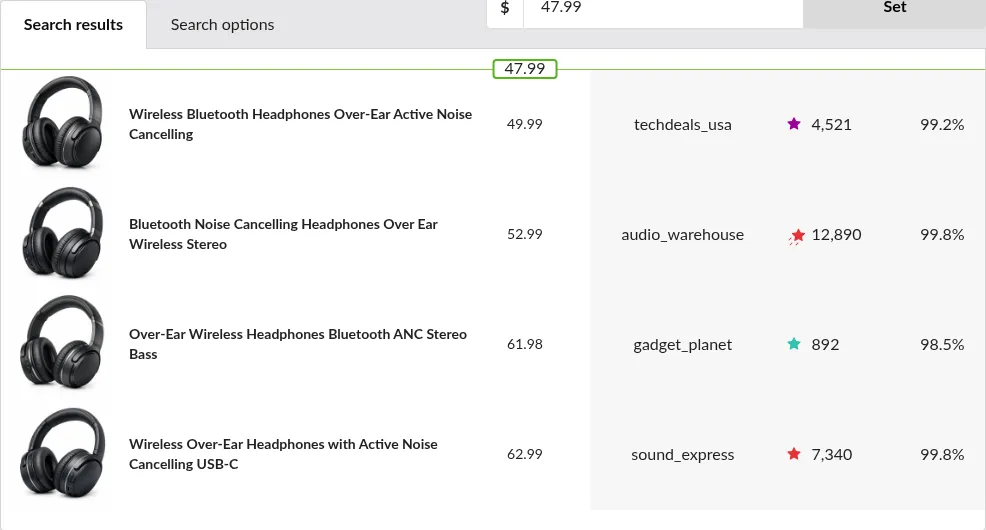
The Search Console is Price Spectre's live view of a listing's current competitor landscape. It shows you — right now — which listings are being matched as competitors under your search filters and where your listing's candidate price would rank against them.
It is the counterpart to the Reprice History guide, which shows the past reprice decisions for a listing as a snapshot in time: Reprice History tells you what happened; the Search Console tells you what would happen if a reprice ran this moment. You will reach for the Search Console most often when setting up new listings, diagnosing why a listing ranks where it does, and tuning search filters.
The same panel also appears in two other places, with different purposes:
- Inside the Algorithm Editor as the Algorithm simulator — for iterating on custom algorithm code with a real listing as a test harness.
- Embedded in each Price Recommendation detail view — as a live marketplace panel for reviewing a specific pending recommendation in Manual mode.
The panel itself is the same UI in all three places. This guide covers using it as a live tuning surface for a single listing.
Table of Contents
- When to Use the Search Console
- Opening the Search Console
- The Search Options Tab
- The Search Results Tab
- Interpreting the Candidate Price
- Search Console vs. Reprice History
- Search Console vs. Algorithm Simulator
- Search Console vs. Price Recommendation
- Search Console vs. Search Diagnostic
- Tips and Best Practices
- Frequently Asked Questions
When to Use the Search Console
Reach for the Search Console whenever you need to understand why a listing would be priced the way it is based on its current competitive landscape. Common scenarios:
- Setting up a new listing. Confirm that your search filters match real competitors and that your floor, ceiling, and algorithm choice produce a sensible candidate price before you enable repricing.
- Diagnosing unexpected rankings. If a listing is sitting at its floor, sitting at its ceiling, or priced somewhere you did not expect, open the Search Console to see the competitor set and whether the filters are producing the results you expect.
- Tuning search filters. Adjust keywords, feedback/price/quantity ranges, seller lists, and filter checkboxes, then re-run the search to see how the candidate price and ranking change.
- Previewing a bulk change. If you are about to update search parameters across many listings via Import and Export, pick a few representative listings and try the same filter values in the Search Console first.
- Sanity-checking a Price Recommendation before acting on it. When a Price Recommendation looks off, open the Search Console for the same listing to see whether the live competitor set has shifted. The embedded marketplace panel on the Price Recommendation page also runs a live search — but the suggested price you are approving is fixed to the pending recommendation. The Search Console lets you search independently and save filter changes back to the listing.
- Verifying that the right listings are in the competitor set. If specific expected competitors are absent from the results, or unexpected listings appear, the Search Diagnostic is a better first stop — it shows the full rejected set with the per-row filter rule, whereas the Search Console only shows the kept set.
Opening the Search Console
There are two places the Search Console opens from.
From the Price Spectre Tool Page
- Go to Tools > Price Spectre.
- Select the listing you want to examine.
- Open the Search options tab of the search panel to configure filters, then switch to Search results to view matches.
On narrower screens the tab labels are abbreviated to Options and Results.
From the Algorithm Editor
- Go to Tools > Algorithm Editor.
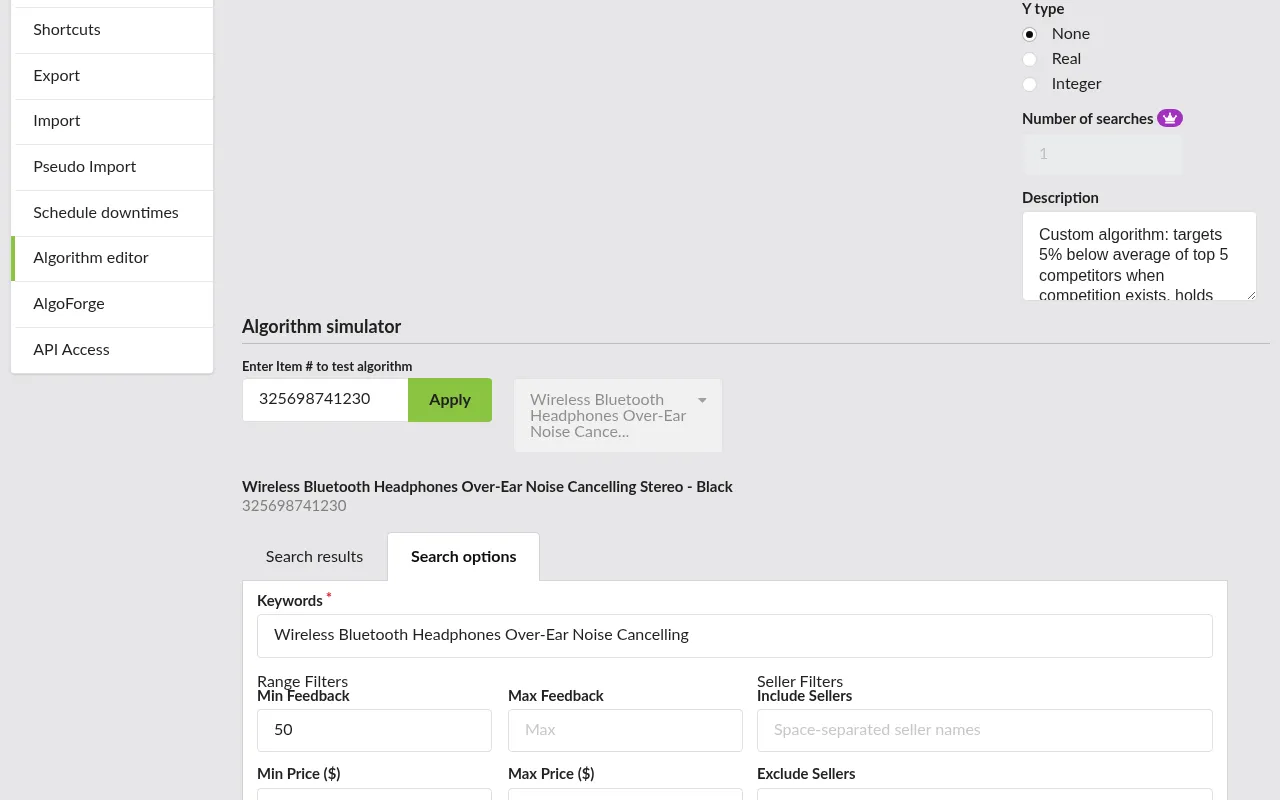
- Under the Algorithm simulator section, enter an eBay Item # to test.
- Click Apply to load the listing. The same Search options / Search results panel opens, with Search options active by default.
Note: The Search Console never changes your listing's live price. Configuring filters and running searches is always safe — nothing is written back to eBay until a real reprice runs.
The Search Options Tab
The Search options tab is where you describe which eBay listings should count as competitors for this listing. Each field narrows the competitor pool in a different way.
Keywords and Range Filters
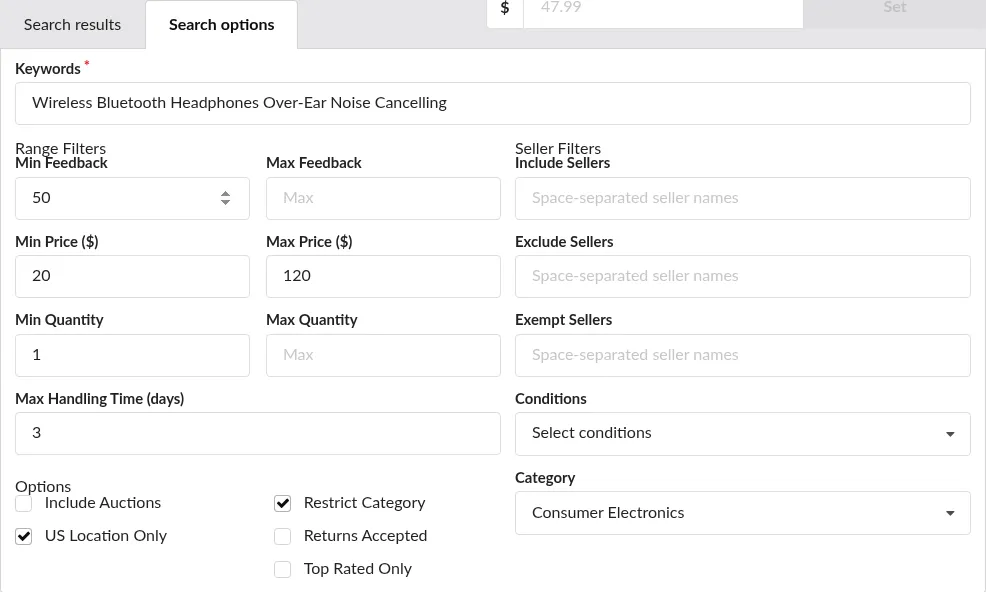
- Keywords — the search terms Price Spectre uses to find competitors. Start specific and widen if you get too few results.
- Feedback min / Feedback max — the range of seller feedback scores to include. Use this to exclude brand-new sellers or narrow to established ones.
- Price min / Price max — the competitor total-price range (including shipping). Useful for excluding outliers on either end.
- Quantity min / Quantity max — the competitor available-quantity range. Useful when you want to compete against single-unit listings specifically (or, conversely, bulk listings).
- Max handling time — the maximum competitor handling time in days. Tighten this to match your own shipping speed.
Seller Lists
- Include sellers — a comma-separated list of seller usernames. When non-empty, only listings from these sellers count as competitors.
- Exclude sellers — a comma-separated list of seller usernames to skip. Use this to ignore known outliers.
- Exempt sellers — a comma-separated list of seller usernames that are always included in results, regardless of other filters. Use this to ensure specific sellers are never filtered out by your other criteria.
Filter Checkboxes
- Auctions w/ BIN — include auction listings that also offer a Buy It Now option.
- Returns accepted — include only competitors that accept returns.
- Location — restrict competitors to sellers in the same country as the eBay site your listing is on (for example, US for eBay.com listings, UK for eBay.co.uk listings).
- Hide duplicates — collapse duplicate items from the same seller.
- Top rated only — include only eBay Top Rated sellers.
- Include Amazon listings — include matching listings from Amazon alongside eBay results.
Restricting the Category
Check Restrict category to enable the category dropdown below it, then select one of the offered categories (for example Clothes, Electronics, or Laptops). When Restrict category is unchecked, all categories are considered.
Tip: Start with broad filters to confirm that the keyword search is finding competitors at all, then narrow one filter at a time. Running the search after each change makes it obvious which filter caused a shift in the results.
The Search Results Tab
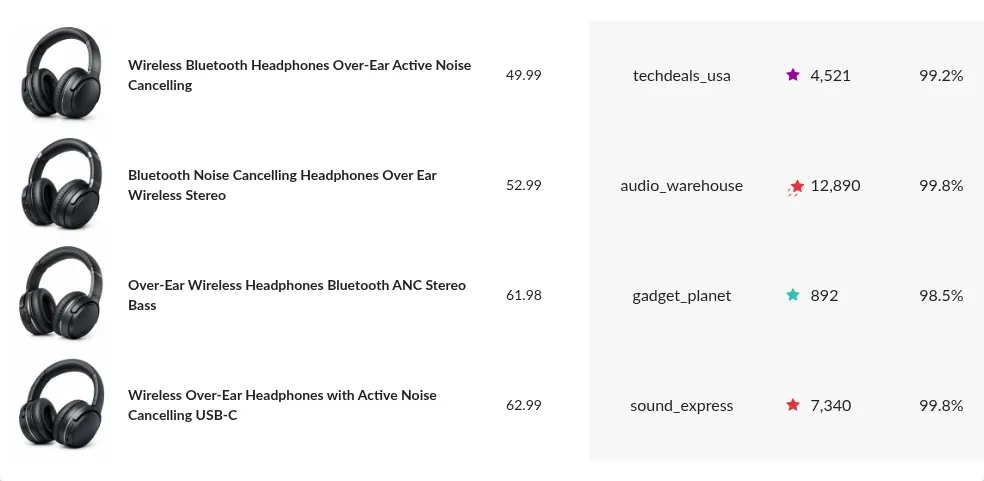
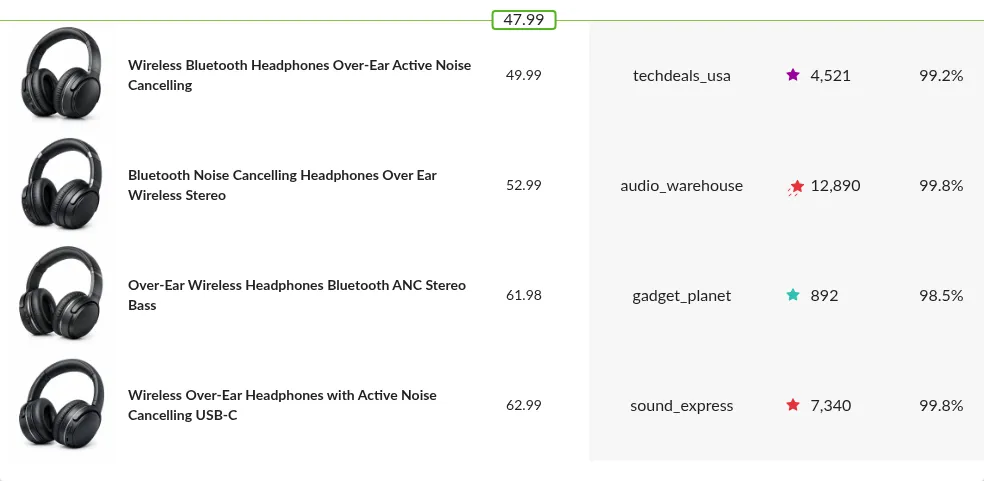
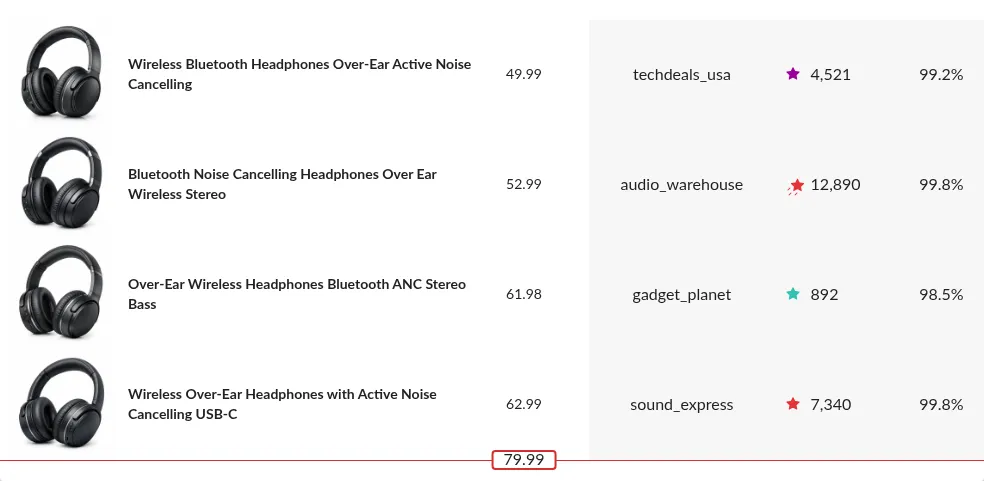
When a search runs, the panel automatically switches to the Search results tab showing the competitor listings that matched your filters. Each row shows:
- Image thumbnail
- Title (on mobile, tap View item to open the listing on eBay)
- Price — the total price, including shipping
- Shipping date when available
- Seller username, with an Amazon badge on Amazon-sourced rows
- Feedback count and a colored feedback-star badge
- Feedback rating percentage
If no competitors match the current filters, the results tab shows No results found — usually a signal to broaden a filter or revisit your keywords. If the search itself fails, an error message is displayed in red text near the top of the results.
Interpreting the Candidate Price
When the listing has an algorithm selected, the search results include a highlighted row representing your candidate price — the price your algorithm would produce against this competitor set right now. The highlight color tells you at a glance whether the price is competitive:
- Green border — your candidate price is at or below the highest competitor in the matched set, meaning the algorithm has been able to position you competitively within the filter constraints and between your floor and ceiling.
- Red border — your candidate price is not competitive. Common causes: no algorithm is selected on the listing, your floor price is forcing the candidate above the competitor set, or the filters produced no usable competitors for the algorithm to price against.
The position of the highlighted row within the sorted results is equally important: a candidate row near the top of the list means you are among the cheapest competitors; near the bottom means you are priced above most of them.
Important: The candidate price shown here reflects the filters currently entered in the Search options tab. A real reprice uses the filters saved on the listing — if you change values in Search options without saving them to the listing, the next reprice will still use the previously saved filters. Save the filters once you are happy with the preview.
Search Console vs. Reprice History
The Search Console and Reprice History answer two different questions:
| Search Console | Reprice History | |
|---|---|---|
| Time frame | Now (live) | Past (snapshots) |
| Competitors shown | Currently matching listings | Listings matched at the time of each reprice |
| Candidate price | Would be applied if a reprice ran now | Was applied at that point in history |
| Best for | Setup, filter tuning, current diagnosis | Auditing or explaining past price moves |
Use the Search Console when you are planning or tuning. Use Reprice History when you are explaining or auditing a price that was already set. Together they cover the full picture of a listing's repricing behavior.
Search Console vs. Algorithm Simulator
The Algorithm simulator in the Algorithm Editor uses the same Search options / Search results panel you see in the Search Console. The mechanics are identical — same fields, same filters, same results — but the purpose differs:
- Search Console — you are tuning a specific listing's search filters to shape its live competitor set and candidate price.
- Algorithm simulator — you are iterating on the code of a custom algorithm and using a real listing as a test harness for that code.
If you are here to write algorithm code, follow the Algorithm Editor guide. If you are here to understand or adjust a single listing's competitive position, use this guide.
Search Console vs. Price Recommendation
The Price Recommendation detail view shows a marketplace panel that looks identical to the Search Console — same Search options, same Search results, same candidate-price highlight. They are not, however, interchangeable:
| Search Console | Price Recommendation | |
|---|---|---|
| Time frame | Now (live) | Live marketplace panel (runs fresh on load; re-searchable); the suggested price in the review header is fixed to the pending recommendation |
| Listing mode required | Any | Manual only |
| Candidate price | Re-calculated whenever you click Search | Re-calculated live in the marketplace panel whenever you search; the fixed suggested price you are approving is shown separately in the review header |
| Filter changes | Save back to the listing when you save | Editable for preview; do not change the suggested price or save back to the listing automatically |
| Acts on the live listing | Never (always read-only preview) | Yes, via Approve / Set on the recommendation page |
| Best for | Tuning filters, debugging unexpected ranking | Reviewing one specific pending recommendation in context |
In short: the Search Console is the tuning surface, the Price Recommendation is the acting surface. A common workflow uses both together — open the Search Console to experiment with filter values, save the changes you like back to the listing, and then return to the Price Suggestions dashboard to review and accept the next recommendation generated under the new filters.
For the full Manual-mode review workflow, including how to accept, decline, or set a custom price on a recommendation, see the Price Suggestions & Price Recommendation Guide.
Search Console vs. Search Diagnostic
The Search Console and the Search Diagnostic both show a listing's competitor set, but they answer different questions:
| Search Console | Search Diagnostic | |
|---|---|---|
| Primary question | What would my price be right now? | Why are these my competitors? |
| Shows kept competitors | Yes | Yes |
| Shows rejected candidates | No | Yes, with the rule that filtered each one |
| Filter funnel | No | Yes |
| Candidate price highlight | Yes (green / red) | No — pricing is not the focus |
| Best for | Setting up new listings, tuning filters for price outcomes | Tuning filters for matching outcomes, debugging missing or unexpected competitors |
| Filter edits saved back to the listing | Yes (when you save) | Yes (Save / Revert at the top of the page) |
A common workflow uses both: open the Search Diagnostic first to verify the competitor set is correct, then switch to the Search Console to verify the candidate price under that set.
Tips and Best Practices
- Broad first, then narrow. Start with minimal filters to confirm keywords are finding competitors, then add feedback, price, quantity, and checkbox filters one at a time.
- Re-run after every change. The candidate price and color-coded highlight give you immediate feedback on each filter change.
- Mind filter interactions. The Top rated only checkbox is already a narrow filter; pairing it with a low Feedback max can produce an empty set because Top Rated sellers typically carry high feedback scores.
- Remember it is read-only. Nothing you do in the Search Console changes your live listing. Once the filters look right, save them on the listing's settings so future reprices use them.
- Unexpected results? Use the Search Diagnostic. If the competitor set looks right in terms of count but contains wrong items — or if an obvious competitor is missing — open the Search Diagnostic. It shows every candidate eBay returned paired with the filter rule that kept or rejected it, which makes it easy to identify the culprit filter without trial-and-error.
- Use it alongside Import and Export. If you plan to bulk-update search parameters with Import and Export, preview the change on a few representative listings in the Search Console first.
Frequently Asked Questions
Does using the Search Console change my listing's live price?
No. The Search Console is a read-only preview. Your listing's price on eBay only changes when a real reprice runs, and only based on the filters saved on the listing — not on whatever is currently typed into the Search options tab.
Why are the results different from what my last reprice used?
A few possible reasons: the competitor market has moved since the last reprice; the filters in the Search options tab are not exactly the filters saved on the listing; or eBay's search index has shifted for your keywords.
Can I simulate reprices for multiple listings at once?
The Search Console is a per-listing view. For bulk previewing, use a Pseudo Import — a dry-run import that shows you the projected price changes across all matched listings without committing any of them. See the Import and Export guide for details on the import workflow.
I am about to import new search parameters in bulk. Can I preview the effect first?
Yes, and there are two complementary ways. For a handful of representative listings, open the Search Console for each and apply the same filter values you plan to import — inspect the candidate price before proceeding. For a broader preview across your full catalog, run a Pseudo Import first: it calculates what each listing's price would become under the new parameters and shows you the results without making any changes to your live listings.
What does "No results found" mean?
No competitor listings on eBay currently match your filters. Broaden your keywords or relax one or more range/checkbox filters and run the search again.
Why is my candidate price row red?
Usually one of: no algorithm is selected on the listing; your floor price forces the candidate above the competitor set; or the current filters returned no usable competitors for the algorithm to price against.
I'm in Manual mode — should I tune filters from the Search Console or from the Price Recommendation page?
Use the Search Console. Filter changes typed into the Search options panel on a Price Recommendation are for preview only — they do not change the suggested price you are about to approve. To make filter changes that take effect on future recommendations, save them on the listing from the main Price Spectre tool (you can preview them in the Search Console first), then either decline the current recommendation and wait for the next manual reprice, or accept the current recommendation knowing it was calculated under the previous filters.
This guide covers the Search Console in Price Spectre's React-based interface. For the counterpart view of past reprice decisions, see the Reprice History guide. For writing custom algorithms that use the same search panel, see the Algorithm Editor guide. For the Manual-mode review workflow that embeds the same live marketplace panel alongside a pending recommendation, see the Price Suggestions & Price Recommendation guide. For investigating why a listing has a particular competitor set (rejected candidates and filter funnel), see the Search Diagnostic guide.