
Price Suggestions & Price Recommendation Guide
When you would rather review every price change before it reaches eBay, Price Spectre offers a human-in-the-loop workflow built around two pages: the Price Suggestions dashboard at Tools > Price suggest and the per-item Price Recommendation detail view that opens from it. Together they let you keep your floor, ceiling, algorithm, and search filters working for you while you stay the final approver of each new price.
Note on naming: The side menu shortens the dashboard's name to Price suggest to fit the available space; the page heading and the rest of this guide call it the Price Suggestions dashboard. Both refer to the same page.
This guide covers both pages as one feature. It explains how recommendations are produced, how to put a listing into Manual mode so it generates them, how to read the dashboard and the detail view, and how to accept, decline, or override a recommendation with a custom price.
If you are brand new to Price Spectre, read the Tutorial first — it covers linking your eBay account, setting floor and ceiling prices, and the difference between managed and unmanaged listings, all of which are required before recommendations can appear. The companion guides you will reach for most often alongside this one are the Reprice History Guide (where accepted recommendations show up as Manual reprice rows) and the Search Console Guide (the live counterpart to the marketplace snapshot embedded in each recommendation).
Recommendations are not AI-driven. A Price Recommendation is just the price your listing's existing repricing settings — the algorithm you picked, the floor and ceiling you set, and the competitor filters you configured — produced during a manual repricing pass. Manual mode does not change what gets calculated; it only changes who applies the result. You always do.
Table of Contents
- How Recommendations Are Generated
- Putting a Listing in Manual Mode
- The Price Suggestions Dashboard
- The Price Recommendation Detail View
- What Happens After You Act
- Price Suggestions vs. the Search Console
- Tips and Best Practices
- Frequently Asked Questions
How Recommendations Are Generated
Every Price Spectre listing has a repricing mode that decides what happens after the algorithm picks a new price:
- Automatic mode — Price Spectre applies the new price directly to your eBay listing.
- Manual mode — Price Spectre creates a Price Recommendation instead. The recommendation is queued on the Price Suggestions dashboard until you act on it.
Manual-mode listings are still evaluated on the same schedule as automatic ones, using the same algorithm, the same floor and ceiling, and the same search filters. The only difference is the last step. Where Automatic would write the new price back to eBay, Manual saves the proposed price to the dashboard for your review.
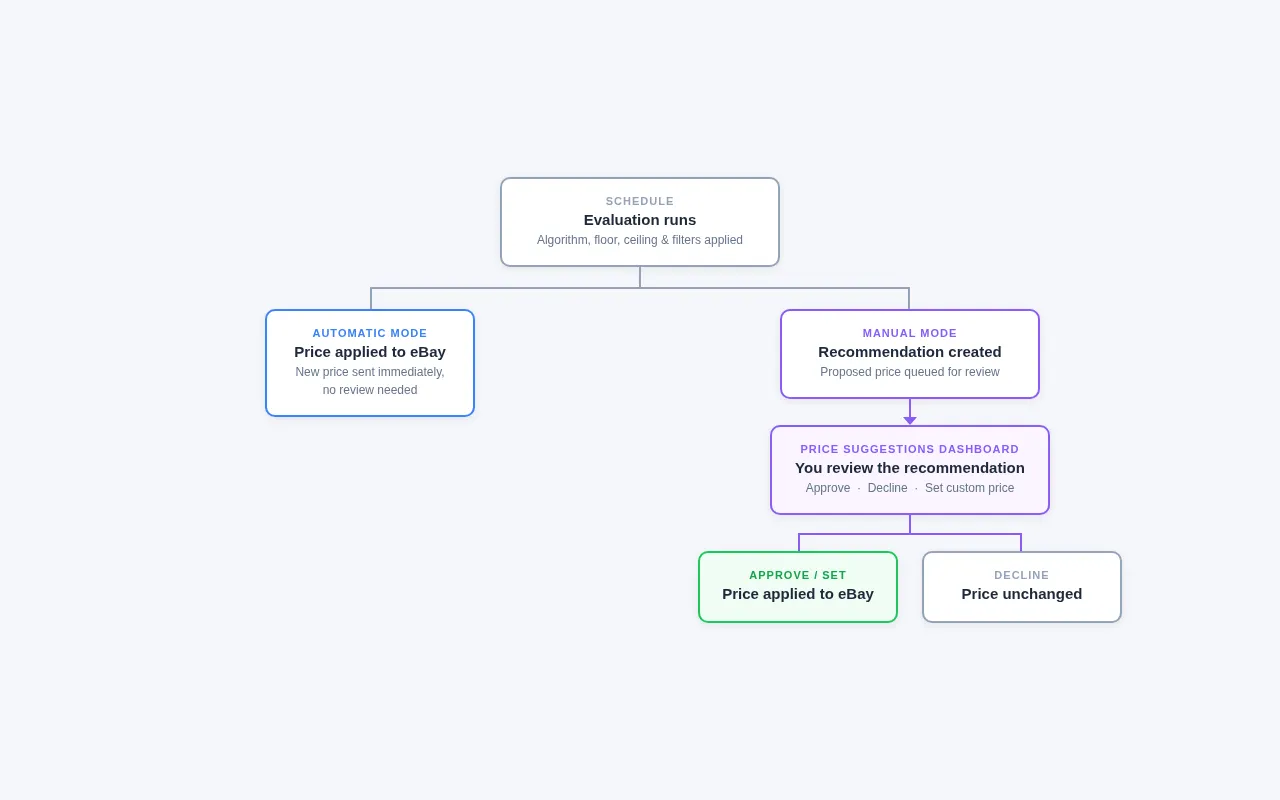
Because the underlying calculation is the same, every input that shapes an automatic reprice also shapes a recommendation:
- The algorithm selected on the listing (and any X / Y parameters it takes)
- The floor and ceiling prices
- The search parameters — keywords, seller include/exclude lists, feedback bounds, condition filters, and the rest
- Optional Baťa pricing rounding
Manual-mode listings carry the same configuration prerequisites as automatic ones — they need an algorithm and a floor before they can produce useful recommendations. A ceiling is optional but recommended. If you have not yet configured these on a listing, set them first — see Account & Listing Defaults — so the calculations the dashboard surfaces actually reflect what you want.
There is one Manual-only escape hatch worth knowing about. The Behaviors page exposes an option called Ignore manual constraints that, when enabled, tells Price Spectre to ignore the floor and ceiling when generating recommendations for Manual-mode listings only. With it on, recommendations can land outside your floor/ceiling band — useful when you want to see what the algorithm would propose without limits and then decide for yourself whether to accept, decline, or override with a custom price. It does not affect Automatic-mode listings, which always respect the floor and ceiling.
Putting a Listing in Manual Mode
There are three ways to switch a listing into Manual mode. Pick whichever is convenient for the size of the change you are making.
Per-Listing
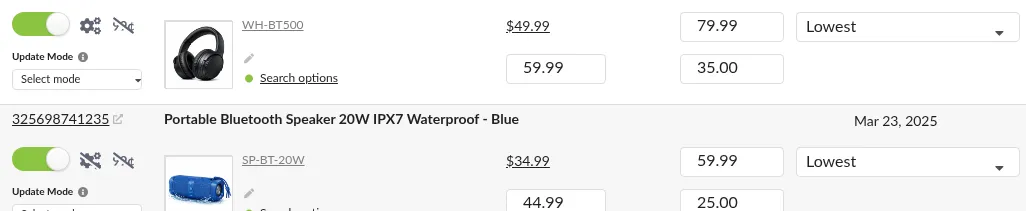
To convert a single listing — for example, a high-value item where you want to be in the loop on every price change:
- Open
Tools > Price Spectre. - Find the listing in the search list.
- Change its Repricing mode to Manual.
Manual takes effect on the next scheduled evaluation. There is no need to disable and re-enable repricing.
As an Account Default
If you want every newly imported listing to start in Manual mode — or if you are trialing Price Spectre and want to see what it would do before committing to automatic changes — set the default once:
- Open
Tools > Set Defaults. - In the Other section, set Repricing Mode to Manual.
- Save the change. To apply it to listings you already have, tick the row's checkbox so the change rolls out to current listings as well as future ones.
For the full reference, see the Account & Listing Defaults Guide.
In Bulk via Import
For larger catalog changes — for example, switching all clearance items into Manual while keeping steady sellers Automatic — use the import workflow:
- Export your listings (
Tools > Export). - In the spreadsheet, set the Manual column to
1for the rows you want in Manual mode and0for the rows you want in Automatic. - Re-import the file (
Tools > Import).
The full column reference, including the relationship between the Enabled column and the Manual column, is covered in the Import and Export Guide.
Tip: A listing must be enabled for repricing before its Manual setting matters. An unmanaged listing produces no recommendations no matter what the Manual column says.
The Price Suggestions Dashboard
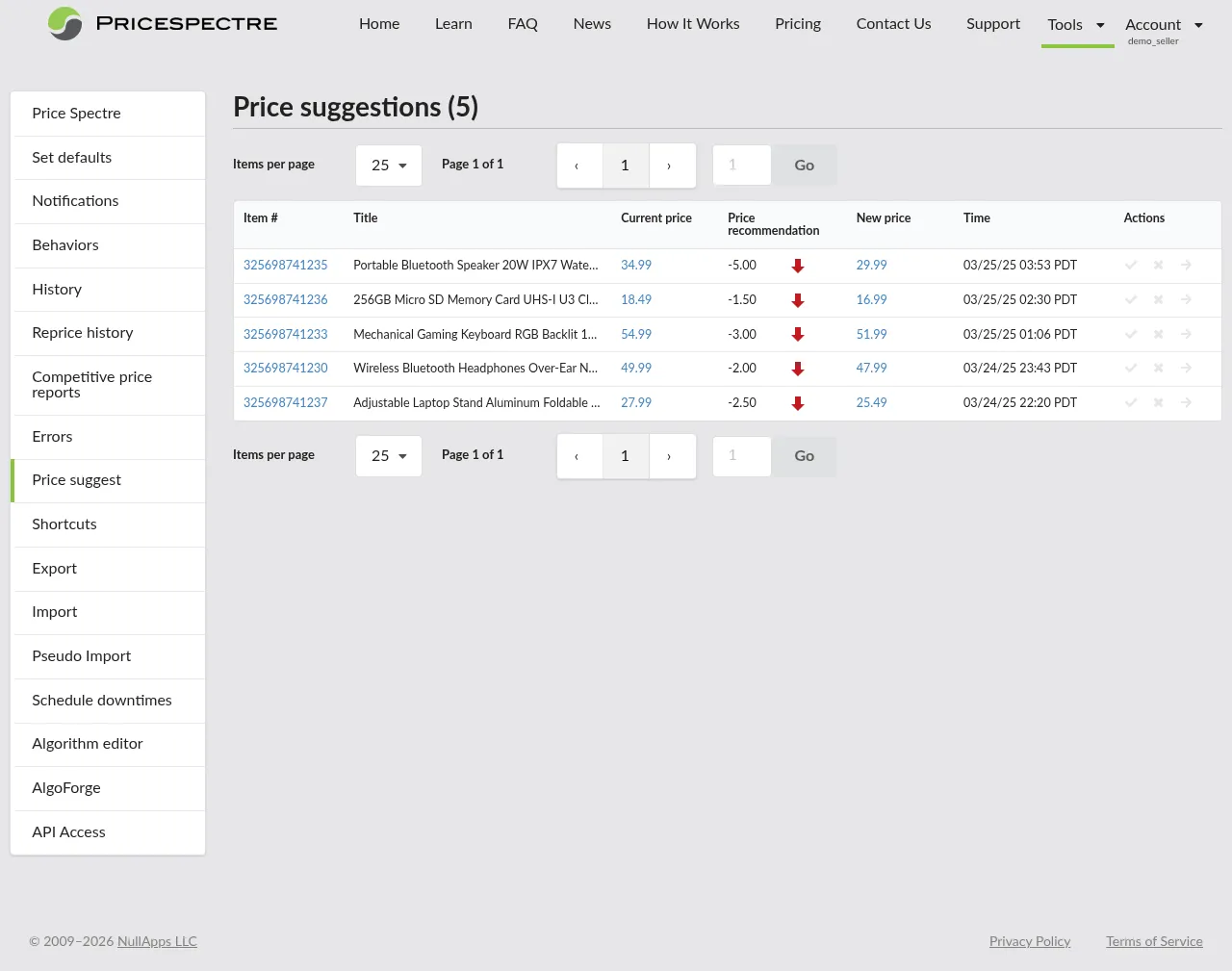
The Price Suggestions dashboard is the home base for outstanding recommendations. It lists every pending recommendation across your linked eBay account, newest first, so you can scan, triage, and act without leaving the page.
Navigating to the Page
- Click Tools in the top navigation.
- Select Price suggest from the side menu.
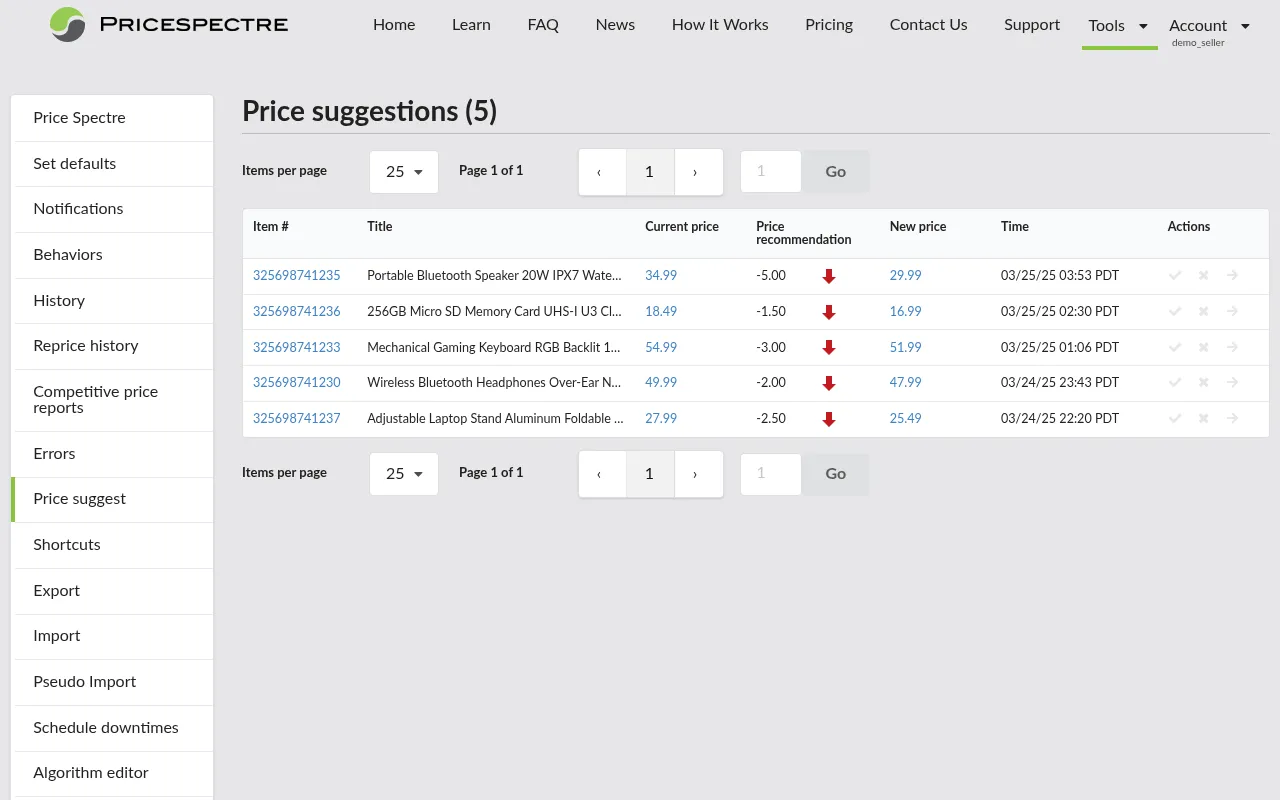
The page header shows the total number of pending recommendations next to the title — a quick at-a-glance count of how much review work is queued.
Reading the Columns
Each row on the dashboard summarizes one pending recommendation. The columns are:
- Item # — the eBay item number. Click it to jump to that listing in the main Price Spectre tool, where you can adjust its settings.
- Title — the listing title as it appears on eBay. Long titles are truncated; hover to see the full text.
- Current price — the listing's current eBay price. Click it to open the Price History chart for the item.
- Price recommendation — the proposed change as a signed delta (for example,
+3.50or-12.99) with a small up or down arrow indicating the direction. - New price — the price Price Spectre is recommending you set. Click it to open the full Price Recommendation detail view.
- Time — when the recommendation was generated, in your local time zone.
- Actions — quick approve/decline icons plus an arrow that opens the detail view.

Quick Actions from the Dashboard
The Actions column is built for fast triage when you trust the recommendation as-is and just want to confirm or dismiss it:
- Check icon (Approve) — applies the recommended price to your eBay listing immediately.
- Close icon (Decline) — dismisses the recommendation without changing the listing.
- Right-arrow icon — opens the full Price Recommendation detail view for that row, where you can also enter a custom price.
A short notification confirms the result. After you act on a row, its status badge flips from pending to Approved or Declined, and the action icons are replaced by the badge — there is no double-acting on the same recommendation.
Tip: Use the dashboard for triage, the detail view for decisions you want to think about. If you find yourself wanting to see the competitor set before approving, click the right-arrow icon to open the detail view rather than approving from the table.
Pagination
The pagination controls below the table let you move through long queues of pending recommendations:
- Items per page —
25,50,75, or100. The default is25, which fits comfortably on most screens. - Page input — type a page number and press Enter to jump directly to it.
- Previous / Next — step one page backward or forward.

The newest pending recommendations are always on page 1.
Empty State
If there are no pending recommendations — for example, because you have no listings in Manual mode yet, or because you have already acted on all of them — the page shows a short message:
"You currently have no price recommendations available."
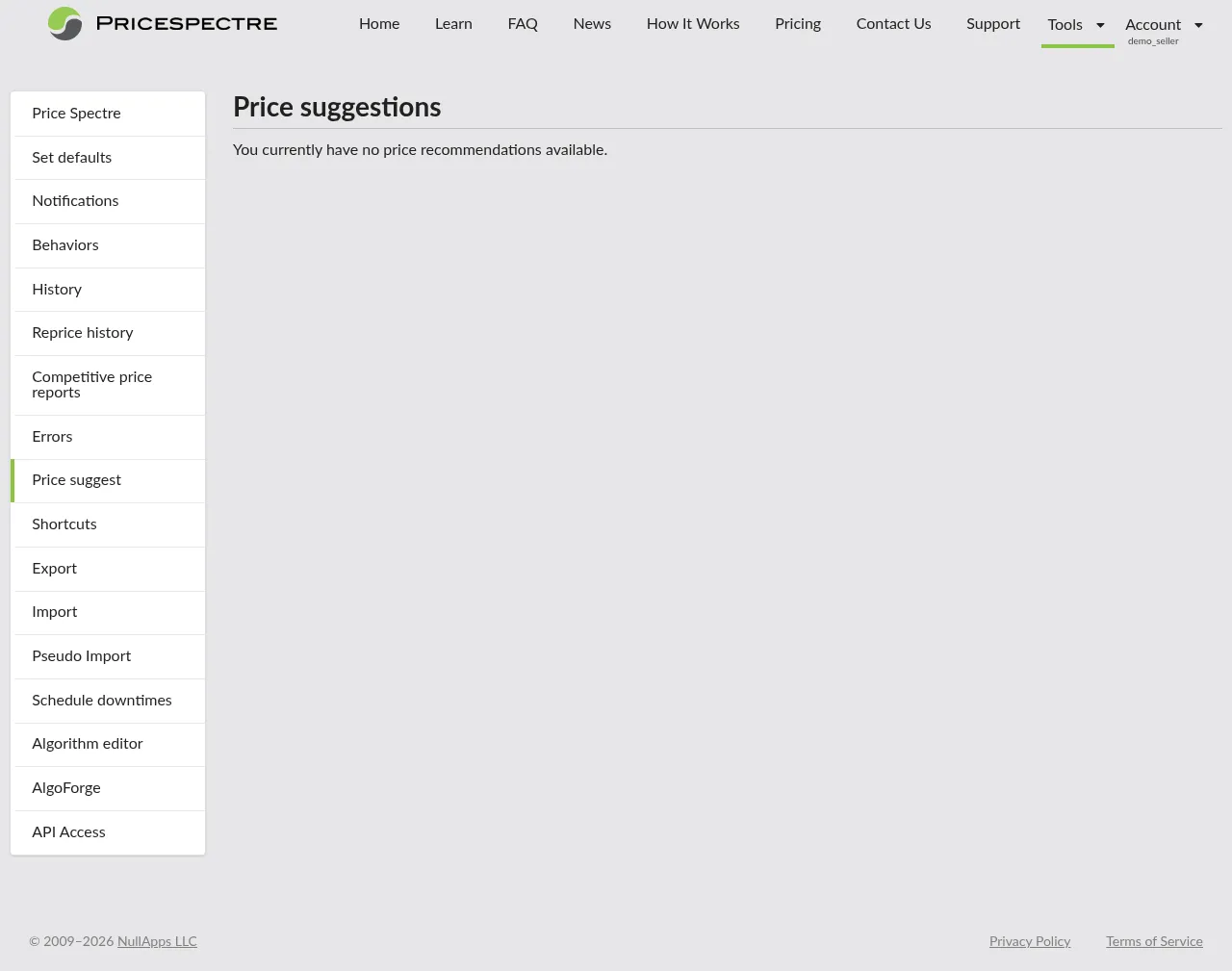
If you expect recommendations and the page is empty, jump ahead to the FAQ — the cause is almost always that none of your listings are in Manual mode, or that the next scheduled evaluation has not run yet.
The Price Recommendation Detail View
The Price Recommendation detail view is the full review surface for one recommendation. It shows the same calculated price you saw on the dashboard, but adds the listing's pricing controls, a marketplace snapshot of the competitors that informed the recommendation, and a custom-price input for cases where you want to override the suggestion.
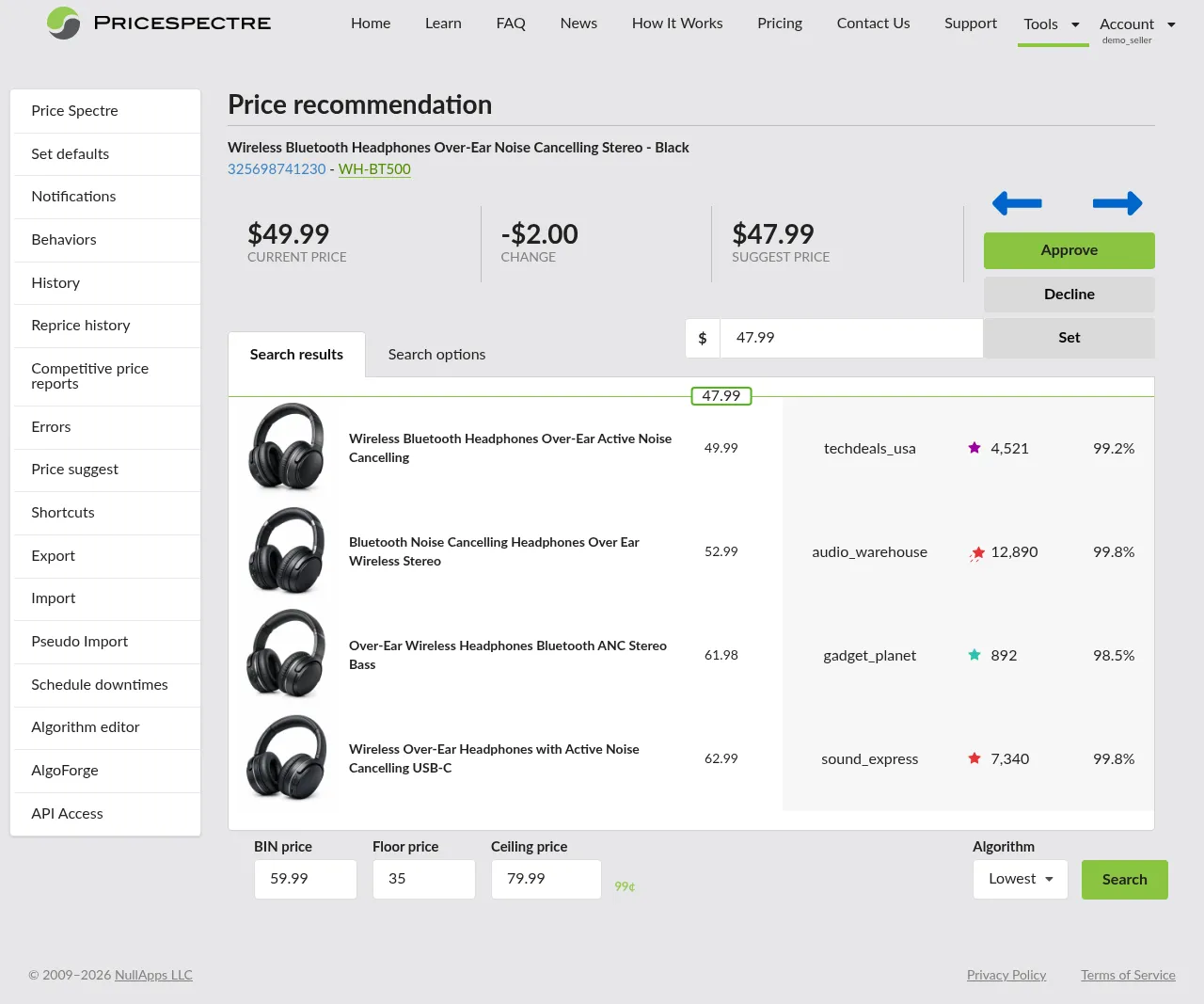
Opening the Detail View
You can reach the detail view three ways:
- From the Price Suggestions dashboard, click the New price value or the right-arrow icon at the end of the row.
- From the Reprice History page, the Manual reprice Reason on a previously-acted recommendation links to its record (see the Reprice History Guide).
- Directly via URL — each pending recommendation has its own page, so dashboards or notifications that link to one will open it.
Reading the Header
The top of the page identifies the listing and summarizes the proposed change.
- Listing title — exactly as it appears on eBay.
- Item # — the eBay item number, linked to the listing's row in the main Price Spectre tool.
- SKU / Variation — present only when the listing has variations; shows which variation the recommendation is for.
Below the title is a row of three numbers and a button group:
- CURRENT Price — your listing's current price on eBay.
- Change — the signed delta, prefixed with
+or-. - Suggest price — the price Price Spectre is proposing.
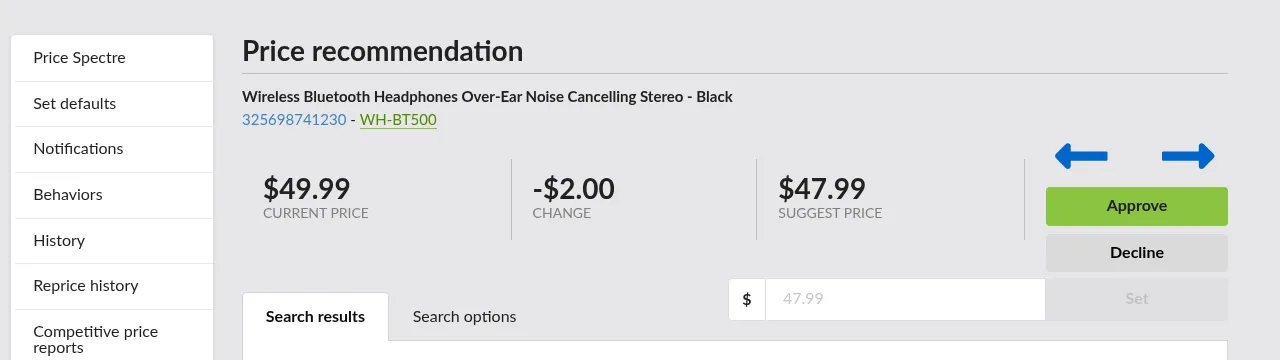
The button group on the right contains Approve, Decline, and (on desktop) navigation arrows for stepping through other pending recommendations without going back to the dashboard.
The Marketplace Snapshot
Below the header is a panel that shows the same Search options and Search results view used by the Search Console, populated with the listing's current search filters and showing live competitor results.
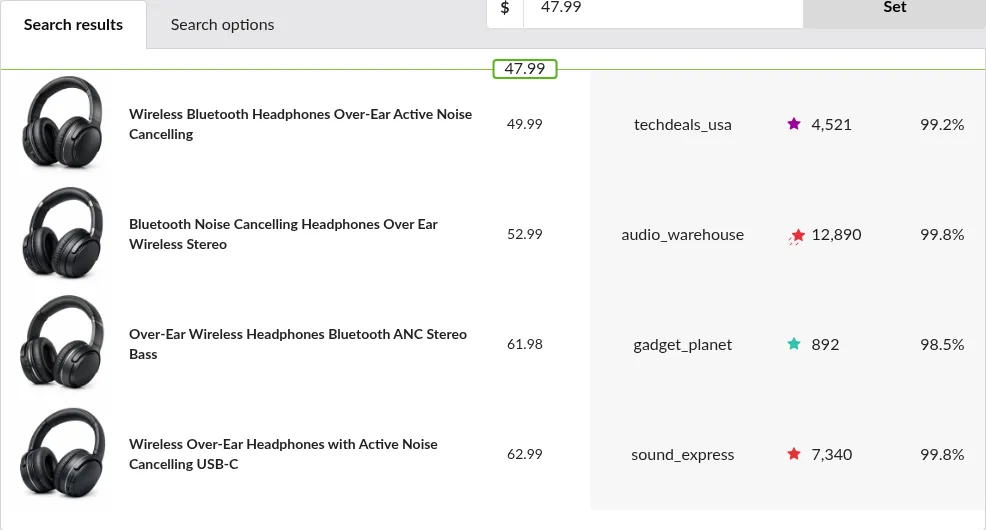
This panel is here so you can sanity-check the recommendation against the competitive landscape before you act:
- The Search options tab lists the keywords, seller lists, range filters, and checkboxes the listing currently uses.
- The Search results tab lists the matching competitors, with your candidate price highlighted (green if it lands within the competitor set, red if the algorithm could not place it competitively).
You can edit the Search options here to preview different marketplace results and re-run the search, but those edits are only for this view: they do not retroactively rewrite the recommendation, they do not change the suggested price you are approving, and they do not save back to the listing automatically. To make a filter change stick, save it on the listing in the main Price Spectre tool. The next manual reprice will use the new filters.
For more on how to read the candidate price highlight and what each filter does, see the Search Console Guide.
Approving a Recommendation
Click Approve to apply the Suggest price to your eBay listing. The listing's price changes immediately, the recommendation is marked Approved, and a row labelled Manual reprice is added to your Reprice History (see Reading the Reason Column).
If there are more pending recommendations, the detail view advances to the next one automatically. If this was the last one, you are returned to the dashboard.
Declining a Recommendation
Click Decline to dismiss the recommendation without changing the listing on eBay. The listing's current price stays as it is, the recommendation is marked Declined, and the dashboard moves to the next one.
Declining does not penalize the listing. It will continue to be evaluated on its normal schedule, and a new recommendation may appear after the next pass if the calculated price moves again.
Setting a Custom Price
Sometimes Price Spectre's number is in the right ballpark but not exactly what you want — perhaps you would like to round up to a psychological threshold, undercut the leading competitor by a specific amount, or hold above the recommendation for margin reasons.
Use the custom-price input below the stat row:
- Type the price you want into the field.
- Click Set.

Set behaves like Approve, with one difference: the price applied is the value you typed, not the price the recommendation originally proposed. The result is recorded in Reprice History as a Manual reprice with the price you chose.
What the field is pre-filled with
The custom-price field is not pre-filled with the recommendation's original Suggest price. When the detail view loads, it runs a live competitor search using the listing's current settings — the same search the Search Console would run for you right now — and the field is pre-filled with the price that today's competitor set would produce. The marketplace snapshot below the header is the matching live result.
If the live calculation matches the original Suggest price in the header, the market has not moved meaningfully since the recommendation was generated and clicking Set is equivalent to clicking Approve. If it differs, the market has shifted, and you have three useful options:
- Approve — apply the recommendation's original Suggest price (the calculation as it stood when the recommendation was generated).
- Set without changing the field — apply the live calculated price, which reflects right now.
- Set after editing the field — apply your own number, ignoring both the recommendation and the live calculation.
A common reason to use Set is therefore not that you disagree with Price Spectre, but that the recommendation has aged and the live calculation in the input is closer to the truth.
Tip: If you only want to round Price Spectre's number up to a psychological ending (for example,
15.42becoming15.99), enable Baťa pricing on the listing — see Account & Listing Defaults — so future recommendations come pre-rounded and you do not need to use the custom-price field. Baťa pricing only ever rounds upward; it will never lower a price.
Navigating Between Recommendations
When you have a queue of pending recommendations to work through, the Back and Next arrows let you step through them in order without bouncing back to the dashboard between each one.

The arrows do not act on the current recommendation — they only navigate. To act, use Approve, Decline, or Set as described above; those buttons will both act on the current recommendation and advance you to the next pending one.
What Happens After You Act
The outcome of each action is summarized below.
| Action | Live eBay price | Reprice History | Recommendation status |
|---|---|---|---|
| Approve | Set to the recommended price | New Manual reprice row | Marked Approved |
| Set custom price | Set to the price you typed | New Manual reprice row | Marked Approved |
| Decline | Unchanged | No new row | Marked Declined |
Whichever action you take, the recommendation leaves the dashboard's pending queue. You can still find a record of it on Reprice History (for Approve and Set actions) or in the badge that replaces the action icons on the dashboard until the page is refreshed.
For a deeper read of how a Manual reprice row looks in history — including the frozen settings snapshot — see Manual reprice in the Reprice History Guide.
Price Suggestions vs. the Search Console
The Price Suggestions dashboard and the Search Console both let you preview a price before it reaches eBay, but they answer different questions.
| Price Suggestions / Recommendation | Search Console | |
|---|---|---|
| When the price was calculated | Already calculated by a manual reprice | Calculated live whenever you click Search |
| What the price represents | A pending change waiting on your approval | A what-if preview that will not be applied |
| Listing mode required | Manual | Any (Automatic or Manual) |
| Acts on the live listing | Yes (Approve / Set) or no (Decline) | Never |
| Best for | Working through a review queue, item by item | Tuning filters, debugging unexpected ranking |
A common workflow combines both: when a recommendation looks off, open the Search Console for the same listing to experiment with filter values before deciding whether to approve, decline, or set a custom price on the recommendation.
Tips and Best Practices
- Trial Manual mode on a small batch first. Switching ten or twenty listings to Manual is enough to learn the workflow without overwhelming your queue. Move more listings into Manual once you are comfortable.
- Check the marketplace snapshot when a delta surprises you. A large recommended drop usually traces back to a new low-priced competitor — the snapshot will show it. A large recommended rise usually traces back to competitors leaving the search; the snapshot's No results found state, or a much shorter list, will confirm.
- Use Set, not Approve, when the suggestion is in the ballpark but not exact. Approve commits to the calculated number; Set lets you nudge it without leaving the page.
- Pair with Reprice History after the fact. Once you have approved a few recommendations, open Reprice History and click into a Manual reprice row to see the frozen snapshot. It is the same view you would get for an automatic reprice and is a good post-mortem.
- Pair with the Search Console for tuning. If the same listing produces recommendations you keep declining, the issue is usually with its filters or floor/ceiling — diagnose with the Search Console, then adjust on the listing so future recommendations land closer to where you want them.
- Bulk-toggle with Import. When you want to flip many listings between Automatic and Manual, the Import and Export flow's
Manualcolumn is faster than per-listing toggles.
Frequently Asked Questions
Are recommendations AI-driven?
No. Price Recommendations are calculated by your listing's existing algorithm, floor, ceiling, and search filters — exactly the same inputs an automatic reprice would use. Manual mode only changes who applies the result. If you want different recommendations, change the inputs (algorithm choice, floor / ceiling, or filters) on the listing.
Why is the price on the recommendation different from what the Search Console shows for the same listing right now?
Recommendations capture the calculation at the moment the manual reprice ran. The Search Console runs live each time you click Search. If the competitive market has moved since the recommendation was generated, the live Search Console number will differ. To act on the most current data, open the Search Console for the listing, save any updated filters, and wait for the next scheduled manual reprice — or accept the current recommendation if it is close enough.
What happens to a recommendation if I never act on it?
It stays on the dashboard until you approve, decline, or set a custom price. Newer recommendations for the same listing can replace it on the next manual reprice if the calculated price has moved meaningfully. Either way, your eBay listing's price will not change until you take action.
How do I switch a listing back to Automatic?
The same three places where you put it in Manual: per-listing on the main Price Spectre tool, as a default in Tools > Set Defaults, or in bulk via Import and Export. Any pending recommendation for the listing remains on the dashboard until you act on it; switching to Automatic does not auto-approve the queue.
Can I approve every pending recommendation in one click?
There is no global "approve all" button — that is intentional, since the value of Manual mode is per-item review. The fastest way to clear a long queue is to use the dashboard's check icon on rows you do not need to investigate, and only open the detail view for rows you want to look at more closely.
Do manually repriced listings count towards billing?
Yes — and they count exactly the same as automatically repriced listings. Manual mode does not change a listing's billing status; what determines billing is whether the listing is enabled for repricing (i.e. managed), not which mode it runs in. A managed listing in Manual mode and a managed listing in Automatic mode contribute equally to your tier. See the Tutorial for the full billing model.
Where do approved recommendations show up afterwards?
In your Reprice History as Manual reprice rows. Click the Reason link on any of those rows to see the frozen Reprice Record with the settings, search parameters, and competitor set that produced the recommendation.
Where do I learn more?
Start with the Tutorial for an end-to-end picture of Price Spectre. The Account & Listing Defaults Guide covers how the Repricing Mode default works. The Reprice History Guide covers how accepted recommendations appear in your audit log. The Search Console Guide covers the live counterpart to the marketplace snapshot embedded in each recommendation.