
Reprice History Guide
Price Spectre keeps a detailed record of every price change it makes on your eBay listings. The Reprice History view shows all of those events in one place, the Reprice Record view drills into a single event and shows exactly what Price Spectre saw when it decided to reprice, and the Price History view charts an item's price over time so you can spot trends.
Together, these three pages are the first place to look when you're wondering "why didn't my item reprice?" or "why did my item reprice to that number?". This guide walks through each page, explains the columns, reasons, and status flags you'll see, and offers a troubleshooting checklist for the most common questions.
If you are brand new to Price Spectre, read the Tutorial first — it covers linking your eBay account, setting floor and ceiling prices, and enabling repricing, which are the actions that produce the records described here. Companion guides for related questions are listed under Related Guides at the end of this page.
Table of Contents
- How Reprice Tracking Works
- Reprice History
- Reprice Record
- Price History
- Reading the Status Flags
- Reading the Reason Column
- Troubleshooting: "Why didn't my item reprice?"
- Tips and Best Practices
- Frequently Asked Questions
- Related Guides
How Reprice Tracking Works
Every time Price Spectre changes the price of one of your listings, a new entry is added to your reprice history. Price changes can come from several actions — the automatic scheduler running on its normal cadence, you toggling a listing's repricing On / Off switch, you accepting or adjusting a recommendation on the Price Suggestions or Price Recommendation page, or you changing settings on a non-managed listing in Price Spectre. Each entry captures the item, the time, the before and after prices, the reason the change happened, and a set of status flags that describe what the repricing algorithm observed at that moment.
Entries are only logged when the price actually changed. If Price Spectre evaluated a listing and decided the current price was already correct, no entry is created — so every row you see represents a real change to the listing on eBay. There is one nuance worth knowing for Manual-mode listings: the Manual reprice row is created at the moment you accept a recommendation (or set a custom price), not at the moment the recommendation was generated. The Reprice Record attached to that row, however, freezes the settings as they were when the recommendation was generated — that is the calculation you reviewed and chose to apply.
You will work with three related pages:
- Reprice History (
Tools → Reprice history) — a cross-inventory list of every reprice event. Use this to scan recent activity, spot patterns across your whole catalog, or confirm that repricing ran at all. - Reprice Record (opened by clicking the Reason link in Reprice History or clicking an event row in Price History) — the detail view for a single reprice event. Use this to see exactly which competitors, filters, and pricing controls were in play when Price Spectre made its decision.
- Price History (
Tools → History) — a per-item reprice-history report for a single listing. It combines a listing card, a row of summary stat cards covering the last 30 days, an interactive chart of your price against the competitor low/high range, and a filterable list of that item's recent reprice events. Use this to investigate one listing in depth.
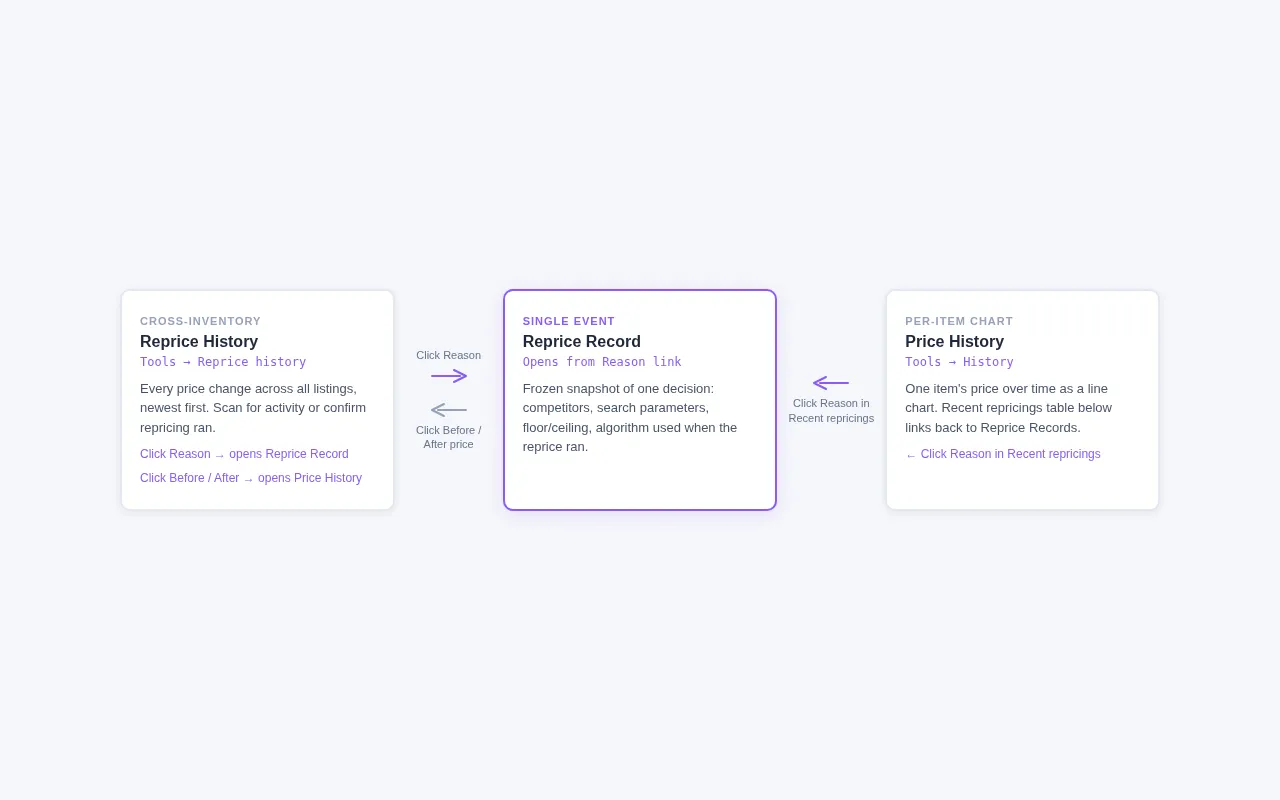
The general investigation flow is: start on Reprice History to find the event you're curious about, click its Reason to open the Reprice Record and see the decision context, or click its Before or After price to jump to the Price History for that item. Clicking any row in the Price History page's Recent reprice events list will take you back to a Reprice Record as well, so you can move between any two of the three pages in one click.
Tip: Reprice History only retains the most recent 30 days of activity. If you need a longer audit trail, export the data periodically using the Export button — see Exporting Reprice History below.
Reprice History
The Reprice History page is a single, paginated table that lists every reprice event across your entire inventory, newest first. It is the best place to start when you want to understand what Price Spectre has been doing on your behalf.
Navigating to the Reprice History Page
- Click Tools in the top navigation.
- Select Reprice history from the side menu.
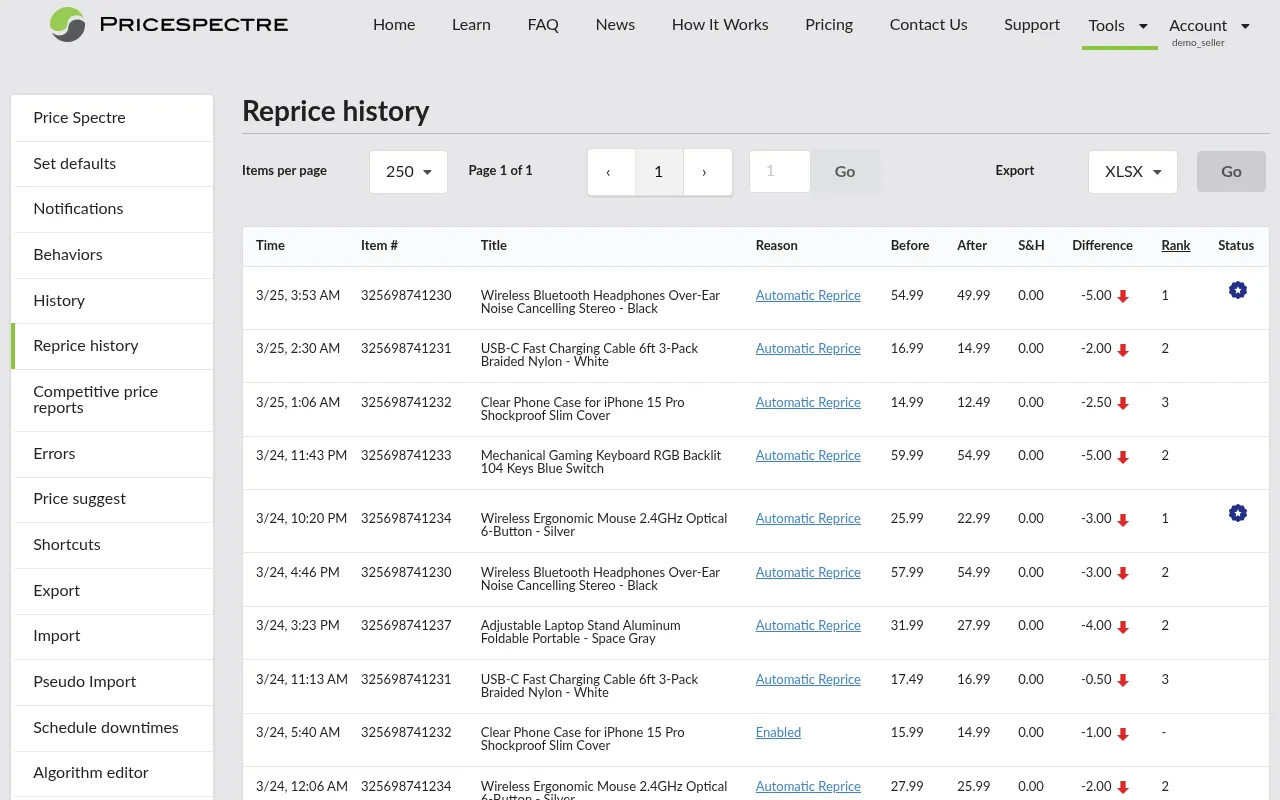
The page loads the most recent events automatically. If you have a large inventory, give it a moment to populate — older entries are available through pagination.
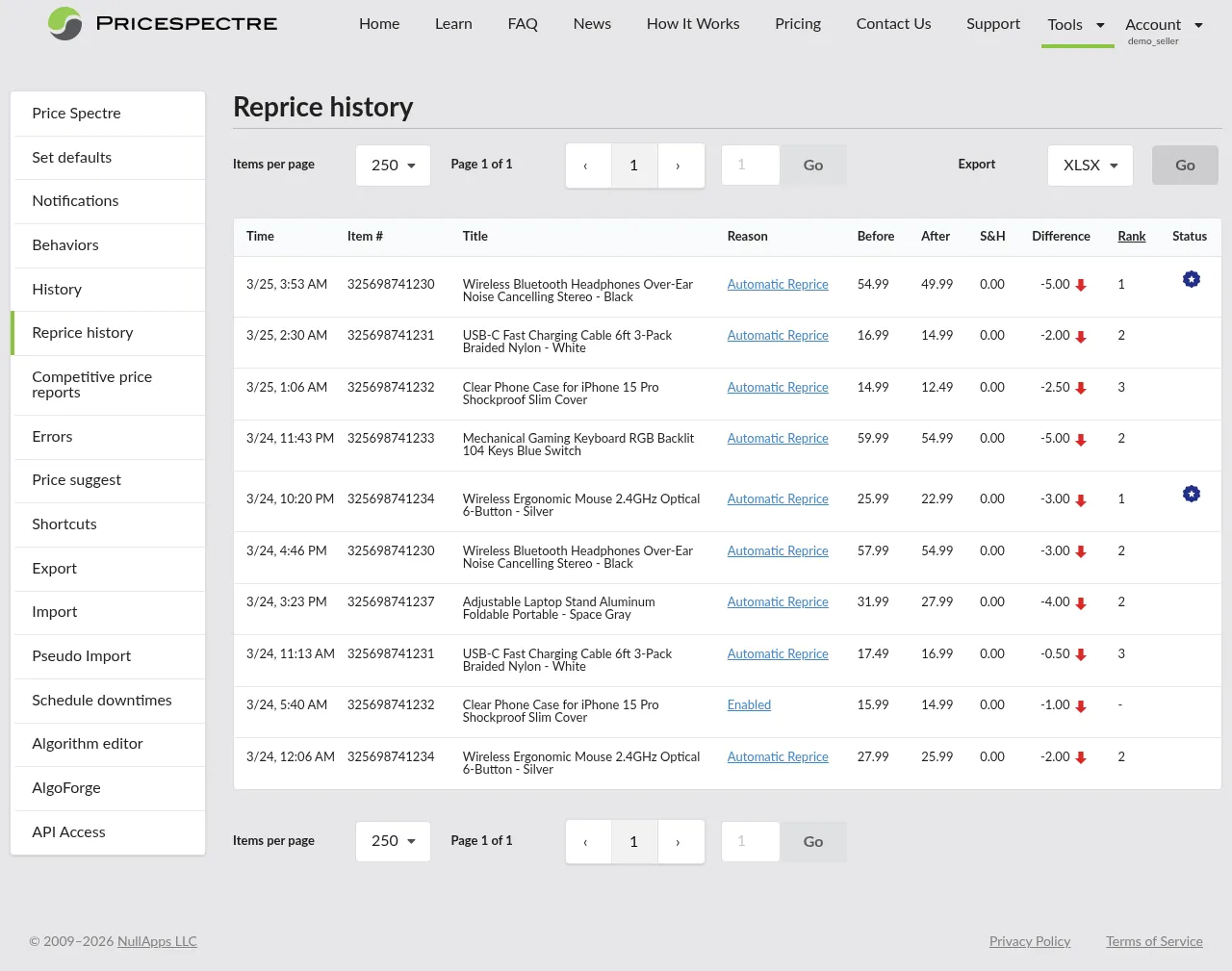
Reading the Columns
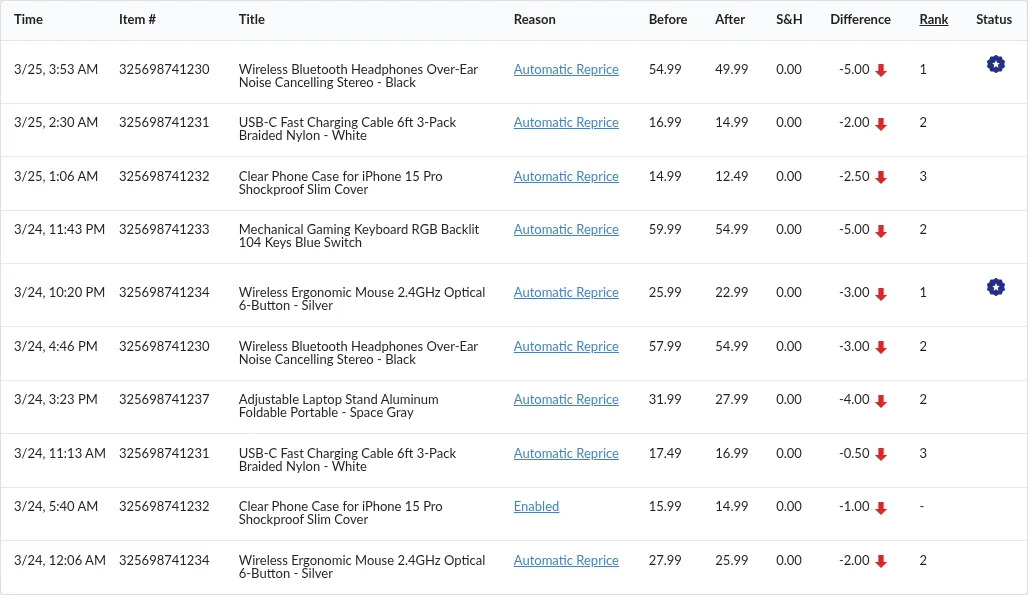
Each row in the table describes a single reprice event. The columns are:
- Time — when the reprice happened, shown in your local time zone as month/day hour:minute. Hover over the value to see the full date if it isn't from the current year.
- Item # — the eBay item number. Click it to jump directly to that listing's row in the main Price Spectre tool, where you can adjust its settings.
- Title — the eBay listing title. Items with variations (for example, different colors, sizes, or years) expand to show which variation was repriced.
- Reason — why the reprice happened. The possible values are Automatic reprice, Manual reprice, Manual user initiated change, Enabled, and Disabled. See Reading the Reason Column for a full reference. The Reason is always clickable — it opens the Reprice Record for that event.
- Before — the price immediately before the reprice. Click it to open the Price History for that item.
- After — the price immediately after the reprice. Click it to open the Price History for that item.
- S&H — the shipping and handling cost associated with the listing at the time of the reprice. This is informational; Price Spectre does not edit shipping cost, but it is shown here because some algorithms consider landed cost when comparing against competitors.
- Difference — the size of the change. A small up arrow means the price went up; a small down arrow means it went down. Because entries are only logged when the price actually changed, every row has a non-zero Difference.
- Rank — where your listing sat among the competitors Price Spectre considered during this reprice, with
1meaning the cheapest among them. Rank only counts listings that matched your search parameters; items filtered out by keywords, sellers, condition, and so on do not affect it. Ranks above5should be treated as approximate. - Status — one or more small icons summarizing what happened. Hover over an icon to see its label (for example, Floor reached or No competitors found). A full reference lives in Reading the Status Flags.

Paginating and Changing Page Size
The controls below the table let you move through older history:
- Items per page — choose how many rows to load at once. The default is
250. Larger page sizes are easier to scan but take slightly longer to load. - Page input — type a page number and press Enter to jump directly to it.
- Previous / Next — step one page backward or forward.

The newest events are always on page 1. Each page shows the same columns in the same order, so you can scroll quickly through long histories without reorienting.
Exporting Reprice History
If you want to keep a long-term record of reprice activity — for example, for bookkeeping, accounting, or post-hoc analysis in a spreadsheet — click Export at the top of the page and choose a file format:
- CSV — a plain comma-separated file that opens in any spreadsheet application and in most data tools.
- XLSX — a native Microsoft Excel workbook, preferable when you want to keep formatting or share the file with non-technical colleagues.
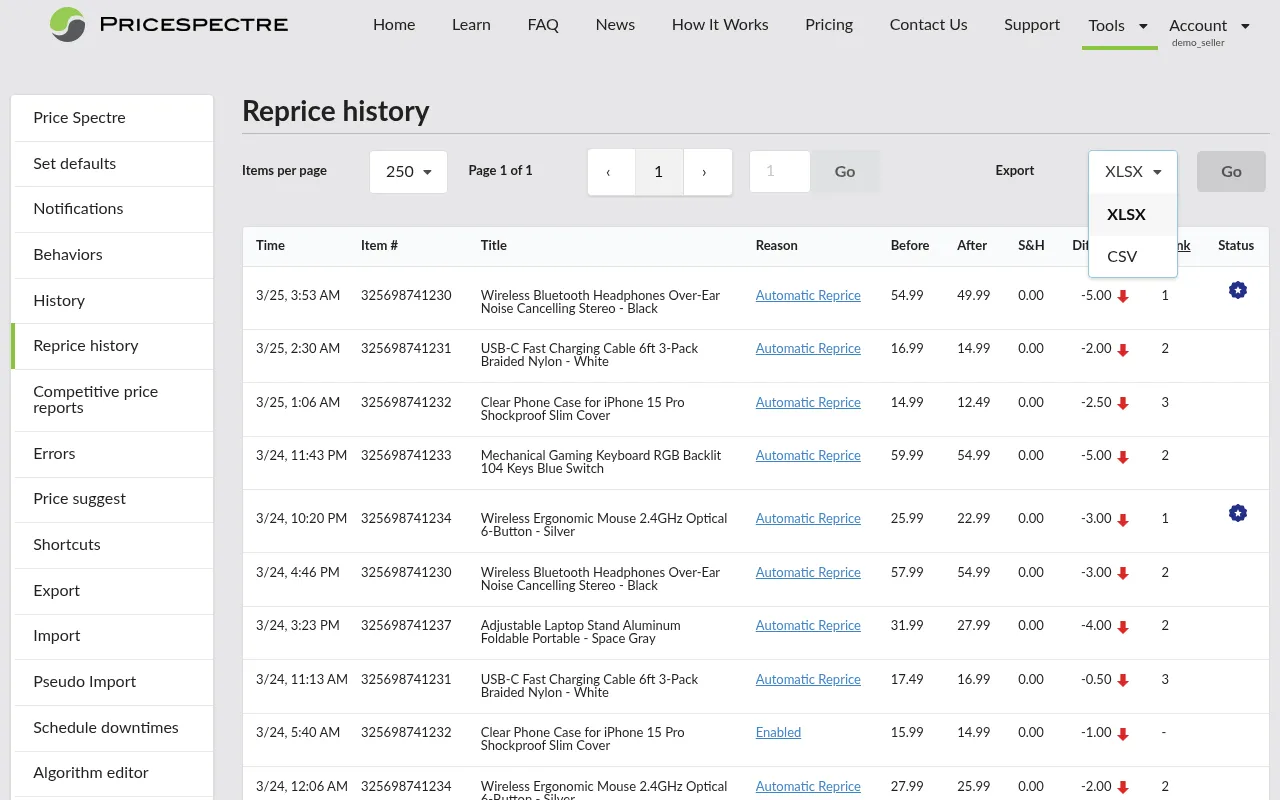
The export includes every column visible in the on-screen table. Status flags are written as text (for example, floor reached; lowest) so they remain searchable in the exported file. See the Import and Export Guide for more on working with exported files.
Empty State
If you have never had a reprice happen — for example, because you just signed up or you have not yet enabled repricing on any listings — the table shows a short message:
"You currently have no reprice history records."
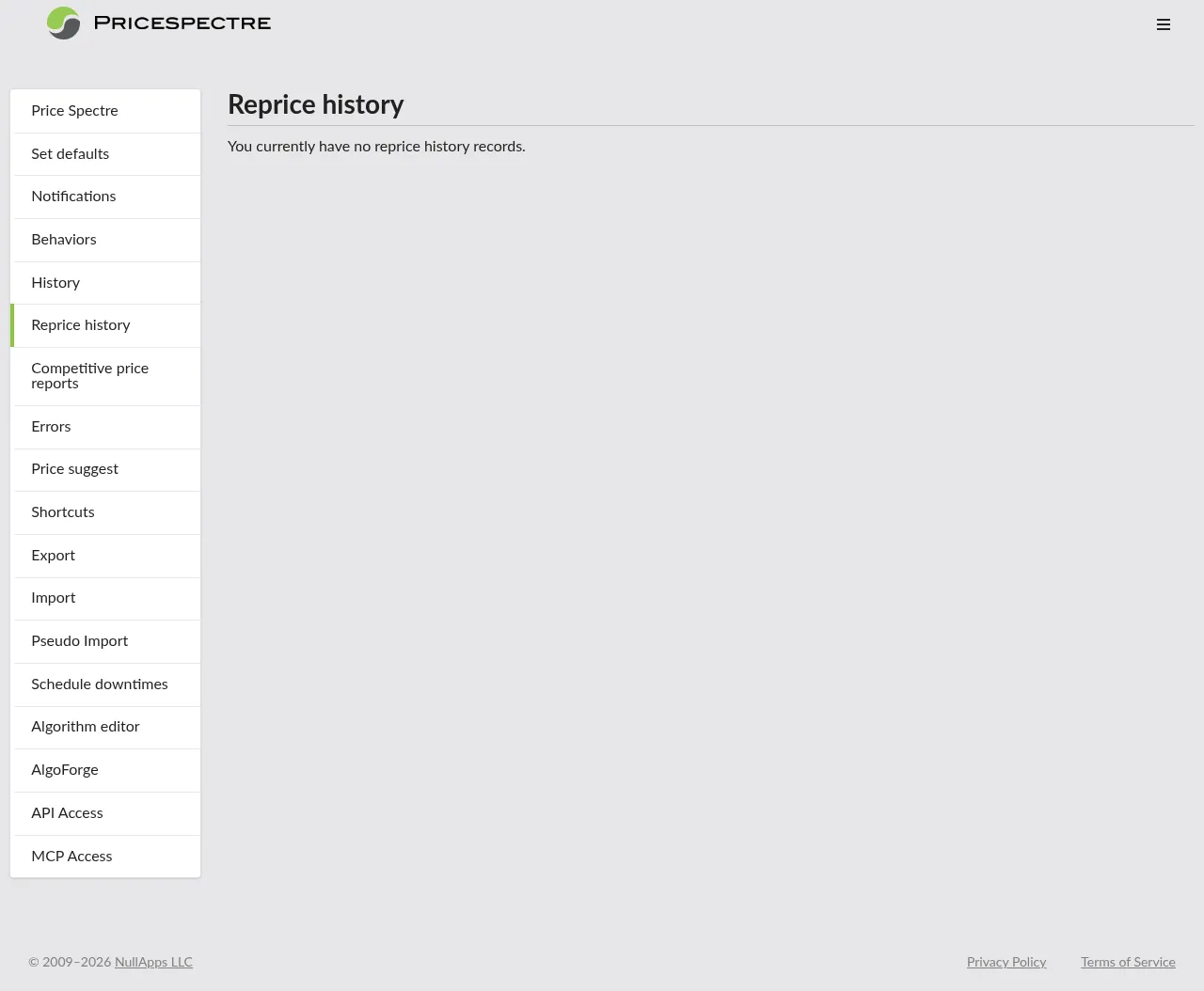
If you expect to see events but the page is empty, skip ahead to Troubleshooting: "Why didn't my item reprice?".
Reprice Record
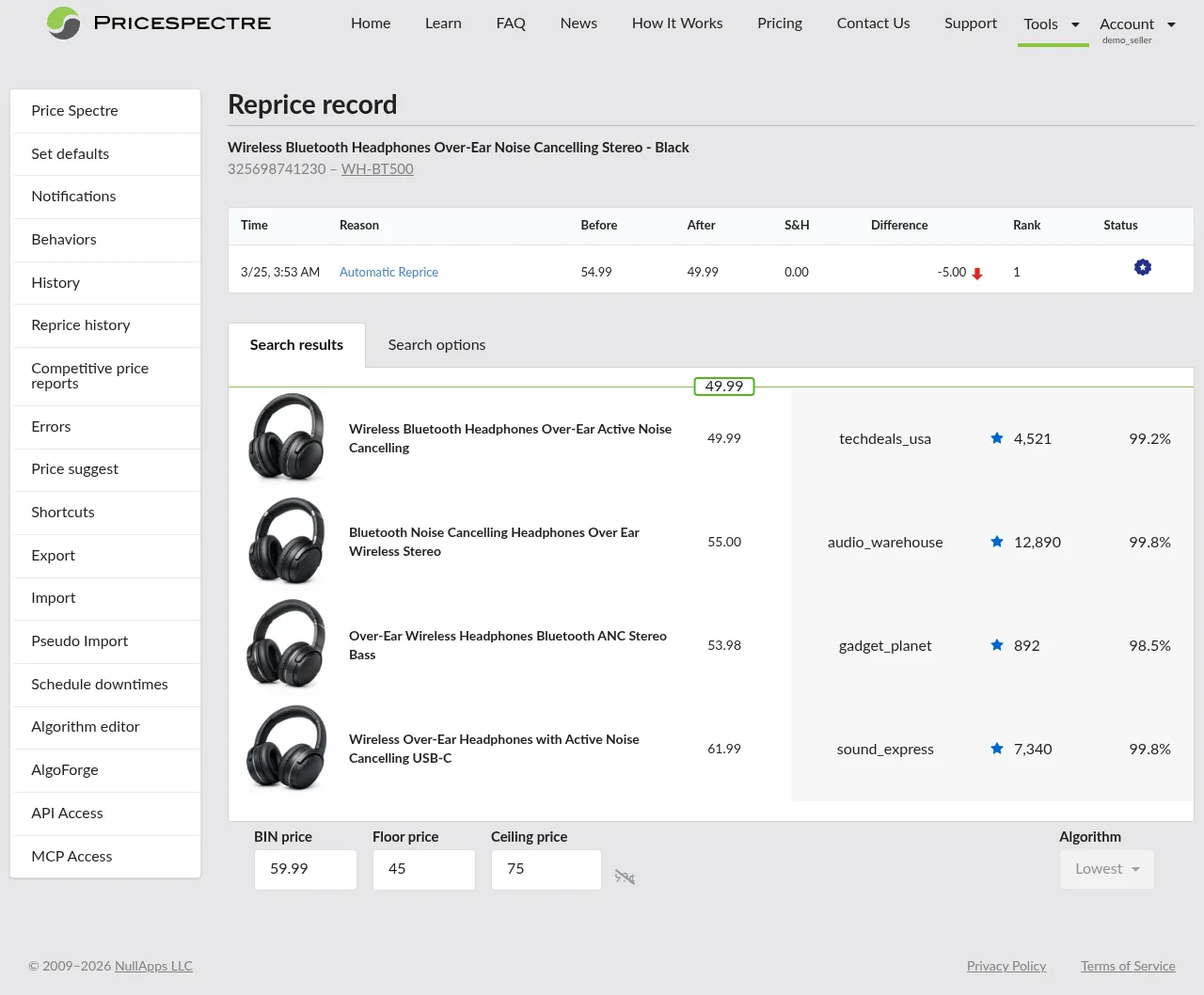
A Reprice Record is a snapshot of a single reprice decision for a single item. Where Reprice History shows you what happened, the record shows you why — which search parameters were active, what floor and ceiling you had set, which algorithm ran, and exactly which competing listings Price Spectre looked at before it chose the new price.
Think of a reprice record as a frozen receipt. The search controls, pricing controls, and competitor results are preserved as they were at the moment the reprice ran, even if you change your settings later. This is what makes the record useful for answering "why did it pick that price?" weeks after the fact.
Opening a Record from Reprice History
The quickest way to open a record is from the Reprice History page. In the Reason column, any underlined or linked value has a record attached — click it to open the Reprice Record for that event in a new view.
Opening a Record from Price History
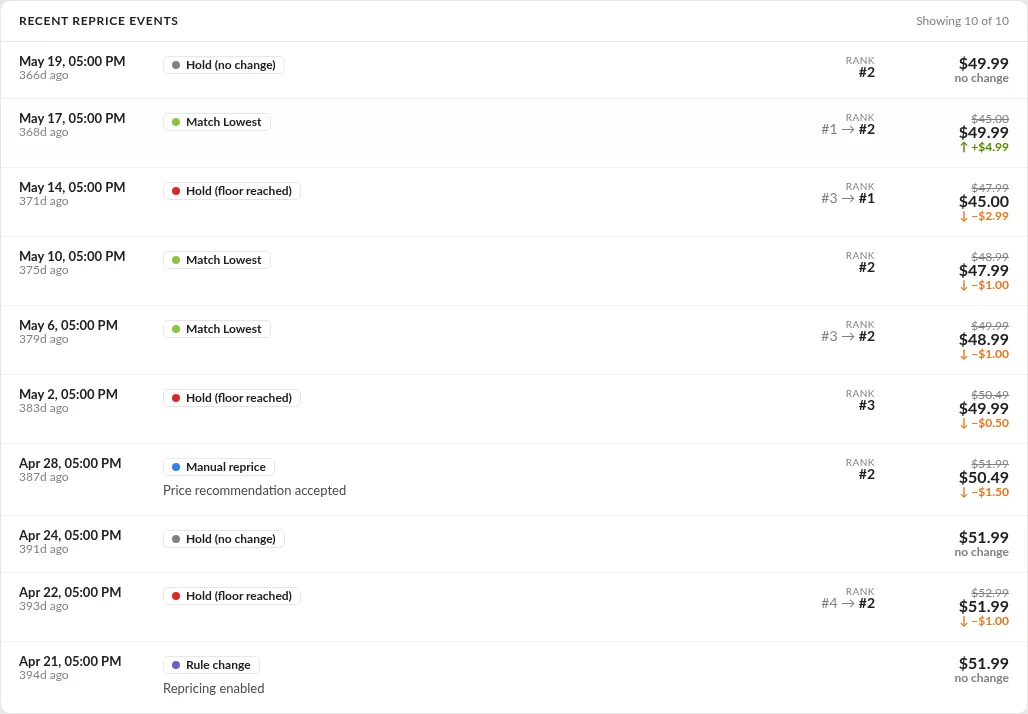
You can also reach a Reprice Record from the per-item Price History page. Below the price chart is a Recent reprice events list showing the last several reprice events for that specific item. Click any row to open that event's record.
This is often the fastest path when you are already investigating a specific item: search for it once on Price History, then move between its past reprices from the same page.
Reading the Reprice Snapshot
The top of the Reprice Record shows the item it belongs to:
- The listing title, exactly as it appeared on eBay at the time.
- The Item # (clickable — it jumps to the listing in the main Price Spectre tool).
- If the listing has variations, the SKU or variation label for the specific variant that was repriced.
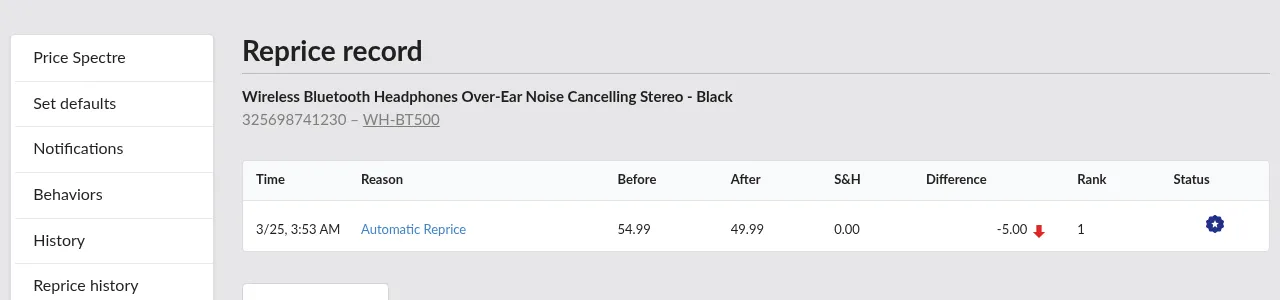
Directly below the header is a one-row summary table with the same Time, Reason, Before, After, S&H, Difference, Rank, and Status columns you already know from Reprice History — scoped to this one event.
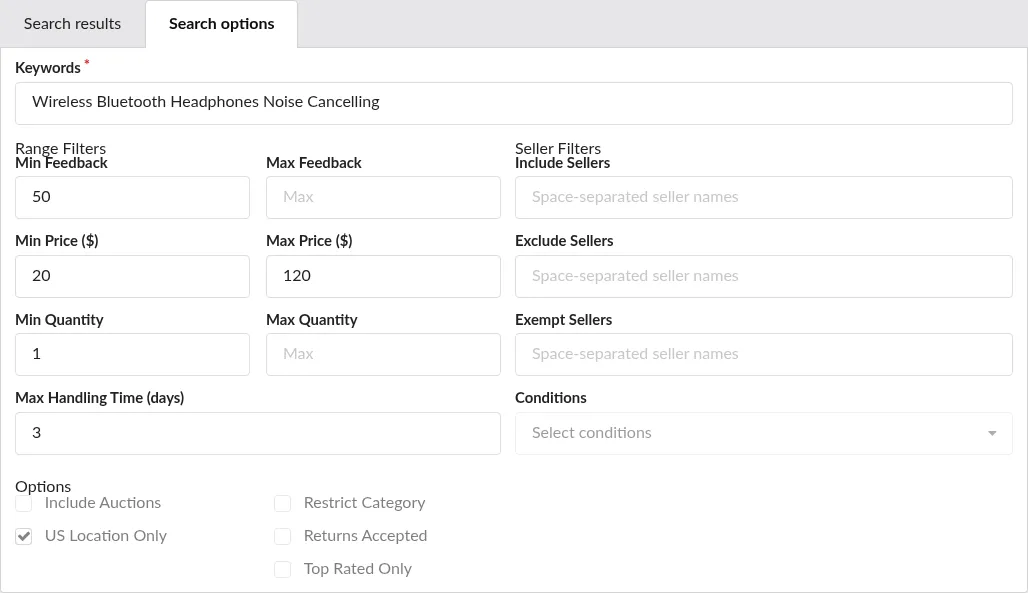
The real value of the page is what comes next: a read-only reproduction of the search and pricing controls that were active when Price Spectre ran. These are the same controls you would configure on the main Price Spectre tool, and they are grouped into two families:
Search parameters — how Price Spectre found competitors:
- Keywords or product code used to match competing listings
- Feedback score minimum and maximum for competing sellers
- Price minimum and maximum (competitors outside this range are ignored)
- Quantity and maximum handling time
- Toggles such as Include Auctions, Include Amazon, US Location Only, Restrict Category, Returns Accepted, Top Rated Only, and Hide Duplicates
- Seller Include / Exclude lists, acceptable item Conditions, and any specific eBay category restriction
Pricing controls — how Price Spectre chose a number once competitors were found:
- Your BIN (Buy It Now) price at the time
- Your Floor and Ceiling prices at the time
- The Algorithm that ran, including any X and Y values the algorithm took as inputs
- Whether Baťa pricing (psychological pricing that may round the price up to the nearest psychological price) was active
Because the snapshot is frozen to the moment of the reprice, it reflects the values you had set at that time. If your current settings differ, the record still shows what was used — which is exactly what you need when troubleshooting a result that no longer makes sense with today's settings.
Tip: If a record shows different values from what you see now on the Price Spectre tool, that is not a bug. It means your settings have changed since the reprice ran. Use this to confirm whether a change you made recently is already taking effect.
Reading the Competitors Table
Finally, the Reprice Record shows the list of competing listings Price Spectre considered during the reprice — the same results you would have seen if you ran a Search at that moment. The price Price Spectre set when this snapshot was taken is highlighted in the table so you can see exactly where your listing landed among the competitors.
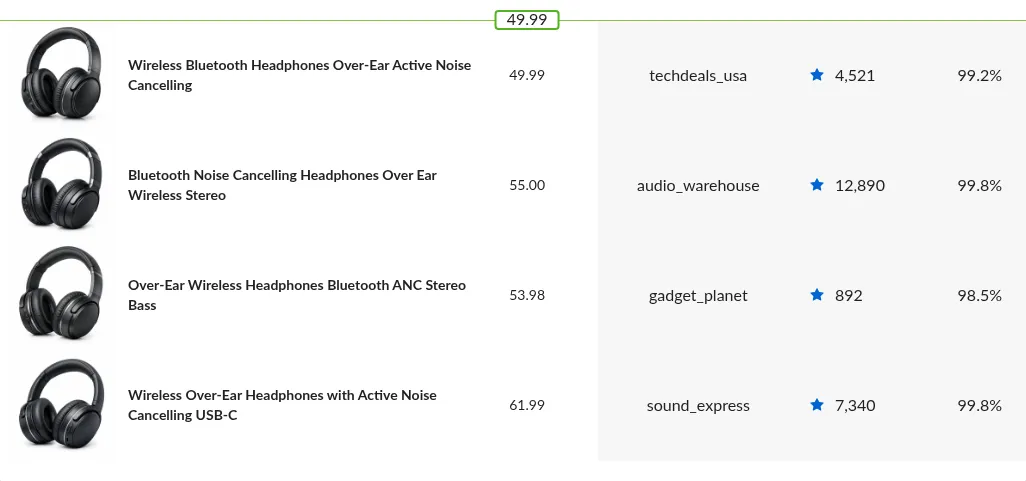
Use this view to answer questions such as:
- Did Price Spectre actually find any competitors? If not, you will see the No competitors found status flag in the summary row, and the table will be empty.
- Were the competitors it found the ones you expected? If you see sellers or listings that should be excluded, revisit your Exclude Sellers list or tighten your keyword filter.
- How close was your price to the leader? The difference between your highlighted row and rank
1is a rough measure of how aggressive the algorithm was being. - How tight was the race at the top? When the cheapest competitors are within a cent or two of each other, small filter or price changes can flip your rank between reprices — useful context for why the new price came out where it did.
If you are adopting a new algorithm or tuning your competitor filters and want to see how a search would run before committing, use the Search Console from the main Price Spectre tool; the Reprice Record is the retrospective counterpart that shows what the algorithm actually saw on past runs.
Price History
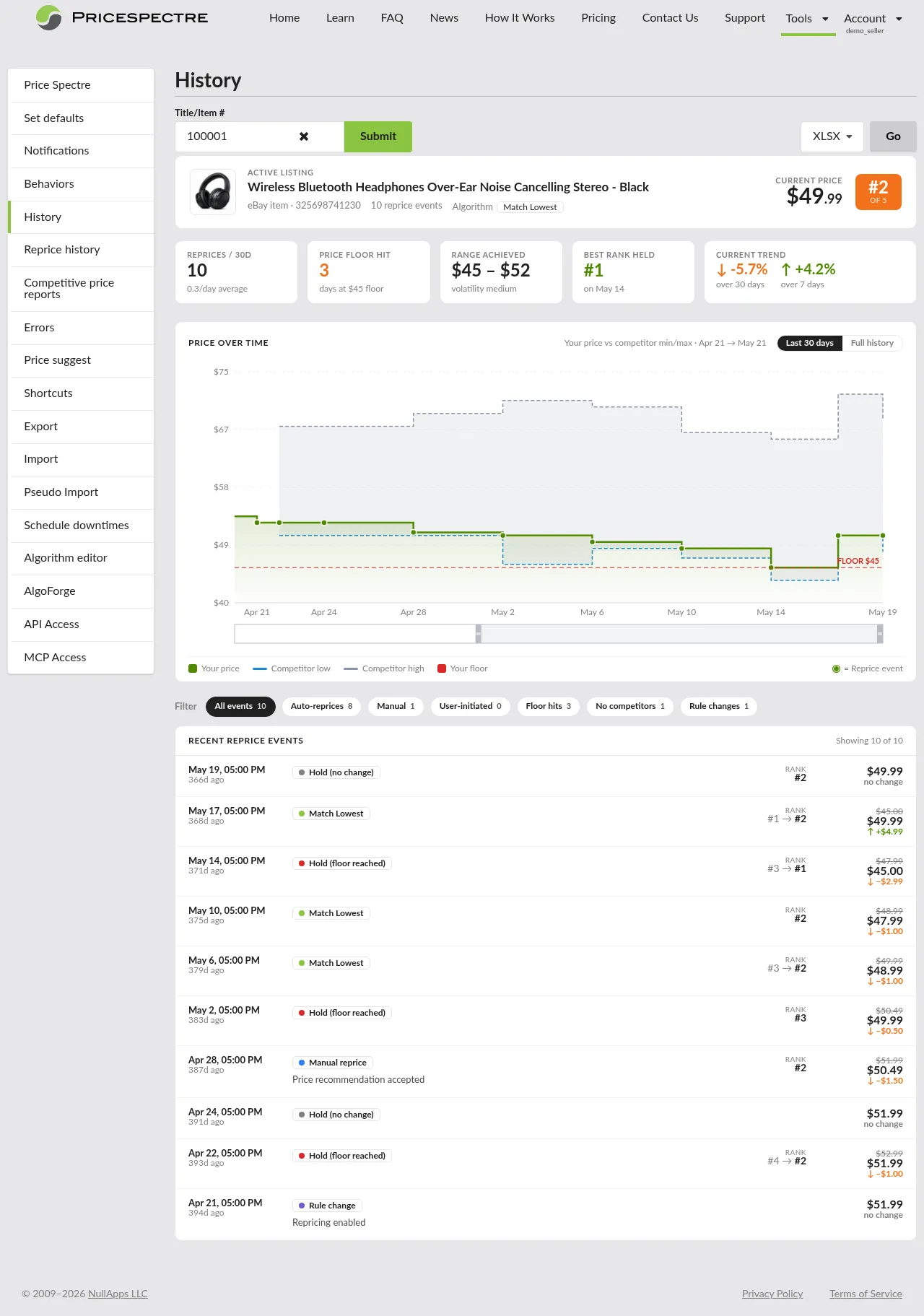
The Price History page focuses on a single listing and presents a complete reprice-history report for it: a listing card, a row of summary stat cards, an interactive price chart, and a filterable list of recent reprice events. It is the best view for spotting long-term trends — "my price has drifted down for three weeks" — and for drilling into individual reprice events on one item without losing context.
To open it, click Tools in the top navigation and choose History from the side menu.
The stat cards and event counts on this page summarize the last 30 days of activity, while the price chart can show either the last 30 days or the listing's full price history (see Changing the Time Range).
Finding an Item
The Price History page starts empty. You choose the item you want to look at using the Title/Item # search field at the top:
- Type the 12-digit eBay item number or a partial title into the search box.
- Select the matching item from the suggestions that appear, or click Submit.
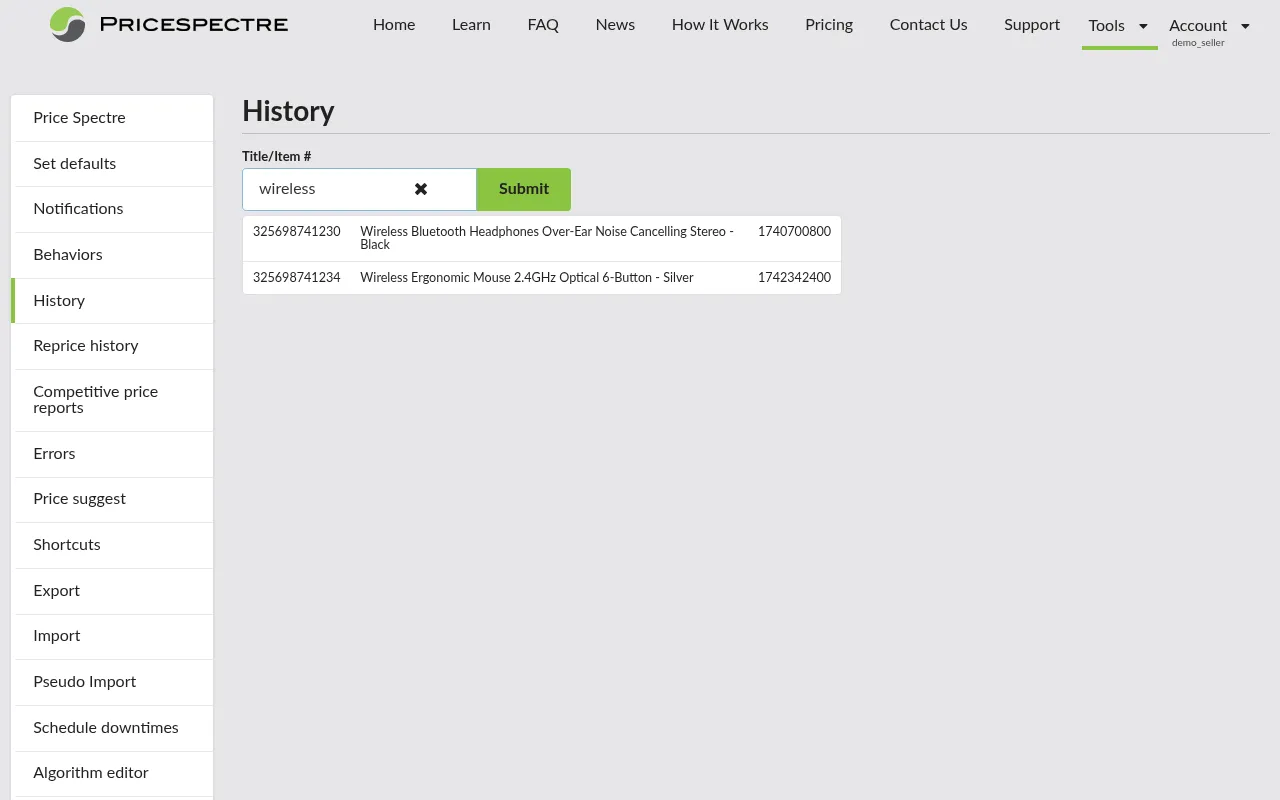
Once you pick an item, the full report loads for that listing. To switch to a different item, clear the search box (with the × button) and search again.
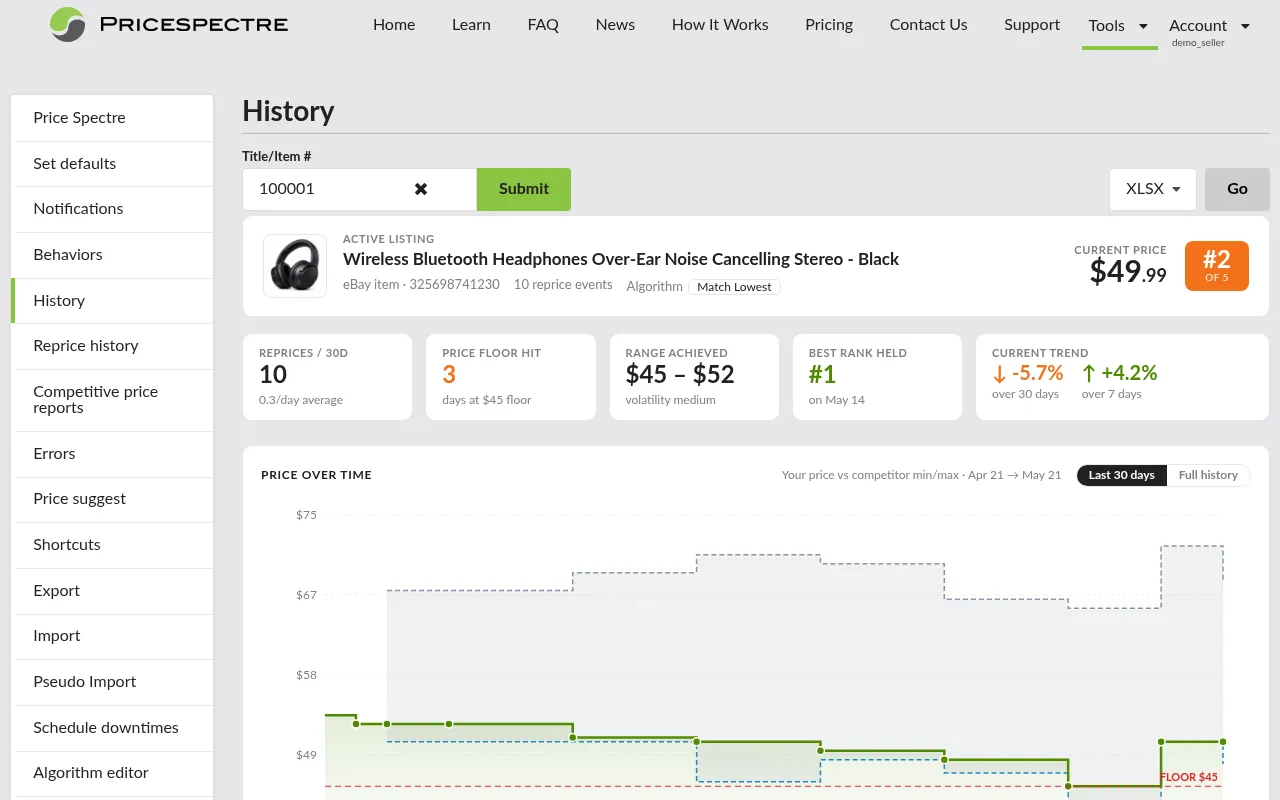
The Listing Card
At the top of the report is a card identifying the listing you are viewing:
- A thumbnail image of the item.
- An Active listing or Ended listing badge.
- The listing title and eBay item number.
- The number of reprice events recorded for the item and the algorithm currently assigned to it.
- The listing's current price, and its current rank among competitors shown as "#N of M".

The Stat Cards
Below the listing card is a row of stat cards summarizing the listing's behavior over the last 30 days:
- Reprices / 30d — how many times the item was repriced in the period, with a per-day average.
- Price floor hit — how many reprices were held at your floor. When a floor is set, the sub-label reads "days at $X floor"; a non-zero count is highlighted so you can spot floor pressure at a glance.
- Range achieved — the lowest and highest price the listing reached in the period, with a volatility rating of low, medium, or high.
- Best rank held — the best (lowest-numbered) rank the listing achieved, and the date it was first held.
- Current trend — the price trend shown two ways side by side: the change over the last 30 days and over the last 7 days, each with an up, down, or flat arrow and a percentage.

Reading the Price Chart
The chart plots the item's price over time as a stepped green line (with a shaded fill beneath it). Because the line is stepped, flat horizontal segments mean the price was stable for that stretch of time, and vertical steps mean the price changed at that moment.
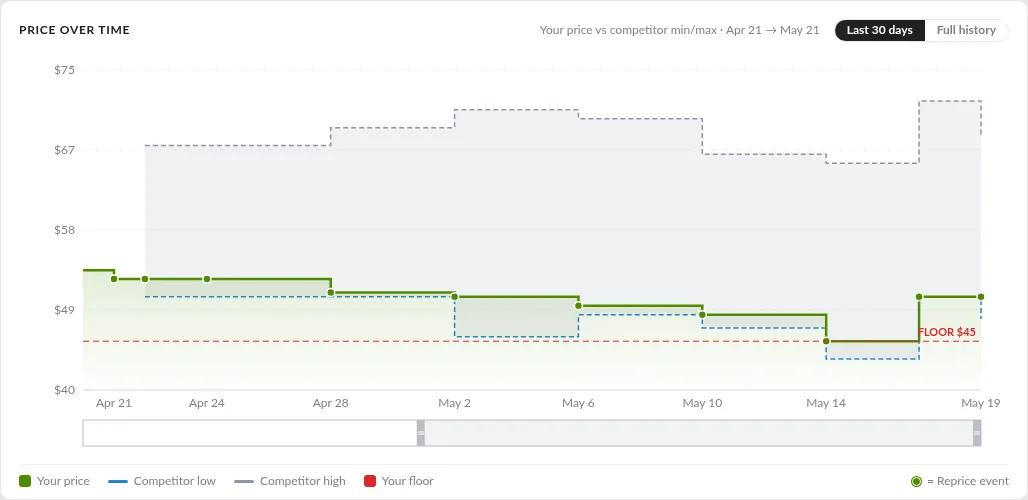
Several other series are overlaid so you can see your price in context:
- Competitor low — a blue dashed line tracing the cheapest competitor Price Spectre found at each reprice.
- Competitor high — a gray dashed line tracing the most expensive competitor, with a shaded band filling the range between low and high.
- Your floor — a red dashed reference line marking the floor price you set, so you can immediately see when your price is sitting on it.
The dots on your price line distinguish how each change happened:
- A solid green dot marks a reprice event — a price change Price Spectre made.
- A hollow orange dot marks a price change made outside Price Spectre — for example, you editing the price directly in eBay, or a third-party tool. (Price Spectre can only label these confidently within the window it has complete reprice coverage for, so very old changes may appear without a marker.)
Hover over any point to open a tooltip showing the date and time, your price, the competitor low and high at that moment, your rank, and whether the point was a reprice event or an outside change.
To investigate why a particular change happened, find the matching row in the Recent reprice events list below the chart and click it to open the corresponding Reprice Record.
Changing the Time Range
By default the chart shows the last 30 days, with the price that was already in effect drawn as a flat lead-in. When the listing has history older than the window, two buttons appear in the chart header:
- Last 30 days — the default focus window.
- Full history — expands the chart to the listing's entire price history.
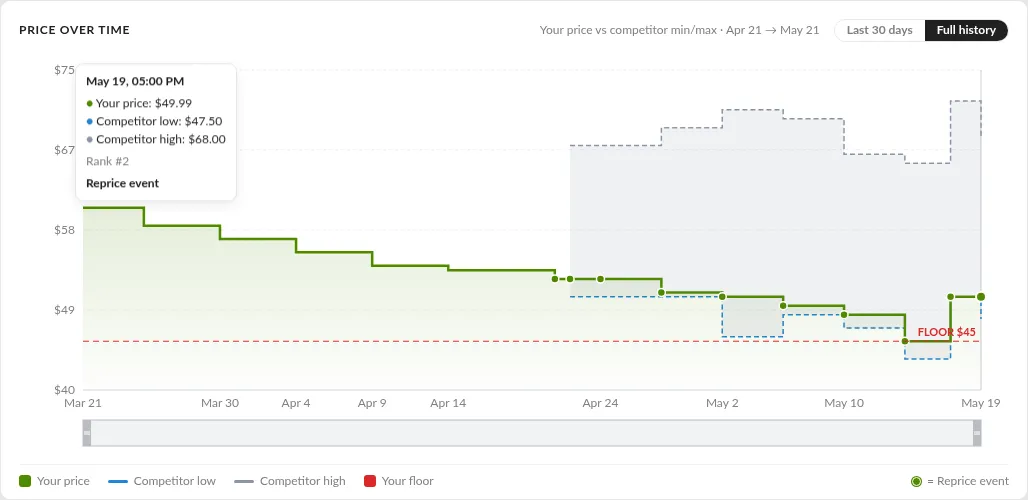
Below the chart is a smaller "navigator" strip that spans the whole loaded range. Drag its left and right edges, or grab the highlighted band in the middle and slide it, to fine-tune exactly which window of time the main chart shows. Changing the visible range only affects what the chart displays — no data is deleted, and you can widen the range again at any time.
Filtering Events
Between the chart and the event list is a row of filter chips, each showing a count. Click a chip to narrow the Recent reprice events list to a single kind of event:
- All events — everything (the default).
- Auto-reprices — automatic reprices made by the scheduler.
- Manual — reprices applied by accepting a Price Recommendation on a Manual-mode listing.
- User-initiated — price resets caused by a settings change on a non-managed listing.
- Floor hits — events where the price was held at your floor.
- No competitors — events where the search returned no matching competitors.
- Rule changes — events produced by enabling, disabling, or otherwise changing the listing's rules.
When a filter other than All events is active, a Clear button appears to return to the full list.

Recent Reprice Events
Below the filters is the Recent reprice events list. A counter at the top reads "Showing X of Y" to reflect the active filter. Each row describes one event:
- When — the date and time of the event, plus a relative time such as "3d ago".
- Tag — a colored label describing the event: the algorithm name (or Auto-reprice) for a normal automatic reprice, Manual reprice, User-initiated change, Rule change, or a Hold tag — Hold (floor reached), Hold (ceiling reached), or Hold (no change) — when the price did not move. A short description may appear beneath the tag.
- Rank — the rank after the event, shown as "#3 → #1" when the rank changed.
- Price — the price before (struck through) and after the change, with the difference shown as "↑ +$X", "↓ −$X", or "no change".
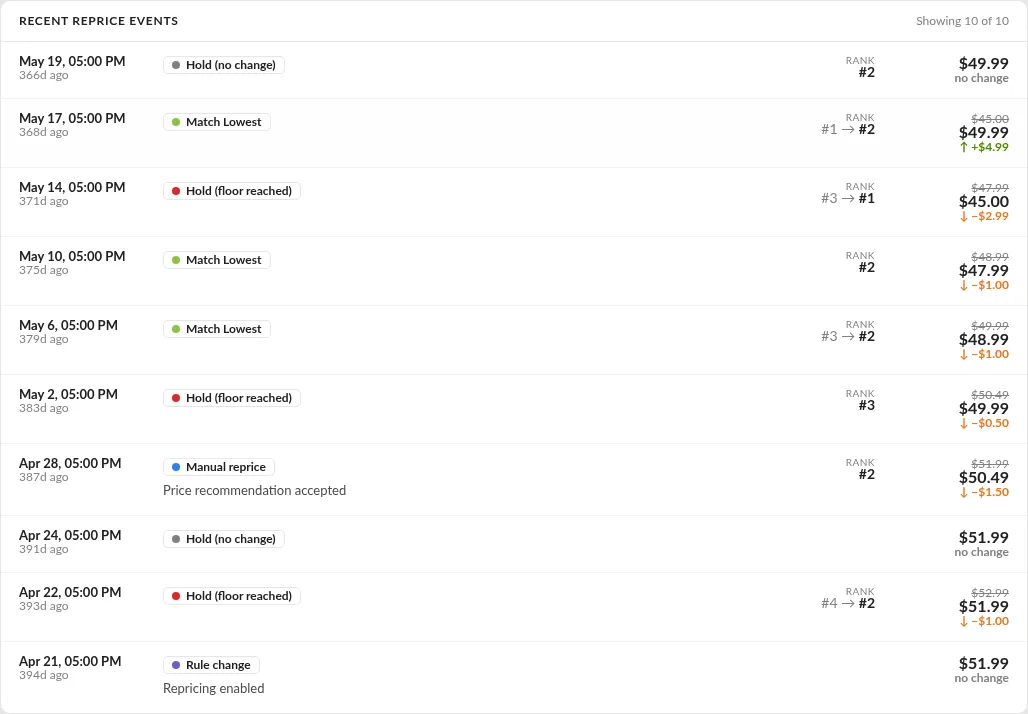
Click any row to open that event's Reprice Record. The list loads the most recent events for the selected item; for a longer audit trail across all items, use Reprice History.
Exporting Price History
If you want a copy of an item's price history to analyze offline — for example, to build your own chart in a spreadsheet, compare against Amazon prices, or archive for tax purposes — use the export controls at the top of the report once a listing is loaded. Choose a file format and click Go:
- XLSX — a native Microsoft Excel workbook.
- CSV — a plain file that opens in any spreadsheet application.
The export contains one row per price change, with the timestamp and the new price. Combine this with a Reprice History export (see Exporting Reprice History) for a complete offline record.
Reading the Status Flags
The Status column on both Reprice History and Reprice Record is a compact collection of small icons. Each icon represents a flag that the algorithm set while making its decision. A row can have several flags at once (for example, Floor reached and Lowest price can both be true at the same time), and hovering over any icon shows its name.
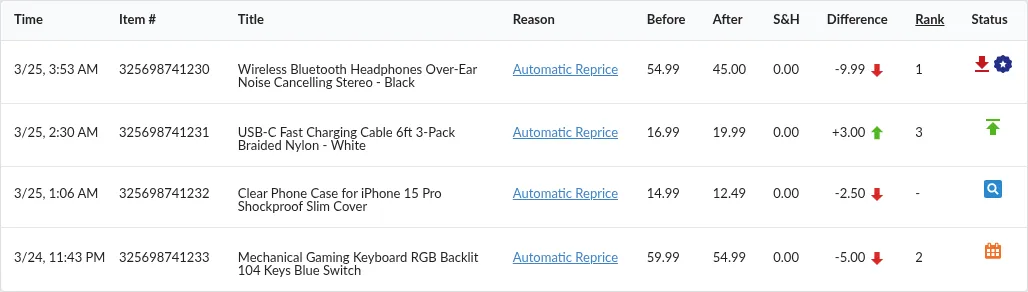
Flags describe observations, not errors. A row with several flags is still a successful reprice — the flags just tell you what constrained the outcome.
Floor reached
The price was pushed against the floor you set on the listing. Price Spectre would have gone lower based on the competitors it found, but your floor stopped it.
If you see this flag often on the same item, decide whether you want to lower the floor (accept a thinner margin to stay competitive) or leave it in place (accept losing the rank race to protect margin). The current floor is visible on the main Price Spectre tool and in the frozen settings shown on the Reprice Record.
Ceiling reached
The mirror image of Floor reached: the algorithm would have raised the price higher, but your ceiling capped it. This happens on low-competition listings or when an algorithm is configured to follow a markup over cost that produced a number above your ceiling.
Review your ceiling periodically. A ceiling that is too low can leave money on the table when competition thins out.
No competitors found
Price Spectre ran the search but found zero competing listings that matched your search parameters. With nothing to compare against, the algorithm falls back to your No competition found Behavior. The default behavior is to set the price back to your BIN price, but you can change this on the Behaviors page (Tools → Behaviors).
Common causes:
- Keywords or product code are too specific.
- Seller Exclude list is filtering out every real competitor.
- Condition, category, or location filters are too strict.
- You really are the only seller — which is a great position to be in.
The Reprice Record for a No competitors found event is particularly useful: the competitors table will be empty, and the search parameters section will show exactly which filters were in effect.
Lowest price
Your listing is already priced at or below every competitor the algorithm found. Rank 1 rows almost always carry this flag.
This is usually good news: you are winning the price race for this item. If you see it paired with Floor reached, it means you are at the lowest competitor price and against your own floor — i.e., the floor is what stopped the price from dropping further, not competition.
Scheduled downtime
A scheduled downtime was in effect when the reprice ran. The price is set according to your No competition found Behavior, which you can configure on the Behaviors page (Tools → Behaviors). The default Behavior is to fall back to your BIN price, so unless you've changed it you can expect the listing to revert to its BIN price for the duration of the downtime.
Downtimes are useful during inventory updates, promotions, or off-hours. If you did not expect one to be active, review Tools → Schedule downtimes.
Reading the Reason Column
The Reason column tells you why an entry exists in the history — who or what caused the reprice to be attempted. There are a small number of possible values.
Automatic reprice
The scheduler ran on its normal cadence, the algorithm evaluated the item, and the new price was different from the old one. This is the most common reason on an active account. Reprices that produced no price change are not logged, so every Automatic reprice row reflects an actual change to your eBay listing.
Manual reprice
You (or someone on your account) accepted a recommendation — or set your own price — on the Price Suggestions dashboard or the Price Recommendation detail view for a listing that is configured for manual repricing. The snapshot captured in the Reprice Record reflects the settings as they were when the recommendation was generated by the manual reprice — i.e. the calculation you reviewed before accepting.
The full workflow looks like this:
- A listing in Manual mode is evaluated on its normal schedule.
- Instead of pushing the new price to eBay, Price Spectre creates a Price Recommendation and queues it on the Price Suggestions dashboard.
- You open the recommendation, review the marketplace snapshot, and choose to Approve, Set a custom price, or Decline.
- Approve and Set apply a price to eBay and create the Manual reprice row you are looking at here. Decline does not — declined recommendations leave no row in this table.
For more on putting listings into Manual mode and reviewing the queue, see the Price Suggestions & Price Recommendation Guide.
Manual user initiated change
You changed a setting in Price Spectre on a listing that is not managed for repricing, and the change caused the price to update. The most common trigger is a bulk settings change — for example, updating the floor or ceiling for all listings — applied to a non-managed listing whose current price differs from its BIN price. Price Spectre considers the BIN price to be the correct price for non-managed listings, so it adjusts the listing back to its BIN price as part of the bulk operation, and that adjustment is logged here.
Despite the similar name, this is not the same as a Manual reprice. A Manual reprice is the result of accepting a Price Recommendation on a managed, Manual-mode listing; a Manual user initiated change is the side effect of you editing a setting on an unmanaged listing whose price needed to be reset to its BIN price. If you are not sure which one applies, check whether the listing is enabled for repricing — if it is, the row is a Manual reprice.
Enabled and Disabled
Enabled records the moment you turned Price Spectre repricing on for an item, and Disabled records the moment you turned it off. These events can also be used to force an immediate reprice — disable a listing, then re-enable it, and Price Spectre will reprice it right away rather than waiting for the next scheduled run. The price change that results from the re-enable is what gets logged as the Enabled row.
Troubleshooting: "Why didn't my item reprice?"
When a listing's price is not moving the way you expect, work through the following checks in order. Most real cases are solved in the first three.
1. Does the item appear on Reprice History at all?
Open Reprice History and look for entries for that item (use the Item # column). If there are none in the recent past:
- Confirm repricing is enabled for this item on the main Price Spectre tool. A recent Disabled entry in the history is a giveaway.
- Confirm the item is actually active on eBay. Ended listings are skipped. (Out-of-stock listings are not skipped — Price Spectre keeps repricing them so they're at the right price when stock returns. The exceptions are the time-based Discount algorithms and the demand-responsive Elastic algorithm, which require active stock.)
- Confirm no Scheduled downtime is in effect. If your last reprice shows the Scheduled downtime flag, the price is following your No competition found Behavior on the Behaviors page rather than the algorithm.
- Confirm the listing is not in Manual mode with a pending recommendation waiting on you. A Manual-mode listing only produces a Manual reprice row in this table when you accept (or set a custom price for) a recommendation. If the listing is in Manual mode and you have not acted on its recommendations, the change you are looking for is on Price Suggestions, not here.
2. Do you see No competitors found on recent entries?
The search parameters excluded every competing listing, so Price Spectre fell back to your No competition found Behavior (the default is to revert to the BIN price; see No competitors found). Open the Reprice Record and look at the frozen search parameters:
- Loosen the keyword / product code if it is overly specific.
- Re-check the Exclude Sellers list — it can accidentally rule out everyone.
- Relax feedback, handling-time, or condition filters if they are too tight.
- Widen the price-range filter.
For the most efficient way to find the offending filter, open Tools > Search Diagnostic for the listing. The Diagnostic shows every candidate eBay returned (raw count in the Outcome card) partitioned into kept and rejected, with the filter rule called out per rejected row and a funnel showing how many each rule dropped. See the Search Diagnostic guide.
3. Do you see Floor reached or Ceiling reached?
The price is being held against your boundaries:
- Floor reached — the algorithm wants to go lower. Consider lowering your floor if staying competitive matters more than margin on this item, or leave it alone to protect margin.
- Ceiling reached — the algorithm wants to go higher. Consider raising the ceiling if you want to capture low-competition windows.
4. Is the price on eBay being overwritten by something else?
This is one of the most common root causes for "why didn't my item reprice?" — and it is not always immediately obvious. The classic signature is:
- A reprice record on Reprice History shows Price Spectre setting the correct expected price.
- Subsequent reprice records show Price Spectre setting the same correct price again, repeatedly.
- The Price History chart for the item shows the price oscillating between two (or more) values over and over.
This pattern means the price is being changed back to a different value between Price Spectre's reprices — most commonly by another third-party repricing tool or seller-management tool that is also connected to the eBay account, less commonly by a person editing the price directly in eBay. To resolve it, identify the other tool or person making the change and either disable that source or align its rules with Price Spectre's.
5. Is rank 1 but the price still feels wrong?
If the status shows Lowest price but you believe the price is too low (or too high), the gap is between your configured strategy and what the algorithm is doing with it. Open the Reprice Record and check:
- Which Algorithm is shown, and what X / Y values were used.
- Whether Baťa pricing is enabled when you did not expect it.
- Whether the competitor list contains listings you would rather ignore. Tighten the search filters if so.
For deeper tuning of algorithm behavior, see the Algorithm Editor Guide.
6. Still stuck?
Export the last few weeks of Reprice History (see Exporting Reprice History) and the Price History for the affected item, and open a support ticket. Including both exports gives the support team a complete picture without you needing to reproduce the state.
Tips and Best Practices
- Investigate from the Reason link. When you are not sure why an event happened, the Reason link on Reprice History is almost always the fastest first click. It drops you straight into the frozen snapshot for that event.
- Use Price History for per-item stories, Reprice History for catalog-wide stories. If you are asking "what happened to this listing over the last month?", Price History is the right page. If you are asking "is the repricer running at all?", Reprice History answers first.
- Compare past records after changing settings. Once you adjust your floor, ceiling, algorithm, or search filters, open a recent pre-change record and a recent post-change record side by side. The snapshots make it easy to confirm your change took effect.
- Export on a regular cadence. Reprice History only retains the most recent 30 days, so if you want a permanent record, schedule a recurring manual export of both Reprice History and any high-value items' Price History.
- Pair with the Algorithm Editor. When recurring Floor reached or No competitors found flags point you toward an algorithm tuning change, the Algorithm Editor Guide covers how to adjust the algorithm itself.
- Pair with Search Diagnostic for matching questions. When a past Reprice Record's competitor set contains wrong or missing items, open Tools > Search Diagnostic for the live picture — it shows the full eBay result set partitioned into kept and rejected competitors, so you can compare the live filter behavior against what the frozen Reprice Record shows.
- Pair with Import/Export for bulk settings changes. If a troubleshooting session reveals that many listings share the same problem (for example, a too-tight floor), fixing them one at a time is slow. The Import and Export Guide covers how to pull settings into a spreadsheet, edit them in bulk, and import them back.
- Pair with Price Suggestions for Manual-mode listings. Manual reprice rows in this table are the applied tail of the manual-mode workflow; the Price Suggestions & Price Recommendation Guide covers the review side. If a Manual-mode listing seems "quiet" in this table, the action is most likely waiting for you on the Price Suggestions dashboard.
Frequently Asked Questions
Q: The Reprice Record shows different settings from what I see now on the Price Spectre tool. Why? A: Reprice Records are snapshots. They preserve the settings that were active at the moment the reprice ran, even if you have since changed them. This is intentional — it is what makes the record useful for investigating past decisions.
Q: How far back does Reprice History go? A: Reprice History retains the most recent 30 days of activity. If you need a longer audit trail, export to CSV or XLSX periodically and archive the files yourself.
Q: Can I filter Reprice History by item or by status flag? A: The Reprice History page itself shows all events in reverse chronological order. To focus on a single item, open Price History and search for the item — its Recent reprice events list is scoped to that listing and can be narrowed further with the on-page filter chips (auto, manual, floor hits, no competitors, and more). For broader filtering across your whole catalog, export to CSV or XLSX and filter in a spreadsheet.
Q: Why does my status show No competitors found when I can clearly see other sellers on eBay? A: The flag reflects what matched the search parameters on the reprice, not what exists on eBay overall. Open the Reprice Record and review the frozen keywords, condition filter, seller Exclude list, feedback bounds, and price range — one of them is ruling out the competitors you expected.
Q: Does a Reprice Record exist for every event on Reprice History? A: Yes — any time Price Spectre changes the price, a Reprice Record is created. The flip side is also useful to know: if a price changed on a listing but you cannot find a corresponding Reprice Record, that change happened outside Price Spectre (a person editing in eBay, or a third-party tool).
Q: How do I force an immediate reprice on a managed listing? A: Disable the listing on the main Price Spectre tool, then re-enable it. Re-enabling triggers an immediate reprice, which will appear in Reprice History as an Enabled row.
Q: How is a Manual reprice row different from an automatic one? A: The calculation behind both is identical — same algorithm, same floor and ceiling, same search filters. The difference is only in the last step: a Manual reprice row was applied because you accepted a Price Recommendation (or typed a custom price and clicked Set), whereas an Automatic reprice row was applied directly by the scheduler. The Reprice Record snapshot looks the same for both. See the Price Suggestions & Price Recommendation Guide for the review workflow that produces Manual reprice rows.
Q: A Manual-mode listing's price hasn't moved in days. Where do I look first? A: Open Price Suggestions. Manual-mode listings only appear in this Reprice History table once a recommendation has been accepted; until then, any pending change for the listing is on the dashboard waiting for your review.
Q: I want a visual trend, not a long table. Where do I look? A: Open Price History and search for the item. The report leads with the price chart — your price against the competitor low/high range and your floor — so it is the right page whenever a visual trend is more useful than a list of events. The recent reprice events appear below the chart if you want to drill in.
Q: Where do I learn more? A: Start with the Tutorial for the full end-to-end picture of Price Spectre, then see the Related Guides below.
Related Guides
- Tutorial — the end-to-end onboarding guide covering linking eBay, floors and ceilings, and enabling repricing.
- Algorithm Editor — writing or customizing the algorithms whose decisions are recorded in this history.
- Search Console — the live counterpart to these past snapshots: the competitor set and candidate price a reprice would use right now.
- Search Diagnostic — why a listing has a particular competitor set: kept and rejected candidates, and the filter rule that dropped each rejected one.
- Price Suggestions & Price Recommendation — the Manual-mode review workflow that produces the Manual reprice rows in this history.
- Import & Export — bulk settings changes for when troubleshooting reveals that many listings share the same problem.