
Price Spectre Manager Access
Manager Access lets you grant another Price Spectre account — typically an agency you have hired — the ability to log in and manage your listings on your behalf. You stay in control: nothing happens until you submit a manager's public ID, and you can revoke access at any time.
This guide is for Price Spectre account holders who want to delegate day-to-day repricing to a manager. If you run an agency and want to become a manager, see the Manager Dashboard guide instead.
Table of Contents
- Before You Start
- Granting Manager Access
- Pending & Active Authorizations
- Revoking Access
- Authorization History
- What Your Manager Can Do
- Frequently Asked Questions
Before You Start
Before you can grant manager access, you need a 32-character manager public ID from the agency you are working with. This ID is made up of the letters A–F and digits 0–9 (hexadecimal), and it uniquely identifies your manager's Price Spectre account.
The ID is shared with you out-of-band by the agency — typically over email or a secure message. Price Spectre never emails it to you automatically.
Note: If your agency does not have a manager account yet, send them the Manager Dashboard guide. It walks them through signing up, contacting support, and receiving a public ID.
Manager Access works on any standard Price Spectre account, but we recommend completing the rest of your account setup before granting access — link your eBay seller account from Account > Link/Unlink and add a payment method from Account > Billing. Your manager can only do useful work once there is an eBay store to manage and billing is in place to cover the managed listings they enable.
Granting Manager Access
Once you have the public ID from your manager, follow these steps:
- Sign in to Price Spectre with your own credentials.
- Navigate to Account > Manager Access from the account menu.
- Paste the 32-character public ID into the Manager Access Code field. The form accepts only letters A–F and digits 0–9 and normalizes them to uppercase as you type.
- Click Submit Authorization.
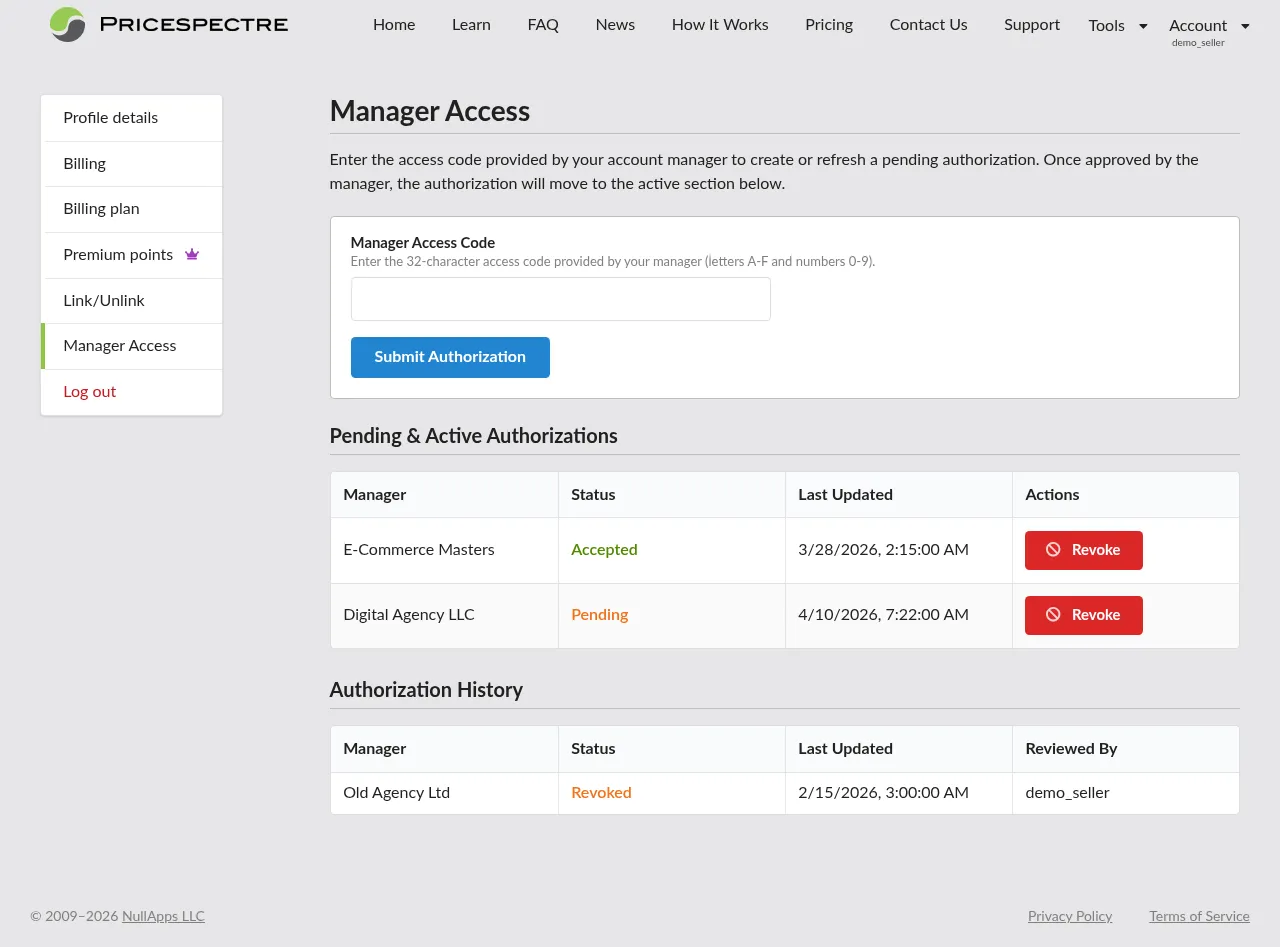
If the code is not exactly 32 valid hexadecimal characters, Price Spectre will display an inline error like "Manager access codes must be exactly 32 hexadecimal characters (letters A–F and numbers 0–9)." — double-check the code with your manager and try again.
When the submission succeeds, you will see a brief "Authorization request saved." confirmation at the top of the page, and a new pending row will appear in the Pending & Active Authorizations table below the form.
Tip: Copy and paste the code rather than typing it by hand. A single wrong character will cause the request to fail — either the format check will reject it, or the code will match a different manager than the one you intend.
Pending & Active Authorizations
The Pending & Active Authorizations section lists every authorization you have created that is still live — either waiting for the manager's decision, or already accepted.
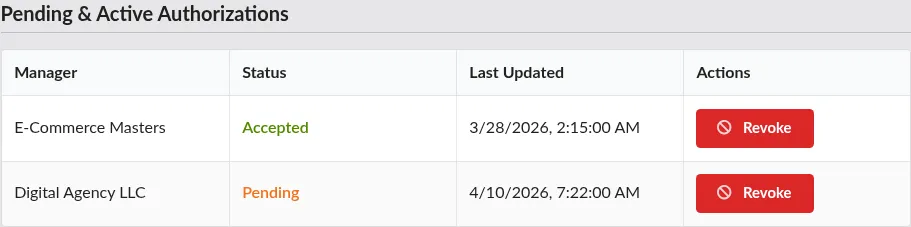
The table shows four columns:
- Manager — the manager's display name, so you can tell at a glance who the request went to.
- Status — one of:
- pending — the manager has not yet accepted or denied your request. They can see it in their Manager Dashboard.
- accepted — the manager has accepted. They can now sign in to your account when needed.
- Last Updated — the date of the most recent change to this authorization.
- Actions — a Revoke button you can use at any time.
If there are no rows, you will see the message "No pending or active manager authorizations were found."
Note: You can submit the same public ID more than once (for example, if a previous request was denied), and you can have authorizations with different managers at the same time. Each authorization is tracked independently.
Revoking Access
You can revoke access at any time — you do not need the manager's approval to do so, and you do not need to give a reason.
- Find the authorization you want to revoke in the Pending & Active Authorizations table.
- Click Revoke in the Actions column.

Revoking a pending authorization cancels the request so the manager can no longer accept it.
Revoking an accepted authorization immediately ends the manager's access. If the manager is currently signed in to your account when you revoke, their session falls back to their own manager account on the next action they take.
Revoked authorizations move out of the Pending & Active table and into the Authorization History below, so you always have a record of what was granted.
Tip: Revoke access promptly when you end your relationship with an agency. Even though the agency cannot change your password or billing, revoking is the cleanest way to confirm the engagement is over.
Authorization History
The Authorization History section is a read-only log of authorizations that are no longer active. It includes both authorizations your manager denied and authorizations either of you revoked.

The table shows four columns:
- Manager — who the authorization was with.
- Status — one of:
- denied — the manager reviewed your request and chose not to accept it.
- revoked — the authorization was ended after having been active (or while still pending).
- Last Updated — when the denial or revocation happened.
- Reviewed By — who took the final action (your own username if you revoked it, or the manager's username if they denied or revoked it).
If there are no entries, you will see "No revoked or denied authorizations yet."
History rows are informational only — there are no actions to take on them. If you want to re-establish access with a manager who previously denied or revoked your request, simply submit their public ID again from the form at the top of the page.
What Your Manager Can Do
Once an authorization is accepted, your manager can sign in to your Price Spectre account from their own Manager Dashboard. While signed in as you, they can use Price Spectre the way you would: managing listings, setting floor and ceiling prices, configuring algorithms, reviewing reprice history, and so on.
What managers cannot do while signed in to your account:
- Change your Price Spectre password or email address.
- Change your billing plan, add or remove payment methods, or make deposits on your behalf.
- Grant access to other managers on your account.
Price Spectre always shows a clear indicator to a manager that they are currently operating inside a client account, so there is no ambiguity about whose account a given action affects. The manager returns to their own session by clicking a revert button — they do not need your password to step back out.
Note: You can continue to use your own account normally while a manager authorization is active. Manager access is additive — it does not lock you out or change anything about how you sign in.
Frequently Asked Questions
Where do I get the manager public ID?
From your manager directly. Price Spectre does not publish a directory of managers and does not send the ID by email on their behalf. Ask your agency to provide their 32-character hexadecimal public ID through the same channel you normally use to communicate with them.
Can I grant access to more than one manager at a time?
Yes. You can submit a different public ID for each manager you work with, and each authorization is tracked independently in the Pending & Active Authorizations table. Revoking one has no effect on the others.
What happens if my manager denies my request?
The authorization moves to your Authorization History with a denied status and your manager's username in the Reviewed By column. Your account is otherwise unchanged. If you think this was a mistake, contact the manager and submit the request again once they are ready.
Can my manager change my password, email, or billing?
No. A signed-in manager cannot change your Price Spectre password, change the email address on your account, grant access to other managers, or modify your billing plan and payment methods. Those controls remain exclusively yours.
Will my manager see when I use my account myself?
Managers cannot see a live feed of your actions, but Reprice History and Errors inside your account are shared visibility — any action that Price Spectre logs to those pages is visible to both of you. That is useful for collaboration but worth knowing when you want privacy.
What happens if I unlink my eBay account while a manager has access?
The authorization remains valid, but the manager will have nothing to manage until you re-link an eBay account. Unlinking is a setting on your account only; it does not revoke any manager authorizations on its own.
Does granting manager access cost anything?
No. Manager Access itself does not change your billing. You continue to pay for managed listings on your own account the same way you did before.
How do I know when my manager is signed in to my account?
Price Spectre does not currently send a notification each time a manager assumes your session, but every repricing and setting change is recorded in Reprice History and Errors. Reviewing those pages periodically is the easiest way to audit what your manager has been doing.
This guide covers Price Spectre's React-based interface. For the latest feature updates and release notes, visit the News section on the Price Spectre website.