
Price Spectre Manager Dashboard
The Manager Dashboard is the control center for manager accounts — Price Spectre accounts intended for agencies that control multiple client accounts from a single login. From the dashboard, you review incoming authorization requests, approve or deny them, sign in to an approved client's account to do work on their behalf, and revoke access when an engagement ends.
This guide is for agencies. If you are a regular Price Spectre user who wants to give an agency access to your account, see the Manager Access guide instead.
Table of Contents
- Becoming a Manager
- Your Manager Public ID
- Navigating the Manager Dashboard
- Pending Requests
- Active Authorizations
- Impersonation Mode
- Authorization History
- Best Practices for Agencies
- Frequently Asked Questions
Becoming a Manager
Manager accounts are not self-service. Price Spectre manually reviews every manager-account application to make sure the feature is a good fit for your business, and then converts an existing account into a manager account on your behalf.
The process has four steps:
1. Create a Regular Price Spectre Account
Start by signing up for a regular Price Spectre account at the normal registration page. Use the email sign-up option (not the Sign Up with eBay button) so you are not prompted to authorize an eBay seller account during registration.
Fill in the registration form with your agency's contact email, a strong password, and your business location. Agree to the Terms of Service and complete the captcha, then click Register.
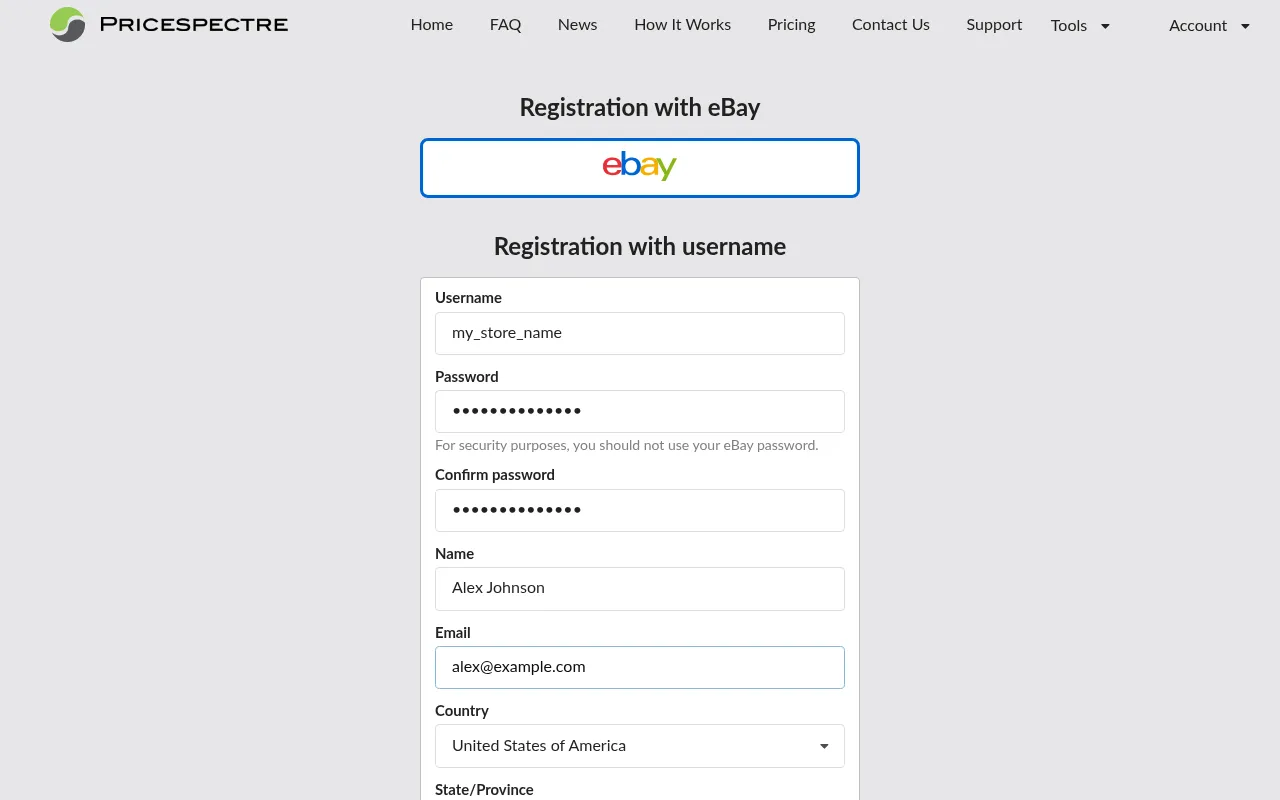
Tip: Use a shared agency email address that more than one person on your team can monitor. Price Spectre sends account-related notifications to this address, and you do not want them going to a single employee's inbox.
2. Do Not Link an eBay Account
Manager accounts exist to manage other people's eBay stores — they do not have their own listings. After registering, skip the step that prompts you to link an eBay seller account. If you accidentally link one, you can unlink it from Account > Link/Unlink before contacting support.
3. Do Not Set Up Billing
Likewise, do not add a payment method or make a deposit. Manager accounts are not billed for managed listings; billing stays on each client's own account. Leaving your billing untouched signals to support that this is a clean account ready to be converted.
Note: If the account later gets suspended for non-payment because it was briefly activated with managed listings, contact support — they can straighten that out during the conversion.
4. Open a Support Ticket
Once your placeholder account is created, open a support ticket through the Contact Us option inside Price Spectre. In your message, include:
- That you would like this account converted to a manager account.
- A brief description of your business use case — who your clients are, what kinds of stores they run, and why agency-style management makes sense for you.
- Your expected number of clients in the first few months, and a rough ceiling for ongoing growth.
- Any existing Price Spectre accounts your clients already use, if you know them.
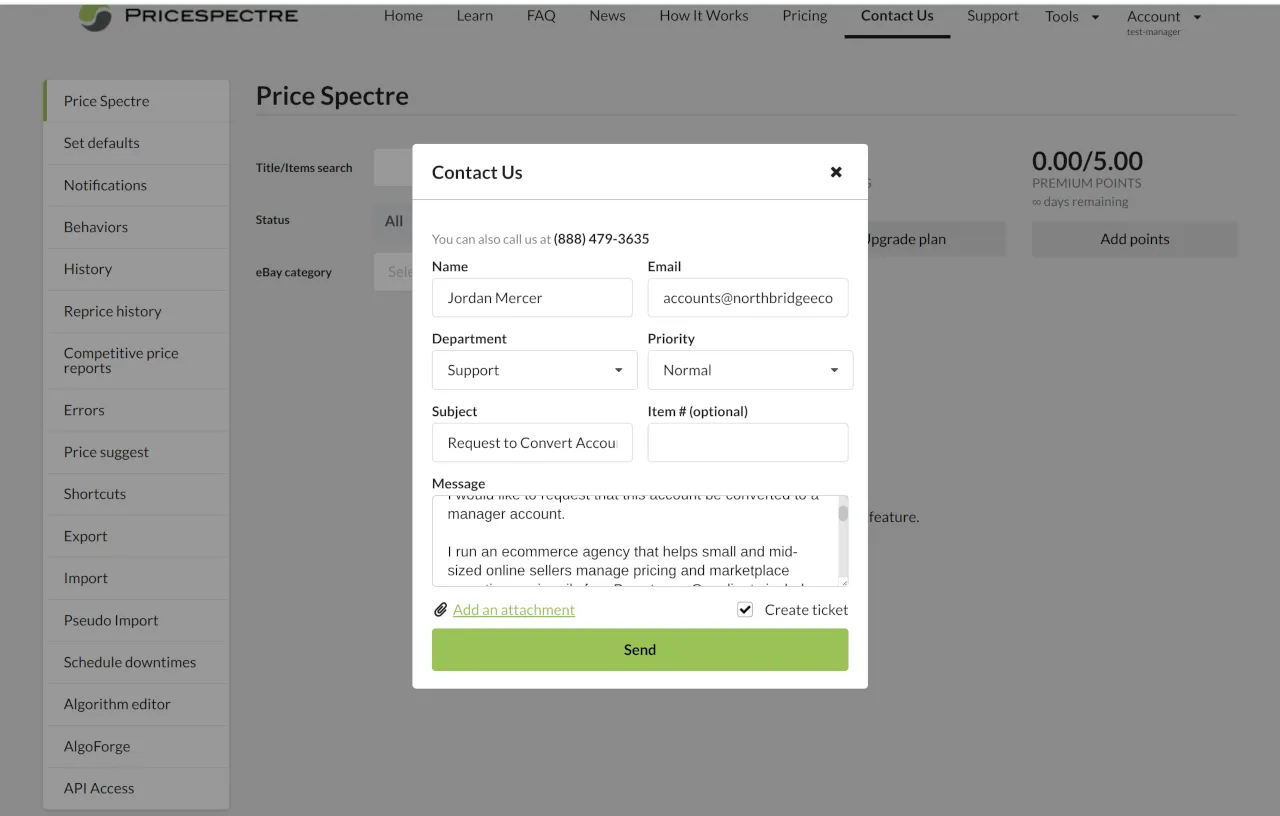
Note: Approval timelines vary depending on the size and complexity of your request. If you have not heard back within a few days, it is fine to reply to the ticket to check in.
Once approved, support will convert your account. The next time you sign in you will see Manager Dashboard in the Account menu instead of Manager Access, and a 32-character public ID will be available on the dashboard to share with your clients.
Your Manager Public ID
Every manager account has a unique 32-character public ID made up of the letters A–F and digits 0–9 (hexadecimal). Clients enter this ID on their own Manager Access page to initiate an authorization request with you.
You can find your public ID on the Manager Dashboard itself. Copy it with the button next to it rather than retyping — a single wrong character will route the request to the wrong manager (or fail validation entirely).
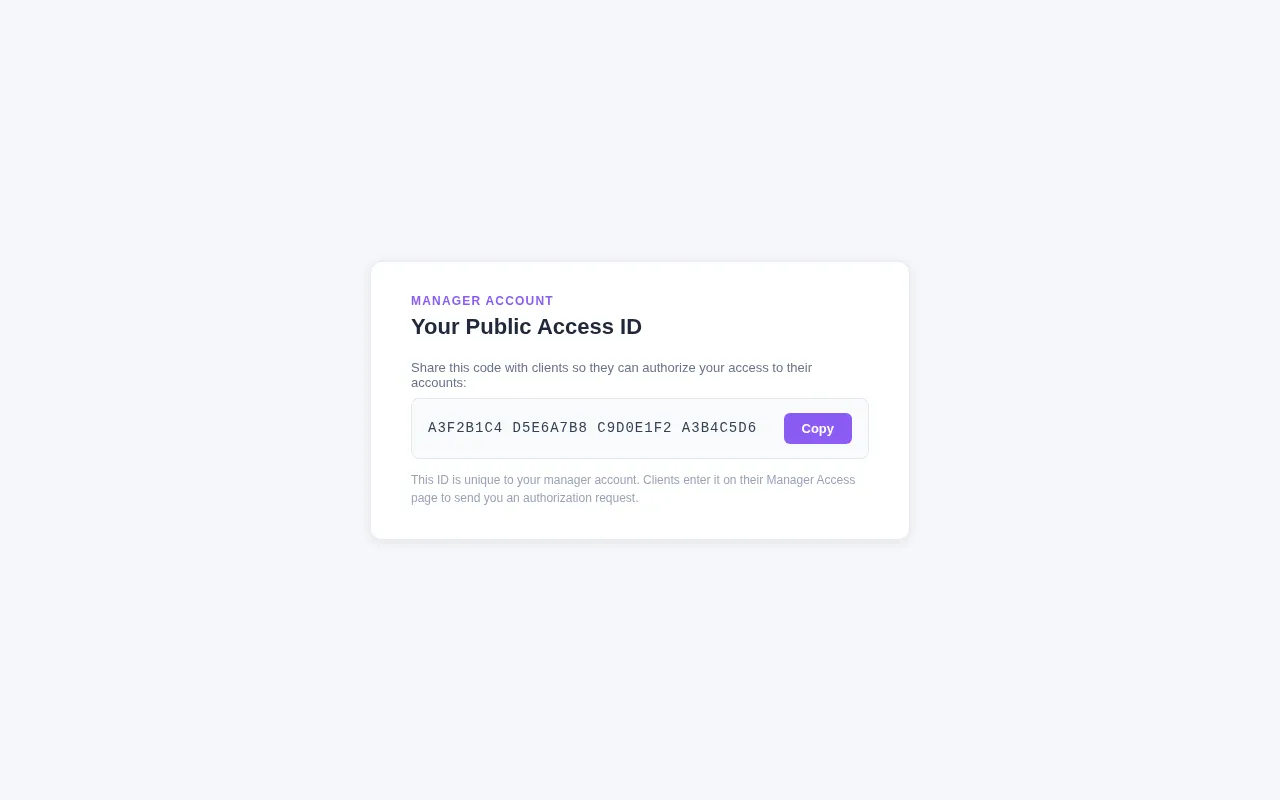
Share the ID with clients through whatever channel you normally use to communicate with them — email, chat, or a client portal. Price Spectre treats the ID as public: it is safe to include in an onboarding packet or welcome email. Clients still have to explicitly enter and submit it to grant you access, so simply knowing the ID does not give anyone control over their account.
Navigating the Manager Dashboard
Sign in to your manager account and choose Account > Manager Dashboard from the account menu to open the dashboard. The page opens with a welcome line — "Welcome, <your display name> (<username>). Use this dashboard to review pending authorization requests, approve or deny access, and monitor your active and historical client relationships." — followed by four stacked sections:
- Pending Requests — clients who have submitted your public ID but are waiting on you.
- Active Authorizations — clients who have accepted authorizations you can currently use.
- Authorization History — the audit trail of denied and revoked authorizations.
- Plus an Impersonation Mode banner that appears whenever you are signed in as a client.
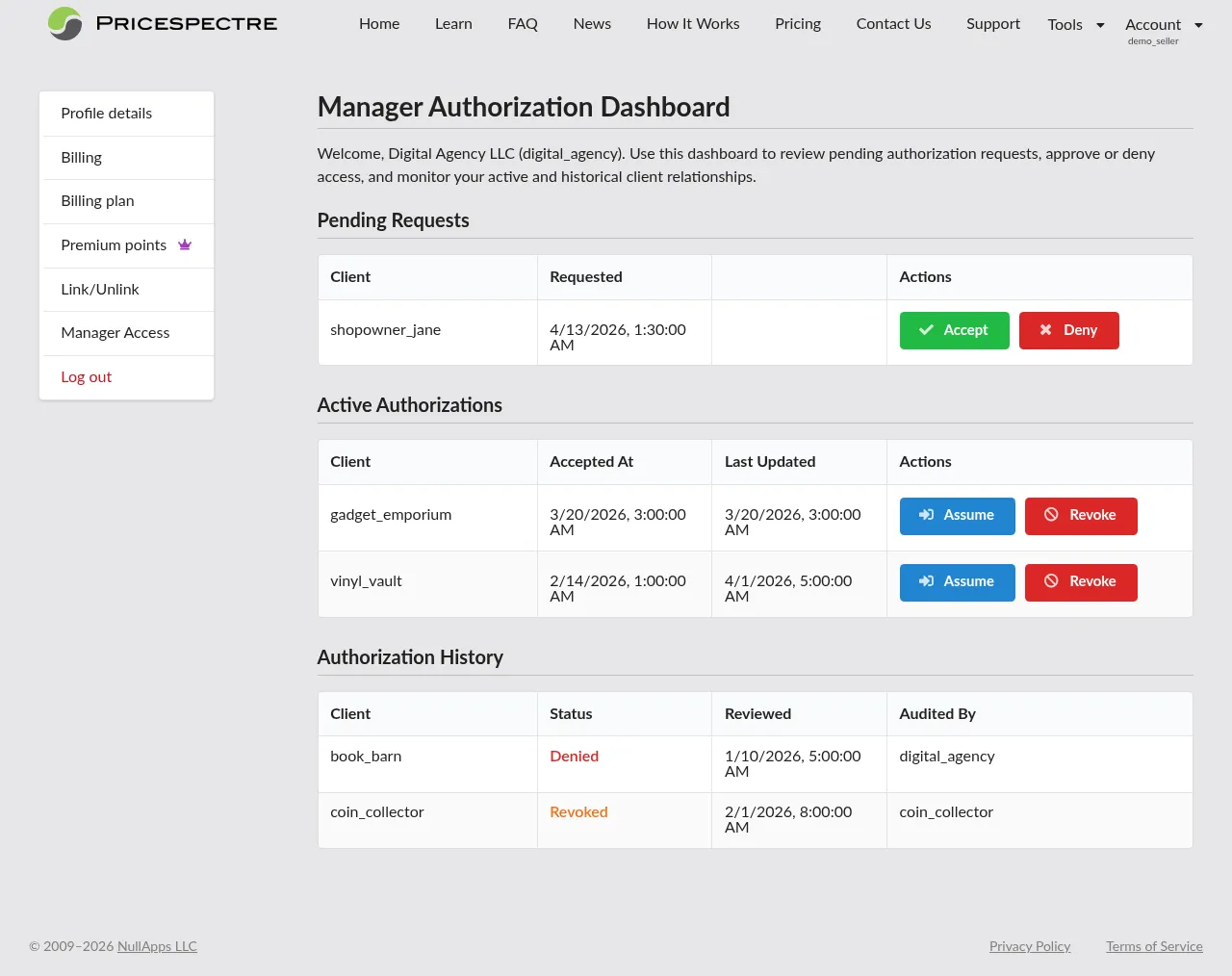
Each section is independent — you can take action on Pending Requests without interrupting an active impersonation, and revoking an Active Authorization does not disturb your Pending Requests list.
Note: Users who are not manager accounts cannot reach this page. If someone on your team tries to open
/account/manager/dashboardwithout the correct account, Price Spectre will show a 403-style message: "You do not have permission to access this page. This page is restricted to manager users only."
Pending Requests
Pending Requests lists every client who has submitted your public ID and is waiting for you to accept or deny their request. You must decide — there is no auto-accept.

Each row shows:
- Client — the client's Price Spectre username.
- Requested — the date they submitted the request.
- Actions — two buttons:
- Accept (✓) — adds the client to your Active Authorizations and gives you the ability to sign in to their account.
- Deny (✗) — rejects the request; the client will see it move to their own authorization history with a
deniedstatus and your username in the Reviewed By column.
Clicking either button shows a brief status message at the top of the page — "Authorization approved successfully." or "Authorization denied successfully." — and the row disappears from Pending Requests (moving to Active Authorizations or Authorization History accordingly).
If the list is empty, you will see "No pending authorization requests."
Tip: Confirm with the client out-of-band before accepting — especially for new engagements. A malicious actor could theoretically submit your public ID pretending to be a real client, hoping you will accept without checking.
Active Authorizations
Active Authorizations lists every client whose account you can currently sign in to.
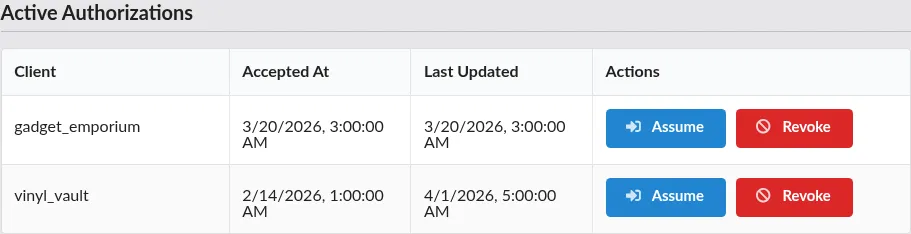
Each row shows:
- Client — the client's username.
- Accepted At — when you accepted the request.
- Last Updated — when this authorization last changed state.
- Actions — two buttons:
- Assume — sign in to the client's account. Price Spectre opens their main Price Spectre tool for you, and your session enters Impersonation Mode.
- Revoke — end the authorization. The row moves to Authorization History. If you are currently signed in to that client's account, your session falls back to your own manager account on the next action you take.
If you have already assumed a particular client, the Assume button is replaced by a Revert button that returns you to your own manager session. See Impersonation Mode for details.
When the list is empty, you will see "No active client authorizations."
Note: Revoking is symmetrical with what the client can do from their own Manager Access page — either party can end an authorization at any time without the other's approval.
Impersonation Mode
When you click Assume on an Active Authorization, your browser session shifts to Impersonation Mode. You are still signed in as your manager account under the hood, but Price Spectre behaves as though you were the client for the purposes of viewing and editing listings.
Price Spectre makes this state impossible to miss. A warning-colored banner appears at the top of the Manager Dashboard with wording like:
Impersonation Mode. You are currently assuming the client account <client_username>. Revert to your manager session to resume authorization changes.

While in Impersonation Mode:
- You can use all of the client's Price Spectre tools — Price Spectre main dashboard, Set Defaults, Behaviors, History, Reprice History, Import, Export, and so on.
- The Manager Dashboard itself becomes read-only. The Pending Requests, Active Authorizations, and Authorization History tables all still render so you can audit them, but the Accept, Deny, Revoke, and Assume buttons are disabled and replaced with a short plain-text notice explaining that authorization changes are paused while you are signed in as a client. Revert first if you need to make any of those changes.
- The only active control on the Manager Dashboard is the Revert button on the row for the client you have assumed — clicking it ends Impersonation Mode immediately and restores full access to the other actions.
- The client can continue to use their account normally. If you both happen to edit the same listing at the same time, the later change wins.
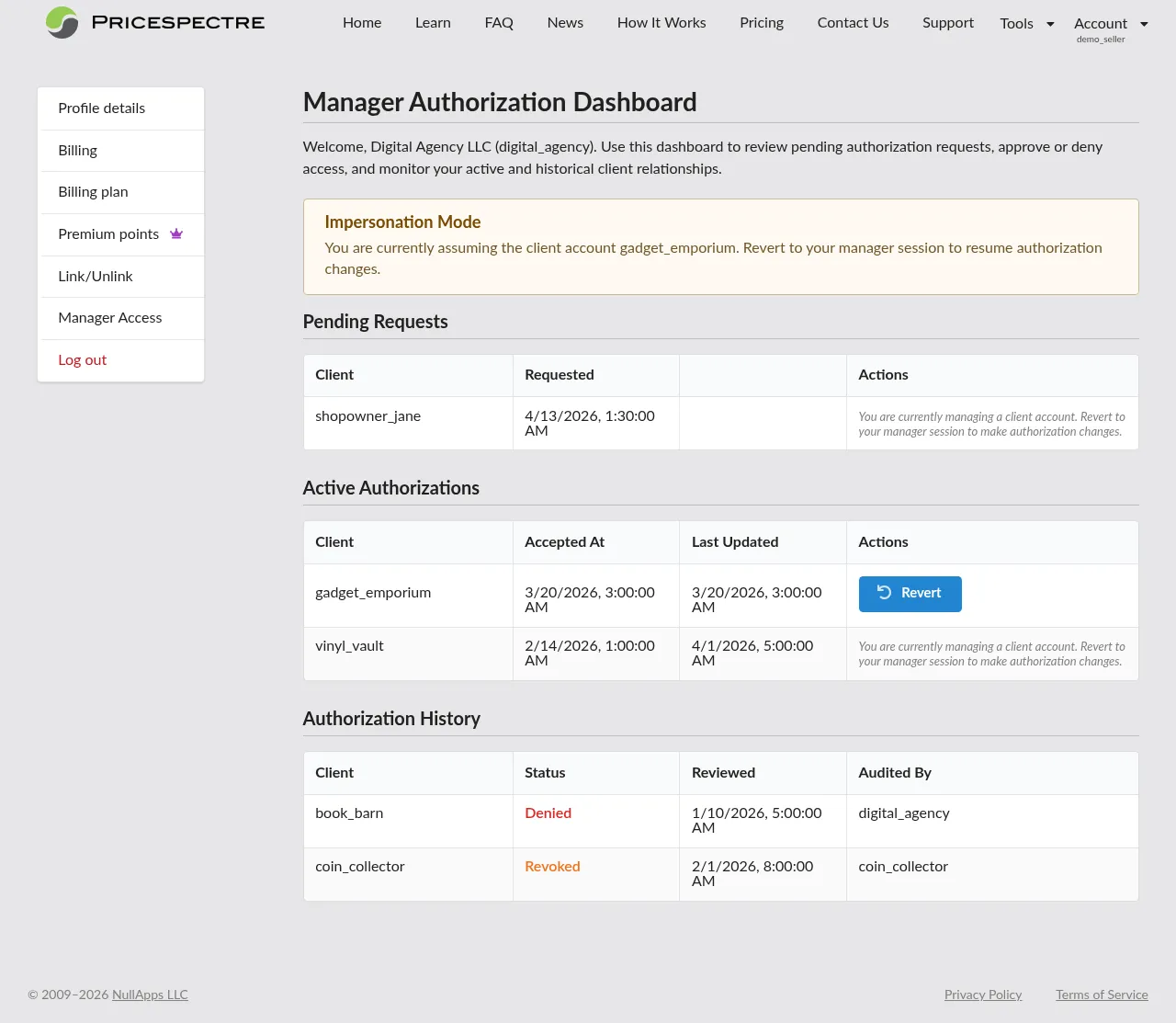
To end Impersonation Mode, open the Manager Dashboard and click Revert on the row for the client you have assumed. Your session returns to your manager account immediately, the banner disappears, and every action button becomes active again.
Tip: Always revert before stepping away from your computer. A colleague or family member walking up to an unlocked computer should never see an in-progress impersonation session.
Authorization History
Authorization History is a read-only audit trail of every denied and revoked authorization. It persists across impersonation sessions, so you always have a record of the full relationship with each client.
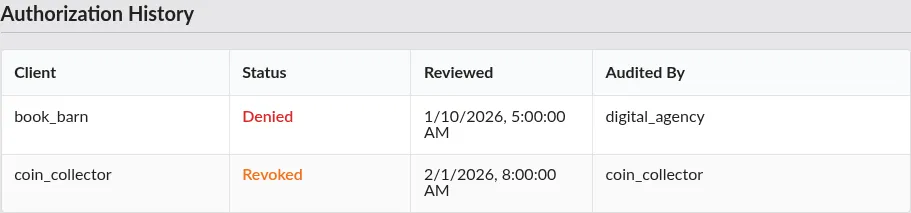
Each row shows:
- Client — the client's username.
- Status — either
denied(you rejected the request at the Pending stage) orrevoked(the authorization ended after having been active or while still pending). - Reviewed — the date of the denial or revocation.
- Audited By — the username of whoever took the action. This is the client's username if they revoked, or your own username if you denied or revoked.
If there are no entries yet, you will see "No denied or revoked authorizations yet."
Best Practices for Agencies
- Keep your public ID inside a client onboarding document. Embed the ID in your standard onboarding email or client portal, alongside clear instructions pointing to the Manager Access guide. That removes friction and reduces back-and-forth.
- Confirm requests before accepting. Match every incoming Pending Request against a client you have actually onboarded. If a username shows up that you do not recognize, Deny it and reach out to confirm before accepting.
- Revoke promptly when an engagement ends. Move revocations into your client offboarding checklist so authorizations do not linger. The Authorization History section keeps a record for you.
- Use Reprice History inside the client account as your audit log. While assuming a client, Tools > Reprice History shows every repricing action, including the ones you triggered. Export it to CSV periodically if your clients want end-of-month reports.
- Always revert impersonation before switching clients. Go back to your Manager Dashboard and click Revert before assuming the next client. That keeps your session state clean and guarantees Price Spectre knows exactly which client you are touching.
- Treat your manager public ID as shareable, but your manager account credentials as sensitive. The public ID is designed to be given out. Your username, password, and email, on the other hand, have the same value as any admin credential — enable a strong password and monitor active sessions under Account > Profile Details.
Frequently Asked Questions
Can I have more than one manager account?
In most cases, no — Price Spectre prefers a single manager account per agency. If your agency has multiple distinct brands or business lines that should appear as separate managers to clients, mention that in your support ticket and the team will advise. Avoid creating additional accounts informally.
Do clients see that the person signed in to their account is me, the manager?
Clients see that they have granted your manager account access through the Pending & Active Authorizations table on their own Manager Access page. They cannot currently see a live indicator that you are signed in right now, but changes you make appear in Reprice History and Errors like any other activity.
Do I pay for the client's billing?
No. Billing stays on the client's own Price Spectre account. Managed-listing charges, Premium Points, and any other fees are invoiced to the client, not to your manager account. You do not need a payment method on file at all.
What if a client does not set up billing?
A client with no payment method in place may eventually enter a suspended state on their own account. While suspended, Price Spectre restricts most of their account — including, in some cases, the impersonation entry point — so the cleanest fix is to ask the client to resolve billing themselves. Managers cannot change a client's billing on their behalf.
Can I export data across all my clients at once?
Not from the Manager Dashboard. Export and Import are per-account tools, so you run them from inside each client's session while in Impersonation Mode. If you need aggregated reporting across clients, generate each one's export separately and combine them in your own spreadsheet or BI tool.
What happens to my authorizations if my manager account is suspended?
Existing authorizations remain in place, but impersonation is generally blocked while your account is suspended. Resolve the suspension cause (usually by contacting support, since manager accounts are not billing-driven) to restore full dashboard access.
Can I re-assign a client's authorization to a different manager account?
No. Each authorization is tied to the specific manager public ID the client submitted. To move a client to a different manager account, have the client revoke the existing authorization from their Manager Access page and submit the new public ID.
How do I contact support about manager-specific issues?
Use the Contact Us option inside Price Spectre. Mention in your message that you are writing about a manager account and include your manager public ID (or username) so support can look you up quickly.
This guide covers Price Spectre's React-based interface. For the latest feature updates and release notes, visit the News section on the Price Spectre website.