
MCP Server Access and Tokens
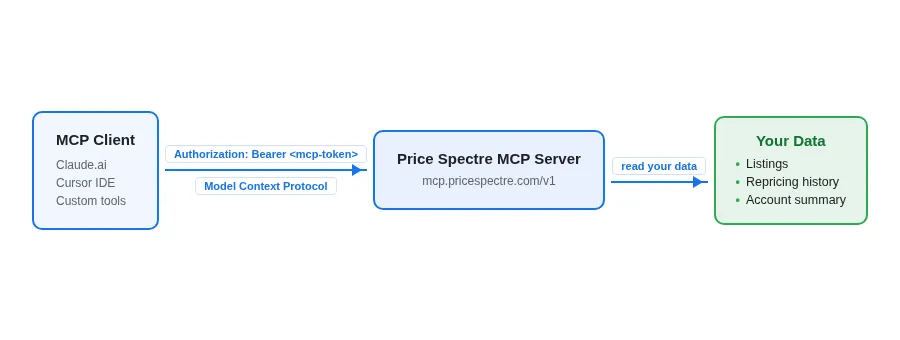
Price Spectre's MCP (Model Context Protocol) server lets MCP-compatible clients — including AI assistants such as Claude.ai — read your listings, repricing data, and account summary on your behalf. Access is gated by scoped bearer tokens that you control from the MCP Access page in Price Spectre, where you can review their expiry and rotate or revoke them as needed.
This guide covers everything you need to connect a client to the MCP server: which endpoint URL to use, how to register a client automatically (Dynamic Client Registration), how to generate and manage tokens manually, the scopes you can grant, and how to rotate or revoke a token safely.
In this guide
- Overview
- MCP server endpoints
- Connecting with Dynamic Client Registration
- Generating an MCP token manually
- Using a token as a bearer credential
- Scopes
- Rotation and revocation
- Best practices
- Troubleshooting
- Frequently asked questions
Overview
The MCP server is a separate, MCP-protocol endpoint built specifically for AI assistants and automation tools that speak the Model Context Protocol. It is not the same system as the External REST API documented in API Access and Token Management — MCP tokens generated on the MCP Access page only work against the MCP server, and External API tokens only work against the v1 REST API. Pick the surface that matches the client you are integrating:
- MCP server — Use this when your client is MCP-compatible (for example, Claude.ai's connectors). The client speaks MCP directly to Price Spectre; you do not write request payloads by hand.
- External REST API — Use this when you are building a custom integration that issues HTTP requests against documented JSON endpoints. See API Access and Token Management for that workflow.
At a glance, working with the MCP server involves three things:
- Choosing an endpoint URL (
/v1for stability,/mcpfor the latest). - Provisioning a token — either automatically via Dynamic Client Registration, or manually from the MCP Access page.
- Configuring your MCP client to use that URL and token.
All currently supported scopes are read-only. The MCP server does not expose write operations to user-generated tokens at this time.
MCP server endpoints
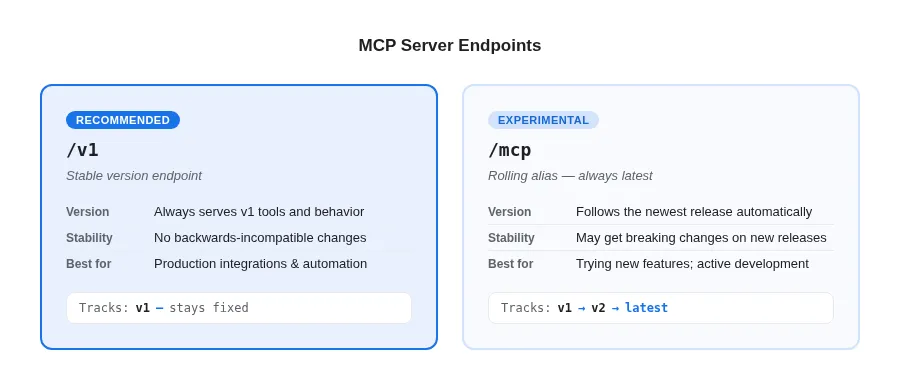
There are two public MCP server endpoints you can point a client at:
| Endpoint | When to use it |
|---|---|
https://mcp.pricespectre.com/v1 |
Recommended. The stable v1 endpoint. Its tool set and behavior will not change in backwards-incompatible ways. Use this for any integration you want to keep running unattended. |
https://mcp.pricespectre.com/mcp |
Experimental. An alias that always points at the latest version of the MCP server. At the time of writing, /mcp and /v1 are equivalent — but when a newer version is released, /mcp will automatically follow it, which may introduce changes your client needs to adapt to. Use /mcp only if you actively want to track the bleeding edge. |
If you are not sure which to choose, use /v1. It is the right answer for almost every production integration.
Both endpoints accept the same bearer-token authentication and the same scope model described below — the only difference is which version of the MCP server you are talking to.
Connecting with Dynamic Client Registration
The MCP server supports Dynamic Client Registration (DCR), which means an MCP client can negotiate its own token without you having to copy and paste anything from the MCP Access page. When a client supports DCR, the only thing you provide is the endpoint URL — the rest happens through an authentication redirect handled by Price Spectre.
DCR has been tested with Claude.ai. Other MCP clients that implement the DCR portion of the MCP specification should work similarly, but Claude.ai is the only client we have officially verified.
To connect from Claude.ai (or any DCR-capable client):
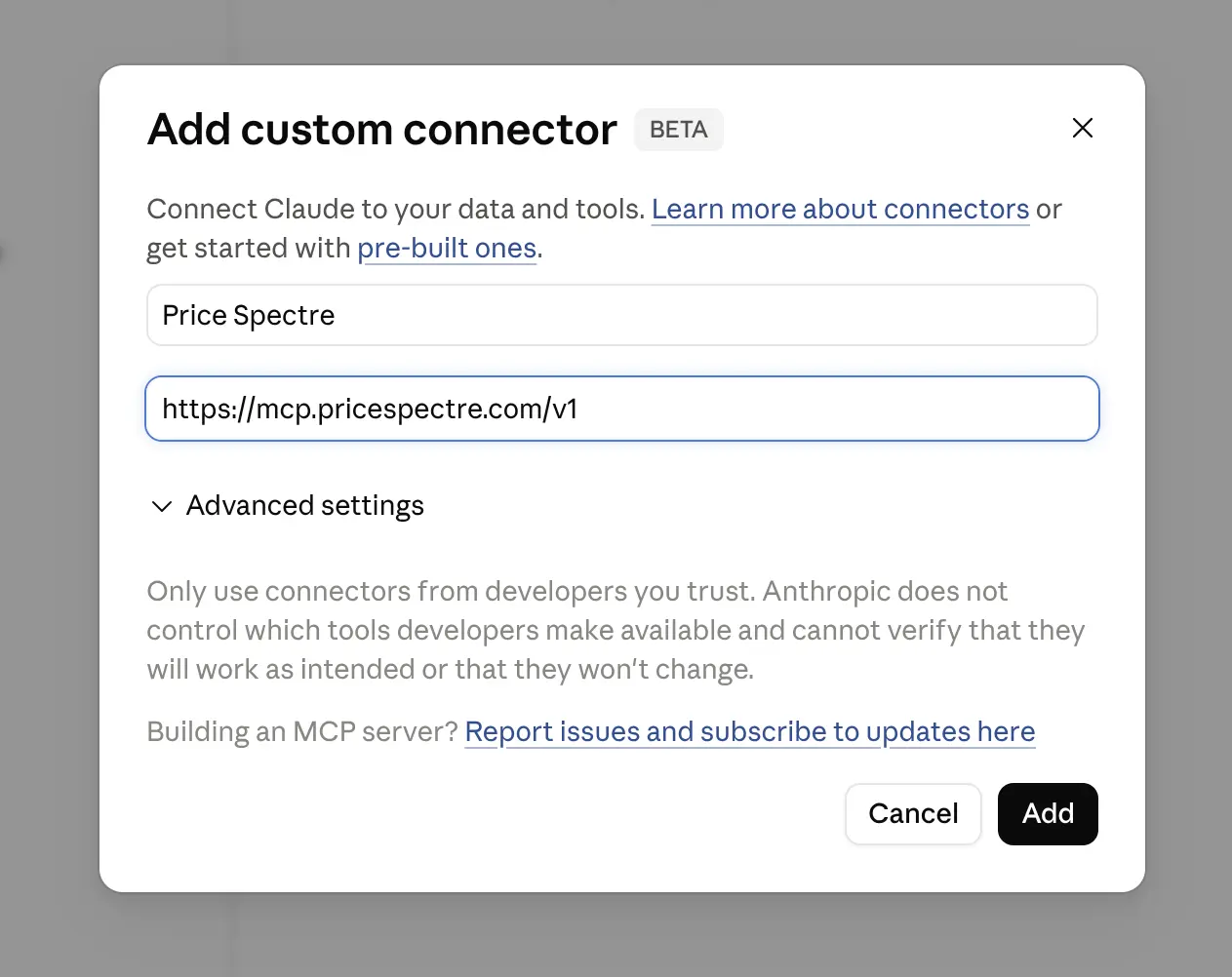
- In the client, add a new MCP connector and paste one of the endpoint URLs as the connector URL:
https://mcp.pricespectre.com/v1(recommended), orhttps://mcp.pricespectre.com/mcp(experimental — see above).
- The client will redirect you to Price Spectre to sign in. If you are not already signed in, you will be prompted to log in with your usual Price Spectre credentials.
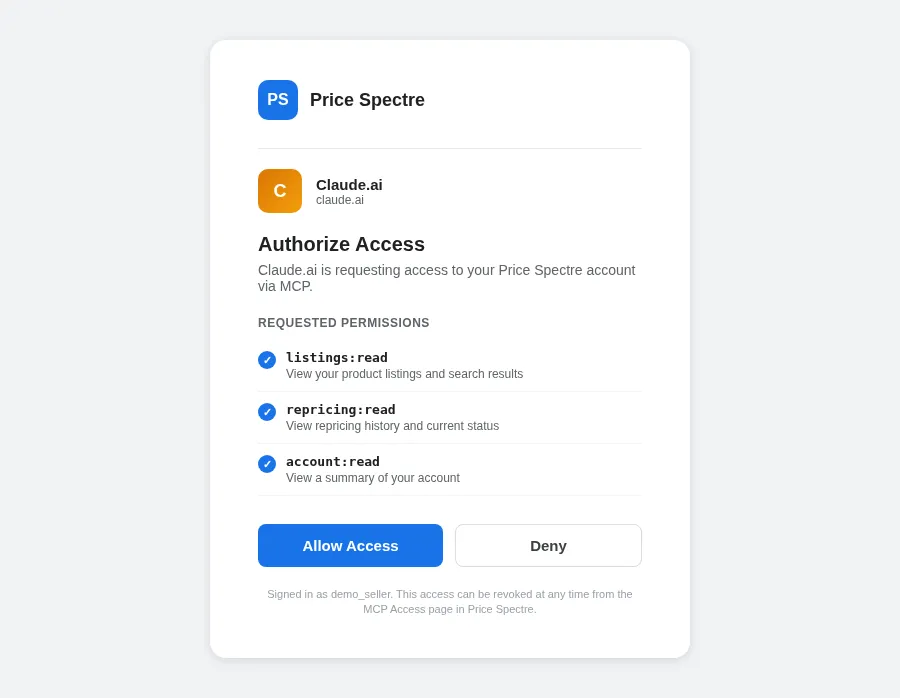
- Once signed in, Price Spectre will show you an authorization screen describing what the client is asking to access. Review the requested scopes and confirm.
- You will be redirected back to the client, which now holds a token issued for your account. No further setup is needed — the client can begin calling MCP tools immediately.
Tokens issued through DCR show up in your MCP Access page just like manually generated tokens, so you can rotate or revoke them there at any time. If a client ever loses its token (for example, after you revoke it), simply re-run the connector setup — Claude.ai will redirect to Price Spectre again and a fresh token will be issued.
Generating an MCP token manually
If your client does not support Dynamic Client Registration — or you simply want full control over which scopes a token carries before pasting it into an integration — you can generate tokens by hand from the MCP Access page.
Open the MCP Access page at /tools/mcp_access in Price Spectre. This is the central place where every MCP token associated with your account is listed and managed, regardless of whether it was created manually or through DCR.
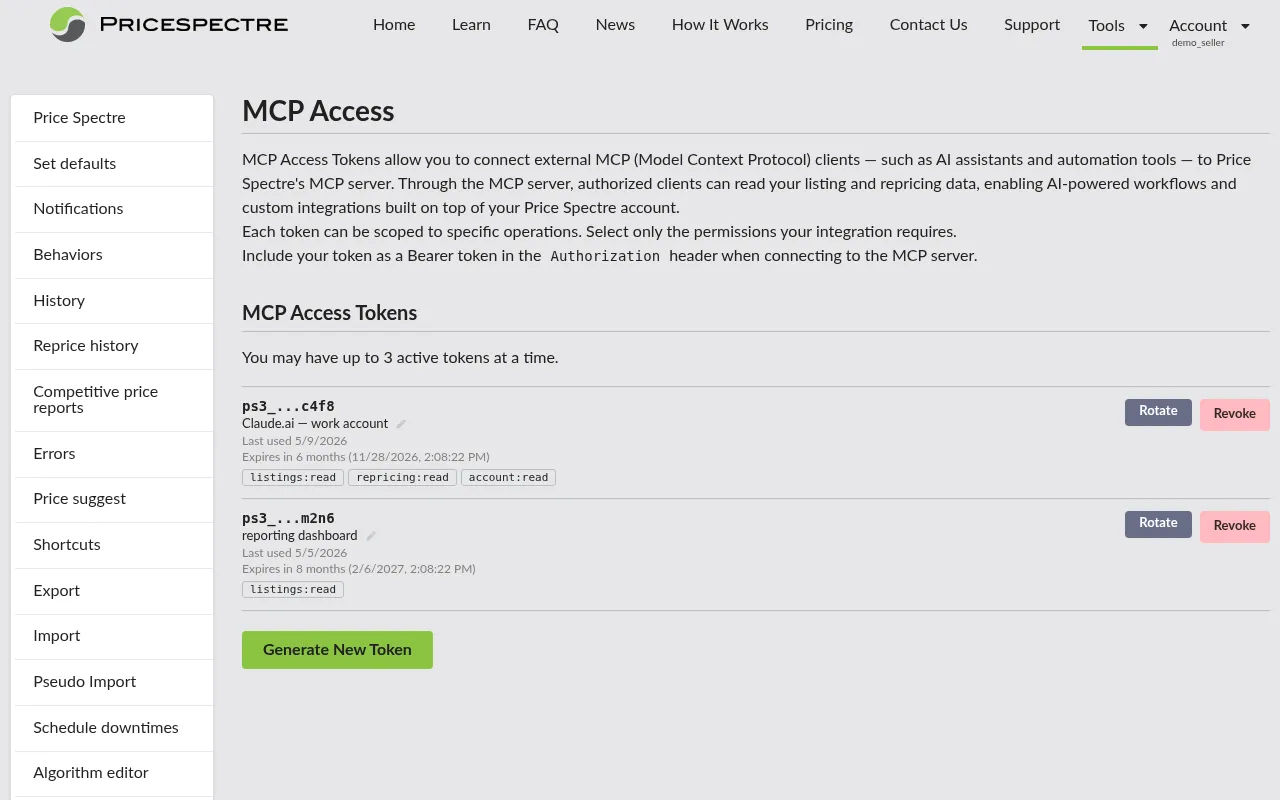
To create a new token:
- Click Generate New Token.
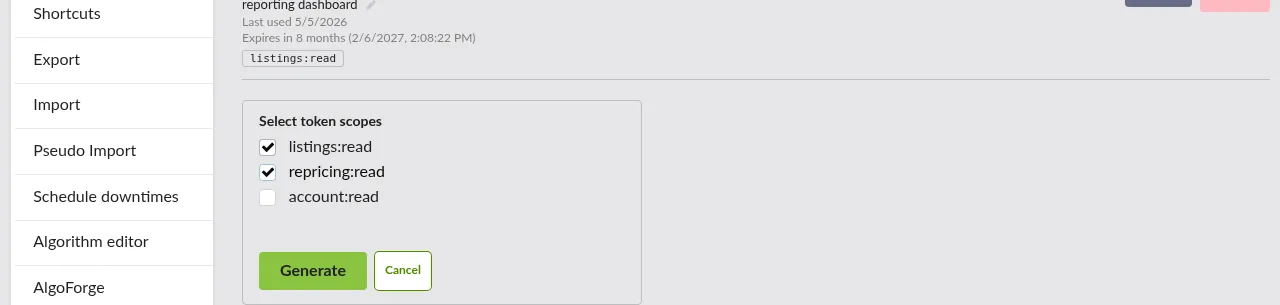
- In the panel that appears, tick the checkboxes for the scopes you want this token to carry. You must select at least one scope. Pick the smallest set that satisfies the integration's needs — you can always create a separate, more narrowly scoped token for a different purpose later.
- Click Generate. Price Spectre will create the token and reveal it on screen.
- Copy the token immediately. The full secret is shown only once; once you dismiss the panel, it cannot be retrieved again. If you lose it before saving, revoke the token and generate a fresh one.
- Optionally add a nickname (up to 64 characters) so you can identify what the token is for at a glance in the token list — for example, "Claude.ai work account" or "reporting dashboard".
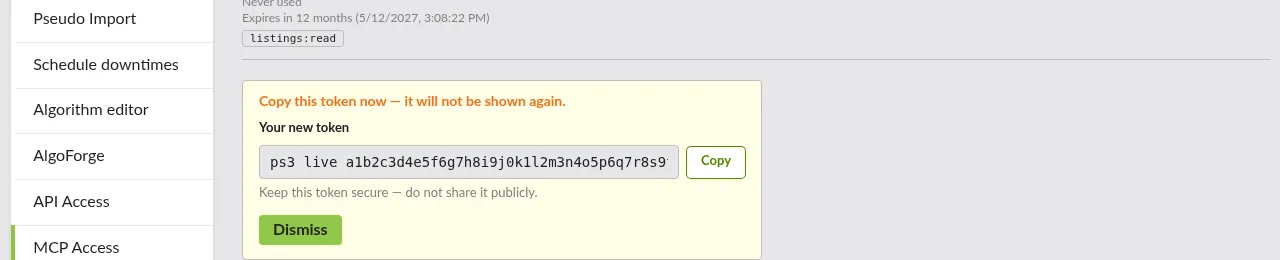
You can have up to three active MCP tokens at any one time. If you have already reached that limit, the Generate New Token button is disabled until you revoke one.
Using a token as a bearer credential
Once you have a token — whether it came from DCR or manual generation — your client uses it as a standard bearer credential in the Authorization header when talking to the MCP endpoint:
Authorization: Bearer <your-mcp-token>
For most MCP-capable clients, you will not write this header yourself. Instead, the client's connector configuration accepts the endpoint URL plus a token field, and the client takes care of attaching the header to every request it makes. For example, in Claude.ai's manual connector flow you would fill in:
- URL —
https://mcp.pricespectre.com/v1 - Token — the value you copied from the MCP Access page
That is the complete configuration for a manually generated token. After saving, the client can immediately call the MCP tools that the token's scopes permit.
Keep the token confidential. Anyone in possession of it can act under your account up to the limits of the granted scopes, until the token expires or you revoke it.
Scopes
When you generate or rotate an MCP token, you choose which scopes the token carries. A scope is a permission grant that controls which categories of MCP tools the token can call. All currently supported scopes are read-only — there are no write scopes available to user tokens at this time.
| Scope | What it grants |
|---|---|
listings:read |
Look up and search your listings via the MCP server. |
repricing:read |
Read repricing history and the most recent repricing status or record for a listing. |
account:read |
Read a high-level summary of your account. |
A token can carry any combination of the scopes above. Choose the smallest set that lets the integration do its job — if a client only needs to summarize repricing activity, granting account:read and listings:read adds risk without adding capability.
Scopes can be narrowed, not widened
Scopes are intentionally easy to tighten and intentionally hard to loosen:
- When you rotate a token (see below), you may keep the existing scopes or drop some of them. You cannot add a scope that the previous version of the token did not already have.
- To grant a token a scope it does not currently hold, revoke it and generate a new token with the wider scope selection. Update the client to use the new secret.
This one-way rule means that once you have narrowed a token's scope, anyone holding the secret can never quietly expand its powers — only you, through the MCP Access page, can issue a token with broader scopes.
Rotation and revocation
The MCP Access page gives you two lifecycle actions for any active token: Rotate and Revoke.
Rotating a token
Rotation issues a brand new secret for the same logical token while keeping a short overlap window so your integrations can cut over without downtime:
- The new token is generated immediately and revealed once — copy it the same way you would a freshly created token.
- The previous token keeps working for one hour after rotation, then stops. Use that window to update every place the old secret is configured.
- You may narrow the scopes during rotation by un-ticking checkboxes in the rotation panel. You may not add scopes the original token did not have — see Scopes can be narrowed, not widened above.
- The rotated token inherits the nickname and identity of its predecessor in the token list, so it remains easy to find.
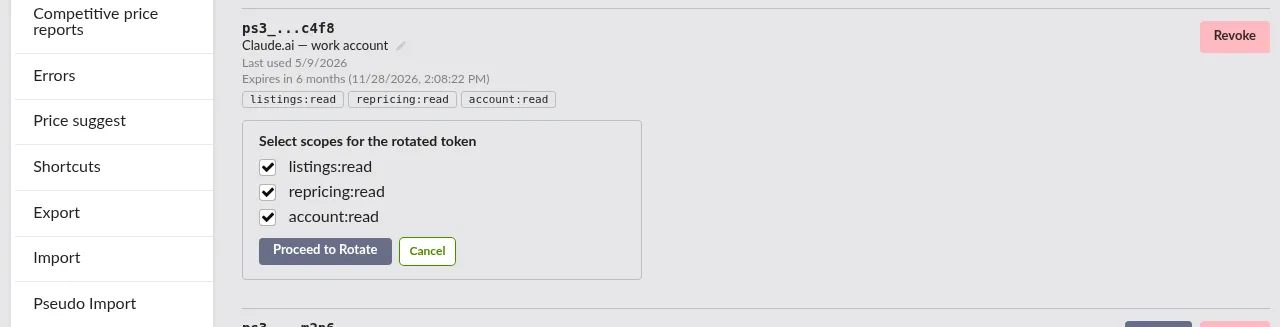
Rotate periodically — for example, on a schedule that matches your organization's secret-rotation policy — and any time you suspect a token may have been exposed.
Revoking a token
Revocation is immediate and permanent. The moment you confirm a revoke, the token stops working — there is no grace period and no way to bring it back. Any integration still using that token will start getting authentication errors on its next request.
Use revocation when:
- You no longer need the integration.
- The token may have been leaked (committed to source control, pasted into a shared chat, etc.).
- You want to forcibly disconnect a DCR client without rotating.
If you revoke a token a DCR client was using, the client will need to redo the connector setup to obtain a new one.
Best practices
A short list of habits that will keep your MCP integrations stable and your account safe:
- Prefer
/v1for production. Only point production integrations at/mcpif you have a specific reason to track the newest version and are willing to handle breaking changes. - Grant the smallest scopes that work. Start with
listings:readalone if that is all the integration needs; addrepricing:readoraccount:readonly when the client actually uses those capabilities. If you need to broaden later, revoke and re-issue rather than trying to widen in place. - One token per integration. Use a separate token for each client (with a clear nickname). That way you can revoke or rotate one without disrupting the others, and you can tell from the token list which integration was last active.
- Rotate on a schedule. Rotate any long-lived token periodically — for example, every few months — and always rotate or revoke immediately if a secret may have been exposed.
- Treat the token as a secret. Never commit it to source control, paste it into chat tools, or share it across team members. If in doubt, revoke and re-issue.
- Re-run DCR after revoking. If a Claude.ai (or other DCR) client breaks after you revoke its token, simply reconnect the connector in the client — it will redirect through Price Spectre and obtain a new token.
- Watch the rotation overlap window. After rotating, you have one hour before the old token stops working. Update every place the old secret is configured before that window closes.
Troubleshooting
The MCP server returns standard HTTP-style status codes inside its protocol responses. The most common categories you will see:
401 Unauthorized
- The token is missing, malformed, or has been revoked.
- The token has expired (rotated more than an hour ago, or otherwise no longer valid).
- Fix: confirm the client is sending the correct
Authorization: Bearer <token>header and that the token still appears as active on the MCP Access page. If not, generate a new one and update the client.
403 Forbidden
- The token is valid but does not carry the scope required by the tool the client is trying to call. For example, a
listings:read-only token cannot read repricing history. - Fix: revoke the current token, generate a new one with the additional scope, and update the client. Remember that scopes cannot be widened at rotation.
- The token is valid but does not carry the scope required by the tool the client is trying to call. For example, a
A DCR connector keeps redirecting in a loop
- You are probably not signed in to Price Spectre in the browser session the client opens.
- Fix: open Price Spectre in a normal browser window, sign in, then re-run the connector setup from the client.
The client connects but no tools appear
- The endpoint URL is reachable but the token's scopes do not grant access to any tools the client knows how to call.
- Fix: check that the token's scopes (visible in the token list on the MCP Access page) match what the client expects. Re-issue with broader scopes if necessary.
Token is missing right after generation
- The reveal panel was dismissed before the secret was copied. The full token is shown only once and cannot be recovered.
- Fix: revoke the token from the MCP Access page and generate a new one. Copy and store the secret before dismissing the panel.
"Maximum of 3 tokens reached" when generating
- You already have three active tokens and cannot create a fourth.
- Fix: revoke a token you no longer need from the MCP Access page, then try again.
External API token does not work against the MCP server (or vice versa)
- The External REST API and the MCP server are separate systems with separate tokens. Tokens from one will not authenticate against the other.
- Fix: generate an MCP token on the MCP Access page for use against
mcp.pricespectre.com; generate an External API token on the API Access page for use against the v1 REST API.
Frequently asked questions
What is the difference between /v1 and /mcp?
/v1 is the stable version-1 endpoint and will not change behavior in a breaking way. /mcp is a rolling alias that always points to the latest version of the MCP server, so it will pick up new versions automatically. At the time of writing the two are equivalent; in the future they may diverge. Use /v1 unless you specifically want the bleeding edge.
Does Dynamic Client Registration work with clients other than Claude.ai? Claude.ai is the only client we have officially tested. Any client that implements the DCR portion of the MCP specification correctly should work, but we cannot guarantee behavior for clients we have not verified. If you run into trouble with a non-Claude client, fall back to generating a token manually on the MCP Access page and configuring it as a static bearer credential.
Can I widen a token's scopes without revoking it? No. Scopes can be narrowed at rotation but never widened — this is by design. To give a token broader access, revoke it and generate a new one with the wider scope selection, then update the client.
Does my External API token work against the MCP server?
No. MCP tokens and External API tokens are separate. MCP tokens authenticate only against mcp.pricespectre.com; External API tokens authenticate only against the v1 REST API.
How many MCP tokens can I have at one time? Up to three active tokens per account. Revoke one before generating a new one if you have reached the limit.
Where can I see when a token was last used? The MCP Access page shows the last-used date for each token in the list, alongside its nickname and granted scopes. This is the easiest way to spot tokens that are no longer in use and can safely be revoked.
Can I name or re-name a token after creating it? Yes. Every token has an editable nickname (up to 64 characters) that you can set or change at any time from the MCP Access page.
What happens to a DCR client if I revoke its token? The client will start receiving 401 errors on its next request. To reconnect, re-add the connector in the client — it will redirect through Price Spectre and obtain a fresh token.
Where do I get help if something is not covered here? Contact Price Spectre support through the usual channels listed in your account. Include the token's hint (the short identifier shown next to it on the MCP Access page) rather than the full secret when describing a problem.