
Pseudo Import Guide
Price Spectre's Pseudo Import feature lets you run bulk competitor searches without needing an eBay listing of your own. Upload a spreadsheet containing keywords and search parameters, and Price Spectre performs the searches independently of your inventory and delivers the results — all without modifying any of your live listings.
This is ideal for competitor research, one-time price checks on products you are considering selling, testing search parameters before applying them to real listings, or monitoring prices across different eBay marketplaces.
Note: Pseudo Import uses Premium Points. A small fee is charged based on the number of successful price checks performed during processing. Check your Premium Points balance before uploading large files.
Table of Contents
- What Is Pseudo Import?
- Preparing Your Spreadsheet
- Supported File Formats
- Spreadsheet Structure Overview
- Identifier Columns
- Location Columns
- Search and Product Code Columns
- Search Price Range Columns
- Search Feedback and Quantity Columns
- Search Condition Columns
- Seller Filter Columns
- Boolean Flag Columns
- Pricing and Algorithm Columns
- Other Columns
- Downloading the Sample File
- Uploading a Pseudo Import
- Tracking Your Import
- Viewing Results
- Exporting Results
- Retrying Failed Items
- Deleting a Pseudo Import
- Tips and Best Practices
- Frequently Asked Questions
What Is Pseudo Import?
Pseudo Import lets you perform competitive price searches in bulk using a spreadsheet — without requiring any eBay listings of your own. You define what to search for (keywords, price ranges, seller filters, etc.) in a spreadsheet, upload it to Price Spectre, and receive structured results showing what competitors are offering.
The term "pseudo" refers to the fact that the items in your spreadsheet are not real eBay listings. They are temporary entries created solely for the purpose of running searches. Once processing is complete, you can view, filter, and export the results.
Use Cases
Pseudo Import is useful in a variety of scenarios:
- Competitor research — Investigate pricing and availability for products in your niche without listing them on eBay first. See who is selling similar items and at what prices.
- One-time price checks — Get a snapshot of current market prices for specific products. Useful when deciding whether to list a new product or evaluating sourcing opportunities.
- Testing search parameters — Experiment with different keyword combinations, feedback filters, price ranges, and other search settings to see what results they produce. Refine your parameters before applying them to your real managed listings.
- International market research — Check competitor pricing on different eBay sites (US, UK, Germany, Australia, etc.) to evaluate cross-border selling opportunities.
- Algorithm testing — Try different repricing algorithms and parameters against real market data to see how they would calculate prices, without affecting your live listings.
How It Differs from Regular Import
If you are familiar with Price Spectre's standard Import and Export feature, Pseudo Import will feel similar — but there are important differences:
| Regular Import | Pseudo Import | |
|---|---|---|
| Purpose | Update settings on your existing eBay listings | Run competitor searches without any listings |
| Selector columns | Uses Item #, SKU, Site, and Category to match rows to your listings | No selector columns — rows are identified by Custom Identifier |
| Effect on listings | Modifies your listing settings (floor price, algorithm, etc.) | Does not modify any listings |
| Requires eBay listings | Yes — rows must match existing listings | No — works independently of your inventory |
| Results | Settings are applied to your listings | Search results are returned for you to review and export |
| Cost | Included with your subscription | Uses Premium Points |
Key takeaway: Regular Import changes your listings. Pseudo Import only performs searches and reports the results — nothing on your eBay account is modified.
Premium Points Billing
Pseudo Import charges a small fee in Premium Points based on the number of successful price checks performed during processing. Only rows that successfully return results are charged — rows that fail or return no results do not incur a cost.
Check your Premium Points balance at Account > Premium Points before uploading large files. You can purchase additional Premium Points from the same page.
Tip: If you are testing the feature for the first time, start with a small file (10–20 rows) to get a sense of the costs and results before uploading larger batches.
Preparing Your Spreadsheet
Supported File Formats
Price Spectre accepts the following spreadsheet formats for Pseudo Import:
- XLSX — Microsoft Excel (.xlsx)
- XLS — Legacy Microsoft Excel (.xls)
- CSV — Comma-separated values (.csv)
- ODS — OpenDocument Spreadsheet (.ods)
The maximum file size is 100 MB.
Tip: XLSX is recommended for most users. It preserves formatting and handles special characters well. If you use CSV, ensure your file is encoded in UTF-8 to avoid issues with special characters.
Spreadsheet Structure Overview
Your spreadsheet uses column headers in the first row to identify each field. Column order does not matter — Price Spectre identifies columns by their header names, not their position.
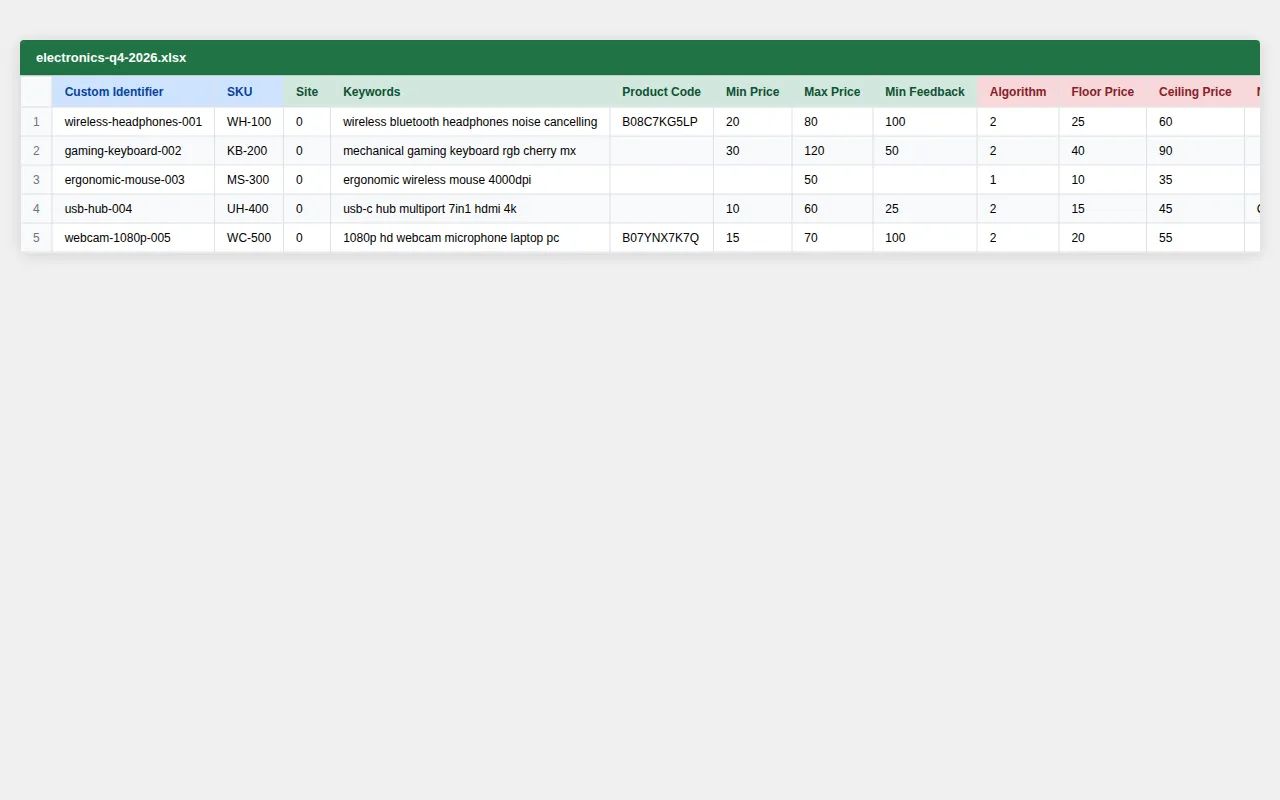
Each row after the header represents one pseudo item — a single search to perform. At minimum, each row should include Keywords so Price Spectre knows what to search for on eBay. If you are also searching Amazon, include a Product Code as well.
The columns fall into three broad categories:
- Identifiers — Custom Identifier and SKU, used for your own reference.
- Properties — Pricing algorithms, floor/ceiling prices, and other pricing-related controls.
- Search Parameters — Keywords, feedback filters, price ranges, and other criteria that control how the competitor search is performed.
Identifier Columns
| Column | Required | Description |
|---|---|---|
| Custom Identifier | No | A label you assign to each row for your own reference. Must be unique within an import — if you reuse a Custom Identifier, any existing data for that identifier is overwritten. If omitted, the row number is used automatically. This is how you will identify results later. |
| SKU | No | An optional Stock Keeping Unit for your reference. Not used for matching — purely informational. |
Important: Custom Identifiers must be unique within each import. If you upload a file with a Custom Identifier that already exists in that import, the previous data for that identifier is replaced.
Example: You might use Custom Identifier values like leather-wallet-001 or holiday-candle-set to organize your searches by product.
Location Columns
| Column | Required | Description |
|---|---|---|
| Site | No | The eBay marketplace to search. You can enter a numeric site ID (e.g., 0 for United States, 3 for UK, 77 for Germany). If omitted, the default site selected at upload time is used. |
| Postal Code | No | A postal code used for location-based shipping calculations. |
Tip: If all your rows target the same eBay site, leave the Site column out entirely and set the Default Site when uploading. This saves you from entering the same value in every row.
Search and Product Code Columns
| Column | Required | Description |
|---|---|---|
| Keywords | Recommended | The search terms used for eBay competitor searches. This can be free-text keywords (e.g., leather watch strap 22mm) or a valid product code such as a UPC, EAN, or ISBN. |
| Product Code | No | A product identifier used specifically for Amazon searches. Must be a UPC, EAN, ISBN, or ASIN. If the Amazon flag is enabled but no Product Code is provided, Amazon searches fall back to the Keywords field — but no Amazon search will be performed if the Keywords value is not a valid UPC, EAN, ISBN, or ASIN. |
Note: Each row requires at least a Keywords value. Rows without Keywords will result in an error unless the row uses an algorithm that does not require them — but for marketplace research, Keywords is effectively required. If you are also searching Amazon, provide a Product Code separately for best results.
Search Price Range Columns
| Column | Required | Description |
|---|---|---|
| Min Price | No | Minimum competitor price to include in results. Listings priced below this amount are filtered out. |
| Max Price | No | Maximum competitor price to include in results. Listings priced above this amount are filtered out. |
Example: If you are researching competitors for a product you plan to sell between $20 and $50, set Min Price to 20 and Max Price to 50 to focus the results on that range.
Search Feedback and Quantity Columns
| Column | Required | Description |
|---|---|---|
| Min Feedback | No | Minimum seller feedback score. Only competitors with at least this much feedback are included. |
| Max Feedback | No | Maximum seller feedback score. Useful for filtering out very large sellers. |
| Min Qty | No | Minimum quantity available. Only listings with at least this many items in stock are included. |
| Max Qty | No | Maximum quantity available. Filters out listings with very high stock levels. |
Search Condition Columns
| Column | Required | Description |
|---|---|---|
| Search Category | No | An eBay category ID to restrict the search to a specific category. |
| Condition ID Search Set | No | A condition filter to limit results to items in a specific condition (e.g., New, Used, Refurbished). Uses numeric condition IDs from the Import Constants page. |
| Max Handling Time | No | Maximum handling time in days. Filters out sellers with longer handling times. |
Tip: To find the correct numeric IDs for conditions and other constant fields, visit the Import Constants page at Tools > Import > Constants. See the Import and Export Guide for more details.
Seller Filter Columns
| Column | Required | Description |
|---|---|---|
| Include Sellers | No | A comma-separated list of seller usernames. When provided, only these sellers are included in results. |
| Exclude Sellers | No | A comma-separated list of seller usernames to exclude from results. |
| Exempt Sellers | No | A comma-separated list of sellers exempt from certain filters (such as feedback or shipping filters). |
Boolean Flag Columns
These columns accept boolean values: 1, true, yes, y, or on to enable; 0, false, no, n, or off to disable.
| Column | Description |
|---|---|
| Hide Duplicates | When enabled, filters out duplicate listings from the same seller. |
| Auctions w/ BIN | When enabled, includes auction listings that have a Buy It Now option. |
| Domestic | When enabled, restricts results to domestic (same-country) sellers only. |
| Restrict Category | When enabled, restricts the search to the specified category. |
| Returns Accepted | When enabled, only includes listings that accept returns. |
| Top Rated | When enabled, only includes listings from Top Rated sellers. |
| Amazon | When enabled, also searches Amazon for competitor pricing data. |
Pricing and Algorithm Columns
| Column | Required | Description |
|---|---|---|
| BIN Price | No | A Buy It Now price for reference. Provides pricing context for algorithm calculations. |
| Floor Price | No | A minimum price threshold. Algorithms will not suggest prices below this value. |
| Ceiling Price | No | A maximum price threshold. Algorithms will not suggest prices above this value. |
| Algorithm | No | The repricing algorithm to use, specified as a numeric ID. Find algorithm IDs on the Import Constants page at Tools > Import > Constants. |
| X | No | The X parameter for algorithms that require it (e.g., "X Lowest By $Y" uses X to specify the ranking position). |
| Y | No | The Y parameter for algorithms that require it (e.g., "X Lowest By $Y" uses Y to specify the dollar offset). |
Note: Including algorithm and pricing columns lets you see how a specific algorithm would calculate a price based on the competitor data. This is useful for testing algorithms before applying them to your real listings.
Other Columns
| Column | Required | Description |
|---|---|---|
| Notes | No | A free-text notes field for your own reference. Not used in searches. |
| Data | No | A data field intended to be read by the algorithm being used. Advanced algorithms can use this field to read and write information, expanding their capabilities beyond what the standard columns provide. |
Downloading the Sample File
The easiest way to get started is to download the sample pseudo import file. It contains the correct column headers and a few example rows to show you the expected format.
You can download the sample file from the Pseudo Import page — look for the download a sample pseudo import file link in the introductory text.
Tip: Use the sample file as a starting template. Delete the example rows, add your own data, and save the file before uploading.
Uploading a Pseudo Import
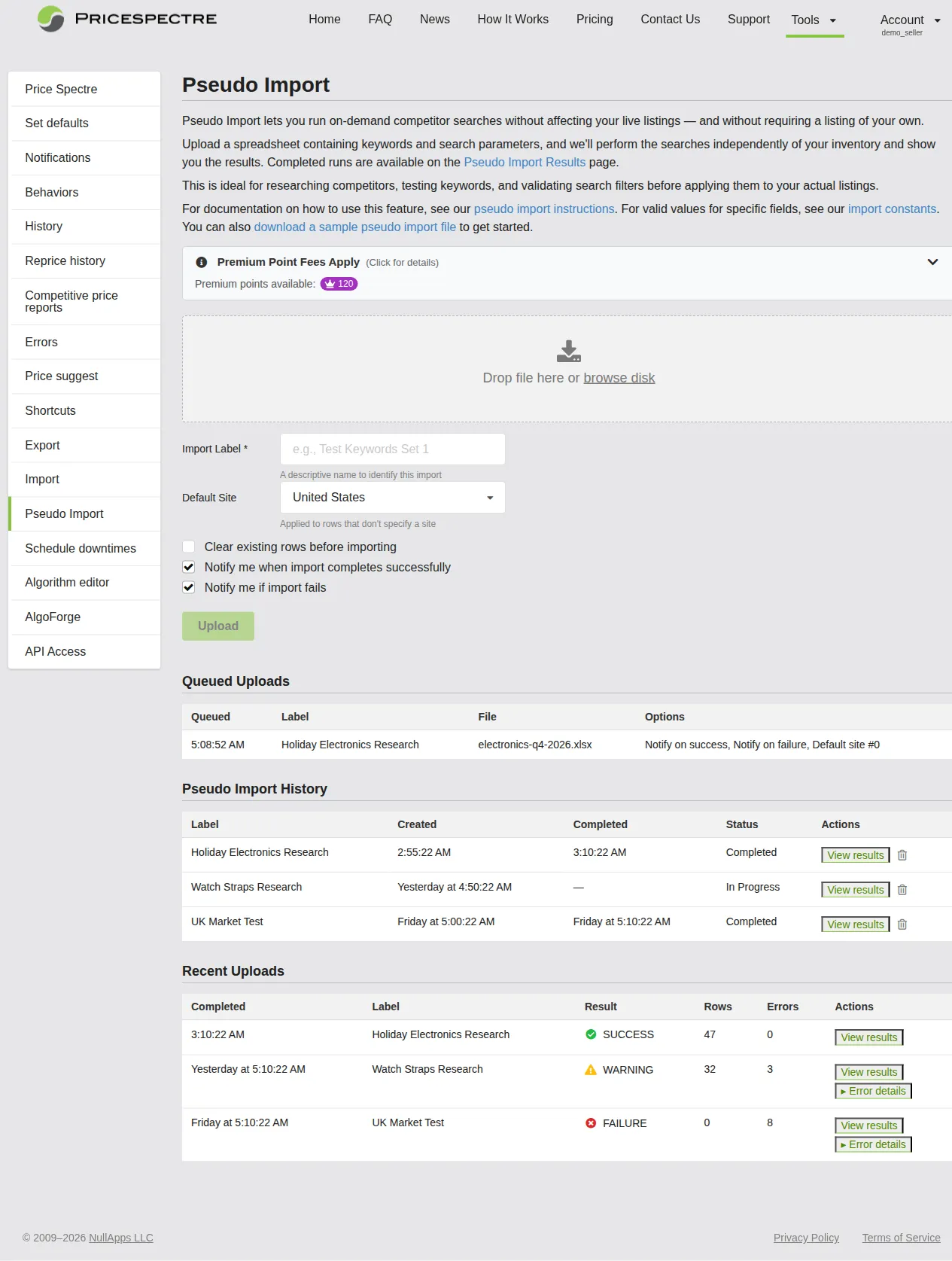
Navigating to the Pseudo Import Page
- Click Tools in the navigation bar.
- Select Pseudo Import from the side menu.
Selecting Your File
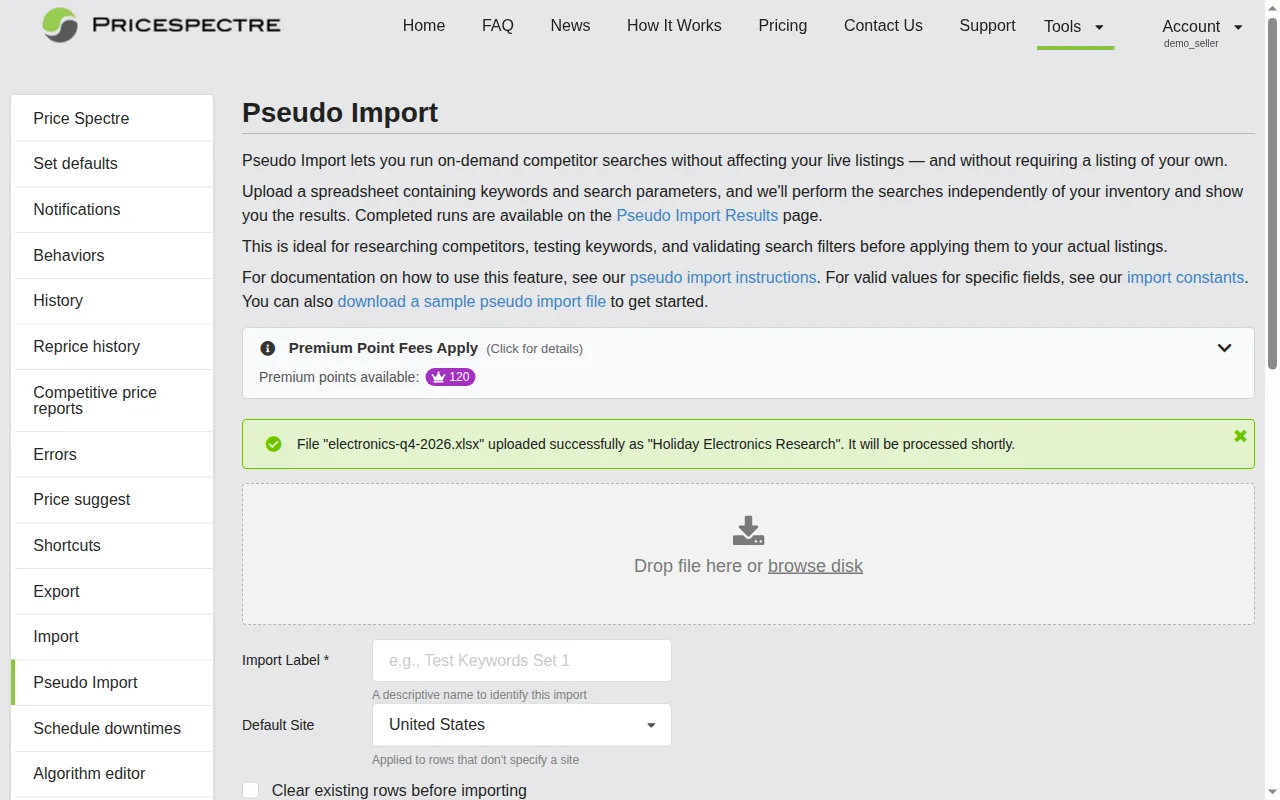
The Pseudo Import page features a drag-and-drop upload area at the top.
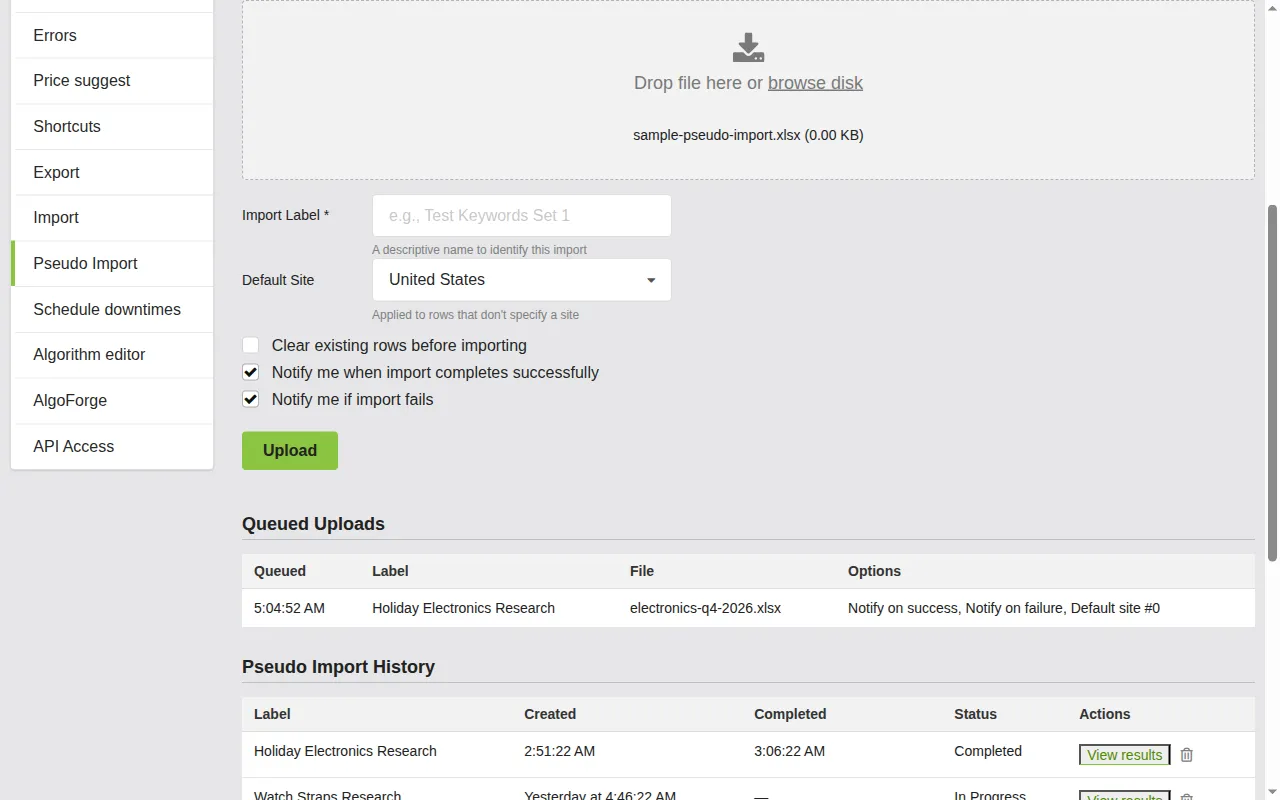
- Drag and drop your spreadsheet file onto the upload area, or click the area to open a file browser.
- Select your file. Supported formats are XLSX, XLS, CSV, and ODS, with a maximum size of 100 MB.
- The selected file name will appear in the upload area.
Note: Only one file can be uploaded at a time. If you need to upload multiple files, submit them one after the other.
Configuring Import Settings
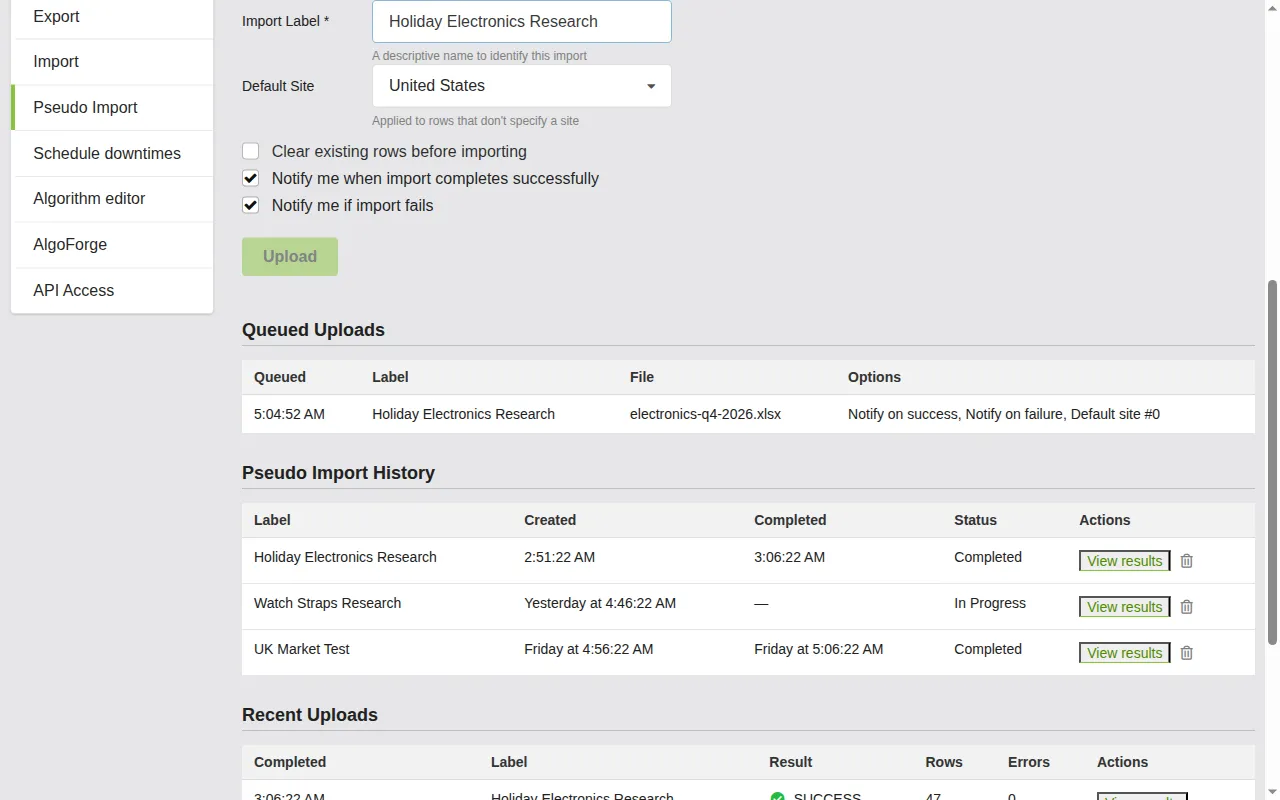
Before uploading, configure the following settings:
Import Label (required) — Enter a descriptive name for this import. The label is how imports are grouped: if you reuse an existing label, new rows are appended to that import rather than creating a separate one. Within the same import, rows with the same Custom Identifier overwrite the previous data for that identifier, while rows with new Custom Identifiers are added. Use a unique label (e.g.,
Watch Straps Research,Holiday Season Pricing, orUK Market Test) to keep results separate, or reuse a label intentionally to build up results over multiple uploads.Default Site — Select the eBay marketplace to use for rows that do not specify a Site column value. The dropdown is pre-sorted based on your location, with your local eBay site shown first. Select Use file value if every row in your spreadsheet already includes a Site value.
Clear existing rows before importing — When checked, all prior results for the import label you specified are removed before the new file is processed. Leave this unchecked if you want to add rows to an existing import.
Notify me when import completes successfully — Sends you an email notification when processing finishes without errors. Enabled by default.
Notify me if import fails — Sends you an email notification if the import encounters errors. Enabled by default.
Tip: Always use descriptive import labels. When you have multiple imports, a clear label like
Leather Wallets - US Marketis much easier to find thanTest 1.
Starting the Upload
Click the Upload button to submit your file. The file is queued for processing — it does not happen instantly. Depending on the size of your file and the number of rows, processing may take a few seconds to several minutes.
After a successful upload, a confirmation message appears showing the file name and import label. The page automatically refreshes to show your import in the queue.
Tracking Your Import
After uploading, the Pseudo Import page displays three sections that help you monitor the status of your imports.
Queued Uploads
The Queued Uploads section appears when one or more files are waiting to be processed. Each entry shows:
- Queued — when the file was submitted.
- Label — the import label you assigned.
- File — the original file name.
- Options — a summary of the settings you selected (notification preferences, default site).
Queued uploads are processed in order. Once processing begins, the entry moves from Queued Uploads to Import History.

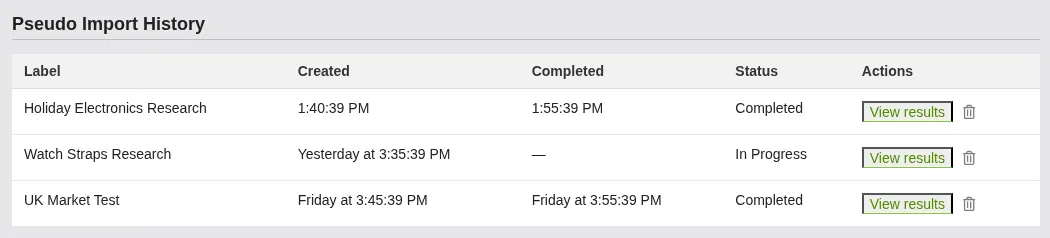
Import History
The Import History section shows all your pseudo imports, both completed and in-progress. Each entry displays:
- Label — the import label you assigned.
- Created — when the import was submitted.
- Completed — when processing finished (or "—" if still in progress).
- Status — either "In Progress" or "Completed".
- Actions — links to View results and a delete button.
The page automatically checks for updates while imports are being processed, so you do not need to refresh manually.
Recent Uploads
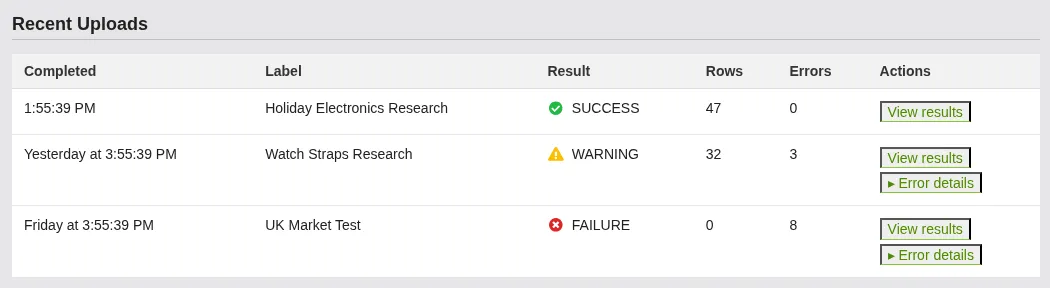
The Recent Uploads section shows the outcome of recently processed file uploads. Each entry displays:
- Completed — when the upload was processed.
- Label — the import label.
- Result — a status indicator:
- SUCCESS (green check) — the file was processed without errors.
- WARNING (yellow triangle) — the file was processed but some rows had issues.
- FAILURE (red X) — the file could not be processed.
- Rows — the number of rows that were processed.
- Errors — the number of rows that encountered errors.
- Actions — links to View results and, when errors occurred, Error details.
If errors occurred, click Error details to open a modal showing exactly what went wrong and which rows were affected.
Tip: If you see a WARNING or FAILURE status, check the error details. Common issues include missing keywords, invalid site IDs, or unrecognized column headers. Fix the problematic rows in your spreadsheet and re-upload just those rows.
Viewing Results
Once a pseudo import has completed processing, you can view detailed results showing competitor listings, pricing data, and search outcomes for each row in your spreadsheet.
Navigating to the Results Page
There are two ways to reach the results page:
- From the Import History or Recent Uploads sections on the Pseudo Import page, click View results next to the import you want to review.
- Navigate directly to Tools > Pseudo Import Results from the side menu.
Selecting an Import
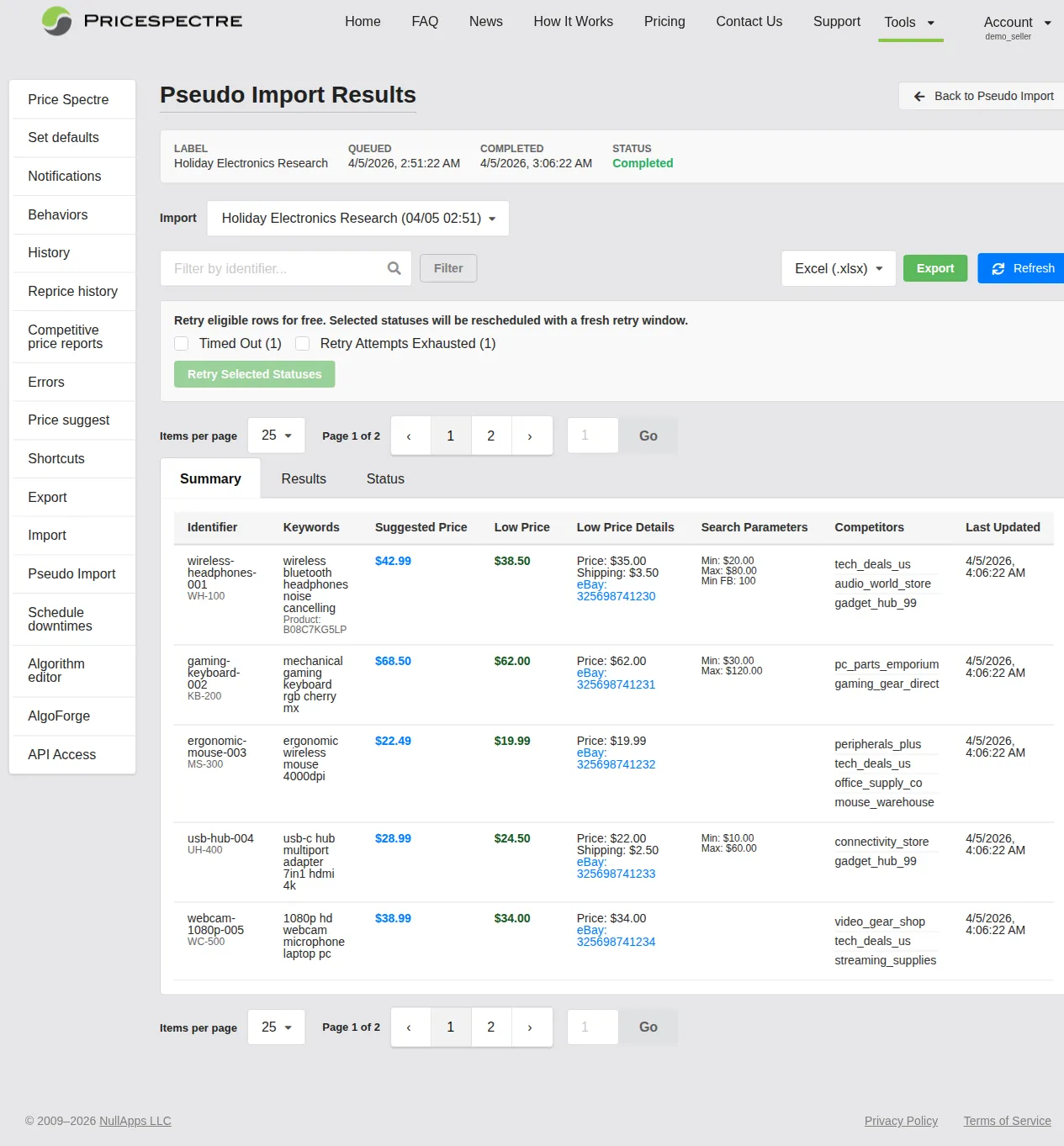
At the top of the Results page, the Import dropdown lets you switch between your different pseudo imports. Each entry shows the import label and the date it was created. Select the import you want to review from this dropdown.
A summary bar below the dropdown shows key information about the selected import: its label, when it was queued, when it completed, and its current status (Completed or Processing).

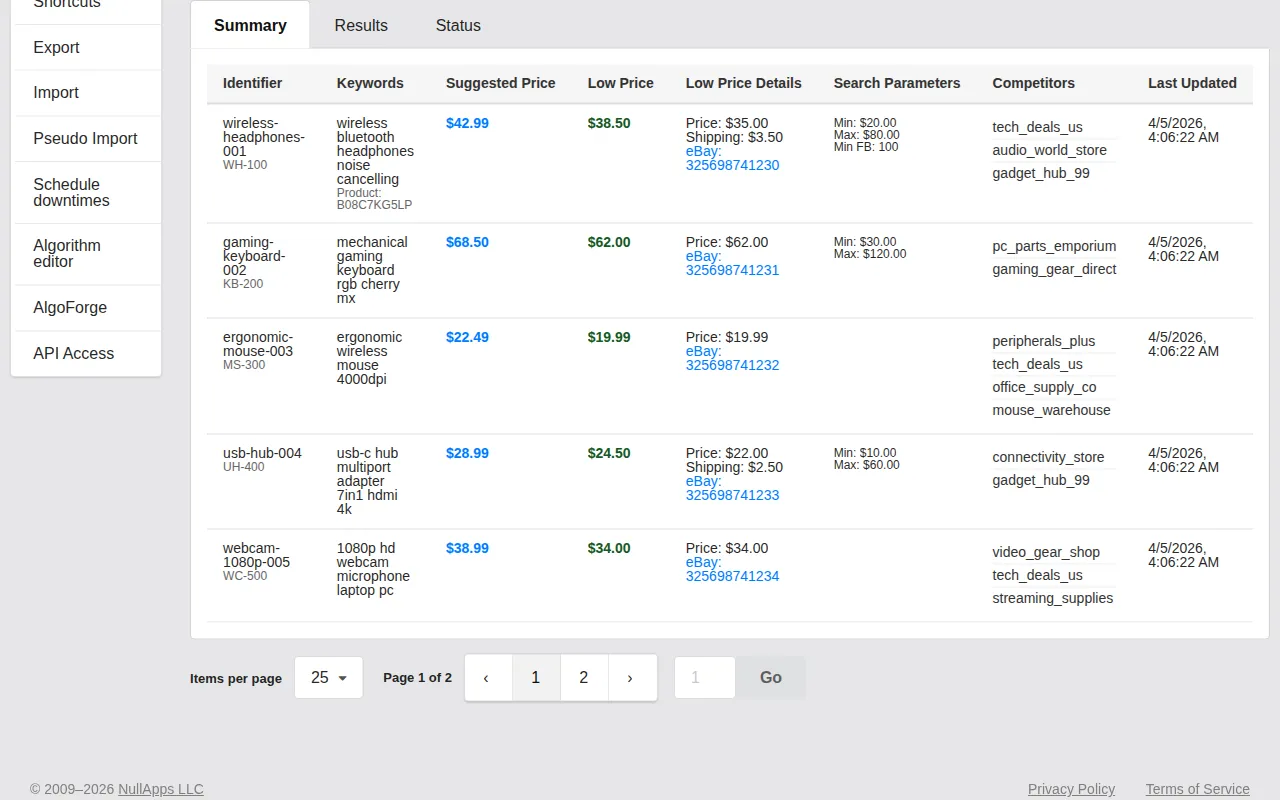
The Summary Tab
The Summary tab provides a high-level overview of results for each row in your import. This is the default view when you open the Results page.
The summary table shows each pseudo item with its identifier, keywords, and a condensed view of the competitor data found — including pricing summaries and the number of competitors matched.
This tab is useful for quickly scanning results and identifying which searches returned the most useful data.
The Results Tab
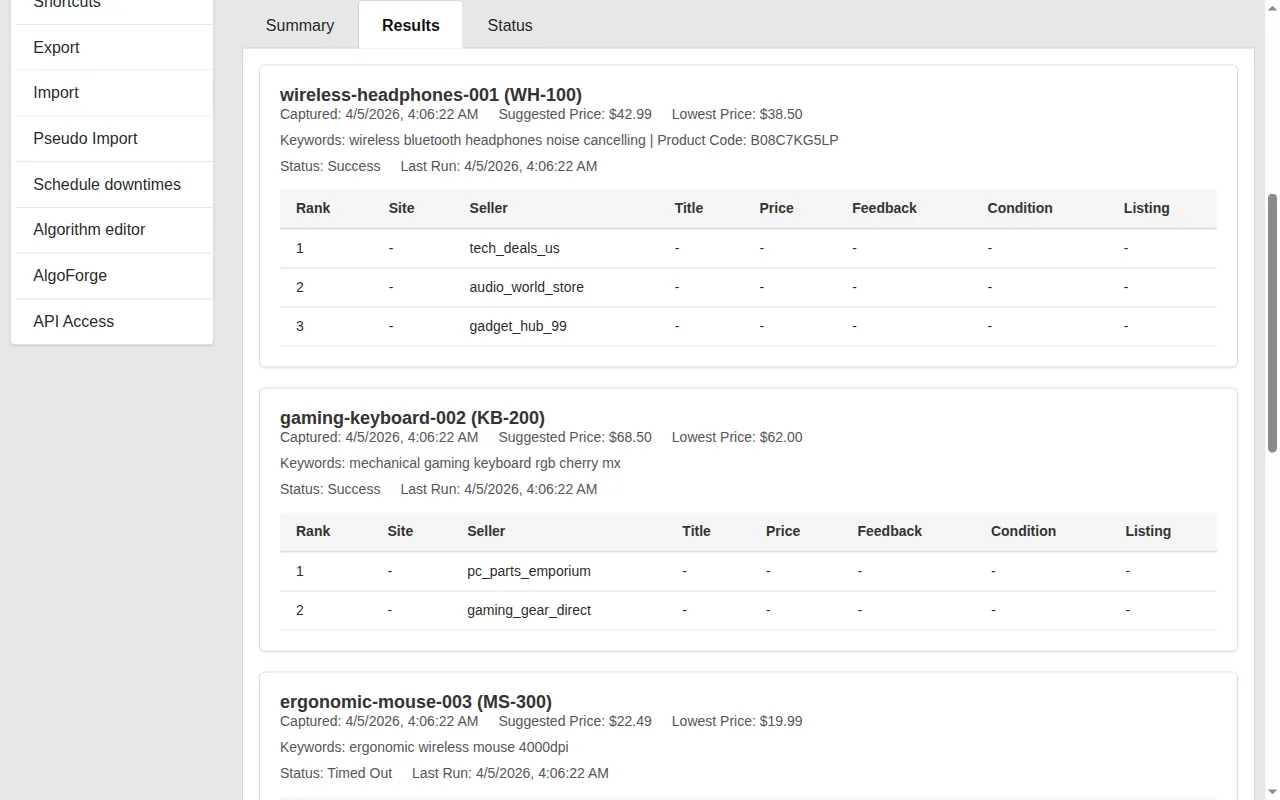
The Results tab shows detailed competitor matches for each pseudo item. This includes individual competitor listings with their prices, seller information, and other relevant data.
Use this tab when you need to drill into the specifics — which sellers are competing, what they are charging, and how listings compare to each other.
The Status Tab
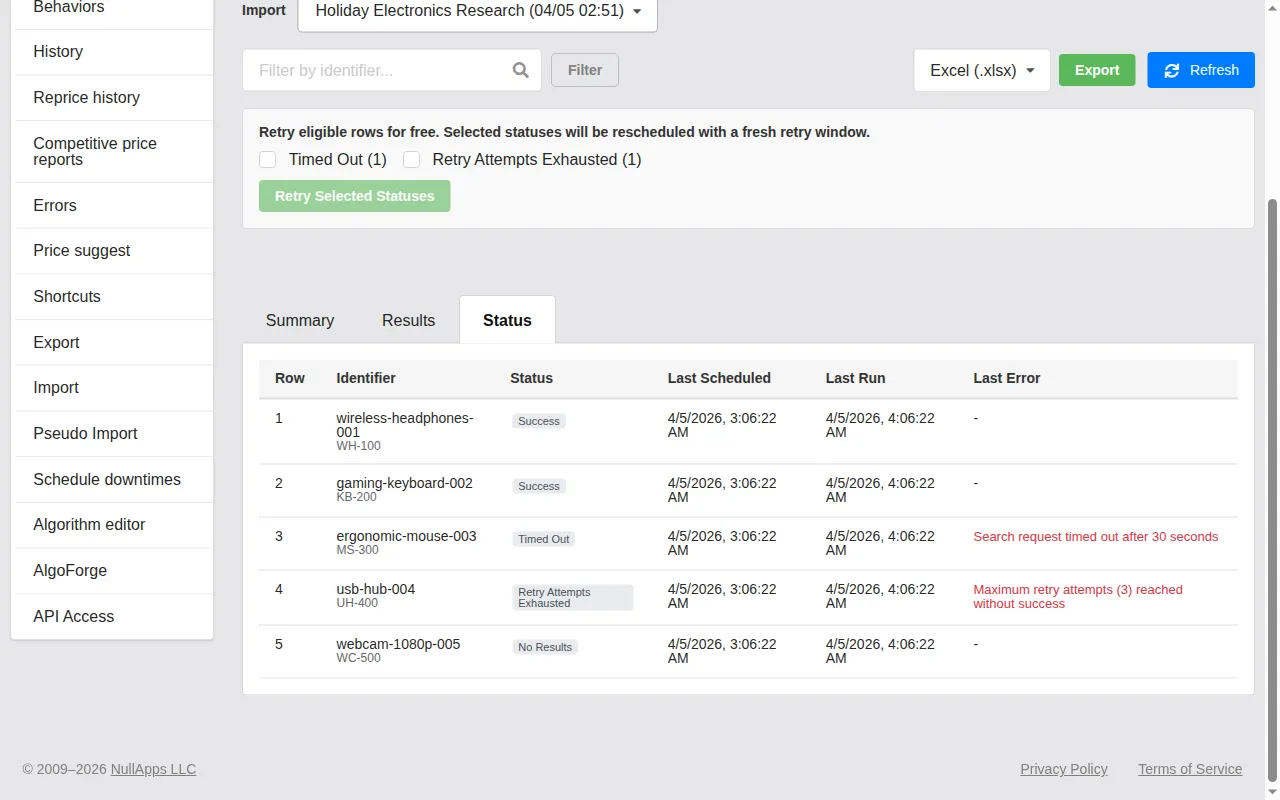
The Status tab shows the processing status of each row in your import. This is especially useful for large imports or when some rows failed to process.
Each row displays its identifier and one or more status flags indicating the outcome:
- Success — the search completed successfully and returned results.
- No Results — the search ran but found no matching competitor listings.
- Timed Out — the search did not complete within the allotted time.
- Retry Attempts Exhausted — the row was retried the maximum number of times without success.
- Missing Token — a required authentication token was unavailable.
- Search Error — an error occurred during the search.
Filtering by Identifier
Use the Filter by identifier search box above the tabs to narrow results to rows matching a specific Custom Identifier. Type your search term and click Filter, or click Clear to remove the filter and show all results.
This is particularly useful for large imports where you want to focus on a specific product or group of items.
Pagination
For imports with many rows, results are paginated. The pagination controls appear above and below the results:
- Items per page — choose how many rows to display at once: 25, 50, 75, or 100.
- Page navigation — use the arrow buttons or page numbers to move between pages.
- Go to page — type a specific page number and click Go to jump directly to it.
Exporting Results
You can export your pseudo import results to a spreadsheet file for further analysis.
- On the Results page, select the import you want to export.
- Optionally, apply a filter by identifier to export only a subset of results.
- Choose your export format from the dropdown: Excel (.xlsx) or CSV (.csv).
- Click the Export button.
The file downloads automatically to your computer. It contains all the result data for the selected import (or filtered subset), formatted as a spreadsheet you can open in Microsoft Excel, Google Sheets, or any other spreadsheet software.

Tip: Export your results to XLSX for the best experience. XLSX preserves formatting and handles special characters better than CSV.
Retrying Failed Items
Some rows in your import may fail to process due to temporary issues like network timeouts. Rather than re-uploading the entire file, you can retry just the failed rows directly from the Results page — at no additional Premium Points cost.
The retry section appears automatically on the Results page when retryable rows are detected. Three types of failures are eligible for retry:
- Timed Out — the search did not complete within the allotted time. Often succeeds on a second attempt.
- Retry Attempts Exhausted — the row was retried automatically but still did not succeed. A manual retry resets the attempt counter.
- Missing Token — a required authentication token was unavailable at the time of processing. This typically resolves itself.
To retry failed items:
- On the Results page, locate the Retry section below the filter controls.
- Check the boxes next to the statuses you want to retry. Each checkbox shows the status name and the number of affected rows.
- Click Retry Selected Statuses.
The selected rows are re-queued for processing. You can refresh the page to see updated results as retries complete.

Tip: Retries are free — no additional Premium Points are charged. If you see timed-out rows, it is always worth retrying them.
Deleting a Pseudo Import
To remove a pseudo import and all its associated results:
- On the Pseudo Import page, find the import in the Import History section.
- Click the trash icon next to the import.
- Confirm the deletion in the dialog that appears.
Deletion is permanent — the import and all of its results are removed and cannot be recovered. If you want to keep the results, export them before deleting.
Important: Make sure to export any results you need before deleting an import. There is no way to undo a deletion.
Tips and Best Practices
Download the sample file first. The sample pseudo import file shows you the correct column headers and expected format. Use it as a starting template — delete the example rows, add your own data, and save.
Start small. If this is your first time using Pseudo Import, upload a file with 10–20 rows to familiarize yourself with the process and results before uploading larger batches.
Use descriptive import labels. Labels like
Leather Wallets - US MarketorElectronics Q4 Researchmake it easy to find specific imports later. Avoid generic names likeTestorImport 1.Set a default site. If all your rows target the same eBay marketplace, select the appropriate Default Site when uploading rather than including a Site column in every row.
Check Import Constants for numeric IDs. Fields like Algorithm and Condition ID Search Set require specific numeric values. Visit Tools > Import > Constants to find the correct IDs for your account.
Enable both notification options. Email notifications for success and failure keep you informed without needing to check the page manually.
Use the Clear existing option carefully. When checked, all prior results for the specified import label are removed before the new file is processed. Only use this when you want to start fresh for that label — otherwise, leave it unchecked to add new rows alongside existing ones.
Export results for further analysis. The Results page is great for quick review, but for deeper analysis, export to XLSX and take advantage of spreadsheet features like pivot tables, charts, and conditional formatting.
Retry timed-out rows. Timeouts are often temporary. Retrying is free and frequently produces results on the second attempt.
Use filters and identifiers strategically. Assign meaningful Custom Identifier values (like product names or categories) so you can easily filter results on the Results page. This is especially valuable for large imports with hundreds of rows.
Frequently Asked Questions
What file formats are supported?
Pseudo Import accepts Microsoft Excel (.xlsx and .xls), CSV (.csv), and OpenDocument Spreadsheet (.ods) files. The maximum file size is 100 MB.
Does Pseudo Import affect my eBay listings?
No. Pseudo Import only performs competitor searches and returns the results. Nothing on your eBay account is modified — no prices are changed, no listings are updated, and no settings are altered.
How much does Pseudo Import cost?
Pseudo Import uses Premium Points. A small fee is charged based on the number of successful price checks performed. Rows that fail or return no results are not charged. Check your Premium Points balance at Account > Premium Points.
What is the Custom Identifier field for?
Custom Identifier is a label you assign to each row for your own reference. It is not matched to any eBay listing or product. Use it to organize and identify your rows when viewing results — for example, widget-blue-small or competitor-check-march. If you leave it blank, the row number is used automatically. Custom Identifiers must be unique within an import — reusing one overwrites the previous data for that identifier.
How long does processing take?
Processing time depends on the number of rows in your file. Under normal loads, Price Spectre can process around 5,000 rows per minute, so most files complete quickly. The Import History section shows real-time status updates, and you will receive an email notification when processing completes (if notifications are enabled).
Can I cancel a queued import?
No. Once a file is uploaded and queued, it cannot be cancelled. If the import produces unwanted results, you can delete it after processing completes.
What do the retryable statuses mean?
- Timed Out — the search took too long and was stopped. This is usually a temporary issue and retrying often succeeds.
- Retry Attempts Exhausted — the system retried the row automatically several times but it still did not succeed. A manual retry resets the counter and tries again.
- Missing Token — a required authentication token was not available when the row was processed. This is typically a temporary issue that resolves on retry.
Can I re-use the same spreadsheet for multiple imports?
Yes. If you use a different import label each time, each upload creates a separate import with its own results. If you reuse the same import label, the new rows are merged into the existing import — rows with the same Custom Identifier overwrite the previous data, while rows with new identifiers are added. Use different labels to keep results separate, or reuse a label intentionally to refresh your data over time.
Where do I find valid algorithm and condition IDs?
Visit the Import Constants page at Tools > Import > Constants. This page shows up-to-date tables of all algorithm IDs, condition IDs, and other numeric constants for your account.
How do I download the sample file?
On the Pseudo Import page, look for the download a sample pseudo import file link in the introductory text. The sample file contains the correct column headers and example rows.
Can I use Pseudo Import without linking an eBay account?
A linked eBay account is required for Price Spectre's core features. However, Pseudo Import does not interact with your eBay listings — it only performs searches. You still need an active account to access the feature.
What happens if a row has no Keywords?
Rows without Keywords will generally result in an error, since Price Spectre needs search terms to perform a competitor lookup. In practice, Keywords is required for every row unless you are using a specialized algorithm that does not need them — but for typical marketplace research, always include Keywords.
This guide covers the Pseudo Import tool in Price Spectre's React-based interface. For a complete walkthrough of all Price Spectre features, see the Tutorial. For bulk editing your existing listings, see the Import and Export Guide.