
SFTP and FTPS Uploads
Price Spectre lets you submit import files over SFTP or FTPS in addition to the in-app upload on the Import page. This is useful for very large batches, scheduled uploads from your own systems, and any workflow where a drag-and-drop browser upload isn't convenient.
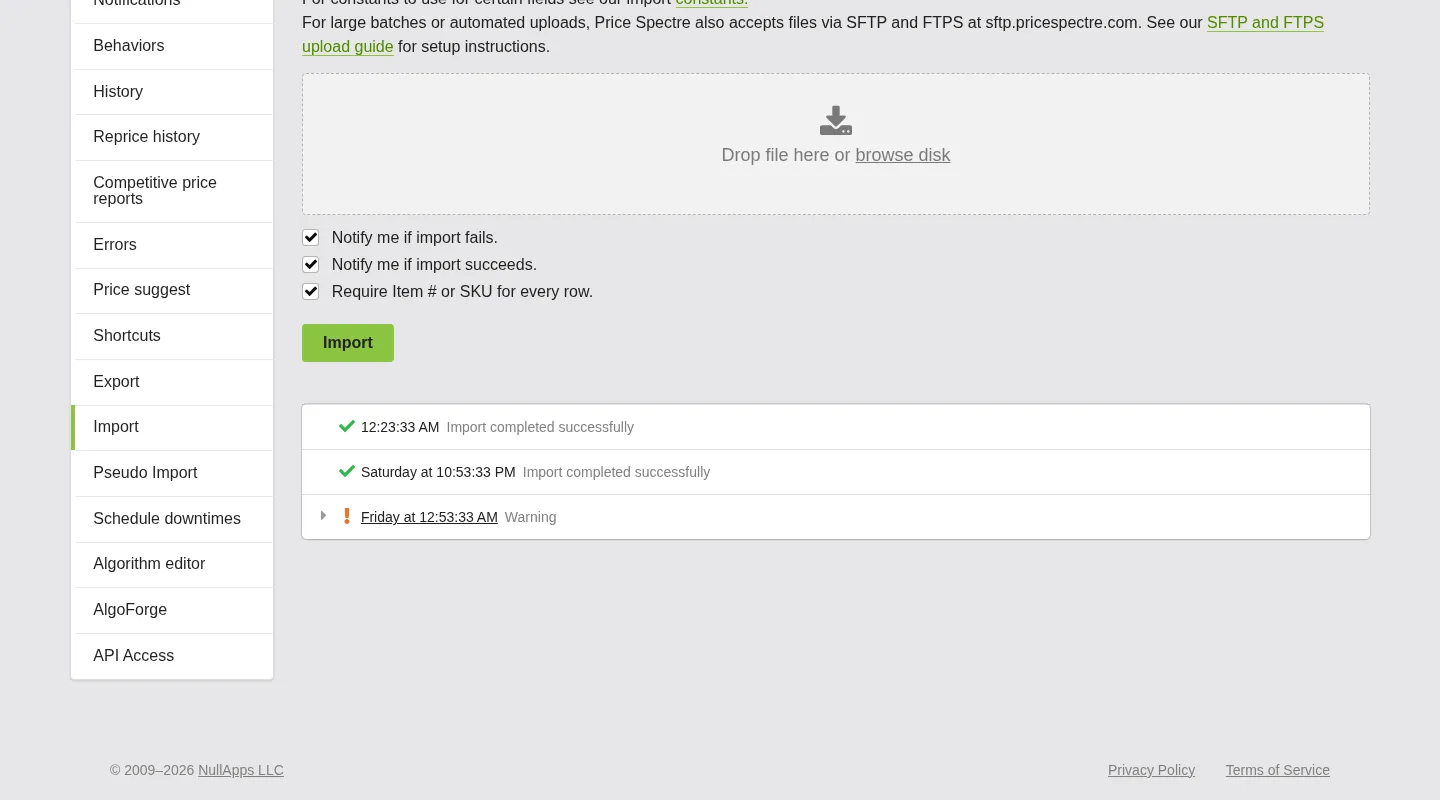
Files dropped onto the SFTP server are picked up automatically, processed exactly as if you had uploaded them through the Import page, and then removed. Import history, notifications, and error messages show up in the same places you already use.
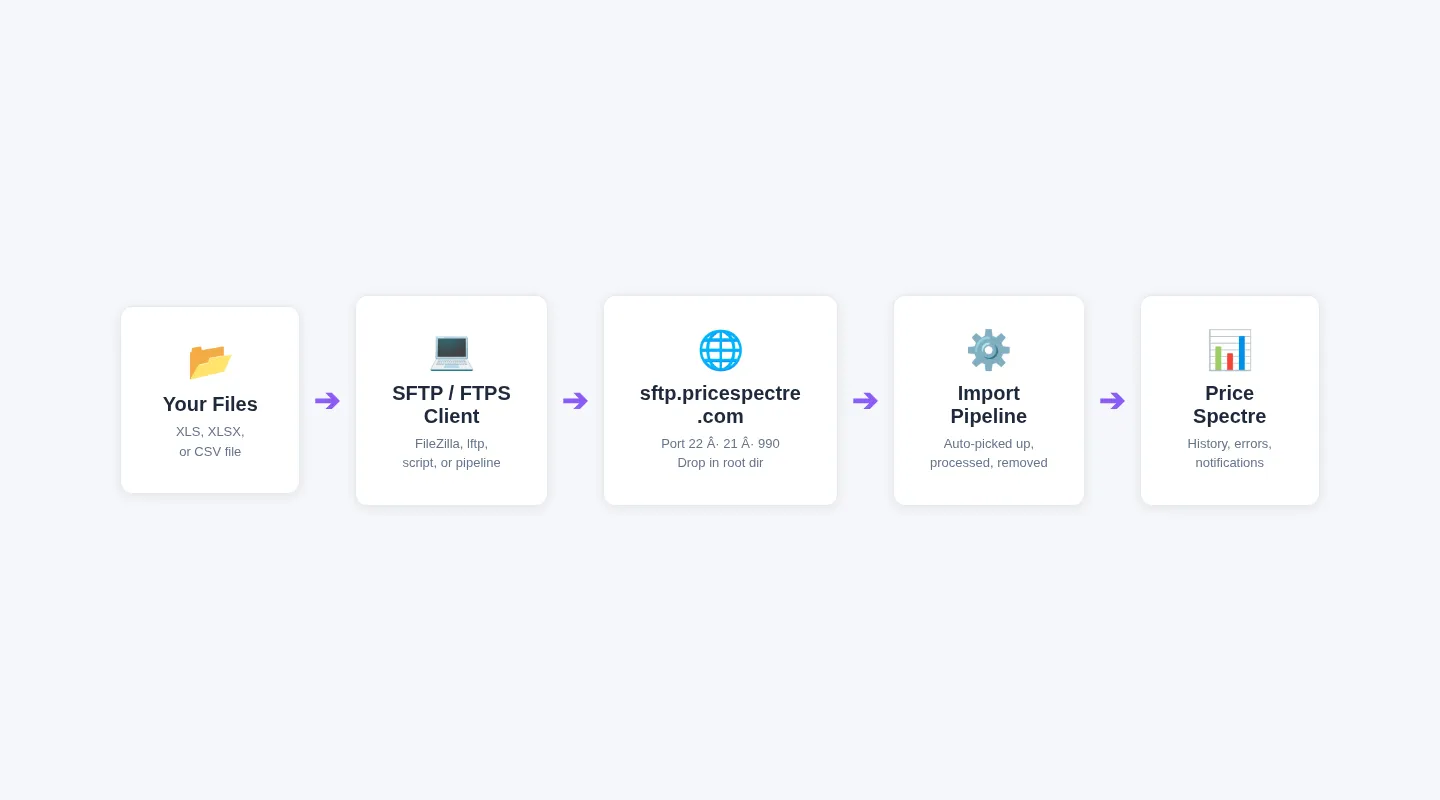
Table of Contents
- Overview
- When to Use SFTP or FTPS
- Server and Ports
- Authentication
- Uploading a File
- Processing and Removal
- Example: Connecting with FileZilla
- Example: Connecting from the Command Line
- Troubleshooting
- Frequently Asked Questions
Overview
SFTP and FTPS uploads are an alternative entry point to the same import pipeline that powers the Import page. Any file format accepted on the Import page — XLS, XLSX, CSV, or ODS — is accepted over SFTP and FTPS. The column format, constants, and field semantics are identical, so you don't need to re-learn anything if you already use the Import page.
The key difference is transport: instead of uploading through your browser, your client (a dedicated tool like FileZilla, or a script on a server) logs in to sftp.pricespectre.com and drops the file into the top-level directory of its session. Everything after that is the same.
When to Use SFTP or FTPS
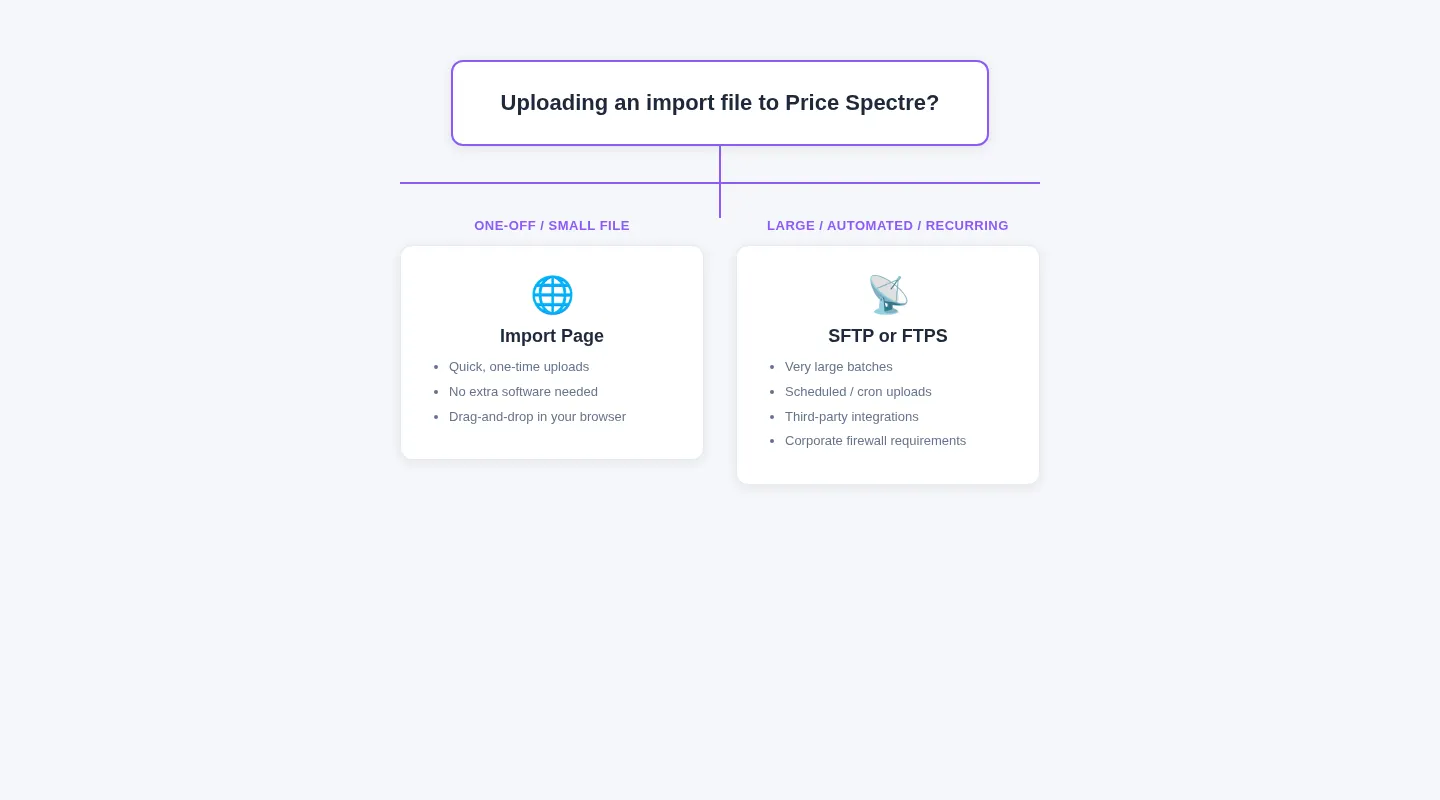
Choose SFTP or FTPS over the in-app Import page when you have one of these needs:
- Large batches. Very large spreadsheets can be slow or unreliable to upload through a browser. A dedicated file-transfer client handles big files more gracefully and supports resume on flaky connections.
- Scheduled uploads. If another system in your stack produces a fresh import file on a schedule (for example, a nightly export from your ERP or inventory tool), it is much easier to drop that file onto
sftp.pricespectre.comfrom a cron job or pipeline than to script a browser upload. - Third-party integrations. Many off-the-shelf data tools — ETL platforms, warehouse management systems, marketplace integrators — already know how to push files over SFTP or FTPS. SFTP and FTPS give those tools a drop target without custom development.
- Stronger network controls. Some corporate environments restrict browser uploads or prefer SFTP/FTPS for audit and firewall reasons.
For a one-off edit of a few listings, the Import page is still the quickest path.
Server and Ports
Use the same hostname for every protocol:
- Host:
sftp.pricespectre.com
Three protocols are available:
- SFTP on the standard SSH port (22). SFTP is the default recommendation — it is widely supported, easy to configure, and encrypts both the control channel and file data.
- FTPS (explicit) on the standard FTP port (21). The client connects in plaintext and then issues an
AUTH TLS(orAUTH SSL) command to upgrade the connection to TLS before sending credentials or files. - FTPS (implicit) on the standard implicit-FTPS port (990). The client opens a TLS connection from the very first byte — no plaintext
AUTHstep.
All three protocols talk to the same server and use the same credentials and directory layout. Pick whichever your client or integrator supports best.
Tip: If you are behind NAT or a corporate firewall and you use FTPS, enable passive (PASV) mode in your client. Passive mode avoids the need for the server to open a back-connection to your client for the data channel.
Authentication
Log in with the same username and password you use to sign in to the Price Spectre web app.
- No separate SFTP credentials are issued.
- No public-key setup is required — password authentication is the standard path for every protocol.
- If you change your web-app password, your SFTP and FTPS credentials update along with it immediately.
If you're wiring SFTP credentials into an automated system, treat them like any other production secret: store them in a password manager or secrets vault, and rotate them periodically — especially if the automation is shared across teams.
Uploading a File
- Connect to
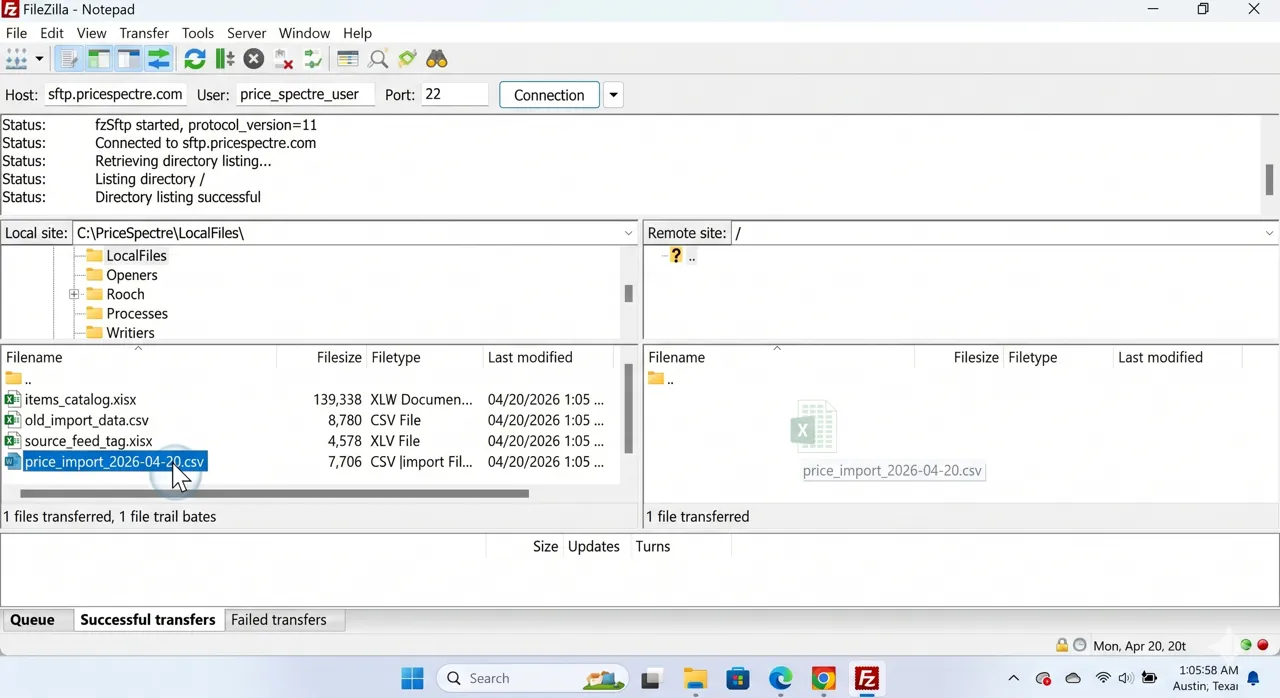
sftp.pricespectre.comwith one of the three protocols. - Place your import file directly in the top-level (root) directory of the session. Do not create subdirectories — any file that isn't in the root is ignored.
- Close the connection (or simply leave the client open; the server picks files up asynchronously regardless).
Name your file however you like — Price Spectre infers the format from the extension (.xls, .xlsx, .csv, .ods). Using a descriptive name (for example, including a date or source-system tag) makes it easier to match against entries in your in-app Import history.
Processing and Removal
Shortly after a file appears in the root directory:
- It is picked up for processing.
- It is imported into your account as if it had been uploaded via the Import page.
- It is removed from the SFTP directory. If you reconnect and the file is gone, that means it has already been handed off to the importer.
You can monitor progress and results in the usual places:
- The Import history panel on the Import page lists each file and its processing state.
- If you have import-success or import-fail notifications enabled, you'll receive them for SFTP uploads just as you would for web uploads.
- Per-row errors are surfaced on the Import page and the main Errors page.
Example: Connecting with FileZilla
The examples below use FileZilla because it is free, cross-platform, and supports all three protocols. The same fields apply to any other file-transfer client.
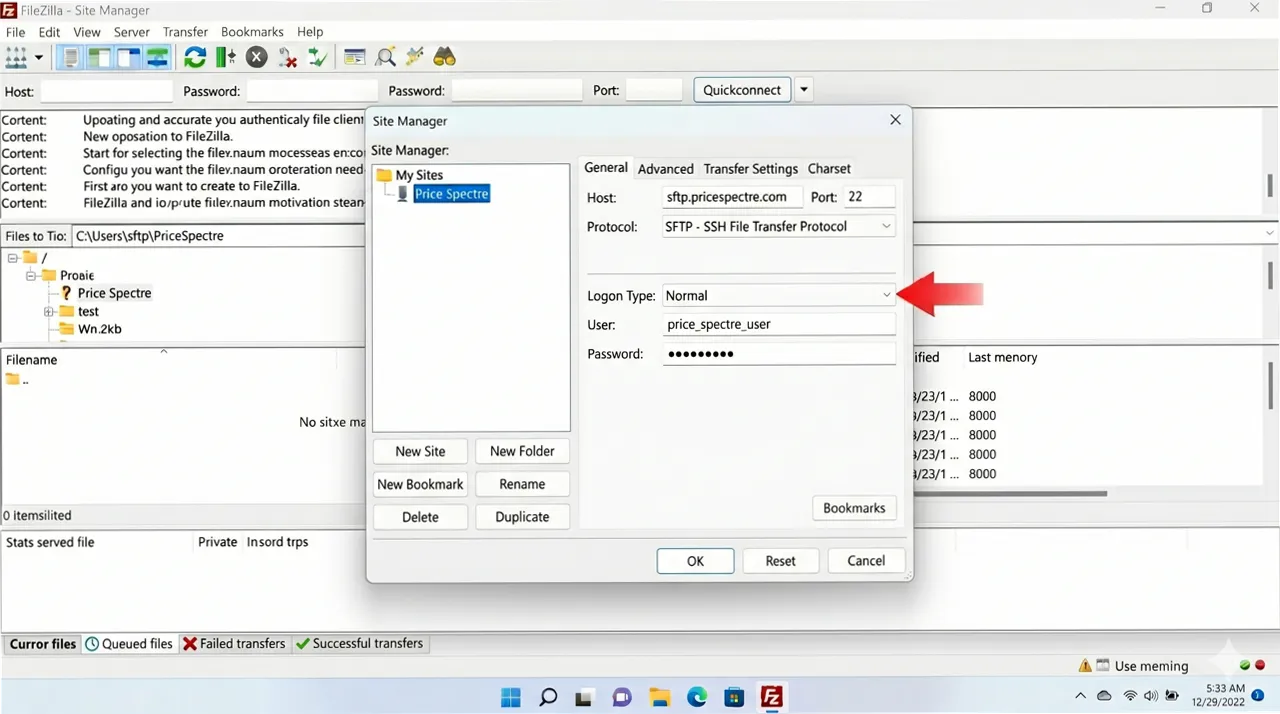
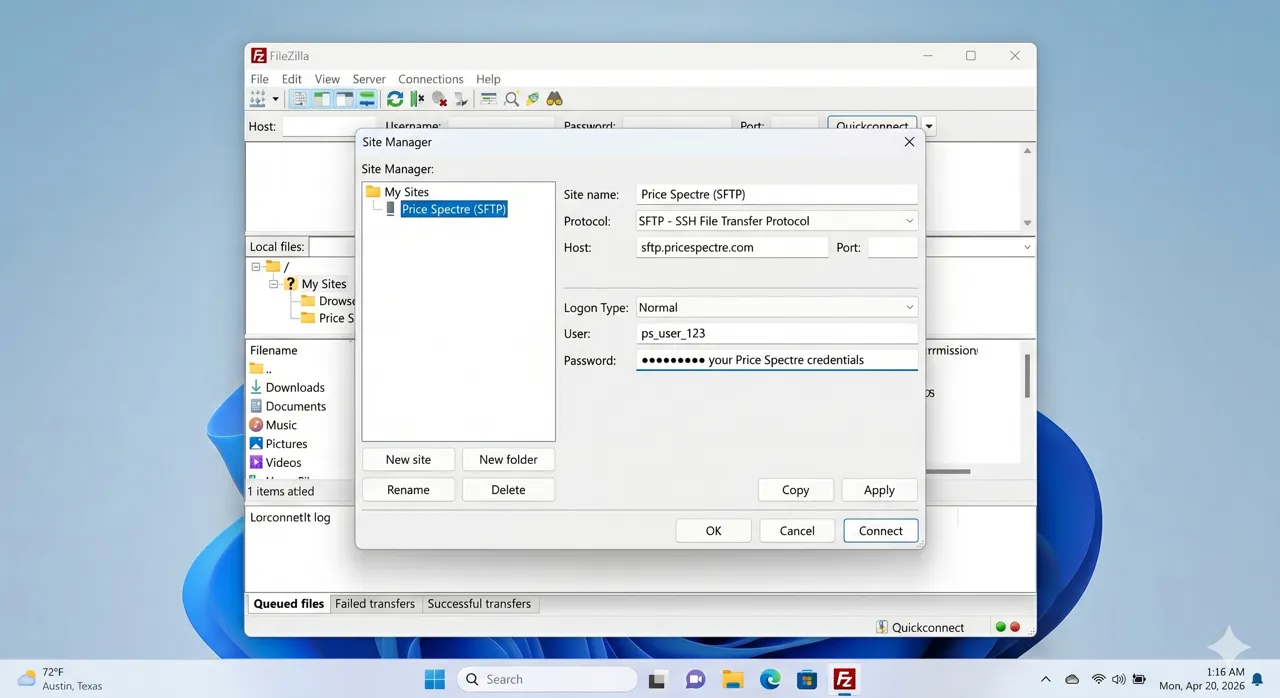
Open File → Site Manager → New site, then fill in the fields for one of the three variants below. Leave the Logon Type set to Normal and enter your Price Spectre username and password.
SFTP
- Protocol: SFTP - SSH File Transfer Protocol
- Host:
sftp.pricespectre.com - Port:
22(or leave blank to use the default) - Logon Type: Normal
- User / Password: your Price Spectre credentials
Click Connect. On first connect FileZilla will ask you to trust the server's host key — accept it.
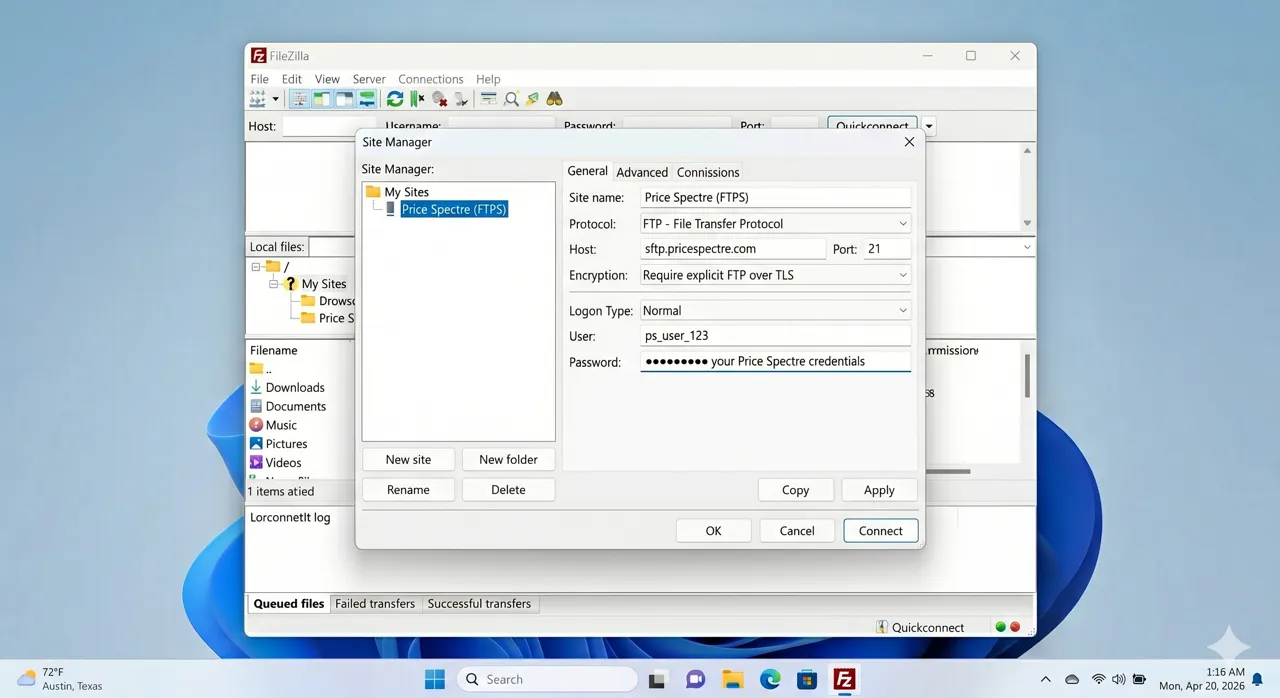
FTPS (Explicit)
- Protocol: FTP - File Transfer Protocol
- Host:
sftp.pricespectre.com - Port:
21(or leave blank) - Encryption: Require explicit FTP over TLS
- Logon Type: Normal
- User / Password: your Price Spectre credentials
Under Transfer Settings, choose Passive transfer mode if you are behind NAT or a firewall.
FTPS (Implicit)
- Protocol: FTP - File Transfer Protocol
- Host:
sftp.pricespectre.com - Port:
990 - Encryption: Require implicit FTP over TLS
- Logon Type: Normal
- User / Password: your Price Spectre credentials
Implicit FTPS is the right choice when a client or integrator specifically requires it. Otherwise, SFTP or explicit FTPS are easier to run through firewalls.
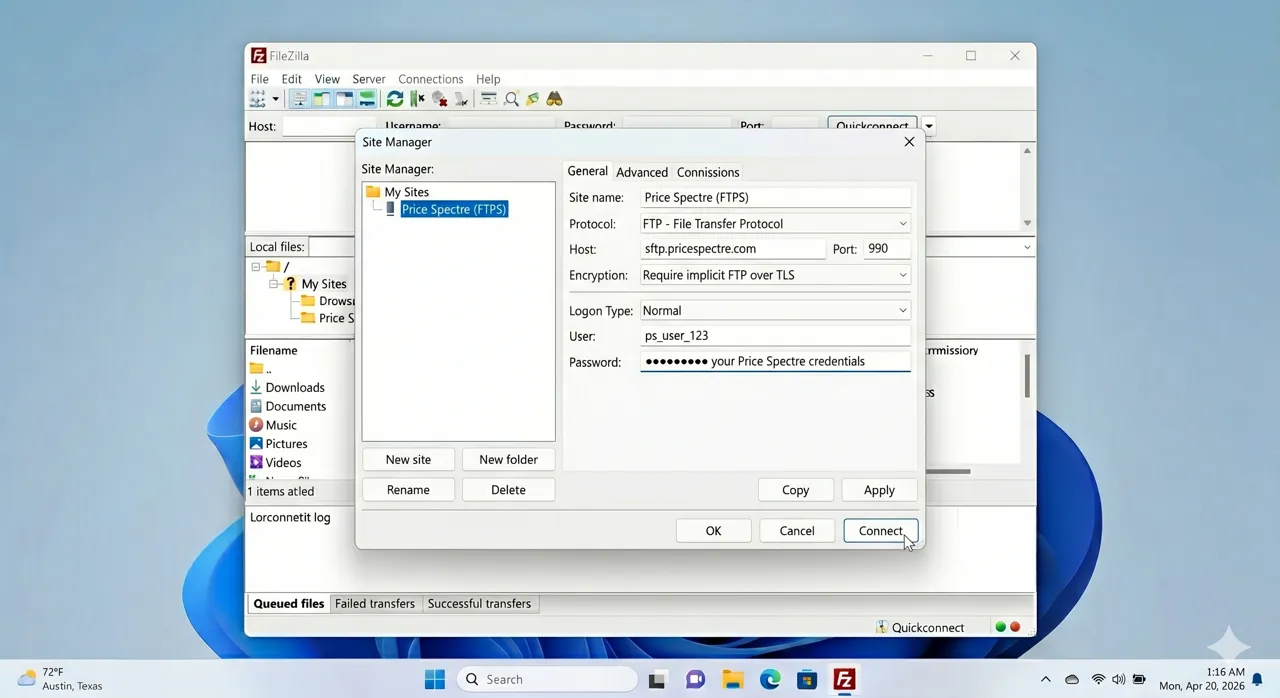
Once connected, drag your import file from the Local site panel onto the root directory of the Remote site panel.
Example: Connecting from the Command Line
If you want to script uploads, the command-line examples below are a starting point. Replace YOUR_USERNAME and your_local_file.xlsx with the values you need; your password will be prompted for or read from your tool's credential store.
SFTP (using the sftp client that ships with OpenSSH):
sftp YOUR_USERNAME@sftp.pricespectre.com
# at the sftp> prompt:
put your_local_file.xlsx
bye
For fully unattended SFTP uploads, most environments use lftp or a language-native SSH/SFTP library so that the password can be supplied from a secrets store rather than prompted interactively.
FTPS with lftp (supports both explicit and implicit):
# Explicit FTPS on port 21
lftp -u YOUR_USERNAME -e "set ftp:ssl-force true; set ftp:ssl-protect-data true; put your_local_file.xlsx; bye" \
  sftp.pricespectre.com

# Implicit FTPS on port 990
lftp -u YOUR_USERNAME -e "set ftp:ssl-force true; set ftp:ssl-protect-data true; put your_local_file.xlsx; bye" \
  ftps://sftp.pricespectre.com:990
FTPS with curl (explicit mode):
curl --ftp-ssl --user YOUR_USERNAME \
  --upload-file your_local_file.xlsx \
  ftp://sftp.pricespectre.com/
Whichever tool you use, upload to the root path — nothing more, nothing less. Subdirectories are ignored.
Troubleshooting
Login fails with "authentication failed" or "530 Login incorrect". Double-check that the username and password match what you use to sign in to the Price Spectre web app, including case. If your account is suspended, the web app will redirect you to the billing page when you next sign in; SFTP and FTPS logins are tied to the same account status.
Connection is refused or times out. Verify the port for the protocol you're using: 22 for SFTP, 21 for explicit FTPS, 990 for implicit FTPS. If your firewall blocks outbound traffic on one of those ports, try a different protocol. For FTPS specifically, enable passive mode in the client.
FileZilla says "Insecure server, it does not support FTP over TLS". That almost always means the client is configured for plain FTP instead of FTPS. Open the Site Manager, set Encryption to Require explicit FTP over TLS (or implicit if you intend to use port 990), and reconnect. Price Spectre does not accept plain, unencrypted FTP.
The file I uploaded has disappeared from the server. That's expected — it means the importer has already picked it up. Check the Import history panel on the Import page to see the processing result.
The file is still sitting in the directory a few minutes later.
Pickups run on a short schedule. If a file is still present after a few minutes, confirm that it was placed in the root directory (not a subfolder) and that the filename ends in .xls, .xlsx, .csv, or .ods. Files with other extensions are ignored.
The file was processed but some rows didn't apply. Per-row errors show up on the Import page's history entry and on the main Errors page, the same way they would for a web upload. See the Import and Export guide for details on the error format and how to resolve common column issues.
My connection drops during large uploads. Most file-transfer clients can resume a partially uploaded file — make sure resume is enabled in your client's settings. You can also split a very large spreadsheet into several smaller files and upload them separately; each is processed independently.
Frequently Asked Questions
Where do I see the result of an SFTP or FTPS upload? On the Import page, in the import history. SFTP/FTPS uploads are indistinguishable from web uploads in the history view — the file name, timestamp, and processing result appear exactly the same way.
What happens if my file is malformed? It is rejected the same way a malformed file uploaded through the web would be. The Import history shows the failure and, where possible, a description of what went wrong. Fix the file locally and re-upload.
Can I upload Pseudo Import files via SFTP or FTPS? No. SFTP and FTPS uploads are for standard Import files only. Pseudo Import files must be submitted through the in-app Pseudo Import page — see the Pseudo Import guide.
Is there a file size limit? Uploads are designed to handle the kinds of batches you'd otherwise submit through the Import page, plus significantly larger files that the browser path can't comfortably handle. If you're planning to upload unusually large files on a regular schedule, contact support so we can make sure the ingestion side is tuned for your workload.
Do I need to open a support ticket to enable SFTP or FTPS? No. Every Price Spectre account can connect with its existing credentials. There's no separate enrollment step.
Can I list or download files I've already uploaded? No. Once a file has been picked up, it is removed from the SFTP directory. The import history on the Import page is the record of what was processed. If you need an audit trail of what you sent, keep a copy locally or in your source system before uploading.
Does Price Spectre support SSH key authentication? Password authentication (matching your web-app credentials) is the supported path. If you need to automate logins, use your secrets manager to inject the password into your SFTP/FTPS client.