
Scheduling Downtimes Guide
Price Spectre's Schedule Downtimes tool lets you pause repricing during specific time windows — sales events, holidays, inventory audits, and off-hours where you would rather control your prices manually. Every downtime you create is a weekly-recurring rule on the day(s) of the week you place it, and it applies to all of your managed listings.
This guide walks through opening the tool, reading the visual calendar, creating and removing downtime rules, and understanding what actually happens to your prices while a downtime is in effect. It also covers a useful side effect of downtimes — temporarily resetting your prices to your Buy It Now price — that can help break out of repricing wars with other automated repricers.
The Tutorial introduces the Schedule Downtimes tool briefly. This guide is the in-depth companion.
Table of Contents
- When to Use Downtimes
- Opening the Schedule Downtimes Tool
- Reading the Calendar
- Creating a Downtime
- Editing and Removing Downtimes
- What Happens During a Downtime
- Common Use Cases
- Downtimes vs. Unmanaging a Listing
- Tips and Best Practices
- Frequently Asked Questions
When to Use Downtimes
Reach for Schedule Downtimes whenever you need repricing to back off temporarily without losing your managed configuration. Common triggers:
- You are running a sale or promotion and want your hand-set sale prices to stick rather than be overwritten on the next reprice.
- You are doing an inventory audit or bulk price update and want repricing to hold still while you work.
- You operate during specific business hours and prefer that automatic price changes only happen at certain times of day.
- You want to break out of a repricing war with other automated repricers by briefly resetting your prices to a clean baseline (your Buy It Now price) so the war can re-anchor.
Note: Scheduled downtimes still incur normal managed-listing billing. Repricing simply pauses (or resets to a configured fallback) during the window — the listing remains managed.
Opening the Schedule Downtimes Tool
- Sign in to Price Spectre.
- From the Tools menu, select Schedule Downtimes.
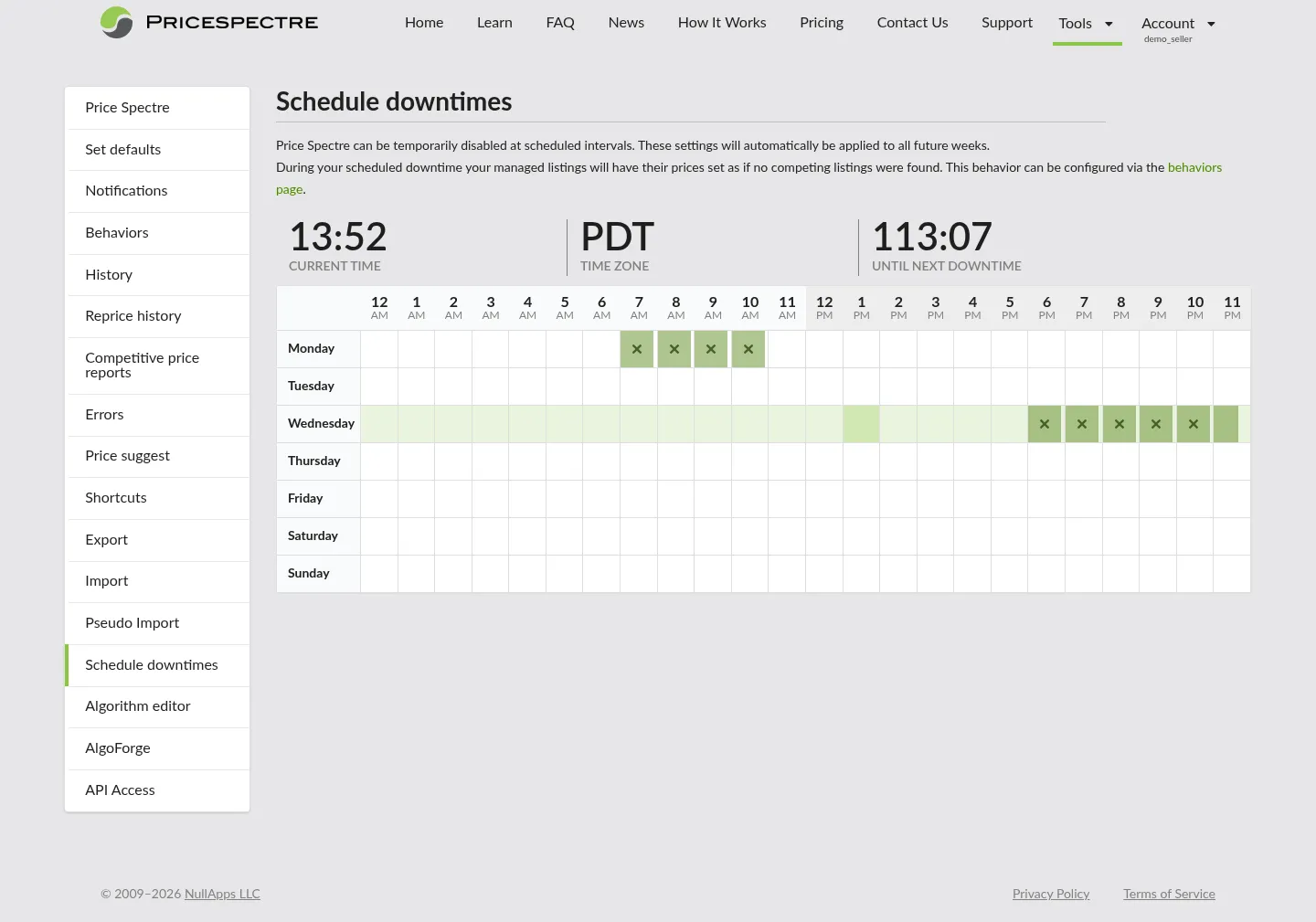
The tool opens directly to the calendar view. There is nothing to configure to start using it — every downtime you create applies account-wide to your managed listings.
Reading the Calendar
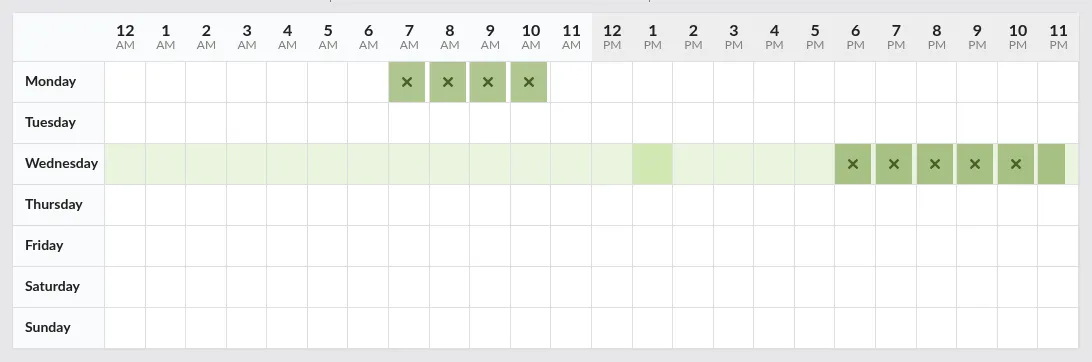
The calendar shows the upcoming week as 7 day columns, with hourly rows divided into 15-minute intervals. Each existing downtime appears as a colored block spanning the time range it covers, on every day of the week it applies to.
Key elements:
- Day columns — one column per day of the week. The current day is highlighted.
- Hour rows — every hour gets a labeled row. Within each row, four equal segments mark the 15-minute increments.
- Downtime blocks — colored blocks anchored to their start time and stretching to their end time. Because every downtime is weekly-recurring on the day you placed it, the same block reappears in the same slot every week until you remove it.
Tip: The 15-minute resolution is the finest grain at which a downtime can start and stop. Repricing frequencies can be faster than that — Premium plans can run as often as every 5 minutes — so a single downtime window often covers multiple reprices on Premium and a fraction of one on Standard. Size your windows with that in mind (see Tips and Best Practices).
Creating a Downtime
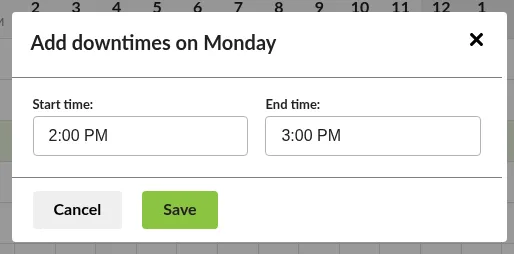
To create a new downtime, click an empty time slot on the calendar (or use the dedicated Add Downtime control if your interface offers one). A small dialog opens where you fill in the details.
Picking Start and End Times
Each downtime needs:
- Day of week — the weekday the downtime applies to.
- Start time — the moment the downtime takes effect each week. Resolves to the nearest 15-minute boundary.
- End time — the moment the downtime ends and normal repricing resumes. For most windows, the end time must be after the start time on the same day. The one exception is a full-day downtime: set both start and end to 12:00 AM, and the downtime will run from midnight through to midnight, covering the entire day.
For most use cases, you will pick start and end times within the same day. To cover a window that spans multiple days (for example, a full weekend), create one downtime per day of the week the window touches.
Tip: Times are interpreted in the timezone associated with your Price Spectre account. If your local clock and your Price Spectre clock differ (for example, when you travel), double-check the calendar header before scheduling — it shows the timezone the calendar is rendering in.
How Recurrence Works
Schedule Downtimes uses a single, simple recurrence model: every downtime you create repeats weekly on the day you placed it, at the same start and end times, until you remove it.
That means:
- A downtime placed on Monday from 7:00 AM–11:00 AM runs every Monday from 7:00 AM–11:00 AM.
- To cover several days of the week, create one downtime per day. They will all repeat weekly on their respective days.
- There is no "one-time", "daily", or "monthly" option — recurrence is implicit and weekly. For genuinely one-off events, create the downtime when you need it and delete it once it has passed (see Editing and Removing Downtimes).
Editing and Removing Downtimes
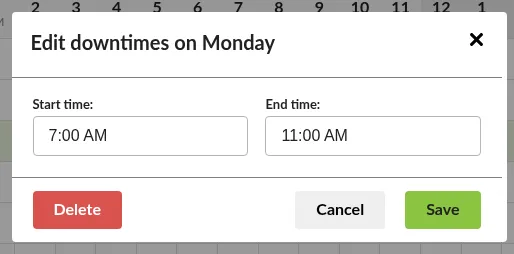
To edit an existing downtime, click its block on the calendar. The same dialog opens, pre-filled with the current values. From here you can:
- Adjust the start or end time.
- Delete the downtime entirely.
Edits affect every future weekly occurrence — the downtime keeps recurring on the same day with the new times. Deleting a downtime removes it from every future week.
If you only want to skip a single occurrence of a recurring downtime, the simplest approach is to delete the rule and re-create it after that week's occurrence has passed.
Note: Deleting a downtime that is currently active immediately resumes normal repricing on the next cycle.
What Happens During a Downtime
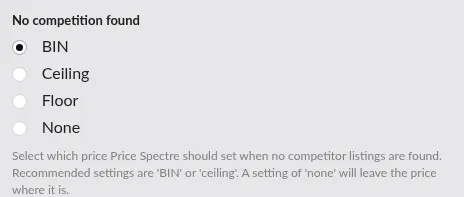
What "paused" actually means depends on a separate setting: the No Competition Found rule on the Behaviors page (and the matching default on Set Defaults). During a downtime, Price Spectre treats your managed listings as if no competitors were found, then applies whatever fallback rule you have configured.
This connection is deliberate — it lets the same downtime window mean very different things depending on what you want to happen.
Truly Pausing Repricing (None)
If your No Competition Found behavior is set to None, repricing genuinely pauses during the downtime: no price changes are made, your current prices on eBay are left exactly as they are, and the downtime simply holds the line. This is the closest analog to "turn the repricer off temporarily".
Use this when:
- You have manually set sale prices and want them to stick.
- You are auditing inventory and do not want any movement until you are done.
- You want to freeze prices over a holiday or a weekend with no other intervention.
Resetting to BIN to Break Out of Pricing Wars
If your No Competition Found behavior is set to BIN Price, every managed listing is reset to its Buy It Now (BIN) price during the downtime. This sounds disruptive but is occasionally exactly what you want.
When two or more automated repricers continually undercut each other, they can spiral the price down until everyone hits the floor — even though no real change in market conditions has occurred. Scheduling a downtime with BIN Price as your fallback breaks that cycle: every listing returns to its BIN, the war is reset, and the next reprice after the downtime ends starts from a clean baseline.
Tip: For a BIN reset to actually take effect, the downtime needs to span at least one full reprice. See Tips and Best Practices for how to size the window.
Other Fallback Choices
The remaining No Competition Found choices — Floor Price or Ceiling Price — also apply during a downtime. They are rarely the right choice for a planned downtime, but the rule is consistent: whatever you have configured as your no-competition fallback is what each managed listing reprices to while the downtime is active.
If you want different behavior during downtimes than during normal "no competitors found" situations, change the No Competition Found setting before the downtime starts and change it back afterwards. The Behaviors page is the single source of truth for both.
Common Use Cases
Sales and Promotions
You are running a 48-hour storefront sale and have manually set sale prices on a subset of your listings.
- Set No Competition Found to None on the Behaviors page.
- On Schedule Downtimes, create a downtime on each day the sale touches, with start/end times covering the sale hours on that day.
- Set your manual sale prices on eBay or via Import.
- When the sale ends, delete the downtime entries — otherwise they will repeat at the same times next week.
- Normal repricing resumes on the next cycle and prices realign with the live competitor set.
Inventory Audits and Manual Repricing Windows
You audit inventory every Monday morning and want repricing to be still while you work.
- Set No Competition Found to None.
- Create a downtime on Monday covering your audit window (for example, 9:00 AM–12:00 PM).
- Because every downtime is weekly-recurring, the rule reappears on every future Monday automatically — leave it in place for as long as the audit cadence holds.
Holiday and Off-Hour Schedules
You only want automated repricing during business hours.
- Decide your "off-hours" window (for example, 6:00 PM to 8:00 AM).
- Create one downtime on each day of the week covering the evening portion (for example, 6:00 PM–11:45 PM Monday) and one for the early morning portion (for example, 12:00 AM–8:00 AM Monday). Repeat for Tuesday through Sunday.
- To also cover full weekends, add downtimes on Saturday and Sunday spanning the entire day.
- Repricing happens only outside the downtime windows; managed status remains unchanged at all times.
Tip: Building an off-hours schedule means filling in a lot of repeat blocks. Set them once on the relevant days and they will keep recurring weekly.
Breaking a Repricing War
You see your prices repeatedly drop to the floor on a competitive listing and suspect a war with another repricer.
- Set No Competition Found to BIN Price on the Behaviors page.
- Create a downtime that is at least as long as one reprice cycle:
- Standard repricing reprices roughly every 4 hours, so size the window to at least that.
- Premium repricing can reprice every 5–15 minutes, so a much shorter window works.
- During the downtime, every managed listing reprices to its BIN. The next reprice after the downtime ends then starts from those reset prices instead of from the bottom of the war.
- Delete the downtime once you are done — it will otherwise repeat every week on the same day and time.
- Restore your previous No Competition Found setting if you do not want BIN-reset to apply to future no-competitor situations.
Note: The BIN-reset technique works best when your BIN prices are realistic anchors. If your BIN prices are unmaintained or far above market, the reset will simply produce a temporary spike that the next reprice undoes immediately.
Downtimes vs. Unmanaging a Listing
Downtimes and unmanaging both stop a listing from being repriced — but they are not interchangeable.
| Feature | Schedule Downtimes | Unmanaging a listing |
|---|---|---|
| Scope | All managed listings, account-wide | A single listing (or a bulk selection) |
| Duration | Time-bound: ends automatically each week and resumes outside the window | Open-ended: stays unmanaged until you turn it back on |
| Listing settings | Preserved | Preserved |
| Live eBay price during the pause | Held in place, or reset per No Competition Found | Reverts to the listing's Buy It Now price |
| Billing | Counts toward your managed-listing tier | Does not count toward your tier |
| Best for | Recurring weekly holds; war-breaking BIN resets | Long-term removal of a listing from automated repricing |
If you want a permanent stop, unmanage. If you want a planned, time-bound hold (especially across many listings at once), use a downtime.
Tips and Best Practices
- Decide what "pause" should mean before you schedule. Open the Behaviors page and set No Competition Found appropriately first. The downtime tool itself is just a calendar — the effect of a downtime comes from your behavior settings.
- Remember every downtime is weekly-recurring. If you create a downtime for a one-off event, schedule a reminder to delete it afterwards — otherwise it will silently keep applying at the same time every week.
- Keep BIN prices realistic if you rely on the reset trick. A BIN-based downtime reset is only as good as your BIN prices. Audit them periodically.
- Size downtime windows to at least one reprice cycle. A downtime only takes effect when the next reprice runs, so a window shorter than your reprice frequency may pass with no listing being repriced inside it. Match the window to your reprice frequency: at least ~4 hours on Standard repricing, or about 1–2 reprice cycles on Premium repricing where reprices run as often as every 5 minutes. See the Behaviors & Repricing Frequency guide for cadence details.
- Check the calendar timezone. The calendar header shows the timezone it is rendering in. Confirm it matches what you intend before scheduling, especially for windows that wrap around midnight (you will need a downtime entry on each affected day).
- Pair downtimes with other tools. Use Set Defaults to control what new managed listings inherit, the Behaviors page to set the global fallback, and Schedule Downtimes to control when repricing acts on those rules.
Frequently Asked Questions
Are scheduled downtimes account-wide or per-listing?
Account-wide. Every downtime you create applies to all managed listings on your Price Spectre account. There is no per-listing downtime schedule.
Do scheduled downtimes really repeat every week?
Yes. Every downtime you create is a weekly-recurring rule on the day(s) of the week you placed it. There is no one-time, daily, or monthly option. To run a downtime only once, create it for the specific day you need and delete it after that occurrence has passed.
Do I still get billed for managed listings during a downtime?
Yes. Downtimes pause repricing, not management. Listings remain managed and continue to count toward your billing tier. If you want a listing to stop counting toward your tier, unmanage it instead.
Will my prices change during a downtime?
It depends on your No Competition Found behavior:
- None — no, your prices are held in place.
- BIN Price — yes, every managed listing resets to its Buy It Now price for the duration of the downtime.
- Floor Price or Ceiling Price — yes, every managed listing reprices to that boundary for the duration of the downtime.
In all cases, the change happens on the next reprice that runs while the downtime is active, not at the instant the window opens.
Can I schedule a downtime for just one listing?
No. Downtimes are account-wide. To stop repricing on a single listing, set it to unmanaged from its detail view or from the Shortcuts page.
Can downtimes overlap?
Yes — overlapping downtimes simply union into one continuous downtime window. Pricing is paused as long as any downtime block covers the current moment.
What happens if I add a downtime that has already started?
The downtime takes effect from the moment you save it, even if its scheduled start is earlier in the day. The end time is honored as configured.
My downtime is only 15 minutes long — why did nothing seem to happen?
A downtime only changes a listing's price the next time that listing actually reprices. On Standard repricing (about every 4 hours), a 15-minute window will frequently pass without any listing being repriced inside it. Make the window at least as long as your reprice frequency. Premium plans, which can reprice as often as every 5 minutes, are the only setting where very short windows reliably take effect.
My downtime ended but my prices have not updated. Why?
Your prices update on the next repricing cycle after the downtime ends, not the moment the clock ticks past the end time. On Standard repricing, that can be up to 4 hours later; on Premium repricing, as quickly as 5 minutes. See the Behaviors & Repricing Frequency guide for frequency details.
How do I tell from history that a price change happened because of a downtime?
Check the Reprice History for the listing. Reprice records produced while a downtime was active show a status flag indicating that a scheduled downtime was in effect at the time of the action.
Can I import or export downtime schedules in bulk?
Downtimes are managed exclusively through the calendar interface. There is no bulk import/export for downtime rules.
I changed my mind mid-downtime. How do I cancel?
Click the downtime's block on the calendar and choose Delete. Repricing resumes on the next cycle, and the rule will not recur next week.
This guide covers Schedule Downtimes in Price Spectre's React-based interface. For the global rules that determine what actually happens to your prices during a downtime, see the Behaviors & Repricing Frequency guide. For a per-listing way to stop repricing entirely, see the managed/unmanaged toggle described in the Tutorial and in the Shortcuts & Power-User Workflows guide.