
Behaviors & Repricing Frequency
Two questions sit slightly outside the day-to-day algorithm choice you make on every listing: how often Price Spectre reprices, and how it should behave at the edges — when no competitors come back, when the algorithm wants to push past your floor, when it wants to push past your ceiling, or when shipping costs would skew a comparison. The first is a question of repricing frequency; the second is a set of global toggles that live on the Behaviors page. Neither is about what price the algorithm picks — that is the algorithm's job — but together they shape every reprice you ever run.
This guide is for users who already have repricing working on at least a handful of listings (see the Tutorial if you do not), and who now want to tune frequency to match how fast their categories move and lock down sensible global rules for the edge cases that the algorithm alone cannot decide. It is intentionally separate from the Built-in Algorithms Catalog and the Algorithm Editor: those answer "what price?", and this guide answers "when?" and "what if?".
Table of Contents
- Frequency vs. Algorithms: Why They Are Configured Separately
- Repricing Frequency
- The Behaviors Page
- Interface Settings
- Shipping Settings
- Set Price Settings
- Search Settings
- Putting Frequency and Behaviors Together
- Tips and Best Practices
- Frequently Asked Questions
- Related Guides
Frequency vs. Algorithms: Why They Are Configured Separately
When a Price Spectre customer first goes looking for "how do I reprice faster?", the natural assumption is that the answer lives on the same screen as the algorithm. It does not — and the split is deliberate. An algorithm is a per-listing rule that answers a single, narrow question: given the competitors I can see right now, what price should I be at? A repricing frequency is a per-listing setting that answers a different question: how often should I look at competitors at all? The same algorithm can run twice an hour or twice a day; the same frequency can drive ten different algorithms across ten different listings.
Keeping them separate has two practical payoffs. First, it lets you change strategy on a single listing without re-shopping for a faster (and more expensive) repricing frequency — and it lets you upgrade a listing's frequency without re-touching its algorithm. Second, it makes it possible to reason about each one in isolation: when a price moves the wrong way, the algorithm is the place to look; when prices feel stale but otherwise correct, frequency is the place to look.
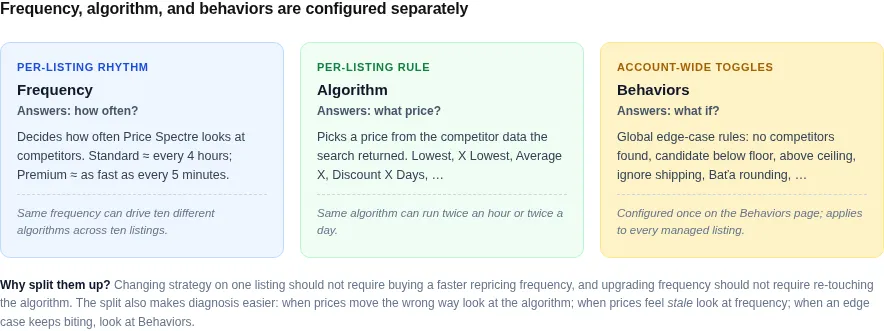
The same logic applies to Behaviors. They are not algorithms — they do not pick a price out of competitor data — and they are not frequency either. They are a small set of global rules of thumb that take effect every time a reprice happens, no matter which algorithm ran or how often it runs. You configure them once and they apply everywhere.
Tip: If you find yourself encoding the same edge-case rule into many custom algorithms ("if no competitors, do X…"), you almost certainly want a Behavior instead. Behaviors apply globally and are easier to change than algorithms.
Repricing Frequency
Price Spectre reprices managed listings on a recurring schedule rather than the moment a competitor changes price. Two tracks decide how often that schedule fires for any given listing: a Standard track that is included with every plan, and a Premium track that runs much more often and is metered by Premium Points. Each billing plan offers several Standard and Premium frequencies to choose from; the headline numbers below are the most common.
A listing is always on one frequency or another. There is no "off" — if a listing is managed, it is being repriced on at least the Standard schedule. Disabling repricing entirely is a separate, listing-level toggle covered in Set Defaults and the Shortcuts page.
Standard Repricing
Standard repricing runs approximately every four hours on the most common plans. Every managed listing on your account gets a Standard reprice on this schedule with no extra cost beyond your normal billing plan, and Standard repricing alone is enough for the vast majority of catalogs.
The four-hour figure is approximate, not a promise. Real intervals can drift a little earlier or later from one cycle to the next, and there are short windows during platform maintenance or when an upstream eBay search is briefly unavailable when an individual listing's reprice may slip into the next cycle. In practice, sellers running on Standard see four to six full reprice passes per day per listing.
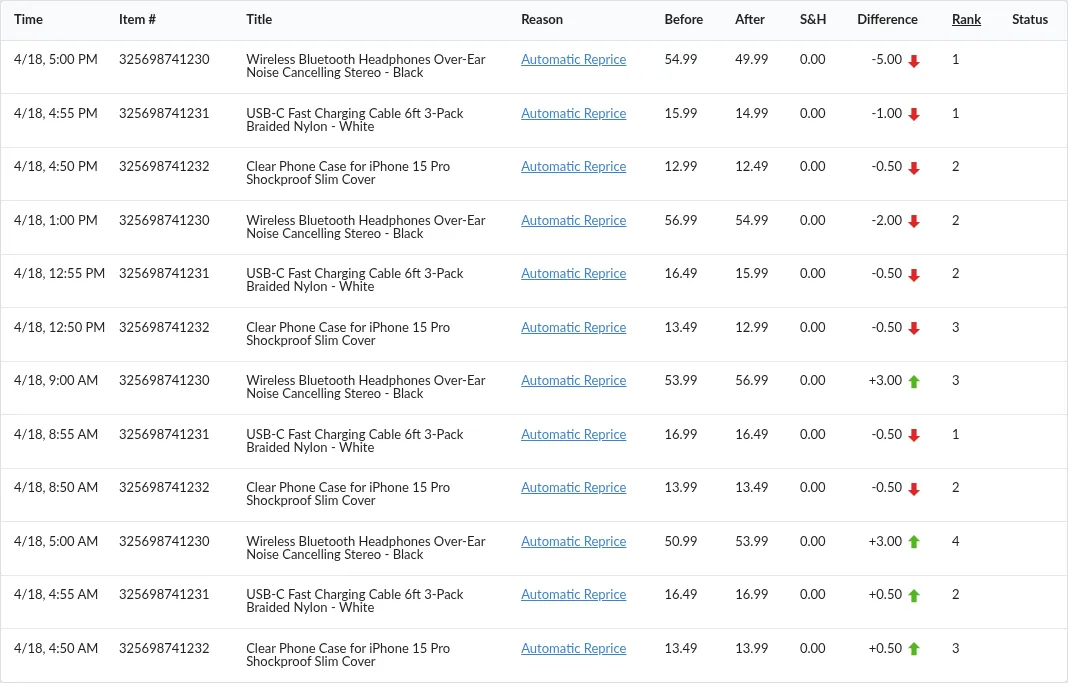
Note: A reprice pass is only recorded in Reprice History when the price actually changed. A pass that finds no movement among your competitors and decides to leave the price alone leaves no row behind. Reprice History is therefore a record of changes, not of passes — keep that in mind when you are using it to judge frequency.
Premium Repricing
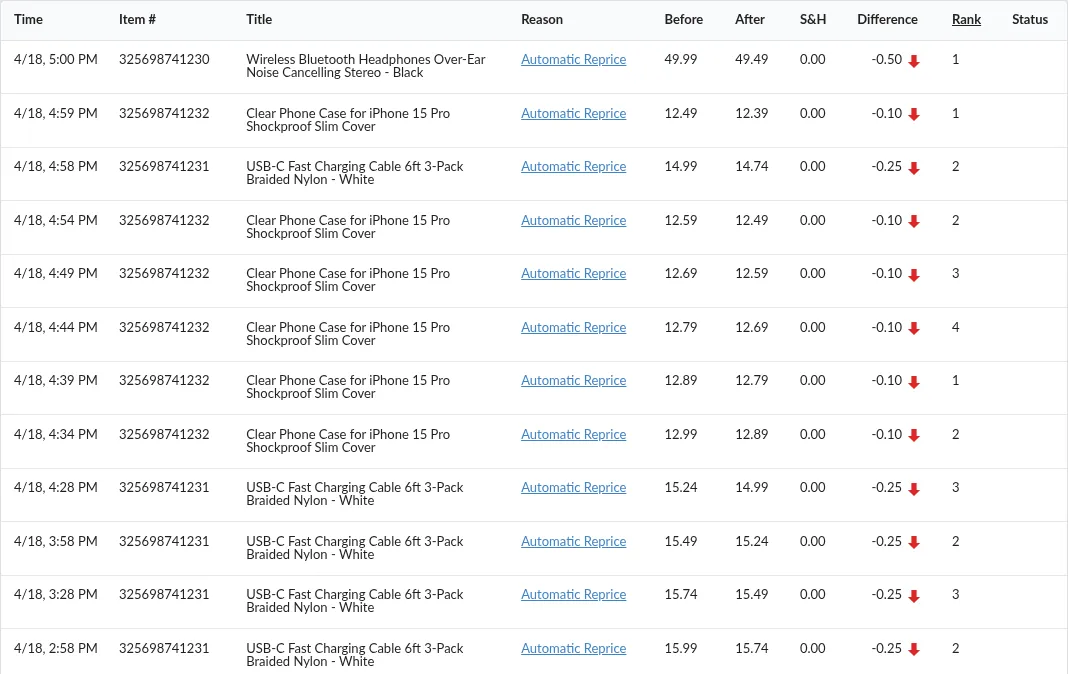
Premium repricing runs as frequently as every five minutes and is intended for high-velocity categories where prices move on the order of an hour, not a day — collectibles releases, branded electronics during seasonal pushes, anything where being lowest on Page 1 for ninety minutes meaningfully changes your sales rate. Faster intervals than the published frequencies are available for specific use cases; contact support if your category needs them.
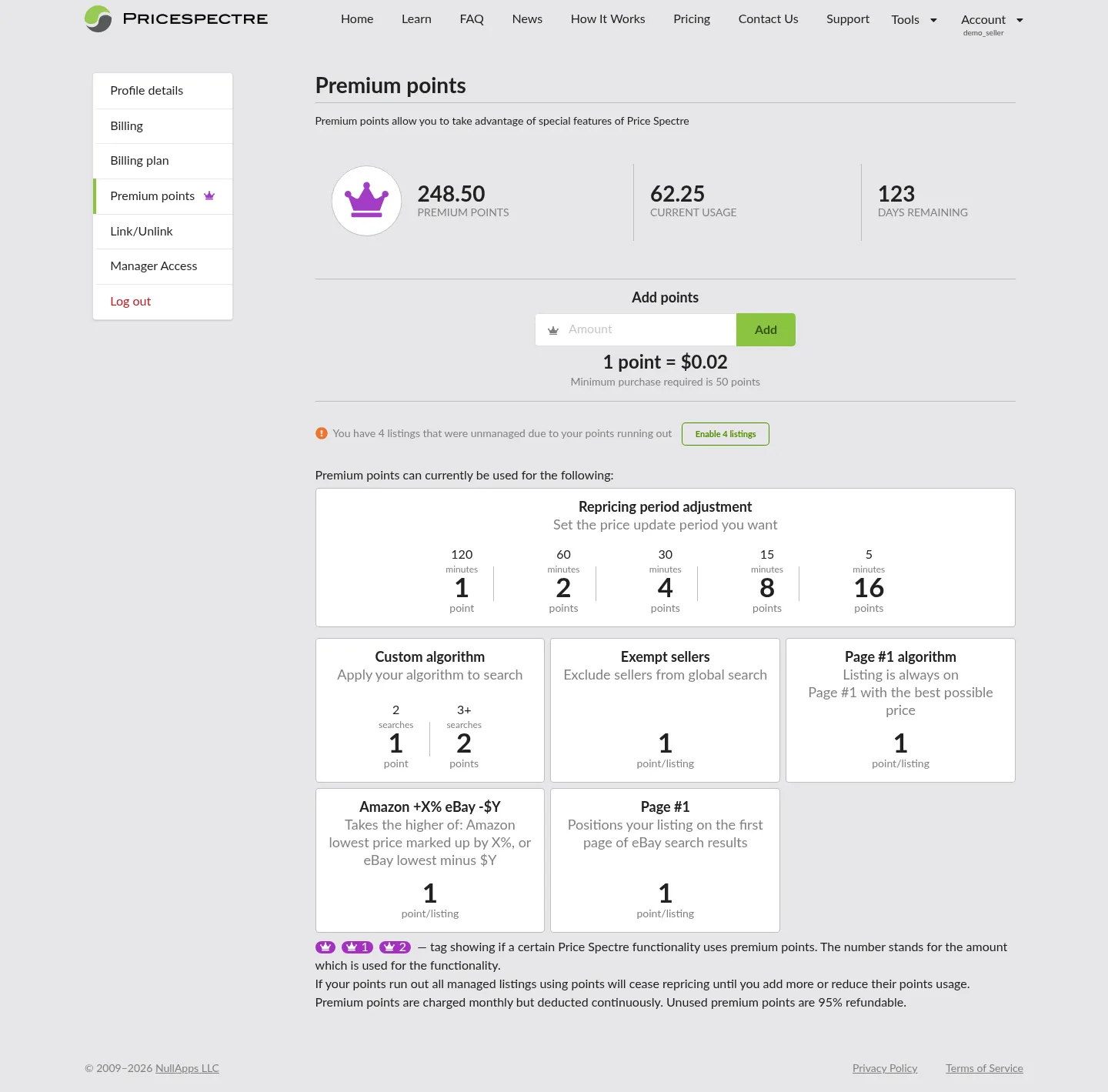
Premium repricing is metered by Premium Points. Premium Points are not used only for faster repricing — they are the shared currency for several premium features on the platform — so the per-listing cost of running on Premium depends on which frequency you pick and on any other premium features the listing uses.

Tip: Run Premium on the listings where speed actually pays for itself, not on your whole catalog. Most sellers find that promoting their top 10–20% of revenue listings to Premium and leaving the long tail on Standard captures almost all of the upside without burning Premium Points on items that turn over slowly.
How Premium Points Are Billed
Premium Points are billed differently from a normal "pay per use" credit, and the model is worth understanding before you commit any listing to Premium.
- Purchased in advance. You buy a balance of Premium Points up front; reprice passes do not place "orders" against your account on demand. Anything that consumes Premium Points draws from the balance you already own.
- Cost is per-listing per-month, not per-pass. A listing that consumes four Premium Points consumes four points over the course of a month — not four points per reprice pass. Speeding up a listing's frequency does not translate into a per-pass deduction; it changes the monthly per-listing rate that listing is billed at.
- Charged continuously. The clock starts the moment a managed listing has a premium feature applied, and Premium Points are drawn down continuously throughout the month. Pause a listing partway through a month and only the time it spent active counts.
- Run-out makes listings unmanaged. When your Premium Point balance reaches zero, every listing depending on Premium Points is set to unmanaged — repricing stops on those listings entirely. They do not silently downgrade to Standard.
- One-click recovery. Topping up your Premium Point balance, or removing the premium features from the affected listings, lets you re-manage them with a single button click. Settings, history, algorithms, floors, and ceilings are all preserved through the pause; only the repricing itself was off.
Choosing a Frequency
The right frequency is the one that matches how fast your category actually moves. A useful rule of thumb: pick a frequency roughly twice as fast as your fastest competitor reprices. Going much faster than that mostly burns passes on changes that have not happened yet; going much slower means you are reacting after that competitor has already had a window to take the sale.
A practical first check is to open Reprice History on a representative listing and look at the time between recorded price-change events. If most rows are hours or days apart, Standard is more than enough — running Premium on that listing would mostly find nothing new. If you see clusters of changes in the same hour and the listing competes against active, attentive sellers, Premium is doing real work for you. (Remember that a row only appears when the price actually changed, so a quiet listing might still be running its full Standard four-hour passes — they just are not finding anything to act on.)
| Symptoms in Reprice History | Likely right frequency |
|---|---|
| Long stretches of no change, then occasional adjustments hours apart. | Standard. A faster frequency will not produce more changes. |
| Frequent changes, but the listing rarely loses Page 1 between passes. | Standard, possibly Premium for top sellers. Test before committing Premium Points across the board. |
| Frequent changes, and you notice your listing gets undercut for an hour or more before the next pass corrects it. | Premium. This is exactly the gap Premium is designed to close. |
| Almost no changes recorded over weeks. | Standard, and revisit your algorithm or floor/ceiling — frequency is not the bottleneck. |
Tip: Search Console gives you a "what would reprice do right now?" view without consuming a real reprice pass. If you are unsure whether a faster frequency would change anything, use it: if the candidate price drifts noticeably between visits an hour apart, a faster frequency will catch those drifts.
Why Faster Is Not Always Better
The instinct that more frequent repricing is always better is wrong often enough that it is worth pulling out as its own section. Three things push back against it.
- Diminishing returns. Most categories settle into their daily rhythm on their own. If competitors only adjust prices a handful of times a day, repricing every five minutes mostly produces identical decisions to repricing every four hours, just with more passes between them.
- Search-result noise. Competitor search results have small amounts of run-to-run variance — a listing falling in or out of the result set, a recently sold item briefly affecting averages — and a very fast frequency amplifies that noise into visible price wobble. A slower frequency smooths it out.
- Premium Points are a finite resource. Every listing on Premium that is not actually getting protected by the faster frequency is consuming Premium Points another listing could have used. Concentrating Premium on the listings that need it leaves more headroom for the ones that do.
Note: None of this is a reason to avoid Premium — it is a reason to be selective. The right mental model is "Premium for the listings that move; Standard for the listings that do not," not "Premium everywhere, all the time."
The Behaviors Page
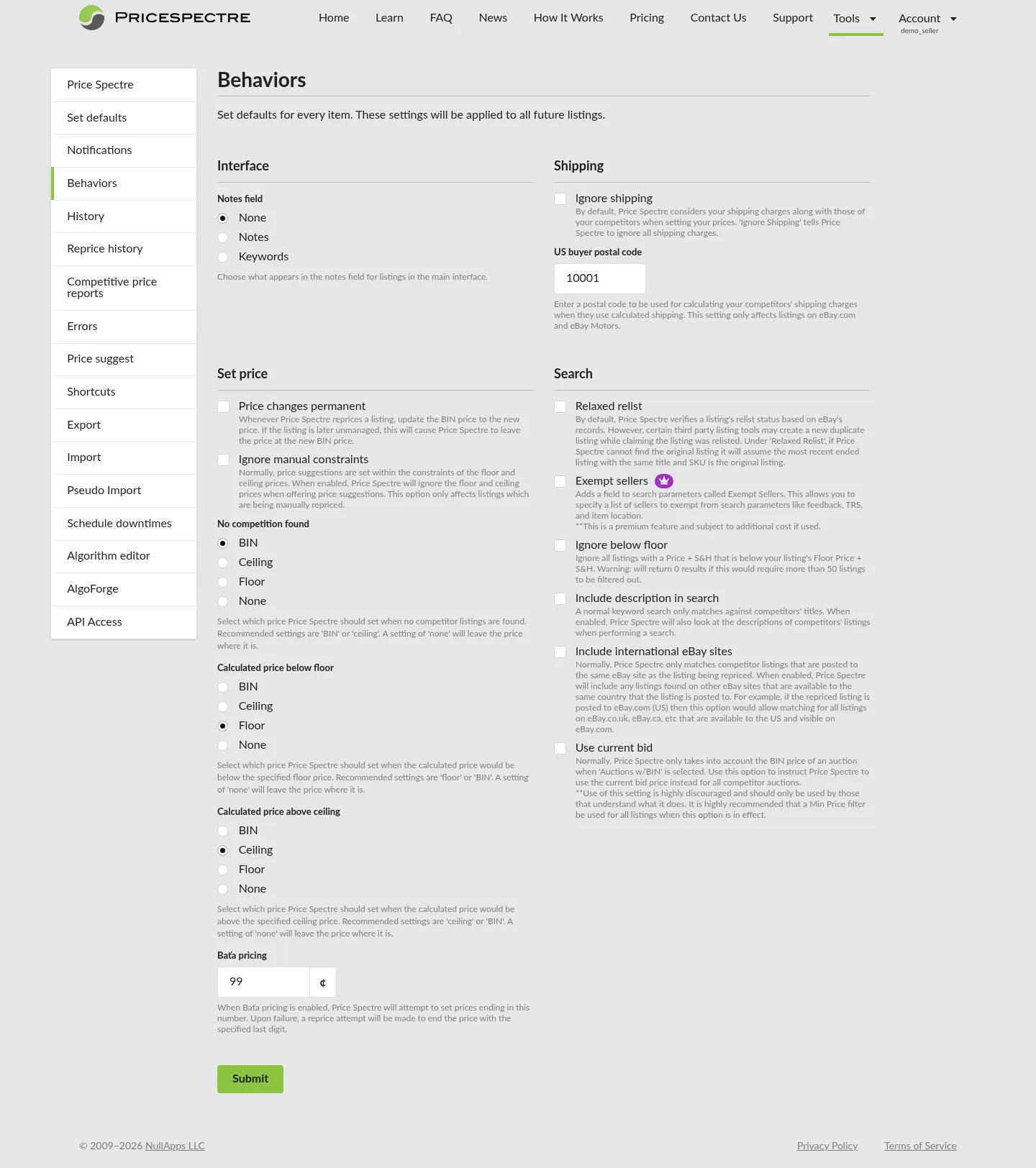
The Behaviors page is a single screen that holds every account-wide rule that affects how a reprice is interpreted. There are not many — fewer than twenty toggles in total — but each one applies to every managed listing on your account, so getting them right once saves you from re-deciding the same edge case dozens of times across individual listings.
The page is organised into four sections. Interface is a single setting that changes how listings are displayed to you on the main listings page. Shipping controls how Price Spectre handles shipping costs and origin postal codes. Set price is the densest of the four — it covers how a candidate price is committed back to the listing, the three edge-case fallbacks, and Baťa rounding. Search controls which competitor listings Price Spectre considers when it builds the search for each of your items.
Finding the Behaviors Page
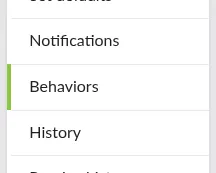
From the top navigation, click Tools and choose Behaviors from the side menu.
The page loads with your current settings already applied — there is no separate "edit" mode. Changes save when you click Submit at the bottom and take effect on the next reprice pass for every managed listing.
Note: Behaviors are saved on the account, not on individual listings. There is no "behaviors for this listing only" option; if you need per-listing edge-case handling, that lives in the listing's algorithm or in its floor and ceiling, not here.
How Behaviors Compose with Algorithms and Defaults
It is worth taking a minute to understand the order in which the three account-level controls — Set Defaults, the algorithm chosen for a listing, and Behaviors — get applied during a single reprice. The model is simpler than it looks.
- Set Defaults (Account & Listing Defaults) decides the starting state of a new listing — its initial floor, ceiling, algorithm, search filters, and managed/unmanaged toggle. Once a listing exists, Set Defaults does not touch it again unless you ask it to.
- Search Behaviors decide which competitor listings make it into the search at all — they run before the algorithm is even invoked.
- The algorithm on a listing produces a candidate price from the competitors that came back from the search.
- The remaining Behaviors are applied last. Shipping and Set price Behaviors override, reshape, or constrain the candidate price (the No Competition Found, Below Floor, and Above Ceiling fallbacks; Baťa rounding; the Permanent Price Changes BIN sync).
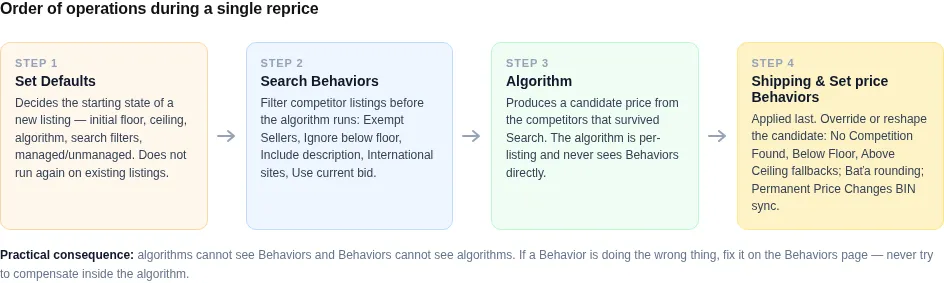
The practical consequence: algorithms cannot see Behaviors and Behaviors cannot see algorithms. A custom algorithm in the Algorithm Editor does not know whether the user has "Ignore shipping" enabled, and it does not need to — Price Spectre has already fed it competitor prices that match the toggle. Conversely, the Below Floor behavior runs the same way regardless of whether the algorithm that produced the too-low price was the built-in Lowest or a 200-line custom script.
Tip: If a Behavior is doing the wrong thing, the fix is on the Behaviors page — do not try to compensate inside the algorithm. The algorithm runs after the Search behaviors and before the Set price behaviors; trying to undo a Behavior from inside an algorithm is a losing game.
Interface Settings
The Interface section of the Behaviors page holds settings that change how Price Spectre presents your listings to you on the main listings page. They do not affect repricing decisions. There is one setting today.
Notes Field
The Notes field behavior decides what shows up in the notes column of the main Price Spectre listings table. The choices are:
- None — the notes column stays blank for every listing. Useful when you do not use notes or keywords and would rather reclaim the column width for the listing title.
- Notes — show whatever you have entered into the listing's per-listing Notes field. Useful when you keep your own annotations on listings (a vendor reference, an internal SKU mapping, a reminder to revisit a floor price next quarter).
- Keywords — show the listing's competitor-search keywords. Useful when you tune searches across many listings and want to see at a glance which keyword set each row is using without opening the listing.
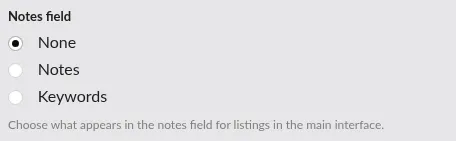
Tip: This setting only changes which value appears in the notes field on each listing's row in the main listings page. It does not change what is stored on the listing itself or what gets exported through Import & Export; both Notes and Keywords are always available on the listing regardless of which one is shown.
Shipping Settings
The Shipping section governs how Price Spectre handles shipping costs and origin postal codes during competitor comparisons. There are two settings.
Ignore Shipping
By default, when Price Spectre compares your price to a competitor, it compares landed price — your item price plus shipping versus the competitor's item price plus shipping. This is the right default for most sellers because that is what the buyer sees in eBay search results.
Turning Ignore shipping on switches the comparison to item price only. The clearest case for using it is when your items ship by freight or other custom-quoted methods where eBay's listed shipping is a placeholder rather than the real cost — landed-price comparisons in that situation are comparing an honest competitor price against a placeholder of your own and tend to produce strange results.

Warning: Turning this on globally affects every listing. If only a handful of listings should ignore shipping, consider whether the cleaner solution is to leave the toggle off and add the relevant competitors to those listings' exclude lists, or to use a custom algorithm that strips shipping for that one case. The toggle is the right tool when most of your catalog has the same shipping characteristics.
US Buyer Postal Code
When a competitor uses calculated shipping — where the eBay-displayed shipping cost depends on the buyer's location — Price Spectre needs a destination postal code to compute what that shipping would cost for a comparison. The US buyer postal code setting tells Price Spectre which postal code to use for that calculation.
This setting applies only to listings on eBay.com (and eBay Motors). For listings on any other eBay site (eBay.co.uk, eBay.ca, eBay.com.au, etc.), Price Spectre does not consult this setting at all. Instead, those calculations use the postal code of the listing itself as the reference point for every calculated-shipping comparison.
If you need a non-default postal code for an individual listing, you can override it at the listing level by setting the Origin Postal Code column when running an Import. That override applies on every eBay site — including eBay.com and eBay Motors — and takes precedence over the US buyer postal code on the Behaviors page for any listing where it is set. The override is per-listing and persistent: a one-time set on the listing rather than a global account setting.

Note: If your competitors mostly use flat-rate shipping in your category, this setting will rarely fire — the calculated-shipping path only runs when a competitor's listing actually uses calculated shipping. Setting it correctly anyway is cheap insurance for the cases where it does matter.
Set Price Settings
The Set price section is the densest part of the Behaviors page. It holds two checkboxes that change how a reprice's output is committed back to the listing (Price changes permanent, Ignore manual constraints), three radio dropdowns that decide what happens at the edges of the algorithm's output (No competition found, Calculated price below floor, Calculated price above ceiling), and the cents value used for Baťa rounding.
Price Changes Permanent
A reprice always updates the active eBay price for the listing. The Price changes permanent toggle decides whether each reprice also updates the listing's underlying Buy It Now Price setting in Price Spectre to match.
With the toggle off (the default), only the active eBay price is updated; the listing's Buy It Now Price setting in Price Spectre stays at whatever you originally entered. The advantage is that disabling repricing on the listing later cleanly reverts the price back to that original Buy It Now value. The disadvantage is that the original Buy It Now value can become stale: if you set it months ago and the market has moved, reverting to it can leave you uncompetitive.
With the toggle on, each reprice updates both the active eBay price and the listing's Buy It Now Price setting in Price Spectre. The two stay in sync, so disabling repricing later leaves the listing at its most recent repriced price instead of reverting to a possibly stale Buy It Now value.
Turn Price changes permanent on if:
- You want disabling repricing on a listing to leave its current repriced price in place rather than revert to a possibly stale original Buy It Now Price.
- You are running discount-based algorithms (such as Discount X Days) and want the repriced price to be the new baseline, not a temporary deviation from it.
- Internal reporting in your back-office tooling prefers the latest repriced price as the canonical "current" price.

Note: This toggle does not change anything about how Price Spectre computes prices — it only changes whether the listing's Buy It Now Price setting in Price Spectre is updated alongside the active eBay price after each reprice. If you are not sure which one you want, leave it on the default; you can turn it on later without losing any data.
Ignore Manual Constraints
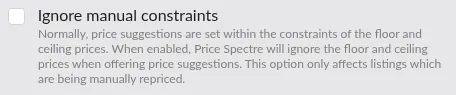
The Ignore manual constraints toggle changes how floor and ceiling prices are treated for listings being repriced manually through the Price Suggestions and Price Recommendation workflow. It has no effect on listings that reprice automatically — those continue to honour their floor and ceiling regardless of this setting.
By default, the price suggestion shown to you for a manual-mode listing is clamped to that listing's floor and ceiling: even if the algorithm's candidate would have come in below the floor or above the ceiling, the suggestion you see is the floor or the ceiling. With Ignore manual constraints enabled, the suggestion shows the algorithm's actual candidate price, ignoring the floor and ceiling.
This is useful as a research view: you see what the algorithm "wanted" to do without the constraint, and you can decide whether to accept it, decline it, or enter a custom price. The constraint is only ignored for the suggestion itself — the listing's floor and ceiling are still in place if you ever flip the listing back to automatic repricing.
Note: If you do not use the Price Suggestions workflow — that is, all of your listings reprice automatically — this toggle has no effect on your account and is safe to leave off.
Edge-Case Fallback Behaviors
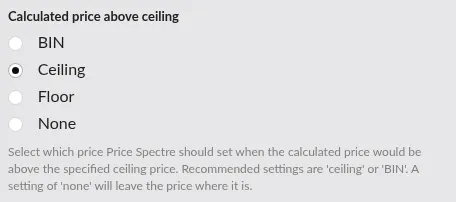
The next three settings — No competition found, Calculated price below floor, and Calculated price above ceiling — are fallback behaviors. They handle the three situations where the algorithm cannot produce a usable answer on its own: the search returned no competitors, the candidate price came in below your floor, or the candidate price came in above your ceiling. Each of these is genuinely ambiguous — there is no single "right" answer — and rather than pick one for you, Price Spectre lets you choose the policy that matches your strategy.
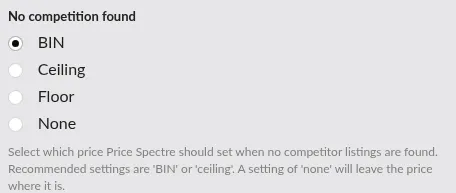
All three fallback behaviors share the same set of options, and each option behaves the same way regardless of which fallback triggered it:
- BIN — set the active eBay price to the listing's stored Buy It Now Price setting in Price Spectre. Depending on the Price Changes Permanent toggle, that is either the original Buy It Now value you set or the most recent repriced price.
- Floor — set the price to the listing's floor.
- Ceiling — set the price to the listing's ceiling.
- None — make no price change at all. The active eBay price stays exactly where it is, no eBay update is sent, and because Reprice History only logs actual price changes, no row is recorded.
The interesting question is which of those four to pick for each fallback, and that depends on what the fallback is telling you. The next three sections walk through each.
A single reprice pass can only trigger one fallback: either no competitors came back (No Competition Found), or competitors came back and the algorithm produced a price that was either below the floor or above the ceiling (Calculated Price Below Floor or Calculated Price Above Ceiling).
No Competition Found
Sometimes a search returns no competitors at all. This is more common than new users expect, especially after tightening search filters or on niche items where you genuinely are the only listing of a particular variant. Without competitors, the algorithm has nothing to compare against and cannot produce a candidate price.
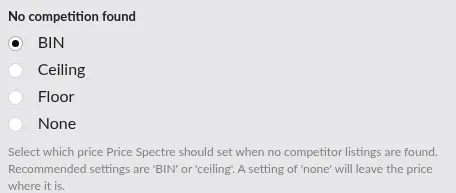
The No competition found behavior tells Price Spectre what to do in that case. The four shared options apply with these rough guidelines:
- BIN — the safest default for most catalogs. Reverting to the listing's stored Buy It Now Price is a reasonable anchor when there are no competitors to measure against.
- Floor — useful when "no competitors" usually means the listing is one buyers are not searching for and you want to flush inventory; risky if "no competitors" instead means the search filters need attention.
- Ceiling — useful when you are genuinely alone on the listing for known reasons (a seasonal product without active rivals, for example) and want to capture more margin while you can.
- None — quietest option. Leaves the active price untouched and records no Reprice History row, which can make the "no competitors" pattern harder to spot later.
Tip: Before changing this from the default, open Reprice History and the Errors page and look for "no competitors found" patterns. If you see them repeatedly on the same listings, the underlying problem is usually search filters, not pricing — go fix the listing's search options before deciding what fallback to use.
Calculated Price Below Floor
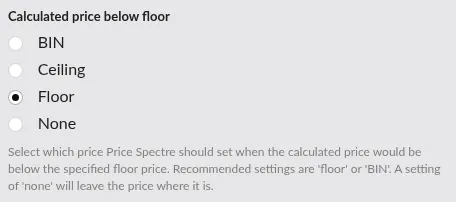
When an algorithm's candidate price comes in below the listing's floor, the floor wins — Price Spectre will not push your price below the floor regardless of what competitors are doing. The Calculated price below floor behavior decides what "the floor wins" looks like, using the same four shared options:
- Floor — pin the listing at exactly its floor. Simple and predictable; the natural starting point.
- BIN — revert the listing to its stored Buy It Now Price. Useful for breaking a race to the bottom: instead of pinning at the floor against another repricer who keeps undercutting, the listing snaps back up to its Buy It Now value and stops feeding the spiral.
- Ceiling — a "loop back to the top" trick. Bouncing the price up to the ceiling instead of pinning it at the floor can break out of a downward spiral with another repricer and reset the competitive dynamic on the listing.
- None — quietest option. Leaves the active price exactly where it currently sits — no jump to the floor, no jump to the Buy It Now Price — and records no Reprice History row.
Note: Repeatedly hitting the floor on a listing is a strong signal that the floor is too high or the algorithm is too aggressive. The Calculated Price Below Floor behavior controls what happens when it triggers; it is not a substitute for fixing why it triggers. Reprice History flags every floor-clipped pass that produced a change so you can find them.
Calculated Price Above Ceiling
The mirror image. When the candidate price comes in above the listing's ceiling, the ceiling wins — Price Spectre will not push your price above the ceiling — and the Calculated price above ceiling behavior decides what that pinned price looks like, again using the same four shared options:
- Ceiling — pin the listing at its ceiling. The natural default; sellers who set ceilings usually mean "this is the most I am ever willing to charge."
- BIN — revert the listing to its stored Buy It Now Price. A measured response when the algorithm is briefly over-reacting to a thin competitor set and you would rather sit at your Buy It Now value than at the absolute ceiling.
- Floor — a "loop back to the bottom" trick. After a long stretch of pinning at the ceiling with little engagement, bouncing back down to the floor can re-enter active price competition and re-engage buyers who had stopped considering the listing.
- None — quietest option. Leaves the active price exactly where it currently sits — no jump to the ceiling, no jump to the Buy It Now Price — and records no Reprice History row.
Tip: Hitting the ceiling is usually good news — it means competitors have left enough room above you that the algorithm wants more margin than you are willing to take. Skim Reprice History for ceiling-reached rows occasionally; sustained patterns of them are a strong signal that the ceiling could be raised.
Baťa Pricing
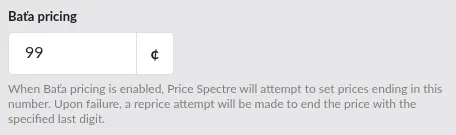
Baťa pricing (the convention of ending prices in .99, .95, or another fixed cents value) is configured per-listing — you decide on each listing whether Baťa rounding applies. The Behaviors page is where you decide what the rounding rule is when it does apply: the cents value to round to.
A typical configuration: round to .99. Baťa always rounds up — never down — to the next eligible cents value at or above the algorithm's candidate. Rounding up is deliberate: it nudges the price toward the most familiar Baťa endings while keeping you positioned not to surpass the next-higher competitor in your set, which keeps the listing competitive without leaving margin on the table. Setting the rounding once on the Behaviors page means every Baťa-enabled listing on your catalog uses the same convention without you re-entering it on each one.
Tip: If a specific listing needs a different Baťa convention than the rest of your catalog, you cannot override it from the algorithm — Behaviors run after the algorithm, so an algorithm has no way to undo Baťa rounding while Baťa is enabled for the listing. To customise behaviour for that listing, turn Baťa pricing off for the listing and let the algorithm produce the cents value directly.
Search Settings
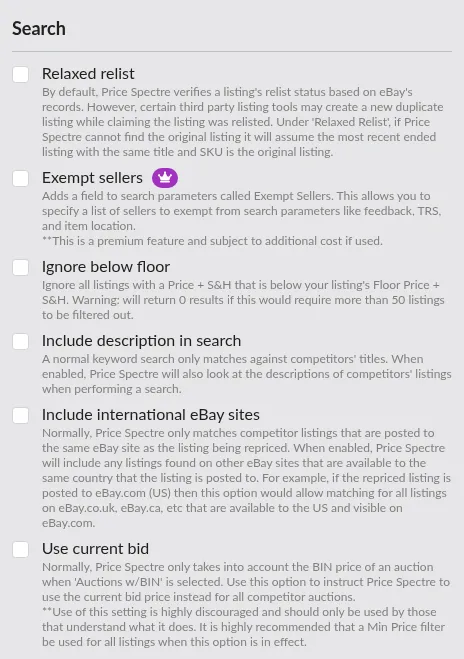
The Search section governs which listings Price Spectre considers competitors when it runs a search for each of your listings. Tightening or loosening these settings changes the population of competitors the algorithm sees, not the algorithm itself — and because Search Behaviors run before the algorithm, getting them right is often the highest-leverage change you can make on this page.
Relaxed Relist
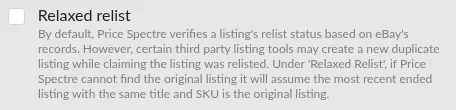
When a listing is relisted on eBay (for example, after it ends without selling), eBay normally records the relationship between the old listing and the new one. Price Spectre uses that record to follow your listing across relists without losing its history, settings, and floor/ceiling values.
Two common cases break that record. Some third-party listing tools do not honour eBay's relist mechanism — they instead end the listing and create a brand-new one in its place, even though you intended a relist. And many sellers will deliberately use eBay's Sell Similar feature on a working listing for reasons of their own (a frequent one is resetting the listing's Best Match ranking score). In both cases, eBay has no record connecting the new listing to the old one, and Price Spectre would normally treat the new one as an unrelated listing.
Turning Relaxed relist on tells Price Spectre that, when it cannot find an authoritative relist record, it should look for the most recent ended listing with the same title and SKU and treat that as the original. This preserves the link — and with it the floor, ceiling, algorithm, and search settings — across both the third-party-tool case and the deliberate Sell Similar case, without you having to re-enter anything on every "new" listing.
Tip: Most sellers do not need this setting. Turn it on if you use a third-party listing tool that creates new listings when it should be relisting, and you find that Price Spectre keeps treating those listings as fresh items. If your listings are direct on eBay or your tool relists correctly, leave it off.
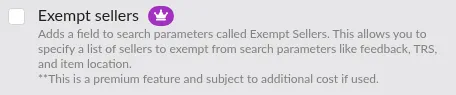
Exempt Sellers
Exempt sellers is a premium feature. It adds an extra field to each listing's search parameters — separate from the standard exclude list — that names specific sellers whose listings should bypass certain competitor-search filters (such as feedback-score thresholds, Top Rated Seller (TRS) restrictions, and item-location filters).
The use case is narrow but important: there is a specific competitor whose listings you want to compete against, but they happen to fall outside the filters you have set globally. Adding them to the per-listing Exempt Sellers field ensures their listings always count, even if they would normally be filtered out for low feedback or being out-of-region.
Because this is a premium feature, enabling it consumes Premium Points; see How Premium Points Are Billed for the billing model.
Warning: Adding too many sellers to Exempt Sellers defeats the purpose of your filters in the first place. Reach for it as a precision tool — for one or two specific competitors you trust — not as a general-purpose loosener.
Ignore Below Floor
Ignore below floor filters competitor listings out of the search before the algorithm sees them. Specifically, it excludes any competitor whose landed price (price plus S&H) is below your listing's floor price plus S&H. The intent is to protect listings against being dragged down by low-quality outliers — a single mispriced or distressed listing should not pull your whole strategy below your floor.
There is one important caveat: there is a hard ceiling on how many listings Price Spectre will filter this way. If applying the filter would require excluding more than 50 listings, the filter aborts and the search returns zero results rather than a noisy partial list. In practice, that means Ignore below floor is most useful in categories where there are only a handful of below-floor outliers to begin with.

Tip: If you find that Ignore Below Floor consistently returns zero results, the underlying problem is usually that your floor is too high relative to the market, not that the toggle is broken. Lower the floor on the affected listings, or use a tighter set of competitor search filters, and the toggle will behave again.
Include Description in Search
By default, Price Spectre's keyword searches against eBay match competitor titles along with the metadata that eBay treats as part of the listing's discoverable text — Item Specifics and variation information, for example. Turning Include description in search on extends that match to also include competitor listings' descriptions.
This helps in two main situations. First, when the title and metadata alone do not carry enough signal — for example, in categories where sellers stuff vague titles ("Beautiful figure!") and rely on the description to identify the actual product. Second, when you want to target sellers who put well-known product codes or part numbers only in their descriptions: a maker of a custom product who never lists their part number in the title but always mentions it in the description is invisible to a title-only search and visible to a description-included one. The trade-off is that broadening the match catches more false competitors as well — listings whose descriptions happen to contain your keywords without being the same product.

Note: Use Search Console to see what changes when you toggle this on. The competitor list almost always grows; whether the right competitors got added depends on your category. If many of the new entries are unrelated, switch the toggle back off and tighten your keywords or exclude list instead.
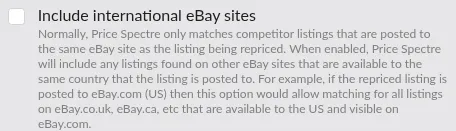
Include International eBay Sites
Normally, Price Spectre only considers competitor listings posted to the same eBay site as the listing being repriced — a US-based listing competes only against eBay.com listings, a UK-based listing competes only against eBay.co.uk listings, and so on.
Include international eBay sites broadens the search to also include listings on other eBay sites if those listings are available to ship to the same country as your listing. For example, with this setting enabled, a listing posted to eBay.com (US) will also include UK or Canadian listings that ship to the US, because those listings are visible to US buyers when they search.
Tip: This setting matters most for categories where international sellers compete actively for your home market — used books, niche electronics, collectibles. For categories dominated by domestic sellers, the toggle rarely changes the competitor list and is safe to leave off.
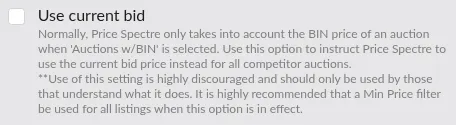
Use Current Bid
Use current bid changes how Price Spectre scores auction-style listings in your competitor set. By default, an auction-style competitor is only counted when it has a Buy It Now (BIN) option, and the BIN price is what gets compared. With this toggle on, Price Spectre instead uses the current bid price of every auction-style competitor.
This is strongly discouraged as a default, and the in-product tooltip says so explicitly. Current bid prices change rapidly and unpredictably, and pricing your listing against them in a typical category tends to produce wild swings that have little to do with what items are actually selling for. If you do enable it, do so only after you understand the dynamics and always pair it with a Min Price filter on every affected listing — without that, a single low early bid can drag your candidate price down to a value you would never accept.
There is, however, a legitimate use case in categories where competitors routinely list auctions at their market price — using auctions essentially as a Buy It Now substitute, sometimes to work around eBay's duplicate-listing policies. In those categories the current bid is the price the item is going to clear at, and treating it as a Buy It Now equivalent gives you a fuller competitor set than ignoring those listings altogether. If you know your category behaves this way, the toggle might become a useful tool.
Warning: Outside of the market-priced-auctions case described above, this setting is for niche workflows and is not a general-purpose tool. The vast majority of sellers should leave it off.
Putting Frequency and Behaviors Together
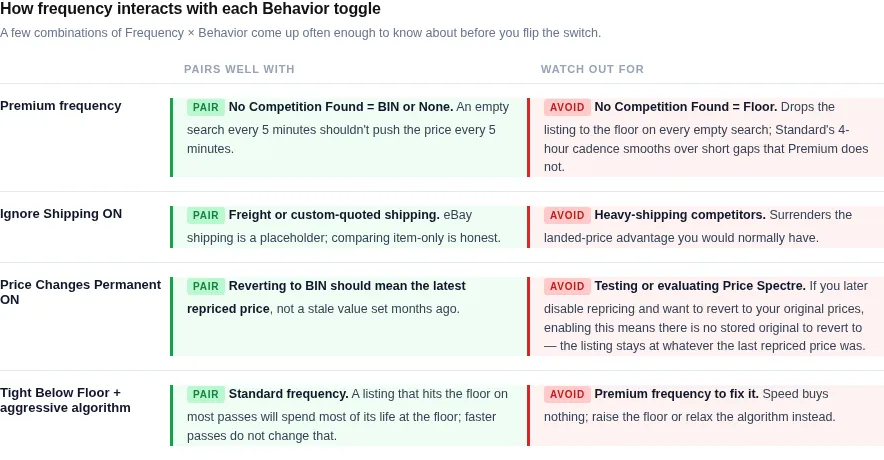
Frequency and Behaviors are independent in the user interface but interact in practice. A few combinations show up often enough to be worth pulling out.
- Premium frequency + a strict No Competition Found policy. If you set No Competition Found to Floor and run a listing on Premium, an empty search every five minutes will drop the listing to its floor every five minutes. The Standard four-hour frequency smooths over short windows where a search briefly returns nothing; a Premium frequency does not. If you run Premium, default No Competition Found to BIN or None.
- Ignore Shipping + heavy-shipping competitors. Turning Ignore Shipping on while most of your competitors have high shipping costs you would normally undercut on landed price will surrender that advantage. Sanity-check the toggle by previewing a few representative listings in Search Console before saving.
- Price Changes Permanent + Discount-based algorithms. Discount X Days and similar algorithms work by deviating from a baseline price for a window of time. If Price Changes Permanent is on, every discount cycle rewrites the listing's Buy It Now Price in Price Spectre, so the next discount measures from the already-discounted price. That compounding is occasionally what you want and very often is not. Read the algorithm's behaviour in Built-in Algorithms Catalog before combining the two.
- Tight Below Floor + aggressive algorithm + Premium frequency. A listing that hits the floor on most passes is going to spend most of its life at the floor regardless of frequency. Premium speed will not buy you anything here; Standard is enough until you raise the floor or relax the algorithm.
Tip: When in doubt, change one variable at a time and watch Reprice History for two or three days. Frequency and Behaviors both have effects that take a day or two to read; changing both at once makes the result impossible to attribute.
Tips and Best Practices
- Set Behaviors before you scale. Decide the No Competition Found, Calculated Price Below Floor, and Calculated Price Above Ceiling policies you want when you have ten listings, not when you have ten thousand. Changing them later is fine, but every listing already running inherits the new policy on its next reprice pass — you cannot quietly try a new policy on a small slice of the catalog from this page.
- Standard first, Premium when you can prove it pays. Start every new listing on Standard frequency. Promote to Premium only when Reprice History and Search Console together show that prices in that listing's category move faster than your Standard interval can keep up with.
- Use Search Console to preview Behavior changes. Before flipping Ignore Shipping or changing a fallback, use Search Console on a representative listing to see what the new candidate price would be. The preview costs nothing and avoids surprises on your real listings.
- Watch Reprice History after a Behaviors change. The first 24 hours after a Behaviors change are when accidental misconfigurations show up. Skim Reprice History the day after; floor-reached and ceiling-reached counts are the easiest signals to read.
- Keep Behaviors documented. If your team is more than one person, write down which Behaviors you have non-default and why. The Behaviors page does not have an edit history visible to other users, and "why is Price Changes Permanent on?" is a question that comes up six months after the answer was obvious.
Frequently Asked Questions
Q: Can different listings reprice at different frequencies? A: Yes. Frequency is decided per-listing — a listing is on Standard or on Premium independently of any other listing. You cannot create your own custom intervals, but each billing plan offers several Standard and Premium frequencies to choose from, so you can mix and match across your catalog.
Q: Can I temporarily pause repricing on the whole account without changing every listing? A: Yes — the Shortcuts page has a bulk "manage all" / "unmanage all" toggle that turns repricing off for every listing in one click and turns it back on the same way. The Behaviors page is not the right place to pause repricing; it has no on/off switch for frequency itself.
Q: If I run out of Premium Points, do I lose data? A: No. Listings that depend on Premium Points are set to unmanaged — repricing on those listings stops entirely until you act — but no settings, history, algorithms, floors, or ceilings are lost. Topping up your Premium Point balance, or removing the premium features from those listings, lets you re-manage them with a single button click and they pick up exactly where they left off.
Q: Do Behaviors apply to manually triggered reprices and to Search Console previews? A: Yes — Search Console runs the same path as a real reprice, including all Behaviors, so the candidate price you see there is the price that would be applied if you triggered a reprice right now.
Q: Can I make a single listing exempt from a Behavior? A: Not directly — Behaviors are global. You can usually achieve the same effect by writing a small custom algorithm in the Algorithm Editor for the exempt listing that compensates for the Behavior, or by adjusting that listing's floor, ceiling, or search filters so the Behavior never triggers in the first place.
Q: Does frequency affect how often eBay sees price changes? A: Only when a pass produces a real change. A pass that decides "no change" does not push anything to eBay, regardless of whether it ran on Standard or Premium. Premium does not increase your eBay-side update volume unless your competitors are actually moving fast enough to justify it.
Q: Where do I see whether Behaviors triggered on a specific reprice? A: Reprice History annotates each recorded reprice with the relevant Behavior outcome — "no competitors found", "floor reached", "ceiling reached", and so on. This is the single best place to confirm that a Behavior change is doing what you intended; just remember that passes which produced no change leave no row.
Related Guides
- Tutorial — start here if you have not yet linked an eBay account or set your first floor and ceiling. Behaviors and frequency only matter once repricing is running.
- Account & Listing Defaults — defaults decide the starting state of every new listing; Behaviors decide what every reprice does after that. The two pages are complementary.
- Built-in Algorithms Catalog — for choosing the algorithm whose candidate prices these Behaviors are reshaping.
- Algorithm Editor — for writing a custom algorithm when a global Behavior is almost what you want but needs a per-listing exception.
- Reprice History — the place to confirm that a frequency or Behaviors change actually did what you intended. Status flags here surface every Behavior outcome on the passes that recorded a change.
- Search Console — preview the candidate price a reprice would apply right now, including the effect of every current Behavior, without consuming a real reprice pass.
- Import & Export — for setting per-listing fields that Behaviors cannot override globally, such as the Origin Postal Code column for non-US listings.
- Shortcuts & Power-User Workflows — for bulk-enabling, bulk-disabling, and bulk-promoting listings between Standard and Premium frequencies without editing them one at a time.