
Price Spectre Errors & Troubleshooting
The Errors page is where Price Spectre collects every listing-level problem it has hit recently — things like eBay rejecting a price update, a floor or ceiling that is configured incorrectly, or a listing the repricer can no longer find on eBay. If one of your items has stopped repricing and you are not sure why, the Errors page is usually the first place to look.
This guide explains what the page shows, how to read it, and how to resolve the most common errors without filing a support ticket. It is aimed at Price Spectre account holders who already have at least one eBay account linked and are actively repricing. If you have not linked an eBay account yet, start with the Tutorial.
Table of Contents
- What the Errors Page Is For
- Finding the Errors Page
- Reading the Errors Page
- The "eBay Account Required" Message
- Common Error Categories and How to Resolve Them
- A Systematic Troubleshooting Workflow
- When to Contact Support
- Frequently Asked Questions
- Related Guides
What the Errors Page Is For
Price Spectre tries to reprice your managed listings on a regular schedule. When an attempt fails — because eBay rejected a price change, or because Price Spectre could not run the algorithm at all — the Errors page is where that failure is recorded, along with the reason.
Every entry on the Errors page is one of two kinds of error, and the distinction matters for how it clears:
- Search errors — Price Spectre could not complete its eBay search for the competitor listings it needs to price against. Typical causes are search criteria that eBay rejects, such as a seller filter that references a username that does not exist. A search error clears automatically the next time Price Spectre searches eBay successfully for that listing.
- Revision errors — Price Spectre decided on a new price but could not apply the revision to eBay. Typical causes are an expired eBay authorization, a listing whose settings produce an invalid price, or a listing that is no longer live on eBay. A revision error clears only the next time Price Spectre successfully changes the listing's price. If you fix the underlying cause but the listing's current price already happens to be correct, the error stays on the page until the next time the price needs to change.
Knowing which kind you are looking at explains a common source of confusion: an error that does not go away even after you have apparently fixed the problem is almost always a revision error waiting for the next actual price change to clear.
Note: The Errors page is different from Reprice History. Reprice History only records price changes — a listing that reprices to the same price does not produce a reprice record at all. A listing that reprices successfully can therefore be absent from both pages. The Errors page shows only attempts that failed.
If a listing has stopped repricing and you cannot tell why, the Errors page is usually the first place to look.
Finding the Errors Page
From anywhere in Price Spectre, open the Tools menu and select Errors.
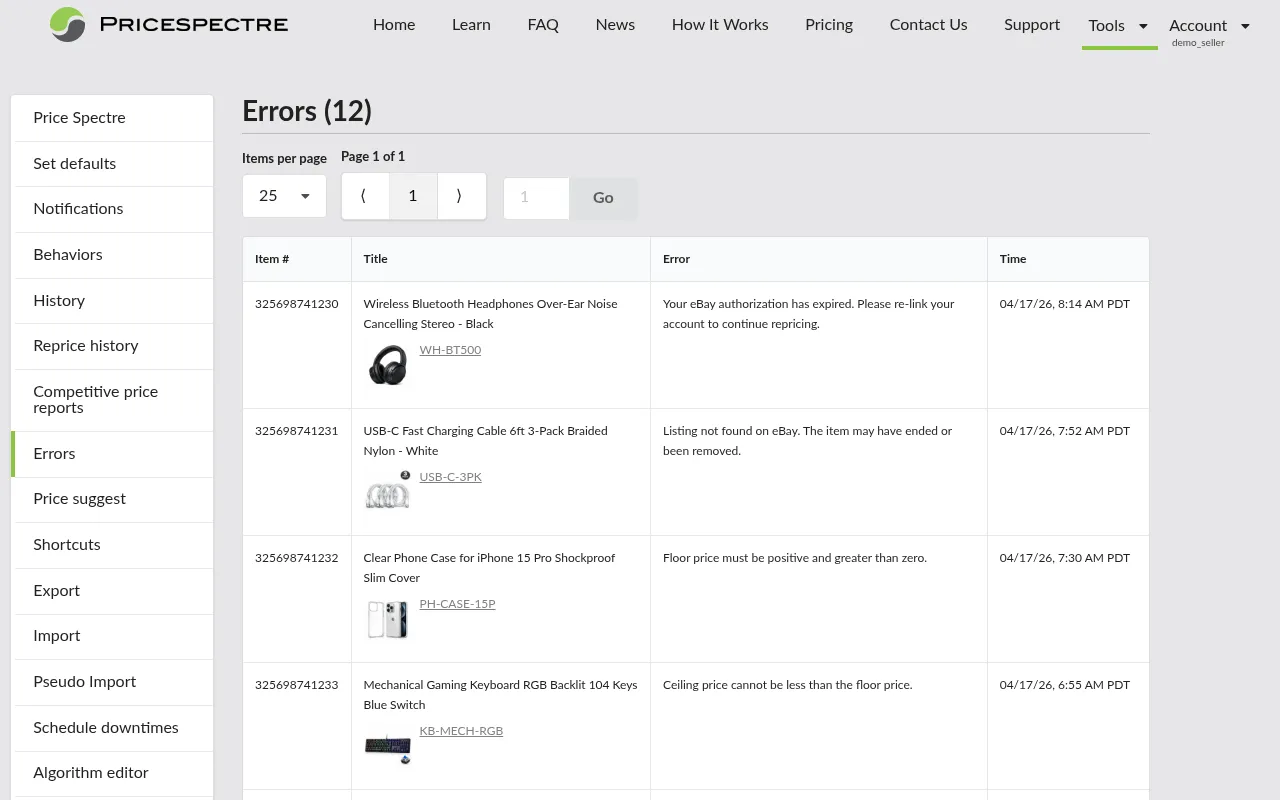
The page loads immediately and shows the most recent errors for your account.
Tip: The Errors page is read-only and safe to open in a second browser tab while you are working on the main repricing tool. Problems you fix in the main tool will drop off the Errors page as the affected listings reprice successfully again.
Reading the Errors Page
The Error Count
The page heading shows the total number of errors currently recorded for your account, in parentheses next to the word Errors:
Errors (12)

This count reflects every error Price Spectre is holding for your account, not just the ones visible on the current page. Use it as a quick health indicator — a count of zero means nothing is waiting for your attention, while a growing count usually points to a single upstream problem (an expired eBay authorization, or a bad default setting) that is affecting many listings at once.
The Desktop Table
On desktop the errors are shown as a four-column table:
| Column | What it shows |
|---|---|
| Item # | The eBay item number for the affected listing. Click it to jump to that listing inside the main Price Spectre tool. |
| Title | The listing's title, a small thumbnail image, and the SKU or variation identifier. Hover the SKU on a variation listing to see the variation's attribute values. |
| Error | The error message itself, in plain language. This is the text you should read first. |
| Time | When Price Spectre recorded the error, in your browser's local time zone. |
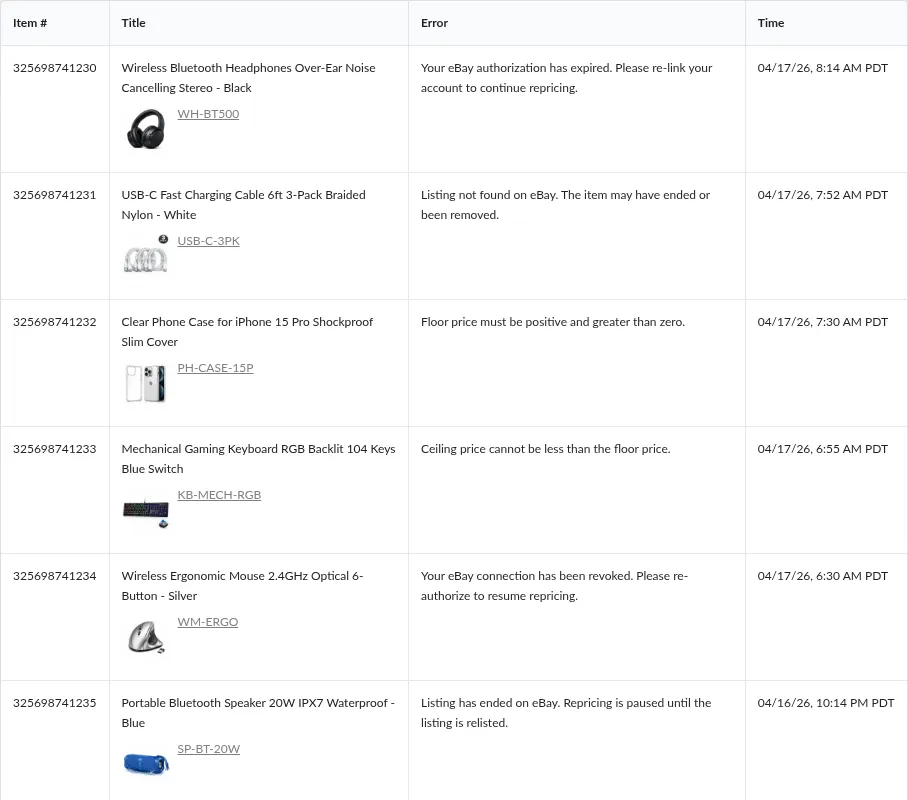
Tip: Clicking the Item # takes you straight to the affected listing in the main repricing tool with its settings already expanded. This is the fastest way to go from "something's wrong" to "here's the setting I need to change."
The Mobile View
On narrow screens the same information is shown as stacked cards — one card per listing. Each card has the same four fields as a row in the desktop table, arranged vertically with the title and thumbnail at the top and the error message below. The Item # link behaves the same way it does on desktop.

Pagination and Page Size
The Errors page is paginated. Both mobile and desktop show an Items per page selector with the options 25, 50, 75, and 100, together with a page number control that reads Page X of Y. On desktop there is also a Go jumper that lets you type a page number and jump directly to it.

The newest errors are shown first. If the total count is larger than the current page size, older errors continue on subsequent pages.
Note: Changing the page size re-fetches the list. There is no separate "apply" button — the table updates as soon as you pick a new value.
The Empty State
When your account has no recorded errors, the table area is replaced with a single line of text:
You currently have no errors.
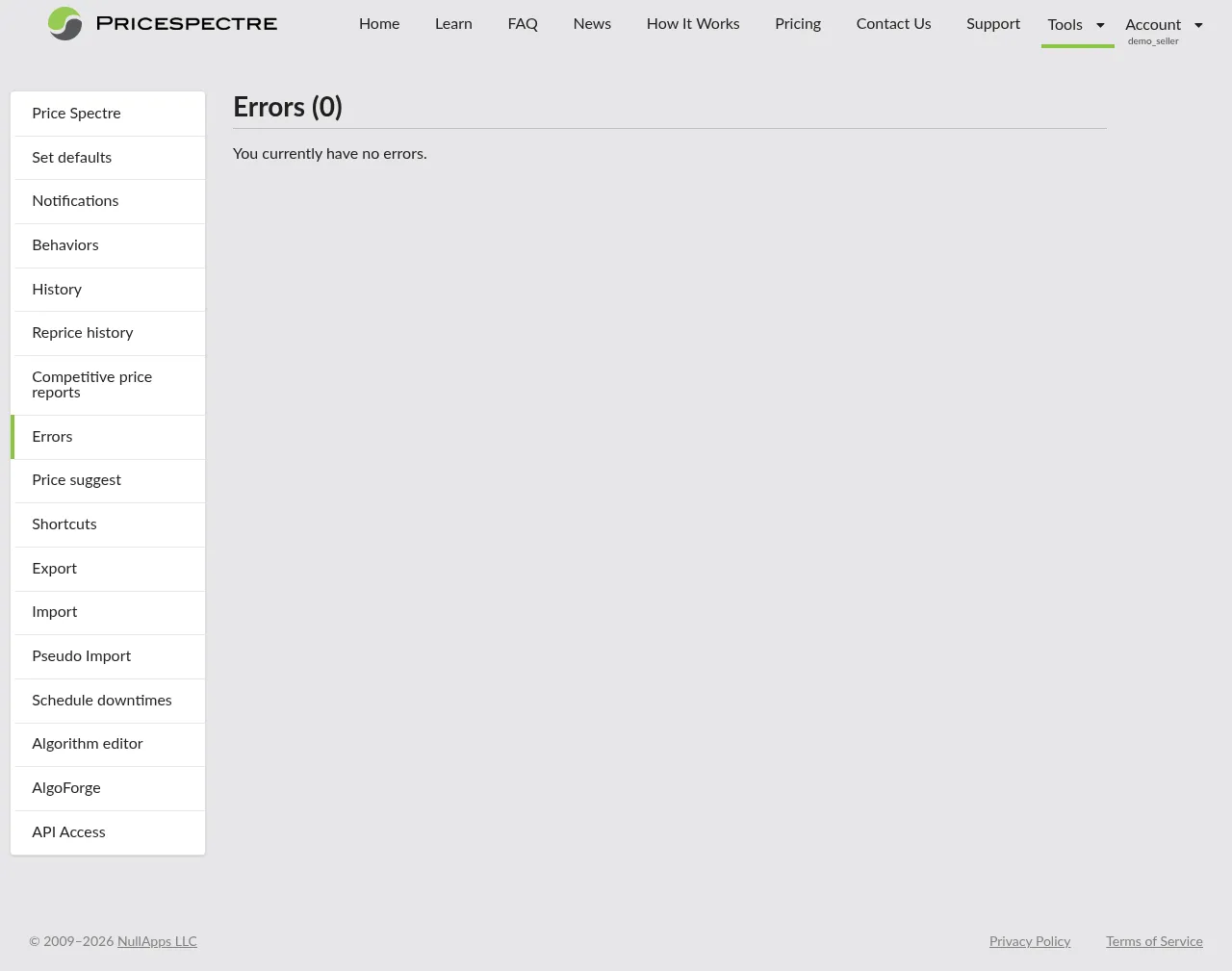
Seeing this message is the goal — it means Price Spectre was able to act on every managed listing in your account on its most recent pass.
The "eBay Account Required" Message
If you open the Errors page on a Price Spectre account that does not yet have an eBay account linked, the page does not show the usual table. Instead it shows a single highlighted message titled eBay Account Required, with a short explanation and a button that takes you to the Account > Link/Unlink page.

This is not itself an error in the usual sense — it is Price Spectre telling you that it has nothing to check yet because there is no eBay store connected to this account. Click the button, complete the eBay authorization flow, and return to the Errors page. From that point on, the page will show the regular errors table (which should be empty until Price Spectre has done at least one repricing pass).
Tip: If you have linked an eBay account in the past but still see this message, your authorization has probably lapsed. Follow the button to Account > Link/Unlink and reauthorize the account. This also resolves any "your eBay connection has expired" entries described in the next section.
Common Error Categories and How to Resolve Them
Different errors read differently in the Error column, but almost all of them fall into one of the categories below. This section groups them by what is really going wrong and tells you where to go to fix it. When you are looking at a row you do not recognize, skim this section top to bottom — the category whose description matches the wording is almost always the right one.
Account Linking and Re-Authorization
Type: Revision error (Price Spectre cannot reach eBay to set a price at all).
What you see: Messages about eBay authorization, a missing linked account, or the eBay connection having expired or been revoked. In the most severe case the entire Errors page is replaced with the eBay Account Required screen described above.
What it means: Price Spectre connects to eBay on your behalf using an authorization token that eBay grants you when you first link your account. Tokens have a limited lifetime. If yours has expired, been revoked from inside your eBay account, or was never granted in the first place, Price Spectre cannot send price updates on your behalf, and every listing will start logging errors until the connection is restored.
How to resolve it:
- Go to Account > Link/Unlink.
- Find the eBay account in the list and use the re-link or re-authorize control next to it.
- Complete eBay's sign-in and authorization prompts in the pop-up window.
- Return to the Errors page. New errors should stop arriving on the next repricing cycle; existing entries will clear as listings successfully reprice again.
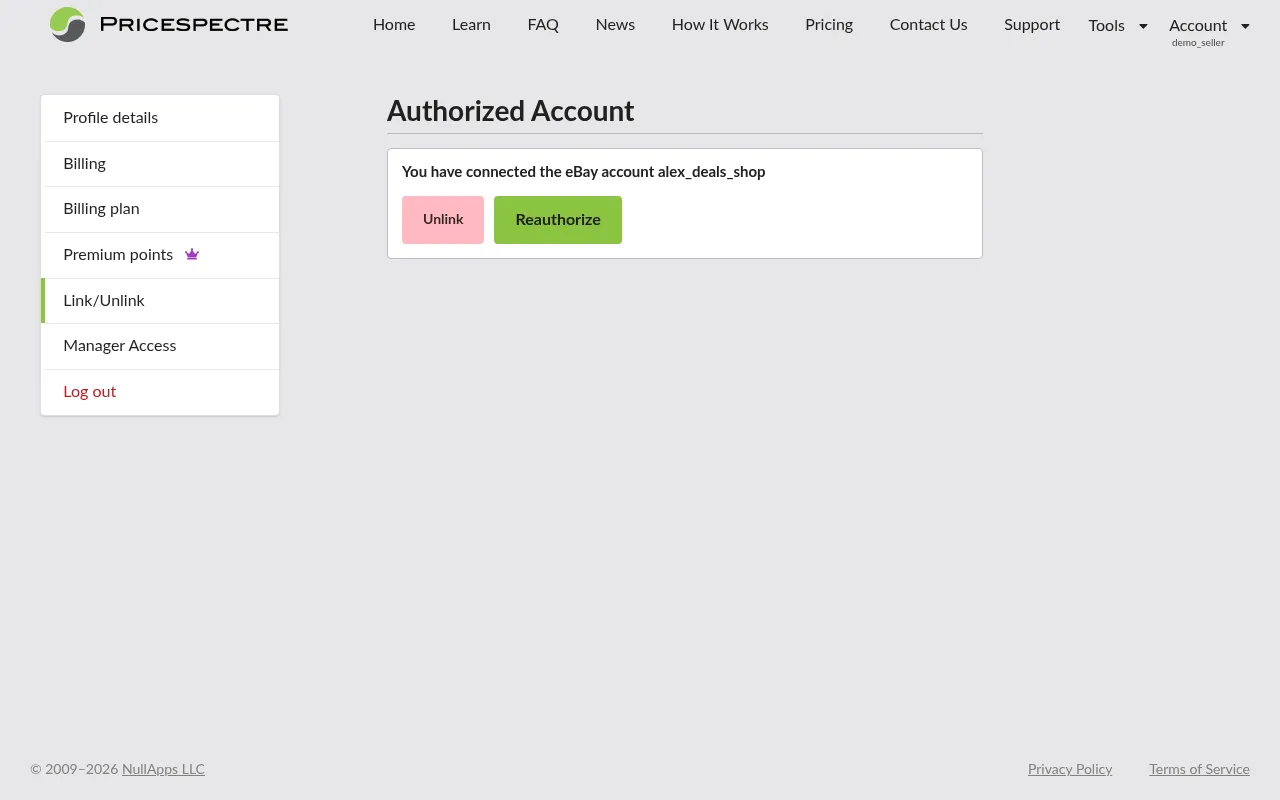
Note: A single expired authorization typically produces many error rows at once — often one per managed listing. Fixing the underlying authorization clears all of them together; there is no need to address them individually.
Listing No Longer Available on eBay
Type: Revision error. Usually self-resolving.
What you see: Messages referring to an item that cannot be located on eBay — "listing not found", "listing has ended", or similar.
What it means: Price Spectre tried to reprice a listing that eBay no longer considers active (it sold out, was ended manually, expired, or was removed). In most cases this is already being handled for you: Price Spectre detects ended listings on its own and removes them from your managed set, which causes the error to clear automatically.
How to resolve it:
If the same ended listing is still appearing in Price Spectre after a day or so and the error has not cleared, the automatic detection has not yet fired for that item. You have two options:
- Force a new price change on the listing. A manual reprice in the main Price Spectre tool will trigger the detection and remove the ended listing from your managed set on the next pass.
- Contact support if you cannot reach the listing in the main tool, or if the same ended listings keep reappearing.
Pricing Boundary Problems
Type: Revision error.
What you see: Messages that mention a floor price, ceiling price, minimum price, or maximum price, or a comparison between the two — for example, "floor price must be positive", "ceiling price must be positive", or "minimum price cannot be greater than maximum price".
What it means: Every managed listing in Price Spectre has a floor (the lowest the repricer is allowed to go) and a ceiling (the highest). These can be set explicitly on the listing or inherited from your account defaults. If either value is missing, zero or negative, or the floor ends up above the ceiling, Price Spectre cannot safely decide a price and records an error instead of guessing.
How to resolve it:
- Click the Item # to open the listing.
- Inspect the floor and ceiling controls on the listing panel. Set valid absolute prices, or valid percentages relative to your cost — whichever you prefer to work with.
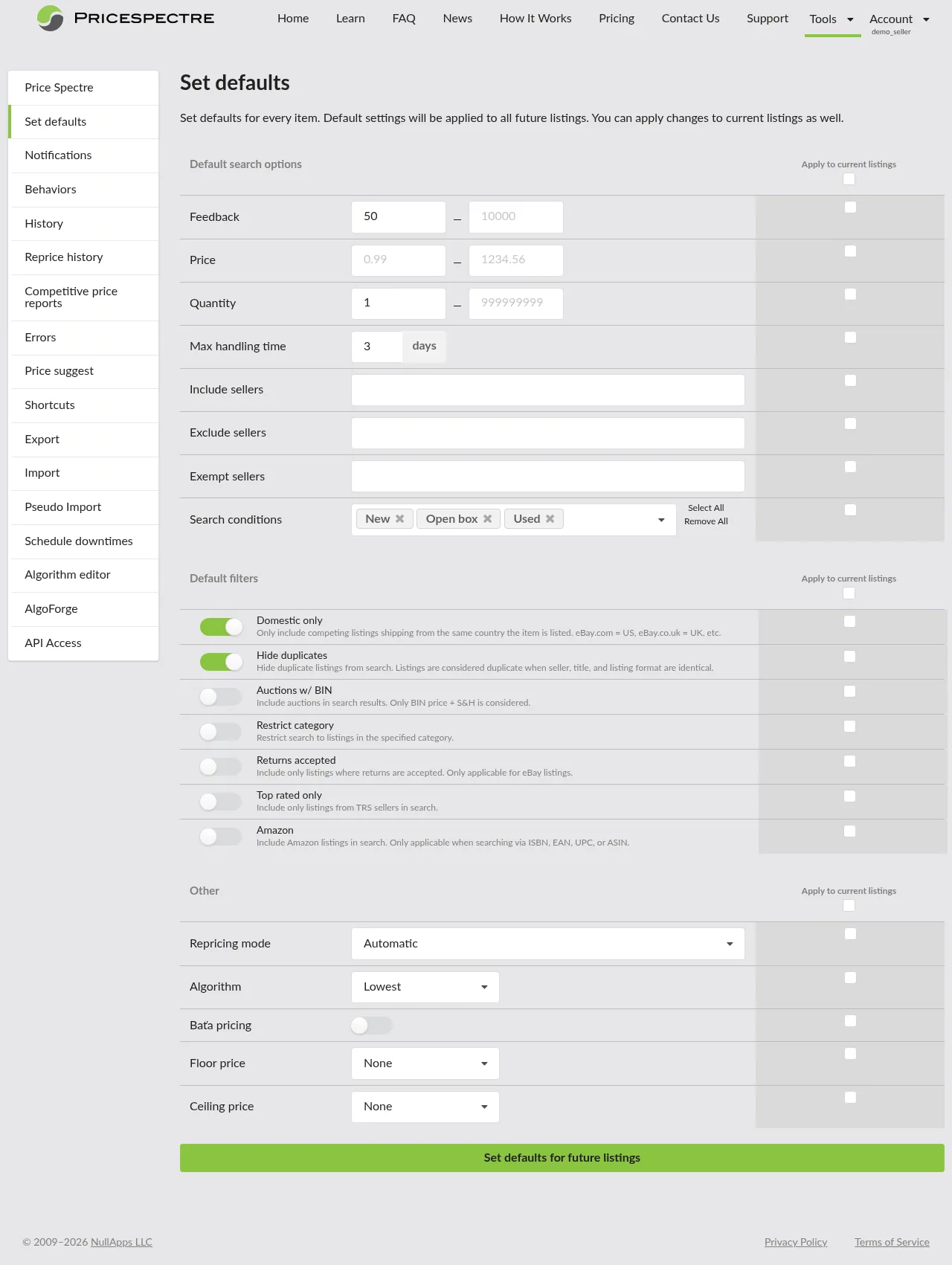
- If many listings are affected at once, the problem is usually in your account defaults, not on the listings themselves. Open Tools > Set Defaults and review the default floor and ceiling — one incorrect default value there can cascade into errors across every new listing that inherits from it.
- Save your changes. Price Spectre will retry on the next repricing cycle.
Note: eBay also enforces its own absolute constraints on pricing — for instance, an auto-decline threshold cannot be greater than or equal to the Buy It Now price. If the error text references an eBay-side rule like this, the fix is to adjust the listing on eBay itself (or in the main Price Spectre tool) so that the constraint is satisfied; changing Price Spectre settings alone will not help.
Algorithm Parameter Problems
Type: Search error.
What you see: Messages referring to an algorithm being invalid, or to one of the algorithm's numeric parameters being out of range — for example, a parameter that "must be positive", "must be non-zero", or "must be between -50 and +50 percent".
What it means: Listings in Price Spectre use either a built-in algorithm or a custom one from the Algorithm Editor. Each algorithm takes a small number of numeric inputs that control its behavior (how aggressive to be, how much to undercut, how close to the ceiling to stay, and so on). If one of those inputs is blank, negative where it must be positive, or sits outside the range the algorithm allows, Price Spectre refuses to run the algorithm and records an error.
How to resolve it:
- Click the Item # to open the listing.
- Scroll to the algorithm selection and its parameters. Any invalid field is usually highlighted with a short hint next to it.
- Correct the value. If you are not sure what a reasonable value looks like, switch to a built-in algorithm and use its defaults as a starting point — you can always customize later.
- If you recently edited a custom algorithm and every listing that uses it has started throwing errors, open Tools > Algorithm Editor. A change in the algorithm itself is a more likely root cause than a bad parameter on each individual listing.
Tip: When you are tuning algorithm parameters, use the search console described in the Algorithm Editor guide to simulate a repricing decision before saving. Simulating catches most parameter-range mistakes before they turn into real errors on the Errors page.
Search Configuration Problems
Type: Search error.
What you see: Messages indicating that eBay rejected the search Price Spectre tried to run on your behalf — for example, a reference to a seller that eBay does not recognize, or a search parameter that eBay reports as invalid.
What it means: Price Spectre's algorithms price against other eBay listings that it finds by running a search with the keywords and filters you have configured for the item. If a filter references something that does not exist on eBay (typically a seller username that is misspelt or has been closed), eBay rejects the search entirely and Price Spectre cannot price the item. Because no search ran, this is a search error, and it will clear automatically the next time Price Spectre searches eBay successfully for that listing.
How to resolve it:
- Click the Item # to open the listing.
- Review the search keywords and filters configured for that listing. Focus first on any seller filters — an "only this seller" or "exclude this seller" list that references a username that is no longer valid on eBay is the single most common cause.
- Correct or remove the invalid entry and save. On the next repricing cycle Price Spectre will search eBay again; if that search succeeds, the error clears without any further action.
Tip: Before saving a change, open the listing in Tools > Price Spectre and click Search options to run the search criteria as a simulation in the built-in search console. A successful simulation is a strong signal that the real repricing cycle will succeed too.
Tip: If the search runs but the results look wrong — or if you suspect a keyword or seller filter is dropping listings you want to keep — open Tools > Search Diagnostic for the same listing. The Diagnostic shows every candidate eBay returned, partitioned into kept and rejected, with the specific filter rule called out per rejected row. This makes it straightforward to find which exact filter is causing the mismatch, rather than testing one filter at a time in the search console.
Custom Algorithm Errors
Type: Search error.
What you see: A message that does not match any of the wordings in the categories above — often phrased in your (or your agency's) own words, because it was written into the algorithm itself.
What it means: Custom algorithms authored in the Algorithm Editor can raise their own error messages when the algorithm explicitly decides that it does not want to reprice an item. For example, an algorithm may be written to fail loudly when it cannot find any competitors, when a cost lookup returns blank, or when any other precondition the author cared about is not met. Built-in Price Spectre algorithms do not produce errors like this — they fall back to a sensible default price instead — so if you see a message of this kind, a custom algorithm is the source.
How to resolve it:
- Click the Item # to open the listing and confirm which algorithm it is using.
- If the algorithm is a custom one, open Tools > Algorithm Editor and look at the conditions under which the algorithm raises that particular message. The wording of the error in the Algorithm Editor source will usually match what you see on the Errors page.
- Either adjust the algorithm so that the condition is no longer met, adjust the listing so that it satisfies the algorithm's preconditions, or switch the listing to a different algorithm.
Note: If your account uses only built-in algorithms and you still see a message that does not fit any other category here, skip to When to Contact Support.
Transient eBay Issues
Type: Search or revision error, depending on which call eBay failed on. Usually self-resolving.
What you see: Messages indicating a temporary problem on eBay's side — a service being briefly unavailable, a rate limit, or a generic "try again later" phrasing.
What it means: eBay's search and listing APIs occasionally hit short-lived issues — an endpoint under temporary load, a brief outage, or a throttle. These errors are not caused by anything wrong with your account or listings, and there is nothing to change in Price Spectre to prevent them.
How to resolve it:
- For a small number of rows: Do nothing. A single transient row of this kind is almost always self-healing — the next repricing pass will succeed and the error will clear (search errors on the next successful search, revision errors on the next successful price change).
- If transient messages are piling up across many listings and not clearing: Treat it as one of the earlier categories (most commonly Account Linking) rather than a wave of transient failures. A real eBay outage that affects many sellers at once tends to clear within a few hours; a growing count that does not clear points at something on your account.
Note: There is no "retry" button on the Errors page itself. Price Spectre automatically retries listings on its normal repricing schedule, so a truly transient error resolves itself without any action from you. If you received an email notification about an error but cannot find that error on the page, it was almost certainly a transient issue that has already cleared.
Common Search Errors
Price Spectre uses the eBay API to search for competitor listings. When a search fails, it appears on your Errors page as a Search error. These errors will clear automatically on the next successful search once the underlying issue is resolved.
There was a problem with an eBay internal system or process. Contact eBay developer support for assistance.
- Cause: eBay is experiencing a temporary internal server error or outage.
- How to resolve: Wait. This is a transient error that will resolve itself when eBay's systems recover.
The call must have a valid 'q', 'category_ids', 'epid' or 'gtin' query parameter.
- Cause: Your search configuration for this item is missing critical search terms or identifiers.
- How to resolve: Edit the listing in Price Spectre and ensure you have provided valid Search Keywords or a Product ID (EPID/GTIN) to search for.
Currently, the [marketplaceId] marketplace is not supported. The supported Marketplaces are: [allowedMarketplaces] .
- Cause: This is a temporary eBay outage. Price Spectre verifies marketplace support before managing listings, so this is not a configuration issue.
- How to resolve: Wait. This is a transient error that will resolve itself when eBay's systems recover.
This keyword search results in a response that is too large to return. Either change the keyword or add additional query parameters and/or filters.
- Cause: The search keywords are too broad and are returning too many results for eBay to process.
- How to resolve: Make your Search Keywords more specific to narrow down the results.
The number of sellers in the filter has exceeded the limit. Please reduce the number of sellers to 250 or fewer.
- Cause: Your listing's search configuration includes an "Include Sellers" or "Exclude Sellers" list that exceeds eBay's limit of 250 sellers.
- How to resolve: Edit the listing and remove some sellers from your "Include Sellers" or "Exclude Sellers" filter so the total is 250 or fewer.
The 'buyingOptions' filter value [filterValue] is not supported for the sort by [sortOption]. For the supported values, refer to the API call documentation.
- Cause: This is a temporary issue with eBay.
- How to resolve: Wait. This is a transient error that will resolve itself when eBay's systems recover.
The 'q' value is invalid. It must be longer than one character when using the 'searchInDescription' filter.
- Cause: The search keywords are too short (only one character) while the option to search within item descriptions is enabled.
- How to resolve: Provide a longer, more descriptive search keyword. Alternatively, disable the Behavior "Include description in search" from the Behaviors page.
The [filterName] value is invalid. For the valid values, refer to the API call documentation.
- Cause: One of the search filters (such as condition, item location, etc.) has an invalid value.
- How to resolve: Check the listing's search filters and ensure all selected options are valid. If the issue persists, contact Price Spectre support.
A seller 'username' provided in the request filters is invalid.
- Cause: One of the usernames in your "Include Sellers" or "Exclude Sellers" list does not exist or is formatted incorrectly.
- How to resolve: Review your "Include Sellers" or "Exclude Sellers" filter for typos and remove any invalid usernames.
A valid 'price' filter and a valid 'priceCurrency' filter is necessary to filter based on price.
- Cause: There is an issue with the custom price limits configured in your search filters.
- How to resolve: Ensure the minimum and maximum price values are set correctly. If the issue persists, contact Price Spectre support.
The postal code filter value is invalid for the specified country and this filter was ignored.
- Cause: Price Spectre applies location filtering automatically. The postal code used for filtering is invalid for your marketplace.
- How to resolve: For the US marketplace, check the postal code on the Behaviors page. For all other marketplaces, inspect and correct the "Origin postal code" value for the affected listing, which can be edited via an Import and seen via an Export.
The 'epid' value [epid] is invalid. For information, see the API call reference documentation.
- Cause: The eBay Product ID (EPID) used to search for this item is not valid or no longer exists in eBay's catalog.
- How to resolve: Edit the listing and provide a correct EPID, or switch to using Search Keywords instead.
Common Revision Errors
Price Spectre uses the eBay API to update your prices. When an update fails, it appears as a Revision error. These errors will clear only when Price Spectre next successfully changes the listing's price.
This Token has been revoked by App. The end user must complete the Auth & Auth consent flow again to generate a valid token.
- Cause: Your eBay account's authorization with Price Spectre has been revoked or expired.
- How to resolve: Go to Account > Link/Unlink in Price Spectre and re-authorize your eBay account.
The token does not exist, the user must complete the Auth & Auth sign in process to generate token.
- Cause: Price Spectre does not have a valid token for your eBay account.
- How to resolve: Go to Account > Link/Unlink in Price Spectre and re-authorize your eBay account.
Invalid user name or password. The username/password pair specified for the user is not valid. You may not use an email address as a username if the member has a User ID.
- Cause: This can occur during an eBay outage, or if your eBay account password was recently reset, invalidating the connection.
- How to resolve: Wait to see if it clears. If it persists, go to Account > Link/Unlink to re-authorize your eBay account.
The authentication method you are using is invalid. Please use the eBay Authentication & Authorization method.
- Cause: There is an issue with how Price Spectre is authenticating with eBay. This can happen during temporary eBay auth system outages.
- How to resolve: Usually a transient issue that resolves itself. If it persists, try re-linking your account.
You have exceeded your daily request limit, therefore you will be unable to make additional requests for the remainder of the day.
- Cause: The overall daily API limit for Price Spectre or your account has been exceeded.
- How to resolve: Wait for the issue to be resolved. Limits reset daily.
You must accept the User Agreement and Privacy Policy before transacting on [eBay Marketplace]. Please go to [eBay Marketplace] to sign in and accept the User Agreement and Privacy Policy.
- Cause: eBay requires you to log in to their site and accept newly updated terms of service.
- How to resolve: Log in to your eBay account directly on the eBay website and accept the prompted agreements.
The user "[Username]" was not found in our database.
- Cause: This typically happens during an eBay outage when their database fails to recognize valid users.
- How to resolve: Wait for the issue to be resolved by eBay.
The requested data is currently not available due to an eBay system error. Please try again later.
- Cause: eBay is experiencing an internal system error or outage.
- How to resolve: Wait. This is a transient error that will resolve itself when eBay's systems recover.
Generic DB Error.
- Cause: eBay's database experienced a temporary failure while trying to process the price update.
- How to resolve: Wait for the transient error to resolve itself.
A database error has caused this transaction to fail. Please try the transaction again.
- Cause: eBay's database experienced a temporary failure.
- How to resolve: Wait for the transient error to resolve itself on the next repricing cycle.
Web Service framework internal error.
- Cause: An internal error occurred on eBay's servers.
- How to resolve: Wait for the transient error to resolve itself.
The transaction is not processed.
- Cause: eBay failed to process the price update, usually due to a temporary glitch.
- How to resolve: Wait for the transient error to resolve itself.
The application name in request is not valid.
- Cause: This typically occurs during an eBay outage when their authentication systems fail to recognize valid applications.
- How to resolve: Wait for the transient error to resolve itself.
A Systematic Troubleshooting Workflow
When a listing stops repricing and you cannot tell why, the following sequence solves the vast majority of cases without guesswork. Work through it top to bottom — each step rules out the problems covered by the step before it, so skipping ahead often costs more time than it saves.
Check the error count first. Open Tools > Errors and look at the number next to the page heading. If you see Errors (0), there is nothing here that Price Spectre is treating as a failure for your account.
Read the exact error text. It helps to read it word for word rather than paraphrasing. Most of the categories above can be identified from the first half of the message. If several rows share nearly identical wording, you are almost certainly dealing with a single upstream cause (authorization, default setting, algorithm edit), not a long list of independent bugs.
Identify whether it is a search error or a revision error. Match the wording against the category headings — the Type line at the top of each category tells you which kind it is. Search errors clear on the next successful search; revision errors clear on the next successful price change. This dictates how long you should expect to wait for an entry to drop off after you apply a fix.
Click through to the listing. Use the Item # link to open the affected listing in the main Price Spectre tool. Seeing the listing's actual floor, ceiling, algorithm, and search configuration side by side with the error message almost always makes the cause obvious.
Verify the relevant setting. Depending on the error category, the setting to check is:
- Account linking → Account > Link/Unlink
- Floor / ceiling → the listing panel, or Tools > Set Defaults if the problem is global
- Algorithm selection and parameters → the listing panel, or Tools > Algorithm Editor if you maintain a custom algorithm
- Search criteria (especially seller filters) → the listing's search keywords and filters
For a detailed breakdown of which filter is responsible for each rejected candidate, open Tools > Search Diagnostic for the listing — it shows the raw eBay result set partitioned into kept and rejected competitors, with the filter rule called out per rejected row. See the Search Diagnostic guide.
Give the next repricing cycle a chance to clear the entry. After you make a change, wait at least one full repricing cycle before deciding whether the fix worked. Remember that a revision error will not clear until Price Spectre actually changes the listing's price, so if the fix did not require a price change the entry may stay on the page a little longer even though the underlying problem is resolved.
If you have worked through all six steps and the error is still there, move on to the next section.
When to Contact Support
Price Spectre support can resolve the small subset of errors that are not caused by an account or listing setting you can see yourself — for example, an ended listing that is stuck in your managed set and will not clear even after you force a price change, or an unfamiliar message whose wording does not match any of the categories above.
When you reach out, include the following information so support does not have to ask for it:
- The eBay item number (the value in the Item # column). This is the single most useful identifier.
- The exact error text from the Error column, copied verbatim. Screenshots are fine if you prefer.
- The value in the Time column for a representative row, so support can line your error up with activity on their side.
- What you have already tried. Mention any settings you changed and whether the error returned. This avoids sending you through steps you have already completed.
- Whether the error is affecting one listing, a few listings, or most of the account. Scope helps support decide between an account-wide cause (typically authorization) and a per-listing cause.
Tip: If you are a Price Spectre user working with a manager or agency, you can share the item number and error text with your manager and let them reproduce the issue from inside your account. See the Manager Access and Manager Dashboard guides for how that works.
Frequently Asked Questions
How often does the Errors page update?
The Errors page fetches fresh data every time you open or refresh it. New errors appear as Price Spectre hits them during its normal repricing cycles — you do not need to trigger anything yourself.
Why does the same error keep coming back?
Because the underlying condition has not been fixed. Errors on this page are not dismissed manually; they clear on a successful search or a successful price change. If an error reappears for the same item after you have changed a setting, the setting you changed was probably not the true cause — return to step 2 of the troubleshooting workflow and re-read the exact error text.
Will errors on one listing stop other listings from repricing?
No. Each listing is evaluated independently. A listing with an error is simply skipped; all of your other managed listings continue to reprice on their normal schedule.
How long do errors stay on this page?
The exact answer depends on which kind of error it is:
- A search error clears as soon as Price Spectre runs a successful eBay search for the affected listing. Once you remove the invalid filter or criterion, the next repricing cycle will clear the entry.
- A revision error clears only when Price Spectre next successfully changes the listing's price. If you fix the underlying cause but the listing's current price already happens to be correct, no price change is needed, so the error stays visible on the page until the next time the listing's price needs to move. This is normal and does not mean the fix did not work.
Why do I see many errors appear at once right after an import?
Usually because a setting that affects many listings went out of range at the same time — for example, a bulk import that left the floor column blank on every updated row. Import-level problems (such as rows that could not be applied at all) are reported separately on the Import page, not here; the Errors page only reflects problems encountered by the repricer once a listing is being managed. See Pricing Boundary Problems for the most common import-triggered category, and the Import & Export guide for how to spot problems during the import itself.
I got an email about an error, but I cannot find it on the Errors page. What happened?
It was almost certainly a transient eBay issue that has since cleared itself. Transient errors are written to the page when they occur (and can generate a notification email if you have email notifications enabled), but because they self-resolve on the next successful retry they often clear before you get a chance to look. If the same item keeps generating transient emails across many cycles, treat it as a persistent error and work through the troubleshooting workflow.
Can I download or export the error list?
There is no built-in export on the Errors page. If you need to work with the list offline, the simplest approach is to increase Items per page to 100 and copy the visible rows, or to page through and capture each page.
Does the error count in the page heading include errors that I have already fixed?
The count reflects whatever Price Spectre currently has recorded. Search errors will drop out on the next successful search; revision errors will drop out on the next successful price change. You do not need to take any action to clear entries you have already resolved — they clear themselves as soon as the relevant operation completes successfully.
Related Guides
- Price Spectre Tutorial — start here if you are still getting set up and have not yet linked an eBay account or configured your first listing.
- Search Diagnostic — shows which listings eBay returned that did not survive your filters, and exactly which filter rule dropped each one. Use it when the search runs but the competitor set contains wrong or missing items.
- Reprice History — the companion view to this page, showing every time a listing's price actually changed and the status flags attached to those changes.
- Algorithm Editor — reference for custom algorithms, parameter ranges, and the search console used to simulate repricing before saving.
- Import & Export — bulk-edit tools useful for correcting settings on many listings at once when a single setting has caused errors across your account.
- Manager Access and Manager Dashboard — for account holders and agencies collaborating on error resolution across multiple accounts.
This guide covers Price Spectre's React-based interface. For the latest feature updates and release notes, visit the News section on the Price Spectre website.