
Built-in Algorithms Catalog
Price Spectre ships with a small, focused set of built-in repricing algorithms that cover the most common pricing strategies — undercut the lowest competitor, average several competitors, drop the price over time, and a few variations on those themes. You pick one from a dropdown on a listing, fill in the parameters it asks for (if any), and Price Spectre takes care of the rest.
This guide is the catalog: a one-page reference to every built-in algorithm, what it does, when to reach for it, what parameters it takes, and a small example showing how it behaves on a typical competitor set. Use it when you are setting up a listing for the first time, when you are switching strategies on an existing listing, or when you want to confirm what an algorithm name actually means before you save a change.
If a built-in algorithm does not quite fit your strategy, you can write a custom one in the Algorithm Editor — or have AlgoForge draft it for you from a plain-English description. Many users find that a built-in algorithm gets them 90% of the way there and a small custom algorithm covers the last 10%.
If you are brand new to Price Spectre, read the Tutorial first; it covers linking your eBay account, setting floor and ceiling prices, and enabling repricing. The algorithms below all run inside the floor / ceiling boundaries you set — so a "Lowest" algorithm will never push your price below your floor, and an "X Lowest By $Y" algorithm will never push it above your ceiling, regardless of what competitors are doing.
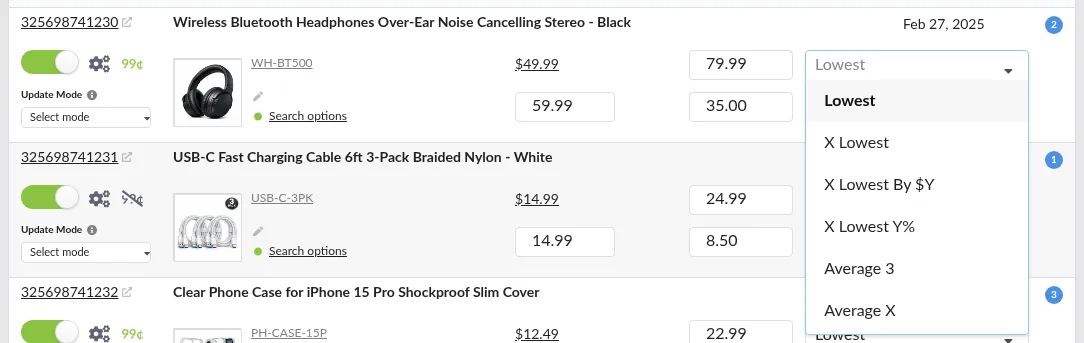
Table of Contents
- How Built-in Algorithms Fit Together
- Choosing an Algorithm at a Glance
- Competitor-Based Algorithms
- Time-Based Algorithms
- Demand-Responsive Algorithms
- Search Visibility Algorithms
- Selecting and Customizing an Algorithm
- How Algorithms Interact With Other Settings
- Tips and Best Practices
- Frequently Asked Questions
How Built-in Algorithms Fit Together
A repricing algorithm is the rule that turns "what the competitors look like right now" into "what my listing should be priced at right now". Built-in algorithms fall into four families:
- Competitor-based algorithms — they look at the live competitor set Price Spectre found for your listing (the same set you can preview in the Search Console) and compute a price relative to those competitors. Examples: undercut the lowest by a penny, average the three lowest.
- Time-based algorithms — they ignore competitors entirely and adjust the price on a fixed schedule. They are markdown algorithms designed for clearance, promotional drawdowns, or any inventory where time-on-market matters more than the competitive landscape.
- Demand-responsive algorithms — they adjust the price based on how the listing has been selling over a recent window. Useful when actual sales velocity, not competitor activity or time alone, is the strongest signal.
- Search visibility algorithms — they target a specific position in eBay search results, combining competitor-based pricing with a page-rank threshold to ensure the listing appears on the first page of results.
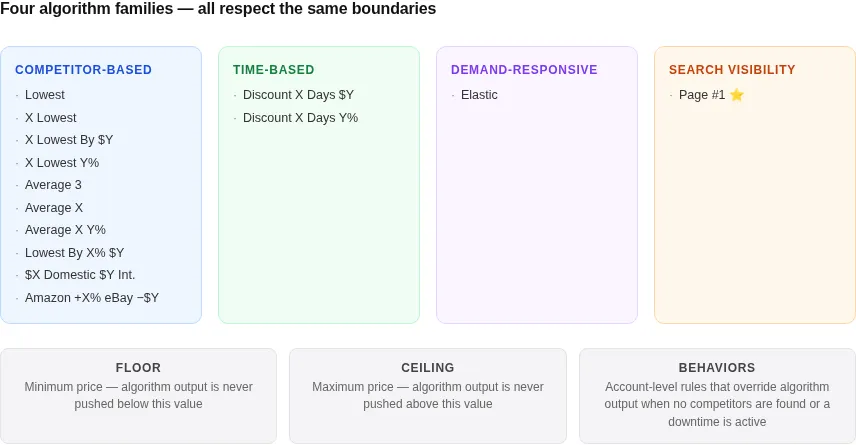
All four families respect the same boundaries:
- Your Floor caps how low the price can go.
- Your Ceiling caps how high the price can go.
- Your No competition found Behavior decides what happens when a competitor-based algorithm runs and finds no matching competitors. (Set it on
Tools → Behaviors. The default is to revert to the BIN price.) - Baťa pricing (psychological pricing such as
.99endings) is applied after the algorithm runs, so the rounding does not change which algorithm you should pick — only the final cents value.
If you are not sure which algorithm a listing is currently using, open the listing on the main Price Spectre tool and check the Algorithm dropdown. Past reprices preserve the algorithm that was active at the time, so you can also confirm it on a Reprice Record.
Choosing an Algorithm at a Glance
Use this table as a quick decision guide. The rest of the page expands each entry with parameters, examples, and edge cases.
| You want to… | Use | Parameters |
|---|---|---|
| Always undercut the cheapest competitor by a penny | Lowest | None |
| Undercut the N-th cheapest competitor by a penny | X Lowest | X |
| Match a competitor and offset by a fixed dollar amount | X Lowest By $Y | X, Y (dollars) |
| Match a competitor and offset by a percentage | X Lowest Y% | X, Y (%) |
| Stay near the middle of the cheapest competitors | Average 3 | None |
| Average a custom number of cheapest competitors | Average X | X |
| Average the cheapest competitors and discount by a percentage | Average X Y% | X, Y (%) |
| Undercut the cheapest competitor by a percentage and a fixed dollar amount | Lowest By X% $Y | X (%), Y (dollars) |
| Treat domestic and international competitors with different offsets | $X Domestic $Y Int. | X (dollars), Y (dollars) |
| Anchor on Amazon's price, fall back to undercutting eBay | Amazon +X% eBay -$Y | X (%), Y (dollars) |
| Drop the price by a fixed dollar amount on a schedule | Discount X Days $Y | X (days), Y (dollars) |
| Drop the price by a percentage on a schedule | Discount X Days Y% | X (days), Y (%) |
| Adjust the price based on recent sales performance | Elastic | X (days) |
| Target page 1 of eBay search results | Page #1 ⭐ Premium | X, Y (dollars) |
Tip: If you are new to Price Spectre and just want a sensible starting point, Lowest is the most aggressive choice and Average 3 is the most balanced. Both work without any parameters and are easy to switch away from if they don't suit a listing.
Competitor-Based Algorithms
Each of the algorithms in this section reads the live competitor list for your listing — sorted by total price (item plus shipping, unless you have Ignore shipping costs enabled in Behaviors) — and computes a candidate price from it. The list it reads is the same list you see in the Search Console, filtered by the search options saved on the listing.
If the search returns no competitors, none of these algorithms can produce a price; instead, the listing falls back to your No competition found Behavior on Tools → Behaviors (default: revert to the BIN price). This shows up in Reprice History as a No competitors found status flag.
Lowest
Always undercut the cheapest competitor by a penny.
Parameters: none.
Example: competitors are listed at $20.00, $22.00, and $25.00. Your candidate price is $19.99.

When to use it: when winning the price race matters more than margin — typically high-velocity, commodity-style inventory where the cheapest listing tends to sell first. Lowest is also a safe default when you are still learning Price Spectre, because it is the easiest to reason about: if you see Lowest price and Floor reached together on a Reprice Record, you know exactly what is happening.
Watch out for: competitors who are also running an undercut-by-a-penny strategy. A pair of listings can chase each other to their respective floors over a few cycles. If you see this happen on the Price History chart, consider switching to X Lowest or one of the average-based algorithms to break the loop. Another option is to schedule a brief downtime on Tools → Schedule downtimes — pausing the listing (or temporarily reverting it to its BIN price via your No competition found Behavior) is often enough to knock both repricers out of the loop, after which you can re-enable repricing at a healthier price level.
X Lowest
Undercut the X-th cheapest competitor by a penny.
Parameters: X (which competitor to target — 1 is the cheapest, 2 is the second cheapest, and so on).
Example: with X = 2 and competitors at $20.00, $22.00, and $25.00, the second cheapest is $22.00, so your candidate price is $21.99.

When to use it: when you do not want to be the absolute cheapest seller, but you do want to be near the front of the pack. Setting X = 2 or X = 3 keeps you visible in price-sorted browsing without dragging your price all the way down to the bargain-bin floor of the listing set. It is also a good way to step out of a race-to-the-bottom with a single competitor: target the second-lowest instead of the lowest, and the price war stops with you.
Watch out for: small competitor sets. If only one competitor matches your search, "the second cheapest" does not exist. Price Spectre handles this gracefully by treating it like the No competitors found case, but you may want to widen your search filters if it happens often.
X Lowest By $Y
Take the X-th cheapest competitor and offset by a fixed dollar amount.
Parameters: X (which competitor to target) and Y (a dollar amount; positive values price below the competitor, negative values price above).
Example: with X = 1 and Y = 2, and competitors at $20.00, $22.00, and $25.00, the cheapest is $20.00, so your candidate price is $18.00 ($20.00 minus $2.00).

When to use it: when "a penny" is not enough of a gap. Some categories — collectibles, refurbished electronics, branded goods — have buyers who will not look twice at a one-cent difference but will react to a clearly noticeable discount. Setting Y = 1.50 or Y = 5.00 against the cheapest competitor produces a price that is visibly cheaper without giving up margin you do not need to give up.
Watch out for: floor-clipping. A fixed-dollar offset can push the candidate well below your floor on lower-priced items, so the price ends up clamped at the floor most of the time and the "$Y discount" never actually applies. If you see this on Reprice Records, shrink Y or switch to the percentage variant below.
Tip: A negative
Yis a useful trick for premium positioning — for example,X = 1, Y = -2prices you $2.00 above the cheapest competitor. Pair it with a strong feedback profile and the offset can be justified by the buyer experience.
X Lowest Y%
Take the X-th cheapest competitor and offset by a percentage.
Parameters: X (which competitor to target) and Y (a percentage; positive values price below the competitor, negative values price above).
Example: with X = 1 and Y = 10, and competitors at $20.00, $22.00, and $25.00, the cheapest is $20.00, so your candidate price is $18.00 ($20.00 minus 10%).

When to use it: when you want a discount that scales with price. Unlike By $Y, a percentage-based offset is gentle on cheap items and assertive on expensive ones — Y = 5 translates to a 25¢ discount on a $5 item but a $5 discount on a $100 item. This is usually the right choice when the same algorithm is applied to a catalog with a wide price range.
Watch out for: the same floor-clipping pattern as By $Y if Y is large. A 25% offset against an aggressive competitor often lands at the floor; that is not necessarily a problem, but it does mean the algorithm is effectively the floor on those listings.
Average 3
Price at the average of the three cheapest competitors.
Parameters: none. (The "3" is fixed; if you want a different number of competitors, use Average X.)
Example: competitors at $20.00, $22.00, and $25.00 average to $22.33, so your candidate price is $22.33.

When to use it: when you want to stay competitive without being the cheapest, especially for listings where reputation, feedback, or shipping speed give you a small price-premium of your own. Averaging smooths out outliers — a single very-cheap or very-expensive competitor moves your price less than it would under Lowest or X Lowest.
Watch out for: very small competitor sets. If only one or two listings match your search, the "average of three" will be averaging fewer competitors than you might expect. Price Spectre uses what is available; widening your search filters in the Search Console is the usual fix.
Average X
Price at the average of the X cheapest competitors.
Parameters: X (the number of competitors to include in the average).
Example: with X = 5 and competitors at $20.00, $22.00, $25.00, $27.00, and $30.00, the average is $24.80.

When to use it: when Average 3 is the right idea but the number is wrong. Larger values of X produce a more "market-rate" price that moves slowly and is harder for a single competitor to nudge — a common choice for listings in commoditized categories with many competitors. Smaller values of X (such as X = 2) produce a tighter, more reactive price.
Watch out for: picking X larger than the number of competitors that typically match your search. If X = 10 but searches normally return 4 competitors, you are effectively averaging "everyone Price Spectre found" every time — which may be what you want, but is worth knowing.
Average X Y%
Take the result of Average X and discount it by a percentage.
Parameters: X (the number of competitors to include in the average) and Y (a percentage to subtract from the average; positive values price below the average, negative values price above).
Example: with X = 3 and Y = 5, and competitors at $20.00, $22.00, and $25.00, the average of the three cheapest is $22.33. Subtracting 5% gives a candidate price of $21.21.

When to use it: when Average X is the right idea but you also want to sit just below the market average, not on it. The percentage offset is a useful way to claim the "we are slightly cheaper than typical" position without chasing a single competitor's price. Larger values of X give a more market-rate baseline; the Y% offset then determines how far below that baseline you want to land.
Watch out for: stacking margin compression. Combining a large X (which already pulls the price down toward the cheapest few competitors) with a large Y can push the candidate well below the market and straight into your floor. If you see Floor reached on most reprices, shrink Y first.
Lowest By X% $Y
Take the cheapest competitor, subtract a percentage, then subtract a fixed dollar amount.
Parameters: X (a percentage to subtract from the lowest competitor) and Y (a dollar amount to subtract after the percentage discount).
Example: with X = 5 and Y = 1, and competitors at $20.00, $22.00, and $25.00, the cheapest is $20.00. Subtracting 5% gives $19.00, then subtracting $1.00 gives a candidate price of $18.00.

When to use it: when you want a percentage-style discount that also respects an absolute "always at least this much cheaper" floor on the gap. The percentage scales with the competitor's price, while the fixed dollar amount guarantees a minimum visible discount even on cheap items. It is a useful middle ground between X Lowest By $Y and X Lowest Y%.
Watch out for: the same floor-clipping pattern you see on the other offset algorithms. The combined X% + $Y discount can be surprisingly large on low-priced items and end up clamped at your floor most of the time. Adjust X or Y (or both) downward if that happens.
$X Domestic $Y Int.
Undercut every competitor individually, using a different offset depending on whether the competitor is domestic (in the same country as your listing) or international (in a different country). The cheapest of the resulting candidate prices wins.
Parameters: X (the dollar amount to subtract from each domestic competitor) and Y (the dollar amount to subtract from each international competitor).
Most users set X larger than Y because buyers tend to prefer domestic shipping — a smaller offset against international competitors is enough to stay competitive with them, while a larger offset against domestic competitors is needed to win the price race against listings that have the same shipping advantage you do.
Example 1 — a domestic competitor wins. With X = 2 and Y = 1 and competitors at domestic $20.00 and international $25.00, Price Spectre evaluates each competitor:
- Domestic $20.00 − $2.00 = $18.00
- International $25.00 − $1.00 = $24.00
The lowest candidate, $18.00, wins.
Example 2 — an international competitor wins. With the same X = 2 and Y = 1 and competitors at domestic $25.00 and international $19.00:
- Domestic $25.00 − $2.00 = $23.00
- International $19.00 − $1.00 = $18.00
The lowest candidate, $18.00, wins — this time driven by the international listing because it is significantly cheaper than any domestic competitor.

When to use it: when shipping speed, customs, or buyer perception means international competitors are not directly comparable to domestic ones. Setting X smaller than Y discounts more aggressively against international listings (because they need a bigger gap to compete with you on convenience); setting X larger than Y does the opposite. The location split is what makes this different from X Lowest By $Y, which treats every competitor the same.
Watch out for: competitor sets that are mostly one location. If almost everyone Price Spectre finds is domestic, the Y value rarely affects the outcome — you are effectively running a "Lowest By $X" against domestic listings. Open the Search Console and check the Location column to see whether the mix of domestic and international competitors actually justifies the algorithm.
Amazon +X% eBay -$Y
Compute two candidate prices and take the higher of the two:
- Amazon-anchored price — the lowest Amazon listing price marked up by
Xpercent. - eBay-anchored price — the lowest eBay competitor's price minus
Ydollars.
The higher of the two becomes the candidate price. Designed for sellers who source from Amazon: the Amazon-anchored price defines the margin floor you will not voluntarily go below, and the eBay-anchored price lets you capture extra margin whenever eBay competitors are pricing well above your Amazon cost. If Price Spectre cannot find an Amazon price for the listing, the algorithm has no anchor and falls back to your No competition found Behavior on Tools → Behaviors.
Parameters: X (a percentage markup over Amazon's lowest price) and Y (a dollar amount to undercut the lowest eBay price by).
Example 1 — eBay is well above the Amazon-marked-up price. With X = 15 and Y = 1, Amazon's lowest at $20.00 and the lowest eBay competitor at $30.00:
- Amazon-anchored: $20.00 × 1.15 = $23.00
- eBay-anchored: $30.00 − $1.00 = $29.00
The higher of the two, $29.00, wins — the algorithm captures the extra margin that eBay's pricing is leaving on the table while still staying just under the cheapest eBay seller.
Example 2 — eBay is below the Amazon-marked-up price. With the same X = 15 and Y = 1, Amazon's lowest at $20.00 and the lowest eBay competitor at $22.00:
- Amazon-anchored: $20.00 × 1.15 = $23.00
- eBay-anchored: $22.00 − $1.00 = $21.00
The higher of the two, $23.00, wins — the algorithm protects the Amazon-anchored margin even though it means giving up the lowest spot on eBay to a more aggressive competitor.

When to use it: when you are dropshipping from Amazon to eBay. The Amazon-anchored half of the calculation guarantees a minimum markup over your source price, and the eBay-anchored half lets you opportunistically charge more when eBay competitors happen to be pricing higher than your markup would suggest. You never go below your Amazon margin floor; you do go above it whenever the eBay landscape allows.
Watch out for: missing Amazon prices. If Price Spectre cannot find an Amazon price for the listing, the algorithm has no anchor to mark up from. In that case it falls back to your No competition found Behavior on Tools → Behaviors (default: revert to the BIN price), and the reprice is logged with the No competitors found flag. If this happens often, double-check that the listing has a usable product identifier (UPC, ASIN, or matching keywords) so Amazon can be looked up.
Time-Based Algorithms
The two Discount algorithms are different in kind from everything above: they do not look at competitors at all. Instead, they take your listing's current price and reduce it on a schedule you set. Use them when "time on the market" is the variable you want to control — clearance, promotional drawdowns, time-sensitive inventory, or any case where you would rather drop the price gradually than chase a competitor set.
Both algorithms share the same overall behavior:
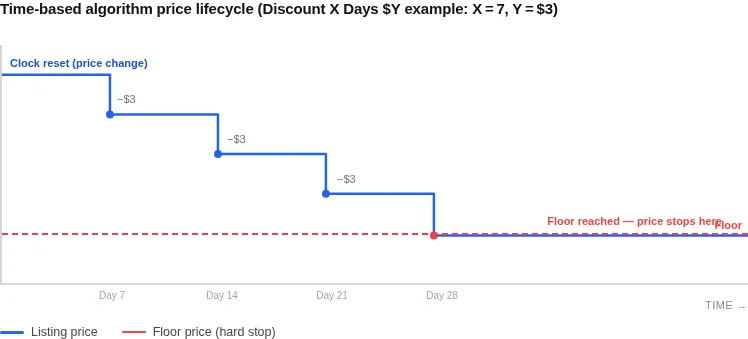
- The clock starts at the most recent price change. Any change to the listing's price — automatic, manual, or by re-enabling the listing — resets the timer. Discounts apply only after
Xdays have passed since the last reset. - Floor still wins. Once the discount would push the price below your floor, the price stops at the floor (you will see Floor reached on the Reprice Record). The discount does not "carry over" or accumulate against the floor; it just stops there.
- Active stock is required. Time-based algorithms only run on listings that currently have stock. An out-of-stock listing pauses the schedule until quantity returns. (This is a deliberate difference from competitor-based algorithms, which keep repricing out-of-stock listings so they are at the right price when stock comes back.)
- Search filters are ignored. Because the algorithm does not look at competitors, the search options on the listing have no effect on the price these algorithms produce. They still affect what shows up in the Search Console, but the algorithm output is independent.
Discount X Days $Y
Every X days since the last price change, drop the price by $Y.
Parameters: X (number of days between drops) and Y (dollar amount to subtract on each drop).
Example: with X = 7 and Y = 1, a $20.00 listing drops to $19.00 after one week, $18.00 after two weeks, $17.00 after three weeks, and so on until it reaches your floor — at which point it stops.

When to use it: when you have a clearance lane, an item that has been sitting too long, or a category where buyers are watching for a "weekly drop" pattern. Fixed-dollar drops are predictable for you and easy to advertise to repeat buyers ("we drop the price every Friday").
Watch out for: manual edits resetting the timer. If you (or a third-party tool) edit the listing's price on eBay, the discount clock restarts. The same is true for re-enabling the listing in Price Spectre. If a listing is not dropping when you expect it to, check the Price History chart for an unexpected price change that would have reset the timer.
Discount X Days Y%
Every X days since the last price change, drop the price by Y percent.
Parameters: X (number of days between drops) and Y (a percentage to subtract on each drop).
Example: with X = 7 and Y = 5, a $100.00 listing drops to $95.00 after one week, $90.25 after two weeks, $85.74 after three weeks, and so on until it reaches your floor — at which point it stops.

When to use it: when you want a smooth markdown curve rather than a flat staircase. Percentage-based discounts get smaller in absolute dollars as the price falls, which produces a gentler descent toward the floor — useful when you want to avoid a sudden cliff at the end of the markdown. It is also a better fit than $Y when the same algorithm is reused across listings of widely different prices, because the percentage scales naturally.
Watch out for: mismatched expectations about compounding. A Y = 10% weekly drop does not halve the price after five weeks; it lands at roughly 59% of the original because each step compounds against a smaller base. If you need a fixed final price after a fixed number of drops, the dollar-based variant is easier to reason about.
Tip: Combine a time-based algorithm with a tight floor and a deliberate ceiling to model the listing's full price lifecycle: the ceiling caps the start, the discount drives the middle, and the floor stops the end. The Reprice History page makes it easy to verify the lifecycle is unfolding the way you intended.
Demand-Responsive Algorithms
The Elastic algorithm sits between the competitor-based and time-based families: it does not search competitors, and it does not drop the price on a fixed schedule. Instead, it nudges the price up or down based on how the listing has been selling over a recent window — so a strong run of sales pushes the price up and a quiet stretch pushes it back down.
Elastic
Adjust the price based on whether the last price change helped or hurt revenue. Each cycle, Elastic compares revenue earned since the previous price change to revenue from the period before it, and decides what to do next:
- If the last price change helped revenue, Elastic moves the price in the same direction again (a previous increase that helped is followed by another increase; a previous decrease that helped is followed by another decrease).
- If the last price change hurt revenue, Elastic moves the price in the opposite direction on the next cycle.
The size of each step is driven by the magnitude of the revenue change, not just its sign — a clearly successful change produces a larger next step, a marginal one produces a smaller step. In short, Elastic keeps doing what is working and reverses course as soon as a change starts to hurt.
Parameters: X (the length, in days, of the look-back window used to evaluate sales performance for each side of the comparison).
Example: with X = 14, Elastic compares revenue from the last 14 days against the 14 days before that on each reprice. If a recent price increase coincided with higher revenue, the next reprice nudges the price up again; if the increase coincided with lower revenue, the next reprice steps the price back down. The price gradually settles around the level that maximizes revenue, and your floor and ceiling cap how far it can move in either direction.

When to use it: Elastic works best on higher-volume listings where there is enough sales data on each side of the comparison for the up-or-down signal to be meaningful. Common cases:
- Bestsellers and steady-volume listings where the price-versus-revenue curve is real and worth optimizing.
- Listings whose value moves with buyer interest (seasonal goods, trend-driven categories) and that already get enough traffic for the algorithm to read the demand signal.
- Inventory where you want the price to "find its level" automatically rather than chase a competitor set.
On a low-supply or one-of-a-kind listing, there is rarely enough sales data for Elastic to detect a clean signal, so it tends to default to gradually lowering the price over time. In that case Elastic effectively behaves like a Discount X Days Y% — except the percentage is determined dynamically rather than being one you set yourself. If that behavior is what you want, the explicit Discount algorithm is usually a better choice because the rate of decline is predictable.
Watch out for: noisy short windows. A small X (a few days) reacts quickly but is sensitive to a single sale or quiet stretch; a larger X (a few weeks) smooths out noise but reacts more slowly. Pick X based on how often the listing typically sells — frequent sellers tolerate a smaller window, slow sellers need a larger one.
Elastic does not use the live competitor list, so the Search Console candidate-price highlight is less informative than it is for competitor-based algorithms. Use the Price History chart and recent Reprice Records to confirm the price is moving in the direction your sales suggest.
Tip: Brand-new listings with no sales history yet have no past price change to evaluate, so Elastic has nothing to react to until enough sales accumulate. If you want a more aggressive starting strategy and Elastic to take over once sales come in, consider running a competitor-based algorithm first and switching to Elastic after a week or two.
Search Visibility Algorithms
Search visibility algorithms target a specific position in eBay search results by combining competitor-based pricing with a page-rank threshold, rather than relying on competitor pricing or elapsed time alone. Currently, one algorithm is in this family.
Page #1 (Premium)
Premium points required. Page #1 costs a monthly fee per listing it is applied to, billed in premium points. See the Pricing page for current rates.
Position your listing on the first page of eBay search results by letting Price Spectre calculate the lowest price that achieves a page-1 rank for your listing's search.
Page #1 runs two searches each reprice cycle and sets your price to the lower of the two results:
- Filtered search — applies your listing's configured search filters and computes a price the same way X Lowest By $Y does: the X-th cheapest competitor's price minus $Y.
- Page-1 search — runs a second search with all filters removed, sorted by price, and finds the price your listing would need to land on the first page of eBay search results.
Taking the lower of the two ensures your price is competitive within your filtered competitor set and visible on page 1 of broad eBay search for that item.
Parameters: X (which competitor to target in the filtered search) and Y (a dollar amount to undercut that competitor by) — the same two parameters as X Lowest By $Y.
Example: with X = 1 and Y = 0.50, and competitors at $20.00, $22.00, and $25.00, the filtered search produces $19.50 (cheapest competitor minus $0.50). The page-1 search finds the threshold to appear on page 1 with all filters removed — say $17.00. The candidate price is the lower of the two: $17.00.

How the floor and ceiling interact: if achieving a page-1 rank would require pricing below your floor, Price Spectre holds the price at the floor instead. If a page-1 rank is already achievable at or above your current price, the ceiling acts as the upper cap as normal. Both boundary cases are logged with the standard Floor reached or Ceiling reached status flags.
When to use it: when search visibility matters more than per-sale margin. Common cases:
- Launching a new listing and wanting early exposure while it builds a feedback record.
- Competing in a crowded category where listings on page 2 and beyond rarely sell.
- Deliberately trading a smaller margin per sale for a higher sell-through rate.
- Seasonal inventory where being seen quickly before the selling window closes matters more than price optimization.
Watch out for: pricing pressure in highly competitive searches. In a crowded category the page-1 threshold can sit close to your floor, and repeated reprices may land at the floor rather than a true page-1 price. Open the Price History chart after enabling Page #1 to confirm the price is settling at the page-1 threshold rather than running straight to the floor on every cycle. If it is always hitting the floor, consider raising your floor slightly or switching to a competitor-based algorithm.
Tip: Combine Page #1 with a carefully considered floor. If your floor is already at or below the page-1 threshold, the algorithm has room to work. If your floor is above the page-1 threshold, the listing will stay at the floor on every cycle — at which point Lowest or another competitor-based algorithm will typically give you the same visibility without the premium cost.
Selecting and Customizing an Algorithm
Every Price Spectre listing has exactly one algorithm assigned to it at a time. You can change which one runs at three different scopes — one listing, many listings, or every new listing — and you can replace any built-in algorithm with a custom one when none of the catalog entries fits.
Setting the Algorithm on a Single Listing
The fastest way to try an algorithm out is on one listing:
- Open the main Price Spectre tool and find the listing in the table.
- Click the Algorithm dropdown for that row.
- Pick a built-in (or a custom algorithm you have already saved).
- If the algorithm takes parameters —
X,Y, or both — fields appear next to the dropdown. Fill them in. - Save the row.

The next scheduled reprice will use the new algorithm. To trigger a reprice immediately rather than waiting, toggle the listing's repricing Off and back On — see the Enabled reason in the Reprice History Guide.
Setting the Default Algorithm for New Listings
If you want every newly imported listing to start with the same algorithm, set it once on Tools → Set defaults:
- Choose the algorithm from the Default algorithm dropdown.
- Fill in any
X/Yparameters the algorithm asks for. - Save.

The default applies only to new listings going forward. Existing listings are unaffected unless you opt to also push the new defaults to them — see the Account & Listing Defaults Guide for the full workflow, including how to apply a default change to listings that already exist.
Changing the Algorithm in Bulk
To change the algorithm on many listings at once without touching every row:
- Import / Export — export your listings to CSV or XLSX, change the algorithm column (and any
X/Ycolumns) in a spreadsheet, then import the file back. This is the most flexible option for partial updates such as "switch every listing in category X to Average 3". See the Import & Export Guide. - Shortcuts — use the bulk-edit controls on
Tools → Shortcutsto apply the same algorithm to a filtered group of listings in one action. See the Shortcuts & Power-User Workflows Guide.

When a Built-in Algorithm Is Not Enough
If none of the built-ins matches what you want — for example, you need an algorithm that combines a competitor average with a dollar offset, or one that varies by day of week — you can write a custom algorithm in the Algorithm Editor. Custom algorithms appear in the same dropdown as the built-ins once saved, so the rest of this guide (parameters, floor/ceiling interaction, behaviors) still applies.
If you do not want to write JavaScript by hand, AlgoForge can draft a custom algorithm from a plain-English description. Tell it what you want ("undercut the second-cheapest competitor by 3%, but never by more than $5"), review the generated code, and save it. AlgoForge usage is covered in the AlgoForge section of the Algorithm Editor Guide.
Tip: Built-ins are designed to cover the most common cases with no setup. Reach for a custom algorithm only when you have a specific reason a built-in cannot handle — most accounts run almost entirely on built-ins, with a small number of custom algorithms for special cases.
How Algorithms Interact With Other Settings
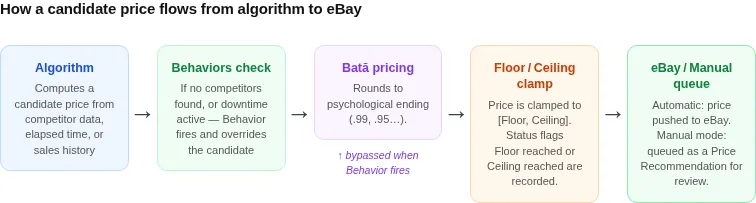
A built-in algorithm does not run in isolation. Several other settings on the listing — and on your account — change what number actually ends up on eBay. The algorithm proposes a price; everything below either constrains, overrides, or rounds it.
Floor and Ceiling
The Floor and Ceiling are hard boundaries. After the algorithm produces a candidate price (and Baťa pricing rounds it, if enabled), the result is clamped to the [Floor, Ceiling] range as the final step before the price is pushed to eBay. If the candidate falls below the floor, the price is set to the floor and the Floor reached flag is recorded; if it rises above the ceiling, the price is set to the ceiling and the Ceiling reached flag is recorded.
This is true for every algorithm in this catalog, competitor-based and time-based alike. There is no way for an algorithm to "exceed" your floor or ceiling.
Search Options (Competitor-Based Only)
Competitor-based algorithms read the live competitor list filtered by the search options saved on the listing — keywords or product code, condition, seller include / exclude lists, feedback bounds, price bounds, location, and so on. Tightening the filters narrows the competitor set; loosening them widens it. The same options drive the Search Console, so you can preview their effect there before saving.
Time-based Discount algorithms ignore search options entirely — see the Search filters are ignored note in the Time-Based Algorithms section.
Behaviors
Two account-level Behaviors on Tools → Behaviors change algorithm output:
- No competition found — applies when a competitor-based algorithm finds zero matching competitors. The default is to revert to the listing's BIN price; you can change it to hold the current price or fall back to a different reference value.
- Scheduled downtime — when a downtime is in effect, the listing follows the same Behavior as No competition found until the downtime ends, regardless of which algorithm is configured.
Both situations show up in Reprice History so you can confirm the Behavior fired when expected.
BIN Price
The BIN (Buy It Now) price is the listing's "true" price as recorded in eBay. Built-in algorithms never read it directly — they care about competitors or time — but it shows up in two indirect ways:
- It is the default fallback when the No competition found Behavior is set to revert.
- For listings that are not enabled for repricing, Price Spectre considers the BIN price to be the correct price; bulk settings changes that affect a non-managed listing reset its price to the BIN price (these appear as Manual user initiated change rows).
Baťa Pricing
If Baťa pricing (psychological-pricing rounding such as .99 or .95 endings) is enabled, the rounding step happens right after the algorithm runs and before the floor / ceiling clamp. Baťa always rounds up, never down — so a candidate price of $22.34 rounds to $22.99, not $21.99. To avoid making you less competitive, Baťa will not round up past the next-cheapest competitor: if rounding to $22.99 would push you above a competitor at $22.50, the price is held at the largest psychological ending that still stays below that competitor. The algorithm name in the dropdown does not change which rounding rule applies — turn Baťa on or off independently of the algorithm.
Manual Mode
Listings configured for Manual mode still run the algorithm — but the result is queued as a Price Recommendation instead of being pushed to eBay automatically. Reviewing, accepting, or overriding the recommendation is covered in the Price Suggestions & Price Recommendation Guide. For our purposes here, the takeaway is that the algorithm choice still matters in Manual mode — it is what computes the recommended price you are asked to approve.
Tips and Best Practices
- Pick the simplest algorithm that does the job. Lowest and Average 3 take no parameters and are easy to reason about; reach for X Lowest By $Y or Discount X Days Y% only when you actually need their extra inputs. A simpler choice is also easier to debug from a Reprice Record months later.
- Preview before you commit. Before changing an algorithm on a busy listing, open the Search Console for that listing. The candidate price shown there is what the new algorithm would set right now, against your current floor and ceiling — a quick sanity check that you have not configured something nonsensical.
- Use defaults to standardize, exceptions to specialize. Set the algorithm you want as the account default, then override on the small number of listings that need a different strategy. Most accounts converge on this pattern over time.
- Review past records when changing algorithms. Open a recent Reprice Record before the change and another after it. Side by side, the snapshots make it obvious whether the new algorithm is producing the prices you expected.
- Watch for floor-clipping with
By $YandY%. If a listing keeps showing the Floor reached flag with one of the offset algorithms, the offset is bigger than the gap between your competitor and your floor — shrinkYor raise the floor. - Combine ceiling, time-based discounts, and floor for full lifecycle pricing. A high ceiling, a Discount X Days Y% algorithm, and a deliberate floor together model a launch → markdown → clearance lifecycle without any custom code.
- Switch out of a one-on-one race to the bottom. If two competitors are running aggressive Lowest strategies against each other, switching one of them to X Lowest with
X = 2or to Average 3 breaks the loop without giving up the visibility that being near the bottom of the search results provides. - Build custom algorithms on top of the built-ins. When you outgrow the catalog, the Algorithm Editor is the next stop. AlgoForge can draft most "I want a built-in but with one twist" requests as a starting point you then refine.
Frequently Asked Questions
Q: Where do I see which algorithm is running on a listing?
A: Open the main Price Spectre tool and look at the Algorithm column for that row. To see which algorithm ran on a past reprice, open the Reprice Record — the snapshot preserves the algorithm name and any X / Y values that were active at the time.
Q: Can I run more than one algorithm on the same listing? A: No. Each listing has exactly one algorithm at a time. If you need a behavior that combines two ideas — for example, "average the cheapest three competitors, but also drop the price 5% every two weeks" — write a custom algorithm in the Algorithm Editor.
Q: Do all algorithms respect my floor and ceiling?
A: Yes, every built-in algorithm — competitor-based and time-based — is clamped to your [Floor, Ceiling] range before the price is pushed to eBay. The clamp also applies to custom algorithms unless you explicitly opt out in the editor.
Q: What happens if my search filters return no competitors?
A: Competitor-based algorithms cannot produce a price without competitors, so the listing falls back to your No competition found Behavior on Tools → Behaviors — by default, the BIN price. The reprice is logged with the No competitors found flag. Time-based Discount algorithms are not affected, because they ignore competitors entirely.
Q: Why does my Discount algorithm not seem to be dropping the price? A: The clock for a time-based algorithm restarts whenever the listing's price changes — including manual edits in eBay, third-party tools, or re-enabling the listing in Price Spectre. Open the listing's Price History chart and look for an unexpected price change; if you find one, that reset the timer. Out-of-stock listings also pause the schedule until quantity returns.
Q: Can X or Y be zero or negative?
A: For the offset algorithms (X Lowest By $Y, X Lowest Y%), a negative Y is valid and prices you above the targeted competitor — useful for premium positioning. Zero is valid but is equivalent to matching the competitor exactly. For algorithms where X is a competitor index or a count of days, X must be at least 1.
Q: Does X count from the cheapest or the most expensive?
A: From the cheapest. X = 1 is the cheapest competitor, X = 2 is the second cheapest, and so on. The competitor list is sorted by total price (item plus shipping, unless Ignore shipping costs is enabled in your Behaviors).
Q: Does Baťa pricing change which algorithm I should use? A: No. Baťa pricing rounds right after the algorithm runs, and the floor / ceiling clamp runs last — so the rounding rule and the algorithm choice are independent. Turn Baťa on or off based on your preferred price endings, not based on the algorithm.
Q: Can I switch an algorithm on a managed listing without losing history? A: Yes. Changing the algorithm only affects future reprices; past Reprice Records preserve whichever algorithm was running at the time, so your historical audit trail is unchanged.
Q: How do I force a reprice immediately after changing the algorithm? A: Toggle the listing's repricing switch Off and back On. The re-enable triggers an immediate reprice, which appears in Reprice History as an Enabled row using the new algorithm.
Q: Where do I learn more? A: For writing custom algorithms, see the Algorithm Editor Guide. For previewing what an algorithm would do on a specific listing right now, see the Search Console Guide. For investigating what an algorithm did in the past, see the Reprice History Guide. For configuring the defaults that ship to every new listing, see the Account & Listing Defaults Guide.