
AI Recommendations Guide
AI Recommendations reviews your listings against recent eBay competitor data and points out the ones that need attention. Some listings have sat well above the market price for a long time. Others have a floor or ceiling that keeps the repricer from competing, or a competitor set that looks wrong. Each recommendation shows up as a card on the Recommendations page with a plain-language explanation. Nothing changes until you apply it.
This guide covers where to find recommendations, the three kinds of recommendation, how to read a card, and how to apply, edit, or dismiss one. It also covers the weekly digest email that summarizes new recommendations.
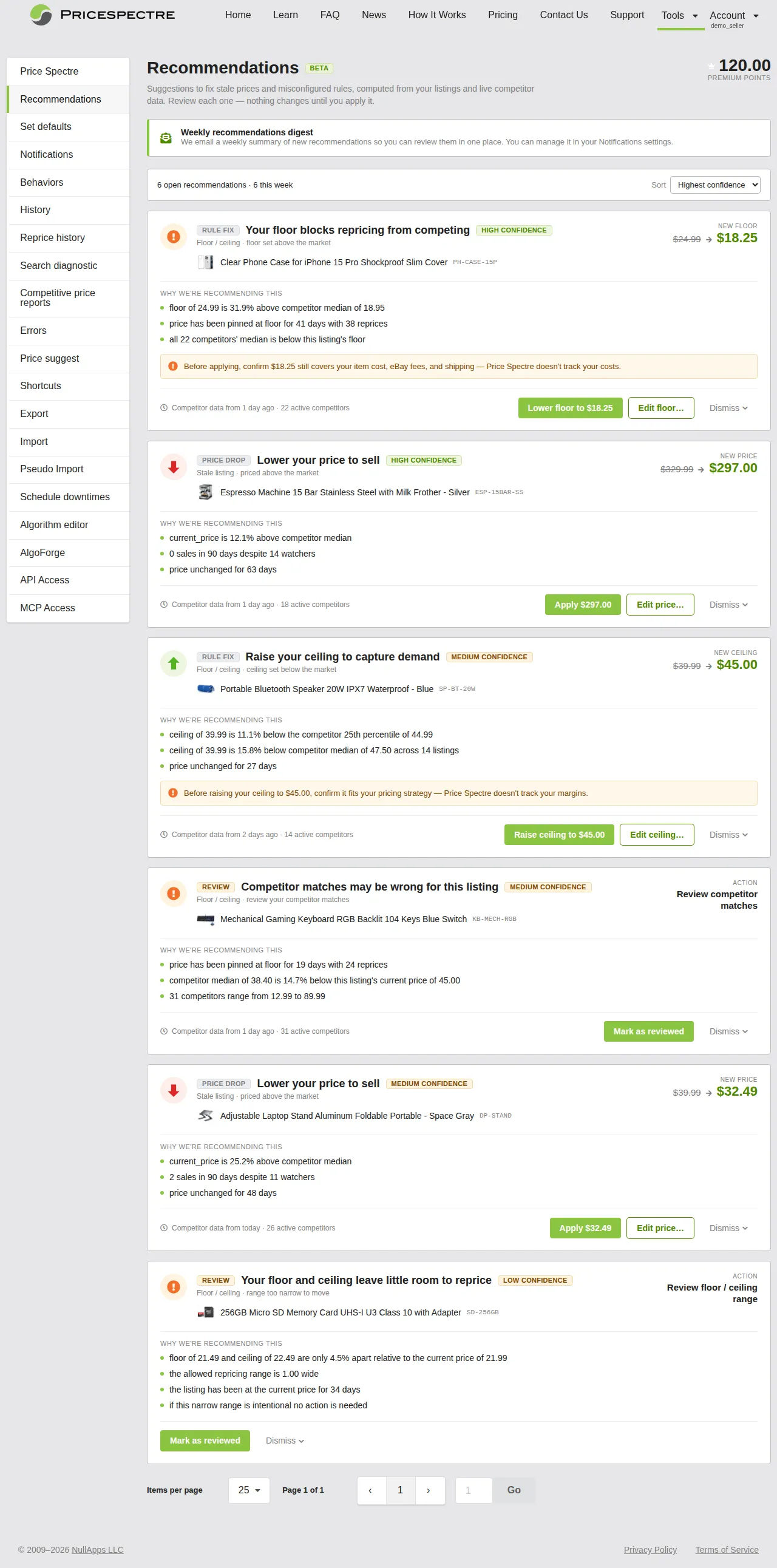
Table of Contents
- What AI Recommendations Are
- Opening the Recommendations Page
- Recommendation Types
- Reading a Recommendation Card
- Acting on a Recommendation
- Sorting and Paging
- The Weekly Digest Email
- How Recommendations Fit with Your Other Settings
- Tips and Best Practices
- Frequently Asked Questions
- Related Guides
What AI Recommendations Are
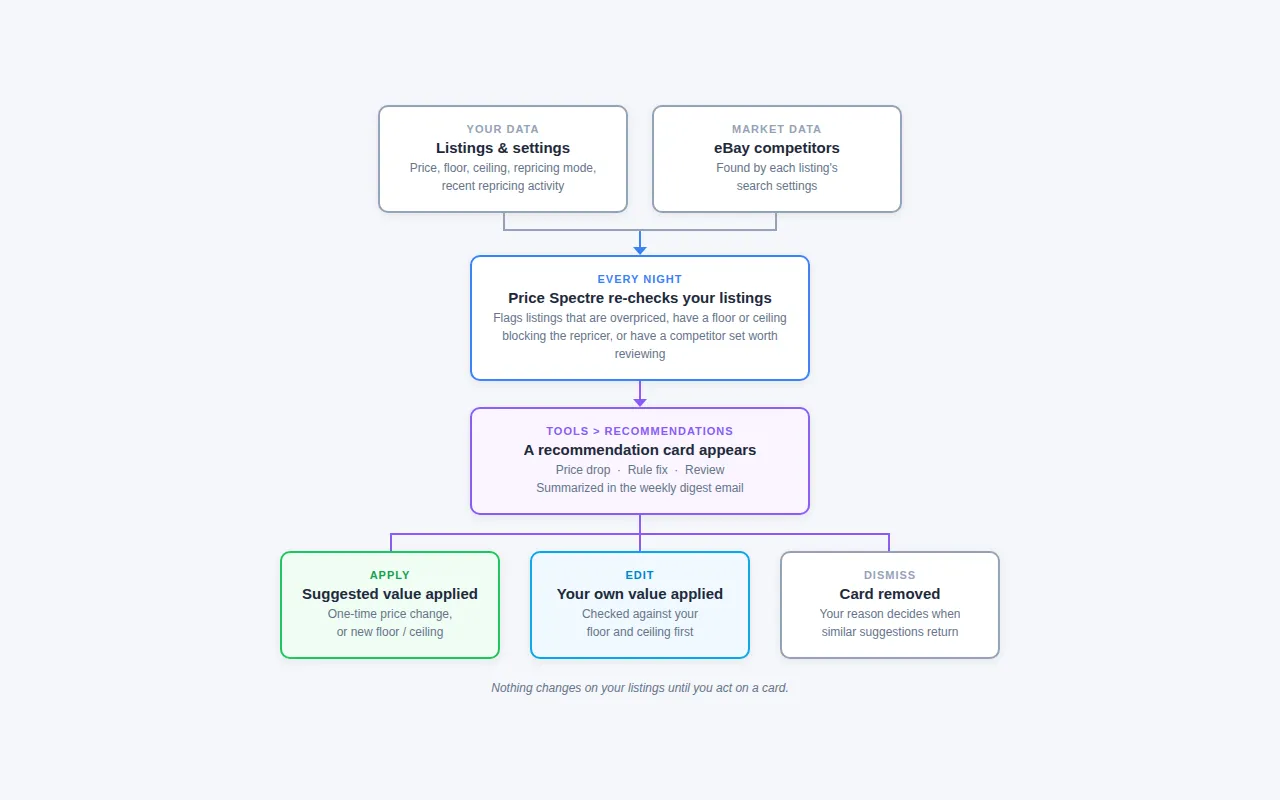
Price Spectre re-checks your listings every night. It compares each listing's current price, floor, ceiling, and recent repricing activity against the competitors your search settings find on eBay. When a listing stands out, for example because it has sat well above the competitor median for a long time or because its floor sits above the competitor median, Price Spectre writes a recommendation that explains what it found and what it suggests you do.
A few principles apply to every recommendation:
- Suggestions only. Price Spectre never applies a recommendation for you. For price drops and rule fixes, you choose whether to apply, edit, or dismiss the suggestion. Review cards have no value to apply, so you mark them as reviewed or dismiss them.
- Grounded in your data. Every number on a card, including prices, competitor counts, and days listed, comes from your listing and the competitor data Price Spectre already collects for it.
- A short list. You get a limited number of recommendations, focused on the listings where a change is most likely to matter. Price Spectre skips listings where the fix would be trivial or where the data is too thin to support a suggestion.
- Gradual rollout. AI Recommendations is being enabled for accounts gradually. If you don't see Recommendations in the Tools menu, the feature isn't enabled on your account yet.
AI Recommendations vs. Price Suggest
Price Spectre also has a Price Suggest page. The two features are separate:
AI Recommendations (Tools > Recommendations) |
Price Suggest (Tools > Price suggest) |
|
|---|---|---|
| What produces it | A review of the listing against the market and your settings | Your own algorithm, floor, ceiling, and filters during a manual repricing pass |
| What it can suggest | A lower price, a floor or ceiling change, or a setting to review | A new price only |
| Which listings | Manual- and Automatic-mode listings (depending on the type) | Manual-mode listings only |
| How often | New recommendations are added weekly | Every repricing pass on a Manual-mode listing |
If you are looking for the queue of prices your algorithm produced for Manual-mode listings, see the Price Suggestions & Price Recommendation Guide.
Opening the Recommendations Page
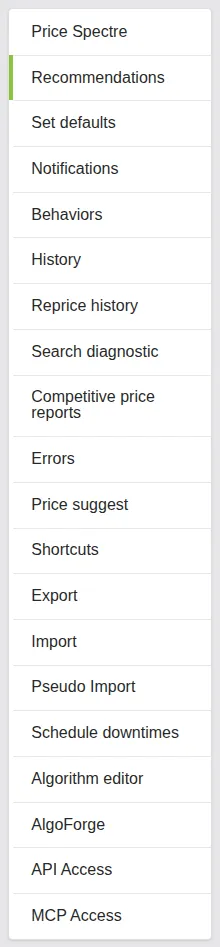
- Sign in and go to Tools > Recommendations.
- The page loads your open recommendations for the currently selected eBay account.
- Scroll through the cards, or change the sort order from the toolbar above the list.
The top of the page contains:
- The page title and a Beta badge, followed by a one-line description: "Suggestions to fix stale prices and misconfigured rules, computed from your listings and live competitor data. Review each one — nothing changes until you apply it."
- Your Premium points balance in the top-right corner, for reference. The balance appears once your account details have loaded, so you may not see it if you open this page directly (for example, from a digest email link) before visiting another page.
- The Weekly recommendations digest banner, which reminds you that a summary is emailed each week and can be managed from your Notifications settings.

If no eBay account is linked, the page shows eBay Account Required with a button that takes you to link one. See Linking & Managing eBay Accounts.
Recommendation Types
Each card has a short badge that tells you what kind of recommendation it is. The same badges appear in the weekly digest email.
Price Drop
Badge: PRICE DROP · Headline: "Lower your price to sell"
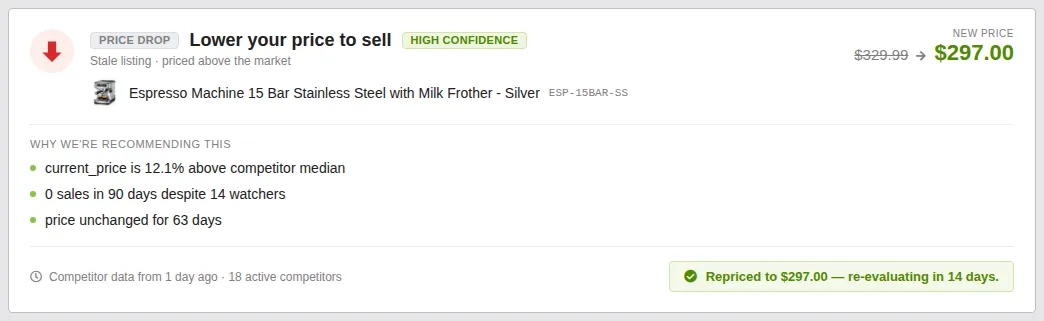
A price drop recommendation flags a listing that has been live for a while and is priced noticeably above the competitor median. When sales history is available for the listing, Price Spectre also takes into account whether it has been selling, and the card's "Why" bullets say so. The card suggests a lower price that still falls between your floor and ceiling.
Price drops appear only for listings in Manual repricing mode. Applying one is a one-time price change. It doesn't change your algorithm, floor, or ceiling. (For a listing on Automatic repricing, the next reprice would simply overwrite a one-time change, so Price Spectre doesn't offer price drops there.)
Rule Fix
Badge: RULE FIX
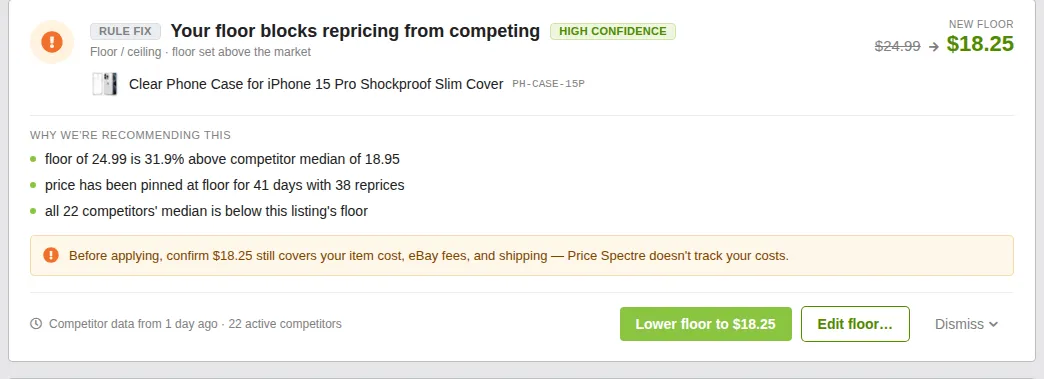
A rule fix recommendation means the listing's floor or ceiling is keeping the repricer from doing its job. The card suggests a new floor or ceiling value. The headline tells you which problem Price Spectre found:
| Headline | What it means |
|---|---|
| "Your floor blocks repricing from competing" | Your floor sits above the competitor median, so the repricer can't bring your price down to where most of the market is. |
| "Raise your ceiling to capture demand" | Your ceiling caps the price below most of the market, so you may be leaving money on the table. |
| "Floor and ceiling are too close to reprice" | The gap between floor and ceiling is so small that repricing is effectively disabled. |
| "Your floor is above your current price" | The listing's floor is higher than its live price, which usually means a stale or mistyped floor. |
| "Fix your floor / ceiling configuration" | A general floor/ceiling problem that doesn't fit one of the categories above. |
Every rule fix card includes a cost reminder, because Price Spectre doesn't track your item cost, eBay fees, or shipping. Always confirm that a lower floor still covers your costs before applying it.
Review
Badge: REVIEW
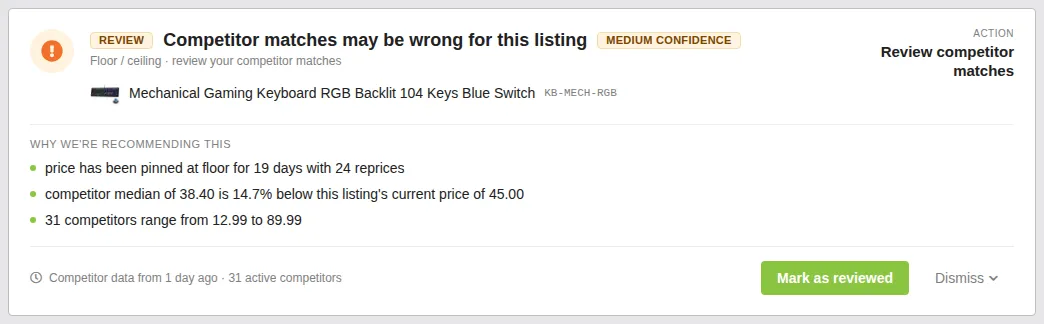
A review recommendation doesn't suggest a price or value. It points out something on the listing that deserves a closer look. Instead of a price change, the card shows an Action such as "Review competitor matches" or "Review floor / ceiling range".
| Headline | What to check |
|---|---|
| "Competitor matches may be wrong for this listing" | The competitor set may include items that aren't really comparable. |
| "Competitor matches may include incomplete items" | The competitor set may include parts-only, accessory, or otherwise incomplete listings that drag the market price down. |
| "One very low competitor may be skewing the market" | A single outlier priced far below everyone else may be pulling your price down. |
| "Your floor and ceiling leave little room to reprice" | Your floor/ceiling range is narrow enough that the repricer has almost no room to move. |
Review recommendations appear only for listings in Automatic repricing mode, because they concern what the repricer is tracking.
For competitor-match reviews, open the Search Diagnostic for the listing to see which competitors were kept and which filter rule rejected the others, then tighten your include/exclude keywords or seller lists. The Search Console then shows how those changes affect the candidate price.
Reading a Recommendation Card
Every card has the same layout, top to bottom:
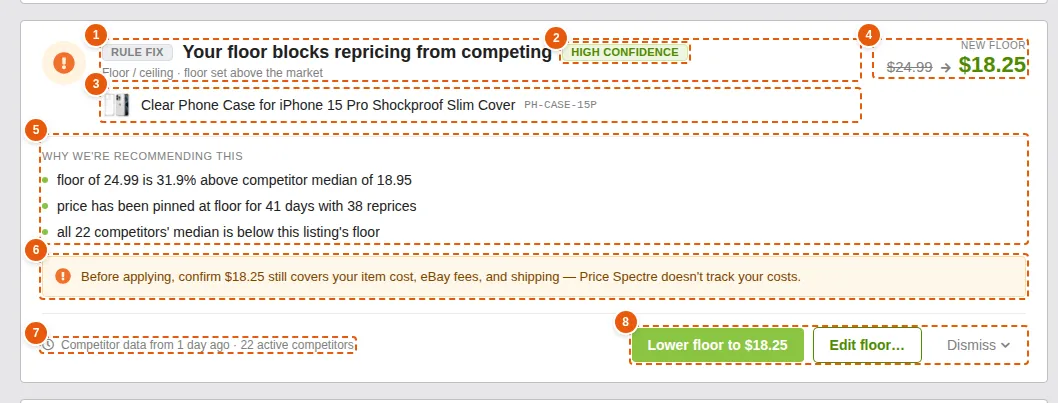
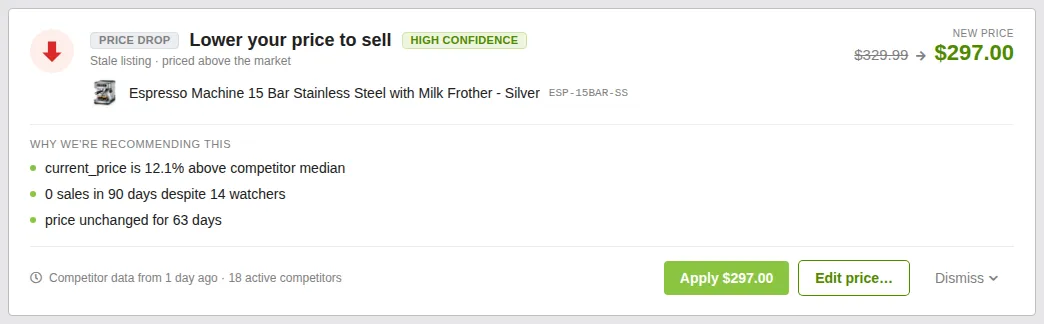
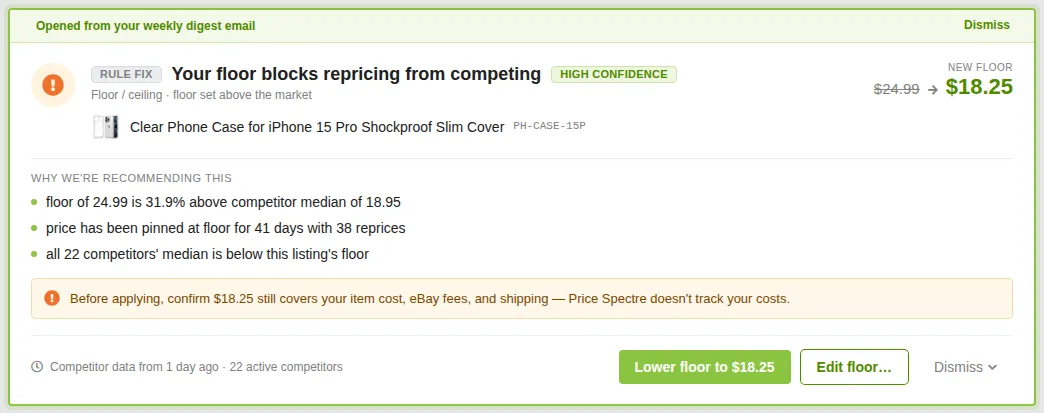
- Badge, headline, and subtitle. The type (PRICE DROP, RULE FIX, or REVIEW), a one-line headline, and a subtitle such as "Stale listing · priced above the market".
- Confidence label. High confidence, Medium confidence, or Low confidence. Higher confidence means the evidence is stronger and more consistent.
- Listing row. The listing's thumbnail, title, and SKU (when set), so you can confirm which item the card is about.
- Change block. For price drops and rule fixes, it shows the current value and the suggested value, for example New price $329.99 → $297.00 or New floor $24.99 → $18.25. For review recommendations, this block shows the Action to take instead.
- "Why we're recommending this." A short bullet list of the facts behind the suggestion, such as how far the price sits above the competitor median, how many competitors were found, and how long the price has been unchanged.
- Cost reminder (rule fixes only). For example: "Before applying, confirm $18.25 still covers your item cost, eBay fees, and shipping — Price Spectre doesn't track your costs."
- Footer (when competitor data is used). How fresh the competitor data is and how many competitors it covers, for example "Competitor data from 1 day ago · 22 active competitors". Recommendations based only on your own floor and ceiling settings, such as "Floor and ceiling are too close to reprice", don't use competitor data and have no footer.
- Actions. Apply, Edit…, and Dismiss (or Mark as reviewed and Dismiss for review cards).
Tip: Read the "Why" bullets before you apply. If a number looks wrong, such as a competitor count that seems too high or a median that doesn't match what you see on eBay, dismiss the card with The data looks wrong rather than applying it.
Acting on a Recommendation
Applying a Recommendation
The primary button applies the suggested value exactly as shown. Its label spells out what it will do:
| Type | Button label (example) | What happens |
|---|---|---|
| Price drop | Apply $297.00 | Your eBay listing is repriced once to $297.00. Your algorithm, floor, and ceiling are unchanged. |
| Rule fix (floor) | Lower floor to $18.25 | The listing's floor is updated to $18.25. |
| Rule fix (ceiling) | Raise ceiling to $45.00 | The listing's ceiling is updated to $45.00. |
| Rule fix (both) | Apply new floor & ceiling | Both the floor and the ceiling are updated together. |
To apply a recommendation:
- Read the card's "Why" bullets and, for rule fixes, the cost reminder.
- Click the primary button.
- Wait for the Recommendation applied. confirmation. The card updates to show what changed.
Editing the Suggested Value
If you agree with the direction but not the exact number, use the edit button instead: Edit price…, Edit floor…, or Edit ceiling….
- Click the edit button on the card.
- The edit dialog opens with the suggested value already filled in. Below the field, a reminder shows your listing's current limits, for example "Floor $250.00 · Ceiling $400.00 — your new price must sit between them."
- Enter your own value.
- Click Apply changes.
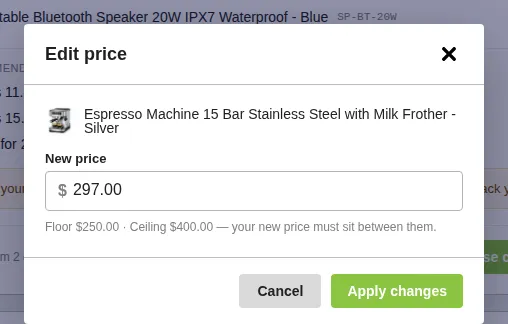
The dialog checks your value before it's submitted and shows a message if it doesn't fit:
- "Price must be at or above the floor of $250.00."
- "Price must be at or below the ceiling of $400.00."
- "Floor must be below the ceiling of $45.00."
- "Ceiling must be above the floor of $18.25."
- "Enter a valid amount greater than $0.00."
Editing isn't available when a recommendation changes both the floor and the ceiling at once. Apply it as suggested, or dismiss it and adjust both values from the Price Spectre tool page.
Marking a Review as Reviewed
Review cards have no value to apply. Once you have checked the listing's competitor matches or floor/ceiling range and made any changes you want, click Mark as reviewed. The card updates to "Marked as reviewed." This action doesn't change anything on the listing itself.
Dismissing a Recommendation
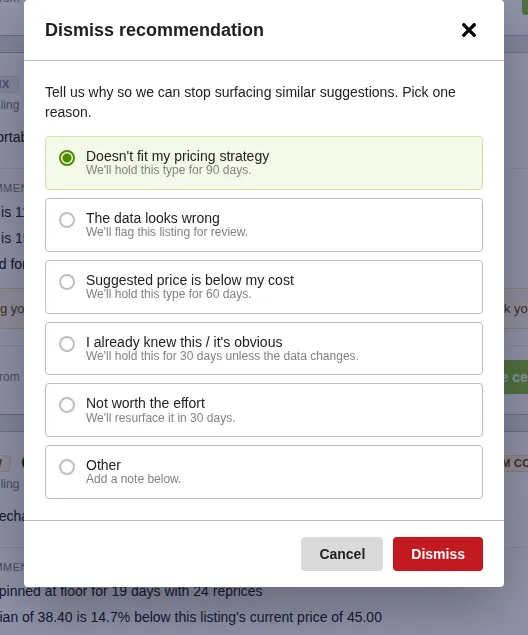
If a recommendation isn't right for you, dismiss it and say why. Your reason tells Price Spectre which suggestions to stop showing you.
Click Dismiss on the card.
Pick exactly one reason. Each one shows what happens next:
Reason What happens Doesn't fit my pricing strategy We'll hold this type for 90 days. The data looks wrong We'll flag this listing for review. Suggested price is below my cost We'll hold this type for 60 days. I already knew this / it's obvious We'll hold this for 30 days unless the data changes. Not worth the effort We'll resurface it in 30 days. Other Add a note below (optional, up to 200 characters). Click Dismiss in the dialog. The card is removed from the list and you see Recommendation dismissed.
Card States After You Act
When you apply a recommendation or mark it as reviewed, the card stays on the page and shows a confirmation instead of action buttons:
| Confirmation | Meaning |
|---|---|
| "Repriced to $297.00 — re-evaluating in 14 days." | A price drop was applied. Price Spectre looks at the listing again after 14 days. |
| "Floor lowered to $18.25." / "Ceiling raised to $45.00." | A rule fix was applied. The verb reflects the value you actually applied. |
| "Marked as reviewed." | A review card was acknowledged. |
When you dismiss a recommendation, its card is removed from the list right away.
The list itself only shows recommendations that are still open. If you open a recommendation from an older digest email after it's been handled or has gone stale, its card shows one of these labels instead of action buttons:
| Label | Meaning |
|---|---|
| Dismissed | The recommendation was dismissed. |
| Expired | The recommendation is too old to act on safely, because the market may have moved since it was written. |
| No longer available | The recommendation no longer applies to the listing. |
Sorting and Paging
The toolbar above the list shows two counts, for example "4 open recommendations · 6 this week". The first number counts the open recommendations on the page you're viewing. The second is the total number of recommendations still awaiting action across all pages. Use the Sort dropdown to reorder the list:
- Highest confidence: the strongest suggestions first (default).
- Newest first: the most recently added recommendations first.
- Largest price gap: the biggest difference between the current and suggested value first.
Page controls at the bottom of the list let you move through larger sets of recommendations.

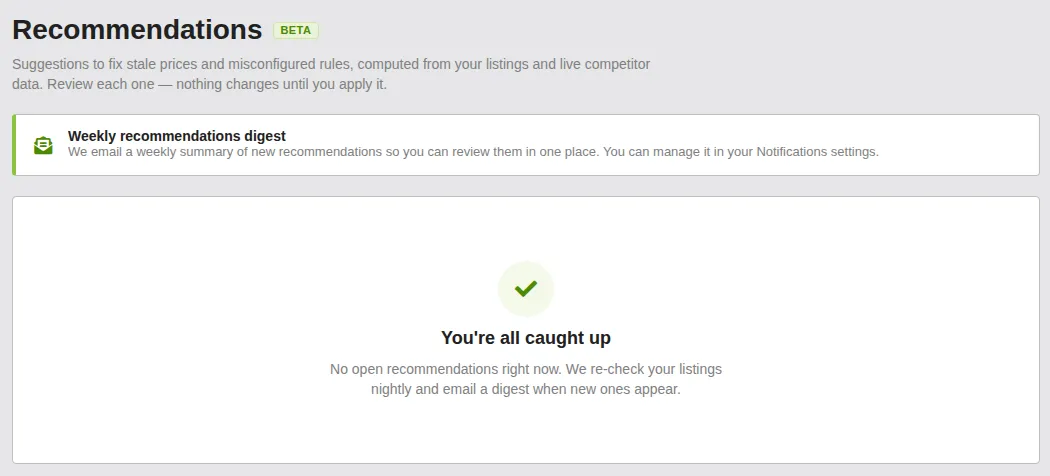
When nothing is left to review, the page shows You're all caught up: "No open recommendations right now. We re-check your listings nightly and email a digest when new ones appear."
The Weekly Digest Email
Once a week, Price Spectre emails a summary of your new recommendations so you can review them in one place. The digest:
- Is sent only when there is at least one new recommendation. You never get an empty digest.
- Has a subject line such as "Alex, 3 pricing opportunities found this week".
- Shows a short summary strip (opportunities, rule fixes, price drops, and items to review), then lists the recommendations with rule fixes and review items first, followed by price drops.
- Shows up to 10 recommendations, with a link to view the rest on the Recommendations page.
- Never applies a change. Each item has a Review & decide link that opens that recommendation's card on the Recommendations page.
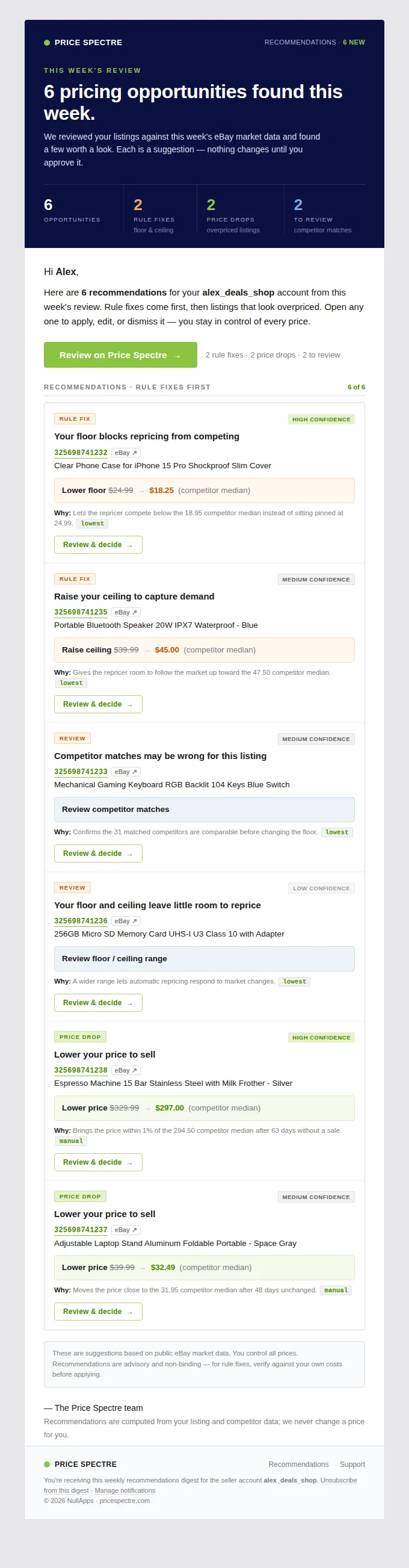
When you open a recommendation from the digest, its card is highlighted and scrolled into view with a banner that reads "Opened from your weekly digest email." Click Dismiss on that banner to clear the highlight. (This doesn't dismiss the recommendation itself.)
Turning the Digest On or Off
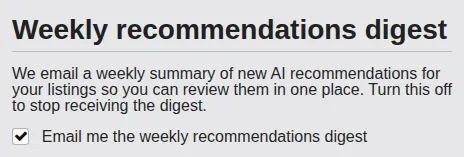
The digest is on by default. To change it:
- Go to Tools > Notifications.
- Find the Weekly recommendations digest section.
- Check or uncheck Email me the weekly recommendations digest.
- Click Submit to save your notification settings.
You can also click Unsubscribe from this digest at the bottom of any digest email. You'll be asked to confirm before you're unsubscribed. Unsubscribing affects only the weekly recommendations digest. Your other Price Spectre notifications are unchanged, and you can turn the digest back on from the Notifications page at any time.
Note: The Recommendations frequency setting elsewhere on the Notifications page controls emails for Price Suggest recommendations on Manual-mode listings. It is separate from the weekly AI recommendations digest.
How Recommendations Fit with Your Other Settings
- Reprice History. An applied price drop is recorded as a manual reprice, so it appears in the listing's Reprice History alongside your other price changes.
- Floor and ceiling. An applied rule fix changes the listing's stored floor or ceiling, just as if you had edited it on the Price Spectre tool page. Future reprices use the new value.
- Repricing mode. Price drops apply only to Manual-mode listings, and review recommendations only to Automatic-mode listings. If you switch a listing's mode after a recommendation is created, a recommendation that no longer fits drops off the list.
- Ended or unmanaged listings. Recommendations for listings that have ended or are no longer managed are removed.
- Account defaults. Recommendations never change your account-wide defaults. If the same floor problem keeps appearing across many listings, review your Account & Listing Defaults.
Tips and Best Practices
- Handle rule fixes first. A floor that blocks the repricer affects every reprice on that listing, while a price drop is a one-time change. The digest lists rule fixes and review items ahead of price drops for this reason.
- Check your costs before lowering a floor. Price Spectre doesn't know your item cost, eBay fees, or shipping. The cost reminder on every rule fix card is there because those numbers matter.
- Use Edit rather than Dismiss when only the number is wrong. If you agree a floor is too high but want $20.00 instead of $18.25, edit it. Save dismissals for recommendations whose premise you disagree with.
- Pick the most accurate dismiss reason. The reason determines how long similar suggestions stay hidden, so an accurate choice keeps your list relevant.
- Follow review cards with the Search Diagnostic. Review recommendations are usually a matching problem. The Search Diagnostic shows exactly which competitors are kept and why.
- Check back weekly. New recommendations arrive weekly and older ones expire. The digest email is the easiest reminder.
Frequently Asked Questions
Will AI Recommendations change my prices automatically?
No. Every recommendation requires you to click Apply, Apply changes, or Mark as reviewed. Price Spectre never applies one on its own, and the weekly digest email has no apply button. It only links to the card.
I don't see Recommendations in my Tools menu. Why?
AI Recommendations is being enabled for accounts gradually. If the menu item isn't there, the feature isn't enabled on your account yet. The Weekly recommendations digest setting on the Notifications page appears only on accounts where the feature is enabled.
Why do I only have a few recommendations?
Price Spectre intentionally keeps the list short, focusing on the listings where a change is most likely to matter. For recommendations that depend on market prices, it skips listings with too few competitors to judge. It also skips listings where the change would be trivial, and suggestions you recently dismissed or applied.
A recommendation disappeared or says "No longer available." What happened?
Something about the listing changed after the recommendation was written. For example, it ended, was unmanaged, or switched between Manual and Automatic repricing. Recommendations also expire after a while because the market moves, and an old suggestion may no longer be accurate.
I clicked Apply on a price drop and got "This listing is on automatic repricing, so a one-time price change would be overwritten on the next reprice." What should I do?
The listing was switched to Automatic repricing after the recommendation was created. A one-time price change would be undone by the next automatic reprice, so it can't be applied. Either switch the listing back to Manual mode, or adjust its floor and algorithm so the repricer reaches the price you want on its own.
Does Price Spectre know my costs or margins?
No. Recommendations are based on your listing's price, floor, ceiling, repricing activity, and competitor data. Price Spectre doesn't know what an item cost you, and it doesn't track your fees or shipping. Always confirm a lower price or floor still works for you before applying it.
How is this different from Price Suggest?
Price Suggest shows the price your own algorithm produced for a Manual-mode listing and waits for you to approve it. AI Recommendations looks at the listing against the market and can suggest a price drop, a floor or ceiling fix, or something to review. See AI Recommendations vs. Price Suggest above.
Do recommendations cost Premium points?
No. When your Premium points balance appears on the Recommendations page, it's there for reference only. Applying a recommendation doesn't use Premium points.
How do I stop the weekly digest email?
Uncheck Email me the weekly recommendations digest on the Notifications page and click Submit, or use the Unsubscribe from this digest link in any digest email. See Turning the Digest On or Off.
Related Guides
- Price Spectre Tutorial — the end-to-end onboarding guide; start here if you are new.
- Price Suggestions & Price Recommendation — approve the prices your own algorithm produces for Manual-mode listings.
- Search Diagnostic — see which competitors a listing kept and which filter rule rejected the rest.
- Search Console — preview the candidate price your current search filters would produce.
- Reprice History — find applied price drops recorded as manual reprices.
- Account & Listing Defaults — fix floor and ceiling problems at the source for new listings.