
Price Spectre Competitive Price Reports
Competitive Price Reports turn the latest competitive pricing information for your managed listings into a single, downloadable document you can read offline, share with a teammate, or analyze in a spreadsheet. This guide explains when to generate one, how to choose between the PDF, CSV, and XLSX formats, how to track a report's progress, and how to use a finished report as part of your weekly pricing routine.
If you have not yet linked your eBay account or set any listings to managed mode, work through the Tutorial first — reports are populated from your most recent reprice data, so they only contain useful information once Price Spectre is actively repricing your listings.
Table of Contents
- Introduction
- When to Use a Report
- Generating a Report
- Choosing a Format
- Tracking Report Status
- Downloading and Reading a Report
- Daily Limits and Notifications
- Workflow Recipes
- Troubleshooting
- Related Guides
Introduction
A Competitive Price Report is a point-in-time document covering every managed listing on your account. For each listing, the report rolls up the most recent competitive information that Price Spectre saw during repricing — your current price alongside the prices of the top competitors that were considered. The result is a single file you can open without logging in: read it on the train, email it to a colleague, drop it into a shared drive, or pull it into a spreadsheet for ad-hoc analysis.
Reports are deliberately different from the other competitive views in Price Spectre:
- The Search Console shows a live competitor set for one listing right now. Use it to investigate or tune a single item.
- The Reprice History shows the sequence of repricing actions for one listing over time. Use it to audit decisions.
- A Competitive Price Report shows a snapshot across all of your managed listings. Use it when you want breadth, not depth — and when you want it offline.
Information in a report comes from each listing's most recent reprice. If a listing has not been repriced recently — for example, because you just imported it, because it sits below its floor, or because repricing is paused via Schedule Downtimes — the report reflects that.
Note: Reports are generated on demand. They are not a real-time feed; they are a static document for the moment you generate them.
When to Use a Report
Reports earn their place in a few specific situations:
- Weekly competitive review. Generate a fresh report each Monday and skim it over coffee. Look for listings where your price is far from the top competitors, listings where the competitor set has thinned out, and listings that have drifted to floor or ceiling.
- Sharing with a teammate or client. Not everyone on your team has — or needs — a Price Spectre login. A PDF is easy to attach to an email or post in a chat. An XLSX is easy to drop into a shared drive.
- Pre-sale or pre-promotion snapshot. Before launching a sale, generate a report and archive it. After the sale, generate another. The two snapshots make it easy to see what shifted in the market while you were promoting.
- Spreadsheet analysis. When you want to pivot, sort, or chart the data — for example, to find every listing where your current price is more than 10% above the lowest competitor — export to CSV or XLSX and let a spreadsheet do the heavy lifting.
- Audit trail. Some sellers archive a weekly report as a record of what the market looked like. If a customer or marketplace ever asks why you priced something a certain way on a given date, the archived report is your evidence.
If your goal is to act on individual listings (accept a suggestion, change an algorithm, retune a search), stay inside Price Spectre and use Price Suggestions, the Search Console, or the listing detail view. Reports are for stepping back, not stepping in.
Generating a Report
Opening the Page
From the main navigation, choose Tools → Competitive price reports. The page opens to a single screen with a generation panel at the top and a list of past reports below it.
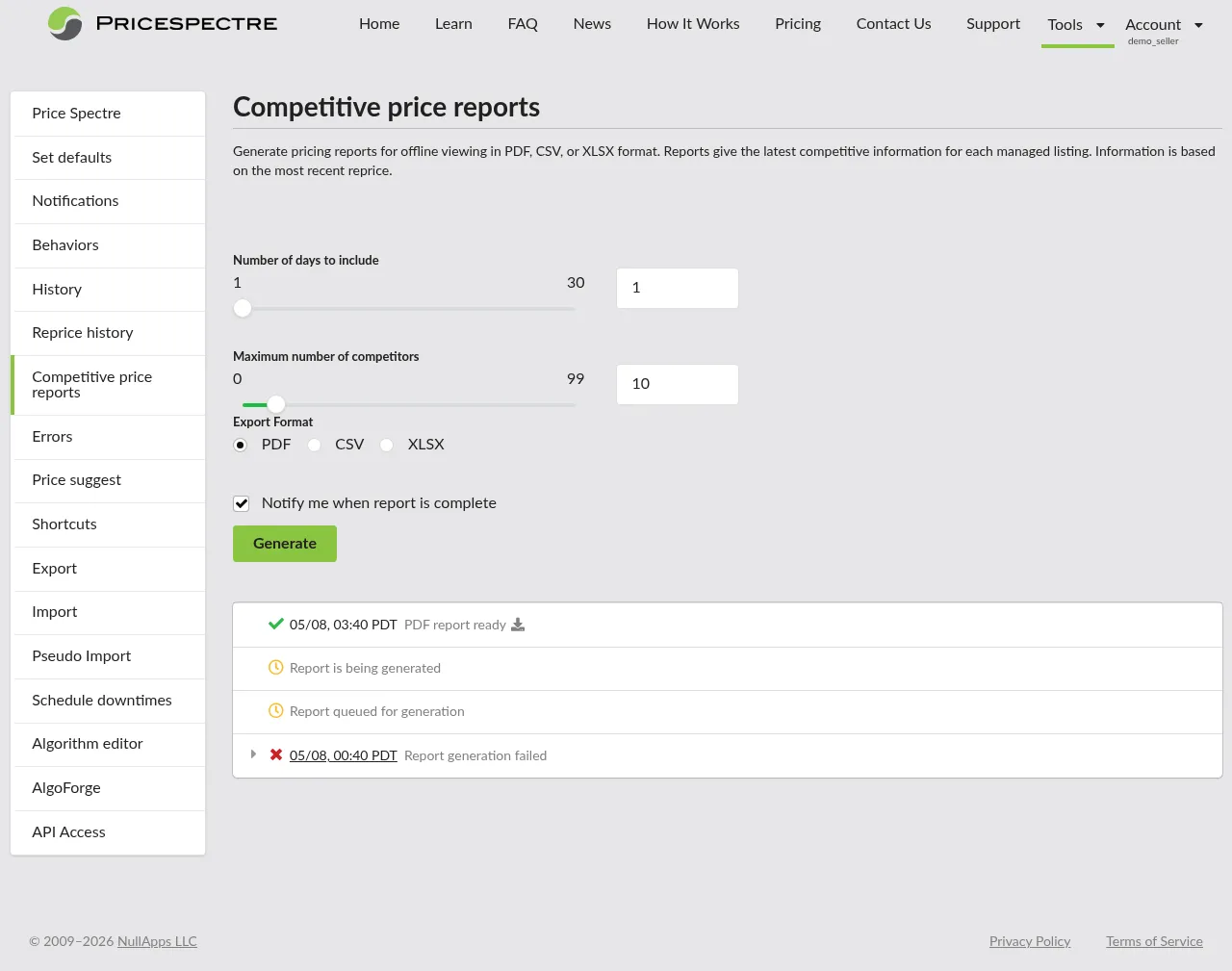
The introductory text at the top of the page summarises what the feature does:
Generate pricing reports for offline viewing in PDF, CSV, or XLSX format. Reports give the latest competitive information for each managed listing. Information is based on the most recent reprice.
The Three Controls
You configure each report with three inputs: two numeric controls and a format selector. The two numeric controls have a slider plus a numeric field, so you can drag for speed or type for precision. The format selector is a set of radio buttons.
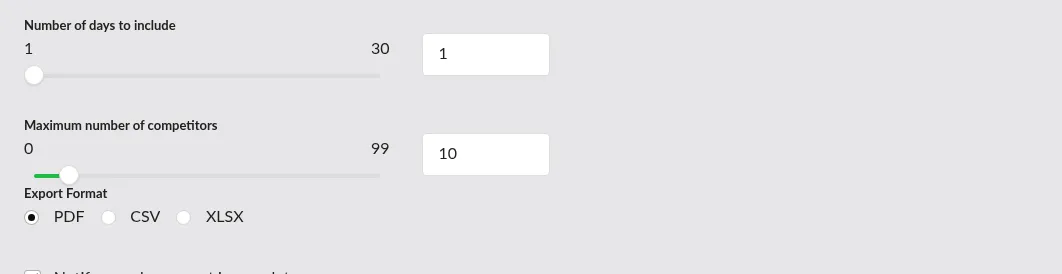
- Number of days to include (1–30, default 1) — how far back to draw competitive data from. Set this to 1 to capture only the most recent reprice for each listing — the freshest possible view. Set it higher when you want a broader window; for example, choose 7 for a weekly review so listings that did not reprice in the last 24 hours still appear with whatever data was last seen for them.
- Maximum number of competitors (0–99, default 10) — how many competitor entries to include per listing in the report. The default of 10 is a good balance: enough to see the shape of the market without overwhelming the page. Drop it to 3 for a one-page-per-listing PDF that is easier to read; raise it to 25+ when you want a wider competitor field for spreadsheet analysis. Setting it to 0 produces a listings-only report with no competitor detail.
- Export Format (PDF, CSV, or XLSX) — see Choosing a Format below. The default is PDF.
Tip: The two numeric controls multiply each other. A report with 30 days × 99 competitors is dramatically larger than one with 1 day × 10 competitors. If you only need a quick weekly skim, keep both modest.
Notify Me When Complete
Below the controls is a single checkbox: Notify me when report is complete. It is checked by default. With it on, Price Spectre emails you when your report is ready to download — handy for larger reports that take more than a moment to generate. Uncheck it if you plan to keep the page open and watch the status list yourself.
Generating and Queueing
Click Generate to queue the report. You will see a confirmation:
Successfully added new report to queue. Report will be generated shortly.
The report then appears in the list below the controls with a queued status, and the system starts working on it. You can leave the page — the queued report will keep generating, and (if you left the notification checkbox on) you will be emailed when it is ready. You can also start more reports while one is processing, subject to the limits described in Daily Limits and Notifications.
Choosing a Format
Each format is best for a different job. Pick the one that matches what you plan to do with the file.
| Format | Best for | Why |
|---|---|---|
| Reading, sharing, archiving | Looks the same on every screen, prints cleanly, no spreadsheet skills required to open it. The natural choice for a weekly skim or for emailing to a colleague. | |
| CSV | Lightweight spreadsheet analysis, scripting, importing into other tools | Plain text, opens instantly in any spreadsheet, easy to feed into a script or another system. No formatting, no styling — just the data. |
| XLSX | Spreadsheet work in Excel or Google Sheets | Rich Excel format with column widths, headers, and number formatting preserved. Best when your next step is sorting, filtering, or pivoting. |
Tip: If you are not sure, start with PDF. It is the most readable format and works the same everywhere. If you find yourself wishing you could sort or filter, regenerate as XLSX.
Note: All three formats are drawn from the same underlying data. The numbers in a PDF, CSV, and XLSX report generated with the same controls at the same time will match.
Tracking Report Status
Below the generation controls is a list of your recent reports, newest first. Each entry shows a status icon, a one-line label, and the timestamp of when the report was queued.

The statuses you will see are:
- Queued / Processing (yellow clock icon) — "Report queued for generation" or "Report is being generated". Price Spectre is working on the file. Most reports finish in under a minute, but large reports (high day counts, many competitors, many listings) can take longer.
- Ready (green checkmark) — "[PDF/CSV/XLSX] report ready". A download icon appears next to the title. Click it to save the file. The report stays in the list so you can re-download it later without regenerating.
- Failed (red X icon) — "Report generation failed". The report was not created successfully. See Troubleshooting for what to do next.
Timestamps show in your local timezone. The list does not refresh on its own while you watch it — reload the page (or revisit it later) to see updated statuses, or rely on the notification email if you left that option checked.
Tip: If you generate several reports in a row with different controls, give each one a moment to finish before queueing the next. The timestamp helps you tell them apart in the list.
Downloading and Reading a Report
When a report's status flips to ready, a download icon appears next to its label in the list.

Click the download icon to save the file. Your browser will save it under the report's format extension (.pdf, .csv, or .xlsx) — rename it on disk if you like; the contents are unchanged. Past reports remain in the list, so you can re-download an earlier one without regenerating it.
What's in the Report
At a high level, every format contains the same information, organised one row per managed listing:
- Your listing — title, identifier, and your current price.
- Top competitors — up to the Maximum number of competitors you selected, in price order. Each competitor row shows the competitor's price and the basic information Price Spectre saw for them at the time of the most recent reprice.
- Position summary — how your price compares to the competitor field at a glance.
In the PDF, each listing is rendered as a mockup of what the Search Console would have looked like for that listing at the time of its most recent reprice — your listing at the top, the competitor field laid out below it, designed to read top-to-bottom and to feel familiar if you already use the live Search Console. In the CSV and XLSX, the same underlying data is flattened into rows and columns so a spreadsheet can sort, filter, and pivot it.
Note: The PDF is a snapshot of the Search Console at reprice time, not a live view. If you want the current state for a single listing, open the Search Console inside Price Spectre.
Tips for Reading a CSV or XLSX
- Open CSVs in Excel or Google Sheets, not a plain text editor. A spreadsheet is what makes the data useful.
- Freeze the header row so it stays visible as you scroll. In Excel: View → Freeze Top Row. In Google Sheets: View → Freeze → 1 row.
- Sort by your price minus the lowest competitor price to surface listings where you are far above market — usually the most interesting outliers.
- Filter by listing identifier or title to focus on a category or product family.
- Pivot on competitor count to see which of your listings have thinned-out competition, where small price changes can have a big effect.
Tip: If you plan to repeat the same analysis every week, save your spreadsheet manipulations as a template. Generate the report, paste the new data into the template, and your charts and pivots update automatically.
Daily Limits and Notifications
The PDF Daily Limit
PDF reports are limited to one per 24 hours per account. CSV and XLSX have no daily limit — you can generate as many of those as you need.
The PDF limit exists because PDFs are noticeably heavier to render than the spreadsheet formats. In practice the limit rarely gets in the way: most sellers want at most one PDF per day for their weekly read or to share with a teammate, and CSV/XLSX cover everything else.
When you have already generated a PDF in the last 24 hours, the page shows a notice:
You are permitted one PDF report per 24 hours. Daily report limit reached.
The Generate button stays usable for CSV and XLSX even when PDF is locked out. The PDF option becomes available again 24 hours after your last PDF was queued.
Tip: If you need a fresh PDF and your daily PDF is gone, generate an XLSX with the same controls. The data is identical; you can read the XLSX immediately and export it to PDF from your spreadsheet program if a PDF is what you need to share.
The Notification Email
If you left Notify me when report is complete checked, Price Spectre sends an email when your report is ready. The email simply tells you the report has finished — the file itself is downloaded from the report list inside Price Spectre, not attached to the email. This keeps your reports tied to your account and avoids large email attachments.
To stop receiving these notifications, uncheck the box before clicking Generate. The setting applies per report, so you can mix-and-match — for example, request notifications for a slow XLSX while skipping them for a quick CSV.
Workflow Recipes
A few patterns sellers find useful. Treat these as starting points, not rules.
Monday Morning Competitive Review
- First thing Monday, open Tools → Competitive price reports.
- Set Number of days to include to 7 so listings that did not reprice over the weekend still appear.
- Set Maximum number of competitors to 10.
- Choose PDF, leave the notification checkbox on, and click Generate.
- While it generates, review your Price Suggestions and any new listings.
- When the email arrives, open the PDF, skim for outliers, and jot down listings you want to revisit later in Price Spectre itself.
Pre-Sale and Post-Sale Snapshots
- The day before a planned sale, generate an XLSX with 1 day and 10 competitors. Save it as
pre-sale-YYYY-MM-DD.xlsx. - The day after the sale ends, generate the same configuration and save it as
post-sale-YYYY-MM-DD.xlsx. - In a new spreadsheet, paste both reports side-by-side or join them on the listing identifier. Calculate the change in your price, the change in lowest competitor price, and the change in competitor count for each listing.
- Use the result to decide which listings actually moved the market and which were noise.
Export-to-Pivot in Excel
- Generate an XLSX report with 30 days and 25 competitors — wide enough to give the pivot something to chew on.
- In Excel, select the data and choose Insert → PivotTable.
- Drop your listing identifier into Rows, the competitor count into Values (Average), and the price-gap-to-lowest-competitor into a second Values column.
- Sort the pivot by gap, descending. The top of the list is where there is the most opportunity (or risk).
Quarterly Audit Archive
- Once a quarter, generate a PDF with 30 days and 10 competitors.
- Save it as
pricespectre-snapshot-YYYY-Q#.pdfin a shared archive folder. - The next time someone asks "what did our competitive position look like in Q2?", you have a single, self-contained document to point at.
Troubleshooting
A Report Failed
When a report's status is failed, the entry in the list expands to show error details. Each detail row points at the listing or row that caused the problem and explains what went wrong. Common causes:
- A listing was modified or removed mid-generation. Regenerate the report — it usually succeeds on the next attempt.
- An unusually large input combined with many listings. Try lowering Number of days to include or Maximum number of competitors and regenerate.
- A transient error. Wait a minute and try again.
If a report fails repeatedly with the same error, capture the error text and contact support.
The Report Looks Empty
If a report has very few rows, or rows with no competitor data, the most likely explanations are:
- No listings are managed yet. Reports only include managed listings. If most of your listings are unmanaged, switch some to managed in Price Spectre and let them reprice at least once before generating a report.
- Listings have not repriced recently. The report draws on each listing's most recent reprice. A listing imported five minutes ago, or one whose repricing is paused via Schedule Downtimes, will not have fresh data to contribute.
- Repricing is unable to find competitors. Listings whose searches return no competitors will appear in the report with no competitor rows — that is the correct behaviour, not a bug. The Search Console is the right tool for tuning the search filters on those listings.
Numbers Don't Match What I See in Price Spectre
A report is a snapshot of the most recent reprice for each listing, taken at the moment the report was generated. The numbers you see live in Price Spectre may be slightly newer (a reprice ran after the report was generated) or, occasionally, slightly older (for a listing that has not repriced since the report was queued). This is expected. Generate a fresh report when you want the latest snapshot.
The Report Is Taking a Long Time
Large inputs make for large reports. 30 days × 99 competitors across thousands of listings produces a noticeably bigger file than 1 day × 10 competitors across the same listings. If a report seems stuck:
- Check that the status is still processing, not failed.
- Leave the page — generation continues in the background, and the notification email will tell you when it is ready.
- If you eventually need a faster alternative, regenerate with smaller numbers (fewer days, fewer competitors) and use that one for now.
I Can't Generate a PDF Right Now
PDF reports are limited to one per 24 hours per account. If you have already generated a PDF in that window, the page will say:
You are permitted one PDF report per 24 hours. Daily report limit reached.
CSV and XLSX have no daily limit, so generate one of those formats in the meantime — the data is identical. The PDF option becomes available again 24 hours after your last PDF was queued. See Daily Limits and Notifications for details.
Related Guides
- Tutorial — start here if you have not yet linked your eBay account or set listings to managed mode. Reports rely on having managed listings that have been repriced.
- Pseudo Import — for research on items you do not list yet. Reports cover what you sell today; Pseudo Import covers what you might sell tomorrow.
- Reprice History — drill into a specific listing's repricing decisions. Reports tell you what the market looks like; Reprice History tells you why a particular price was chosen.
- Search Console — live competitor view for one listing. Use it to investigate any listings that look surprising in a report.
- Price Suggestions — the manual repricing workflow. Pair with reports for a "review then act" rhythm.
- Import and Export — when a report reveals a pattern across many listings, the bulk Import/Export workflow is the fastest way to apply changes.
- Schedule Downtimes — explains why a listing might have stale data in a report (its repricing is paused by a scheduled downtime).